
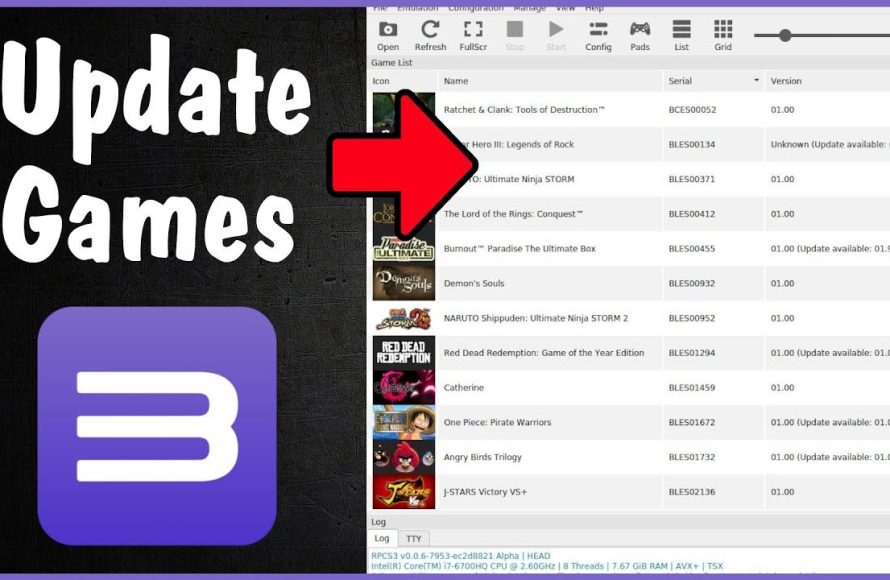
To update games in RPCS3, you typically need to obtain the game updates separately as PKG files and then install them using the emulator’s ‘File’ menu and ‘Install Packages/Raps/Edats’ option.
Want to keep playing your favorite Playstation 3 games with the latest fixes and content? Many users ask about how to update games rpcs3. It’s a common step when setting up the emulator for the best experience.
Updating your games isn’t too hard if you know where to find the files. This process mostly involves getting the correct update files and then using the emulator to install them. We’ll explain the procedure very simply.

How to Update Games on RPCS3: A Comprehensive Guide
Keeping your games up-to-date is super important, even when you’re playing them on an emulator like RPCS3! Just like your phone or computer, games get updates that fix problems, add new things, or just make them run better. For RPCS3, updating games is a little different than on a real PlayStation 3, but it’s not hard once you know how. This guide will show you everything you need to know about updating games on RPCS3.
Why Update Games on RPCS3?
You might be thinking, “Why even bother updating games on an emulator?” Well, here’s why:
- Fixing Bugs: Updates often fix annoying bugs or glitches in games. These bugs can sometimes stop you from playing or cause the game to crash.
- Better Performance: Game updates sometimes make the game run smoother and faster on the emulator.
- New Content: Some games get new levels, characters, or features through updates. If you don’t update, you’ll miss out!
- Improved Compatibility: The updates can include fixes that make the game work better with RPCS3. This can fix things like graphics issues or sound problems.
- Accessing Online Features: If the game has online features, you’ll probably need the latest update to use them (if RPCS3 supports them for that game).
Think of game updates like a tune-up for your car – they make everything work better and smoother!
Finding Game Updates for RPCS3
Unlike a real PlayStation 3, RPCS3 doesn’t automatically download game updates. You need to find them yourself. This might seem a bit tricky, but it’s not too bad. Here are the ways to find those needed updates:
Using the Game’s Menu
Some games have an option within their menu to check for updates. This works the same as on a real PS3, but in most cases, it will be an online download which will not work with RPCS3. You need the manual updates which are usually available as “.pkg” files. This method is not always a success when you are using an emulator. If the game shows a “check for updates” option but doesn’t find any, then don’t be surprised. In that case, follow the other methods.
Using Dedicated Online Resources
The most reliable way to get game updates is by looking for them on websites that offer PlayStation 3 game updates, they are available in the form of .pkg files. It is always better to find the updates with exact game titles and check the updates on trusted online sources. These updates often come in .pkg files, which is the file format that the PS3 uses for updates and downloadable content.
- Game Update Sites: Several websites archive PS3 game updates. You’ll usually find the updates listed by game title and region. Be careful and stick to well-known, trusted sites. Some of these sites are not reliable, and may have modified the files. Make sure you do research and only download files from safe sources.
- Reddit and Forums: Communities like the RPCS3 subreddit or other emulation forums might have links to update files. People often share good resources there. It’s a good place to ask for help if you can’t find a specific update.
- Specific Game Communities: Look for forums or groups dedicated to a particular game. If the game you’re trying to update has its own active community, you’re more likely to find people who have already figured out where to get updates for it.
Always be cautious when downloading files from the internet. Make sure you have your antivirus active and download the updates only from trusted sources. Keep in mind that downloading updates of a game that you haven’t bought the original game copy of may be illegal in some regions. Always check that you are not violating any laws.
Understanding Game Region Codes
PlayStation 3 games have different regions (like North America, Europe, Japan, etc.). Each region has its own update files. It is critical to ensure the game’s region code matches the update’s region. If they don’t match, the update might not work. You need to make sure you are downloading the update which matches the region of your game. Here is how to identify the region of your game
- Game Disc/File Name: Look at the title of your game file or the label of the game disc. You should see a code like “BLES-12345” or “NPEA-12345”. The BLES and NPEA portions indicate which region the game belongs to. BLES is generally Europe, and NPEA is generally the US.
- Checking Inside the Emulator: In RPCS3, you can look at the game’s information. Right-click on the game in the games list, and select “Get Game Info”. The window that pops up will have the region code and you can copy it from there if needed.
Common Region Codes
Here are some common region codes you might see:
- BLUS: North America
- BLES: Europe
- BLJM: Japan
- BLAS: Asia
It is better to always match the region codes. Using a wrong region update is not going to work and might cause further complications. Therefore, always pay close attention to the region codes of your games and their corresponding updates.
Downloading .PKG Files
Once you’ve found the right update for your game, you’ll need to download the .pkg file. These files are like small packages that contain the updated game data. Always check the size of the update file to make sure that it’s not corrupted. Typically, a game update should be a few megabytes to a few gigabytes in size.
Using a Download Manager
If you’re downloading a larger update, consider using a download manager. These can help speed up the download and also resume if the download gets interrupted. Most web browsers have basic download managers. But if you want more control, try one of the dedicated download managers.
Checking the File
Before you start updating your game, you can check the .pkg file with a program called “MD5 checksum” that it matches the hash value of the original file. This helps confirm that the file has not been tampered with and is not corrupted. It’s a good way to be safe!
Installing Game Updates in RPCS3
Now for the exciting part, getting those updates installed! Here’s how to do it:
Preparation
Before starting, make sure:
- You have downloaded the correct .pkg update file.
- RPCS3 is closed
- You know where you saved the update file.
Installing Updates Using RPCS3
Here’s the steps on how to update games in RPCS3:
- Open RPCS3: Launch the RPCS3 emulator.
- Go to ‘File’: Click on “File” at the top of the emulator window.
- Select ‘Install Packages/Raps’: Choose the “Install Packages/Raps” option.
- Find the update file: Find the .pkg update file in the folder where you saved it.
- Select and install: Click on the update file. RPCS3 will start installing the update. You’ll see a progress bar, and it may take some time depending on the size of the update file.
- Restart RPCS3: Once the installation is done, close and restart RPCS3. The updated game should now be ready.
Using the ‘Boot Game’ option
Sometimes, the game update will not properly update the game files. In that case, try this:
- Open RPCS3: Launch the RPCS3 emulator.
- Right click the game: Right click on the game you want to update.
- Select ‘Boot Game’: Choose the “Boot Game” option.
- The game will now open. After that you can close the game. The game files will be updated this way.
This method will sometimes get the job done where using “Install Packages/Raps” is not successful.
Troubleshooting Common Issues
Sometimes, things don’t go as planned, and you might run into some issues when updating your games. Here’s how to tackle common problems:
Update Fails to Install
If you see an error message when trying to install the update, here are a few things to check:
- Wrong Region: Make sure the game and the update have the same region codes (like BLUS, BLES, etc.).
- Corrupted File: Try downloading the update again from a different source. The file might have been corrupted during the download process.
- Wrong Game: Make sure you have downloaded the update for the correct game. Sometimes, it is possible to mix the titles. Double check if the update is for the game you are using.
- Emulator Issues: If you are using an older version of RPCS3, update it to the latest version. Also, if you have any old configuration files, then try deleting them. This way, the emulator will make new configuration files.
- Storage Space: Check that your computer has enough storage space. The update process needs temporary space on your disk.
Game Still Doesn’t Update
Sometimes the install looks like it’s done but the game doesn’t seem updated. Here’s what to try:
- Try booting the game: Try booting the game as mentioned above. This can sometimes help to finalize the update installation.
- Delete existing update files: Sometimes the old update files can cause problems. Therefore, it is wise to clear the old update files from your RPCS3 folder.
- Double Check Version Number: In the game menu, if there is an option to check the game version, check if the version number has changed. If it is still old, then try redoing the update process.
- Reinstall the game: If all else fails, then try uninstalling and reinstalling the game. After that, redo the update process.
Graphics or Sound Problems After Update
If your game looks or sounds weird after an update, try:
- Updating RPCS3: Make sure you’re using the latest version of RPCS3. New updates to RPCS3 can improve compatibility and performance with updated games.
- Changing RPCS3 settings: Some graphics or sound settings in RPCS3 might need adjusting for the updated game. Try different rendering options or sound buffer settings.
- Check Community Forums: See if other people had the same problem with that game and check their possible solutions.
Keeping Track of Updates
It’s a good idea to keep track of which games you’ve updated and which ones need it. You can keep a simple list (like a small note on your computer). Also, always keep checking your online sources to make sure you don’t miss any new updates of your game titles.
Updating DLC Content
Apart from game updates, many games also have downloadable content (DLC). These add-ons might include extra levels, characters, or items. DLCs are usually installed using the same process as game updates. They also come in .pkg file format. Make sure to match the region codes to ensure proper DLC update.
A Few Tips
- Be Patient: Downloading and installing updates can sometimes take time, especially if the update is large. So, be patient!
- Backup Game Files: Before updating, you can make a backup of your game files just in case something goes wrong. This will allow you to easily roll back to the older version if an error occurs.
- Check RPCS3 Compatibility: Before updating a game, you should always check the RPCS3 website to see if the emulator is fully compatible with the latest update version.
- Stay up-to-date with RPCS3 news: You should always check the RPCS3 website, their discord server and other online sources to find out any news about the RPCS3 emulator. Sometimes, there might be news that a new update is required for specific games.
Updating games on RPCS3 can seem like a lot of work at first, but it’s actually quite easy after a few tries. By following these tips and steps, you can keep your favorite games running smoothly and enjoy all the new things that the updates provide.
Keep playing, keep updating and keep enjoying your favorite PS3 games on RPCS3!
How to Update Games to the Latest Version on RPCS3 | PS3 Emulator Upgrade Firmware
Final Thoughts
To update games on RPCS3, first, locate the game within the emulator’s interface. Right-click the title and select “Update” if available. This action downloads and installs the latest available game patches.
Always ensure you have the latest RPCS3 build. Go to the emulator’s official website to obtain and install any new versions. This ensures compatibility with newer updates.
Keeping both your emulator and games updated is crucial for optimal performance. Correctly performing these steps allows you to enjoy playing your favorite titles. This straightforward method shows how to update games rpcs3 effectively.

