
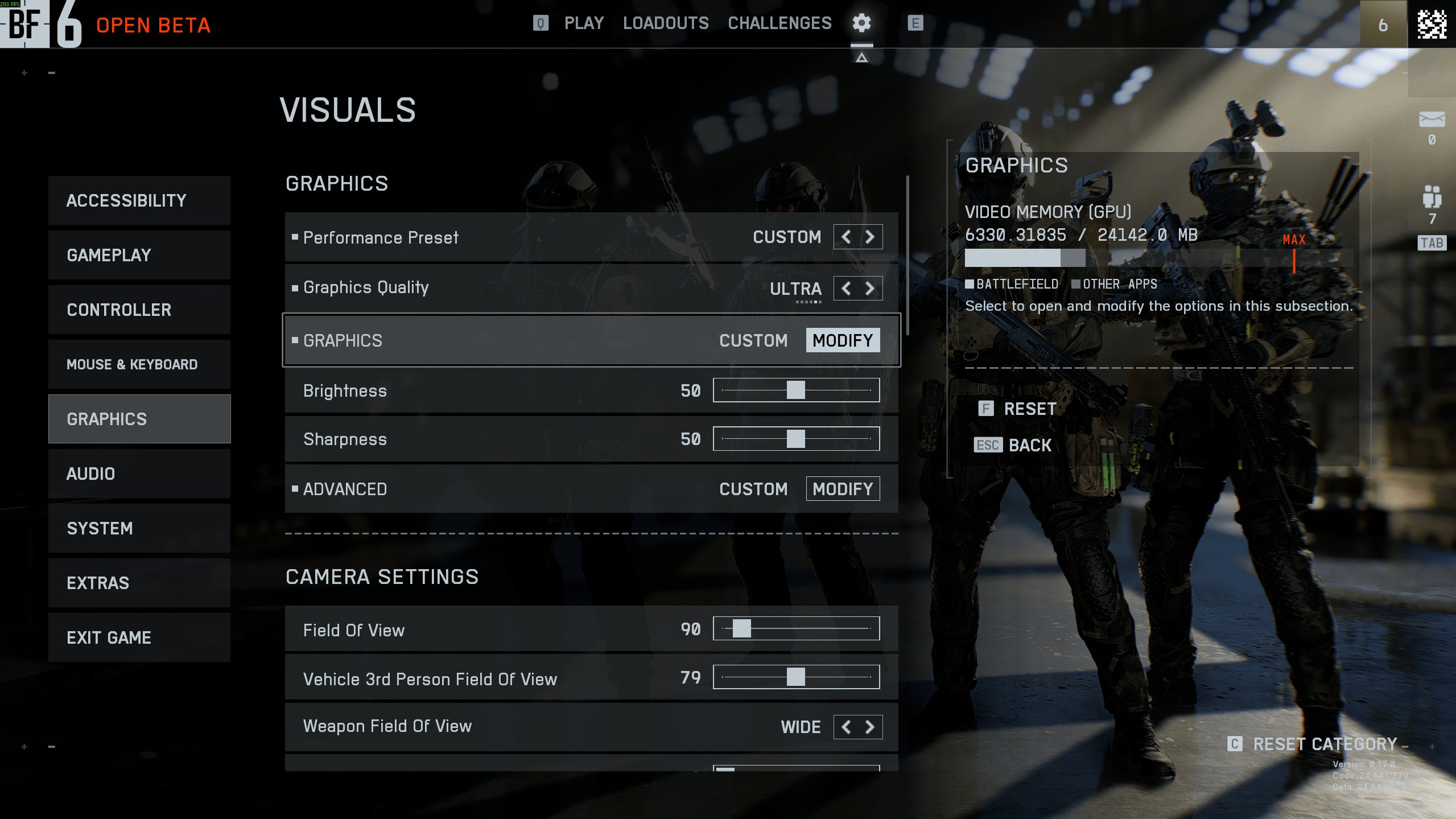
For the best graphics settings for high FPS in Battlefield 6 on a mid-range PC, prioritize setting Texture Quality to Medium, Effects Quality to Low, and Mesh Quality to Medium. Also, disable Ambient Occlusion and Dynamic Resolution Scaling.
Want to dominate the battlefield without sacrificing frames? Finding the best graphics settings for high FPS in Battlefield 6 on a mid-range PC can feel like a constant struggle, but it doesn’t have to be.
We’ll guide you through the optimal settings so you can strike a balance between visual fidelity and smooth gameplay. Get ready to frag with confidence!

Best Graphics Settings for High FPS in Battlefield 6 on a Mid-Range PC
The pursuit of high frames per second (FPS) in Battlefield 6 is a common goal, especially for players using mid-range PCs. Finding the right balance between visual fidelity and performance is crucial for a smooth and enjoyable gaming experience. Let’s dive into the best settings to optimize your game.
Understanding the Impact of Graphics Settings
Each graphics setting significantly impacts performance. Knowing which settings are the most demanding allows for smarter adjustments. This optimization process will help you achieve higher FPS without sacrificing too much visual quality.
Resolution Scaling
Resolution scaling is a powerful tool. It allows you to render the game at a lower resolution than your monitor’s native resolution. This can drastically improve FPS but can also lead to a blurrier image.
Consider using resolution scaling as a last resort. Experiment with different percentages to find a good balance between performance and visual clarity. Aim for a slight blur rather than unplayable framerates.
Texture Quality
Texture quality determines the detail of surfaces in the game. Higher texture quality requires more VRAM. If your graphics card has limited VRAM, lowering this setting can help.
Lowering texture quality can have a significant impact on visuals. However, it’s often less noticeable during fast-paced gameplay. Medium or low settings are generally acceptable for mid-range PCs.
Texture Filtering
Texture filtering affects the sharpness of textures at different angles. Anisotropic filtering is the most common option. Higher levels of anisotropic filtering improve image quality but require more processing power.
Lowering texture filtering to bilinear or trilinear can provide a small FPS boost. However, the visual difference is usually minimal, especially on smaller screens. Experiment to find a balance.
Lighting Quality
Lighting quality has a significant impact on both visuals and performance. Higher lighting quality settings can create more realistic and immersive environments. This setting also puts a strain on your GPU.
Lowering lighting quality can significantly improve FPS. Consider using medium or low settings for a noticeable performance gain. Pay attention to how it affects shadows and overall atmosphere.
Effects Quality
Effects quality controls the detail and complexity of visual effects like explosions and smoke. High effects quality can create more spectacular moments. However, it can also cause significant FPS drops, especially during intense firefights.
Lowering effects quality is essential for maintaining stable FPS. Medium or low settings are generally recommended for mid-range PCs. This can prevent stuttering during crucial moments.
Post-Processing Quality
Post-processing includes effects applied after the scene is rendered. This includes things like bloom, motion blur, and depth of field. These effects can add to the visual appeal. They also demand significant GPU resources.
Reducing post-processing quality can greatly improve performance. Disabling motion blur is often a good first step. Experiment with different settings to find the optimal balance.
Mesh Quality
Mesh quality affects the level of detail of 3D models in the game. Higher mesh quality results in more detailed objects. This also requires more processing power.
Lowering mesh quality can improve FPS, especially in areas with many objects. Experiment with different settings to find a good balance. Focus on maintaining detail for important elements.
Terrain Quality
Terrain quality determines the detail of the ground and other terrain features. Higher terrain quality can create more realistic landscapes. However, it can also be a performance hog.
Lowering terrain quality can improve FPS, especially in large open areas. Consider using medium or low settings for a noticeable performance gain. This is especially true on maps with dense foliage.
Ambient Occlusion
Ambient occlusion adds depth and realism to the scene by simulating how light interacts with surfaces. HBAO and SSAO are common ambient occlusion techniques. These techniques are demanding on your GPU.
Disabling or lowering ambient occlusion can significantly improve FPS. Experiment with different settings to find a balance. SSAO is generally less demanding than HBAO.
Antialiasing
Antialiasing smooths out jagged edges in the game. TAA (Temporal Antialiasing) is a common antialiasing technique. It is effective but can also blur the image.
Lowering or disabling antialiasing can improve FPS. However, this can also make the game look more jagged. Experiment with different options to find a compromise. FXAA is a less demanding alternative to TAA.
DirectX Version
Battlefield 6 likely supports multiple DirectX versions. Using the latest version, such as DirectX 12, can sometimes improve performance. However, it can also introduce compatibility issues.
Experiment with different DirectX versions to see which one performs best on your system. Ensure your graphics drivers are up to date for optimal performance. Older drivers can lead to performance issues.
Recommended Settings for Mid-Range PCs
These are general recommendations. The ideal settings will vary depending on your specific hardware. Adjust them to suit your system and preferences.
- Resolution: 1920×1080 (1080p) is generally recommended for mid-range PCs.
- Resolution Scale: 100% (adjust lower if needed for significant FPS gains)
- Texture Quality: Medium
- Texture Filtering: Anisotropic 8x
- Lighting Quality: Medium
- Effects Quality: Medium
- Post-Processing Quality: Low
- Mesh Quality: Medium
- Terrain Quality: Medium
- Ambient Occlusion: Off or SSAO
- Antialiasing: TAA Low or FXAA
- DirectX Version: Experiment with DirectX 11 and DirectX 12
Optimizing Your System for Battlefield 6
Optimizing your in-game settings is only part of the process. Ensuring your system is running efficiently can also contribute to improved performance. Consider these system-level optimizations.
Updating Graphics Drivers
Keeping your graphics drivers up to date is essential. New drivers often include performance optimizations and bug fixes for the latest games. Visit the NVIDIA or AMD website to download the latest drivers.
Old drivers can cause performance issues. They might not fully support the game’s features. Regularly checking for updates is a good habit.
Closing Background Applications
Closing unnecessary background applications can free up system resources. This includes applications like web browsers, streaming services, and other programs that consume CPU and memory. This ensures that Battlefield 6 has access to more resources.
Background processes can significantly impact performance. Use the Task Manager to identify and close resource-intensive applications. Prioritize game performance over background tasks.
Adjusting Power Settings
Ensure your power settings are configured for maximum performance. In Windows, set your power plan to “High Performance.” This prevents your system from throttling performance to save power.
Power saving modes can limit CPU and GPU performance. Select the High Performance plan to ensure your system operates at its full potential. Remember to switch back if you need to conserve battery life.
Overclocking (If Applicable)
Overclocking your CPU and GPU can potentially increase performance. However, this requires careful configuration and monitoring to prevent overheating. Proceed with caution and research the process thoroughly.
Overclocking can provide a noticeable FPS boost. Only attempt this if you are comfortable with the risks involved. Monitor temperatures closely to avoid damage.
Monitoring Performance
Monitoring your performance is crucial. It helps you identify bottlenecks and optimize settings effectively. Use in-game tools or third-party software to track FPS, CPU usage, and GPU usage.
Using In-Game Performance Overlay
Battlefield games typically include an in-game performance overlay. This overlay displays real-time FPS, CPU usage, and GPU usage. Use this overlay to monitor performance and identify areas for improvement.
The in-game overlay provides valuable insights. Pay attention to frame rates and resource utilization. Adjust settings based on the data you collect.
Using Third-Party Monitoring Tools
Third-party monitoring tools like MSI Afterburner and RivaTuner Statistics Server (RTSS) offer more advanced monitoring features. These tools allow you to track a wider range of performance metrics. You can also customize the overlay to display specific information.
These tools provide detailed performance data. They also allow you to record gameplay footage. Use them to diagnose performance issues and optimize settings.
Specific Setting Recommendations for Different Mid-Range GPUs
Here are some specific recommendations tailored for popular mid-range GPUs. Keep in mind that these are just starting points. Adjust settings based on your specific system and desired frame rates.
NVIDIA GeForce RTX 3060
The RTX 3060 is a capable mid-range GPU. It can handle Battlefield 6 at 1080p with decent settings. Aim for a mix of medium and high settings for a good balance between visuals and performance.
Resolution: 1920×1080 (1080p)
Texture Quality: High
Texture Filtering: Anisotropic 16x
Lighting Quality: Medium
Effects Quality: Medium
Post-Processing Quality: Low
Ambient Occlusion: SSAO
Antialiasing: TAA Low
NVIDIA GeForce RTX 2060
The RTX 2060 is slightly older but still a viable option. It might require slightly lower settings compared to the RTX 3060. Prioritize maintaining a stable frame rate.
Resolution: 1920×1080 (1080p)
Texture Quality: Medium
Texture Filtering: Anisotropic 8x
Lighting Quality: Medium
Effects Quality: Low
Post-Processing Quality: Low
Ambient Occlusion: Off or SSAO
Antialiasing: FXAA
AMD Radeon RX 6600 XT
The RX 6600 XT is a competitive mid-range GPU. It offers excellent performance at 1080p. Experiment with higher settings to maximize visual quality.
Resolution: 1920×1080 (1080p)
Texture Quality: High
Texture Filtering: Anisotropic 16x
Lighting Quality: Medium
Effects Quality: Medium
Post-Processing Quality: Low
Ambient Occlusion: SSAO
Antialiasing: TAA Low
AMD Radeon RX 5700 XT
The RX 5700 XT is an older but still capable GPU. It may need similar settings to the RTX 2060. Focus on achieving a smooth and playable experience.
Resolution: 1920×1080 (1080p)
Texture Quality: Medium
Texture Filtering: Anisotropic 8x
Lighting Quality: Medium
Effects Quality: Low
Post-Processing Quality: Low
Ambient Occlusion: Off or SSAO
Antialiasing: FXAA
Future-Proofing Your Settings
Battlefield 6 may receive updates that impact performance. Revisit your settings periodically. Adjust them as needed to maintain optimal performance.
Game updates often include optimizations. They may also introduce new features that affect performance. Regularly evaluate your settings to adapt to changes.
BF6 Best Settings Guide – Max FPS & Visuals (Battlefield 6)
Final Thoughts
Ultimately, achieving high FPS in Battlefield 6 on a mid-range PC requires compromise. Adjusting settings strategically is essential.
Prioritize frame rate over visual fidelity to gain a competitive edge. Texture Quality, Effects Quality, and Lighting Quality are the biggest performance hogs.
Therefore, dial these settings down to Medium or even Low. This will give you a smoother gameplay.
The best graphics settings for high FPS in Battlefield 6 on a mid-range PC involve finding the right balance between visual appeal and performance. Experimentation is key to maximize your personal gaming experience.

