
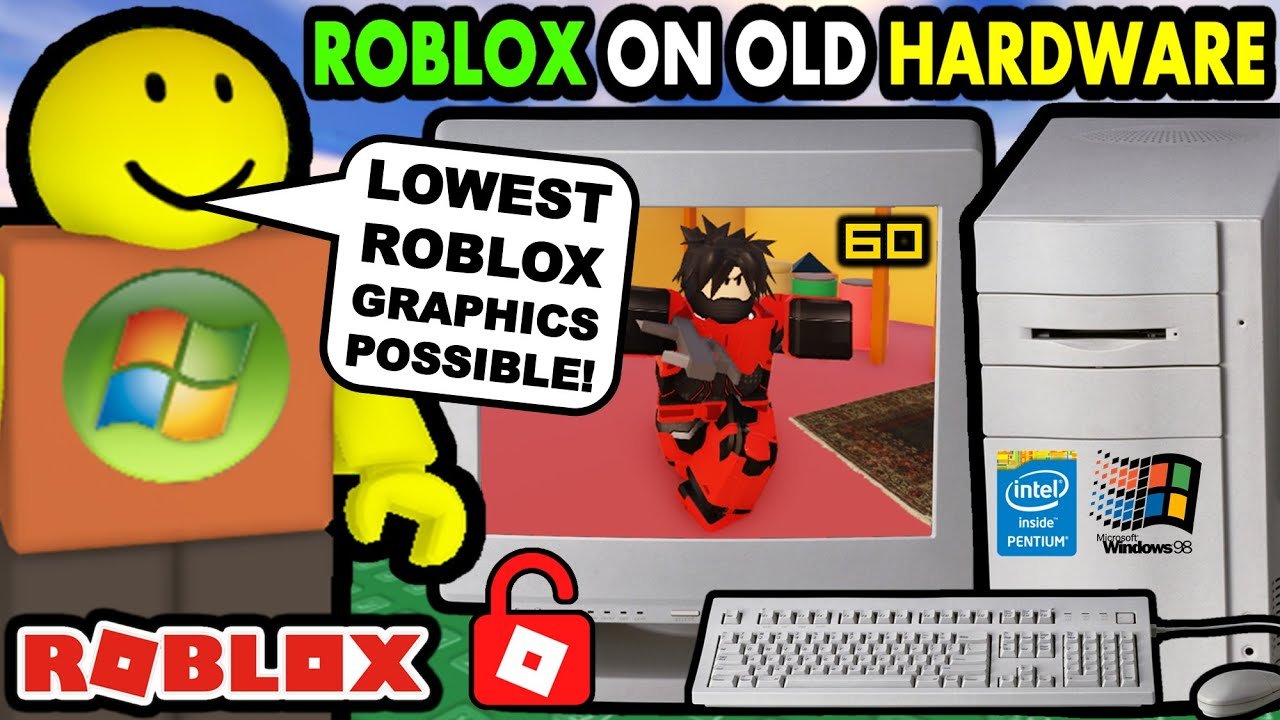
Set graphics quality to the lowest, disable shadows and reduce render distance significantly for the best Roblox settings for low end pc performance.
Struggling with lag while playing Roblox on your older computer? You’re not alone. Many players seek to find the best Roblox settings for low end pc so they can enjoy smooth gameplay. This blog post will guide you to optimize your in-game configurations.

Best Roblox Settings for Low End PC
Playing Roblox can be super fun, but sometimes our computers aren’t as fast as we’d like. If you have a low-end PC, you might see choppy graphics or slow gameplay. Don’t worry! There are things you can do to make Roblox run smoother.
Understanding the Problem: Why is Roblox Slow?
Low-end PCs often have older parts, like a less powerful graphics card or not much memory. These parts can make it hard for your computer to keep up with Roblox’s graphics and actions. It’s like trying to run a race with heavy shoes – it’s harder and slower.
Key Culprits Behind Lag
Several things can cause lag in Roblox. These include:
- Graphics Quality: High graphics use a lot of computer power.
- Resolution: A big screen needs more work for your PC.
- Game Complexity: Some games have more detailed worlds and actions than others.
- Background Processes: Other programs running at the same time can slow things down.
Optimizing Roblox Graphics Settings
Roblox has settings you can change to help it run better on your PC. Let’s explore these options.
Graphics Mode: Choosing the Right One
The graphics mode setting in Roblox lets you pick how your graphics are handled. There are typically two options: automatic and manual.
Automatic Graphics Mode
When you choose automatic, Roblox decides the best settings for your PC. This is good for beginners because you don’t have to think too much about it. However, it may not always be the best for low-end PCs.
Manual Graphics Mode
Manual mode gives you more control. You can lower the settings to make the game run faster. This is what we’ll focus on to help your low-end PC.
Graphics Quality Level: Finding the Sweet Spot
The most important setting for low-end PCs is the graphics quality. This controls how detailed everything looks.
Lowering it will significantly reduce the strain on your computer. Try lowering the graphics level step-by-step until you find a good balance between how the game looks and how smoothly it plays.
Here’s a tip: Start with the lowest possible setting. If it’s too blurry, increase it one step at a time.
Render Quality and Performance
Adjusting render quality can impact game smoothness. Lowering it can reduce visual detail but it will improve performance.
Consider experimenting with this setting along with the graphics level to see which combination works best for your PC.
Edit Quality Level in Roblox Setting
The edit quality level affects the smoothness when you are creating games with Roblox Studio. Lowering this setting will help it run faster.
If you’re not using Roblox Studio to create games, this setting has no effect on gameplay.
Resolution Settings: Balancing Clarity and Speed
The screen resolution is the size of the picture you see. A higher resolution means a sharper picture but also requires more work from your computer.
Lowering Your Resolution
Lowering the resolution can make a big difference on low-end PCs. It makes the game picture a bit less detailed, but it also makes the game run faster.
You can adjust your resolution in your computer’s display settings. Don’t make it too small or you won’t be able to see things properly. Try a small step down from your current resolution.
Roblox Client Settings
Outside the Roblox game itself, there are additional settings in the Roblox client that can help you boost performance. These settings impact how the application interacts with your operating system.
Using The Right Version
If your PC is really old, consider using an older version of Roblox. Older versions may not have all the newest features, but they might work better on older computers.
Be careful downloading from random places, try to find the official download page of older versions.
Other Settings to Boost Performance
There are a number of settings in Roblox that you may want to consider, which can help you boost performance.
- Disable shadows: Shadows can consume lots of resources. Turning them off can make a big difference. Check for game-specific shadow settings as well.
- Turn off reflections: Similar to shadows, reflections can strain your PC. Disabling them may improve performance.
- Limit the number of players you see: If the game allows it, limiting visible players can reduce lag. Some games have options to hide other players or limit how many you see.
- Close other applications: Having too many applications open at the same time can strain your CPU. Try to close any other unnecessary programs.
Game-Specific Settings and Tips
Some Roblox games have their own graphics or settings menus that you can adjust. Check these out as well!
Game Options and Menus
Many game developers add their own performance settings. Sometimes, these can be very effective for speeding up a game.
Look for menus inside the game that let you change graphics. Common options include shadow quality, particle effects, and object detail. Lower these if possible.
Choosing the Right Games
Some Roblox games are more complex than others, which can take more computer power. If you have a low-end PC, try to play simpler games that do not require high graphics.
Look for games that have simple designs and fewer effects. You will likely have a better experience and avoid lags.
Optimizing Your PC for Roblox
Besides the Roblox settings, you can make changes to your computer itself to make it run faster. These changes help your PC run better overall, not just for Roblox.
Closing Background Applications
Programs running in the background can eat up resources. Close any programs you are not actively using.
To see what’s running in the background, check your system tray. On Windows, you can open the Task Manager by pressing Ctrl+Shift+Esc and check background processes. Close any unnecessary programs.
Checking for Updates
Keeping your computer and graphics drivers updated can make a big difference. New updates often have improvements that can make your computer run better.
Make sure you have all the latest updates for Windows, and check for updates to your video card’s driver software.
Adjusting Power Settings
Your computer’s power settings can affect how it performs. If it’s set to save power, it may run slower. Changing it to performance mode can improve Roblox performance, however it will also consume more power. You can find this setting in the Control Panel or Settings.
Clearing Temporary Files
Temporary files can accumulate on your PC, taking up space and potentially slowing things down. You can use a tool like Disk Cleanup to remove them.
Make sure to empty the recycle bin after cleaning up files.
Troubleshooting Common Issues
Even with the best settings, you might still have problems. Here are a few common issues and what to do about them:
Persistent Lag Spikes
If you still see lags even after lowering your settings, check your internet connection. Sometimes, a slow internet connection can cause problems. Try restarting your router.
Make sure that no other devices are taking up bandwidth in the same network while you are gaming.
Game Crashes
If Roblox keeps crashing, make sure your computer meets the minimum requirements. Sometimes, old or very low-end PC’s simply can’t run some modern games. Try different Roblox versions.
Try uninstalling and re-installing Roblox too, to fix broken or corrupt files. You should also check if any system files are corrupted and try to fix those too.
Overheating
If your computer gets too hot, it may slow down. Make sure that your laptop or PC is not blocked so it can properly vent heat. Consider getting a cooling pad for your laptop.
Remember that every computer is different, so you might need to experiment a little to find what works best for you. Be patient, and soon you’ll be playing Roblox smoothly!
🔧 ROBLOX: BEST METHOD TO BOOST FPS 🔥| How to Get More FPS in Roblox ✔️
Final Thoughts
For best Roblox settings for low end PC, reduce graphics quality to the minimum. Disable unnecessary features like shadows and ambient occlusion. This improves performance significantly.
Lowering your rendering resolution can also help. Avoid playing in full screen; windowed mode can reduce resource usage. These adjustments provide a smoother experience.
Therefore, by applying these simple tweaks you will find best Roblox settings for low end pc.

