
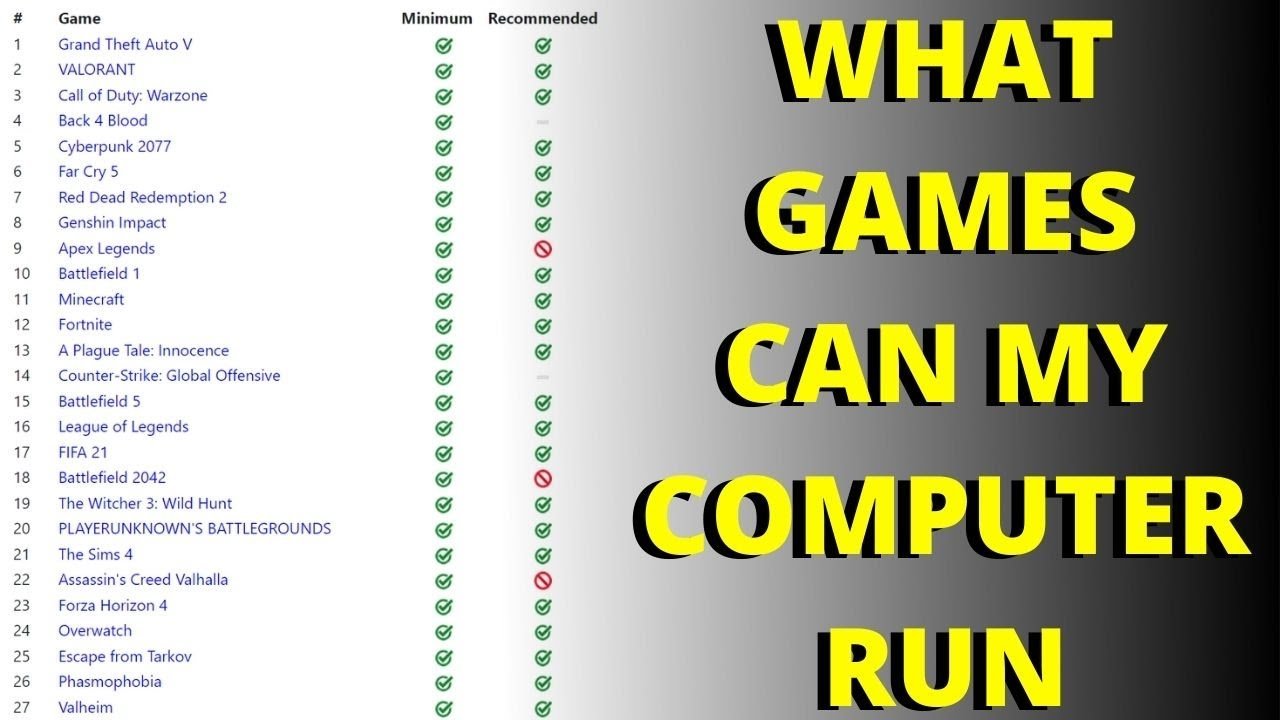
The ability for a game to run on your PC depends heavily on whether your computer’s specifications meet or exceed the game’s minimum or recommended system requirements.
Have you ever been excited about a new game, only to wonder if your machine can handle it? That’s the question we all face: can a game run on my pc? It can be frustrating when you’re ready to play but unsure if your computer is up to the task.
Checking your PC’s hardware against the game’s requirements is key. This simple check determines if you can enjoy the game without issues.

Can a Game Run on My PC? Figuring Out the Tech Puzzle
So, you’ve got your eye on a cool new game, maybe something with dragons, spaceships, or even just really fancy race cars. But before you click that “buy” button, a big question pops up: “Can my computer actually play this game?” It’s a question every gamer asks, and thankfully, figuring out the answer isn’t as hard as it might seem. Let’s explore the things your computer needs to handle a new game, and how to check if your PC is up to the challenge.
Understanding Minimum and Recommended Specs
Every game has what we call “system requirements.” These are like the instructions for your computer. They tell you the minimum and recommended amounts of computer power a game needs to run smoothly. You’ll usually see these listed on the game’s page (like on Steam, the game’s official website, or the box if you have a physical copy).
Minimum Requirements
Think of the minimum requirements as the “bare minimum” to get the game running. If your computer barely meets these requirements, the game might work, but it might be slow, choppy, or not look very good. It’s like trying to run a race with shoes that are too small; you might finish, but it won’t be very comfortable. These specifications are the absolute lower limits, and going lower often means the game won’t run, or will be unplayable. It includes things like the type of processor (like Intel Core i5 or AMD Ryzen 5), the amount of RAM (like 8 GB or 16 GB), which graphics card you need (like NVIDIA GeForce GTX 1060 or AMD Radeon RX 580), the type of operating system you need (Windows 10 or 11 for instance) and free space available on your hard drive.
For example, a minimum requirement might look like this:
- Operating System: Windows 10 64-bit
- Processor: Intel Core i5-4460 or AMD FX-6300
- Memory: 8 GB RAM
- Graphics Card: NVIDIA GeForce GTX 750 Ti or AMD Radeon R7 260X
- Storage: 30 GB available space
Recommended Requirements
Recommended requirements are what game developers believe you should have for the game to run smoothly and look its best. If your computer matches or exceeds these, you can expect a much better experience, with smooth gameplay, beautiful graphics, and fewer (or no) problems. This usually means a better quality display and smoother performance. It also means you can likely increase the game’s graphic settings. It’s like having shoes that fit just right, allowing you to enjoy the race at your best. The recommended requirements are generally going to be better on each aspect of hardware than the minimum, for a far better experience.
The recommended requirements may look like this:
- Operating System: Windows 10 64-bit
- Processor: Intel Core i7-4770 or AMD Ryzen 5 1600
- Memory: 16 GB RAM
- Graphics Card: NVIDIA GeForce GTX 1060 or AMD Radeon RX 580
- Storage: 30 GB available space
As you can see, the recommended requirement on each area are far superior to the minimum requirements.
Checking Your Computer’s Specs
Now that you know what to look for, how do you find out what your computer has inside? It’s easier than you think! There are a couple of ways to do it, and we’ll go over the simple way here.
Using the System Information Tool
Windows computers have a built-in tool that shows you all your computer’s important parts. Here’s how to use it:
- Click the search bar in your taskbar (the little bar at the bottom of your screen, usually next to the Windows icon).
- Type “System Information” and click on the app when it pops up.
- A window will open with all kinds of computer details. Look for the following:
- Operating System: You’ll see the name and version of your Windows. Make sure it’s the right version and 64-bit as required by many modern games
- Processor: This tells you what type of brain your computer has. You will see the name of the processor and it’s speed.
- Installed Physical Memory (RAM): This is the amount of memory that your computer is using.
Checking Your Graphics Card
The System Information tool will list your video card, but sometimes, it’s handy to know more details, especially if you have multiple cards. Here’s a straightforward way to get specific information:
- Right-click on your desktop (on an empty part of your screen).
- Select “Display Settings”.
- Scroll down and click “Advanced Display Settings”.
- Click on “Display adapter properties” for your main display.
- Here, you’ll find the name of your graphics card, how much memory it has and other details.
Comparing Your Specs to the Game Requirements
Now comes the real test: Does your computer meet the game’s demands? Let’s break it down component by component.
Operating System
First, make sure your version of Windows (or Mac if applicable) is what the game needs. If the game requires Windows 10 64-bit and you have Windows 7 32-bit, that game likely isn’t going to work without updating your OS. This is normally the easiest check.
Processor
The game requirements will list processors by name (such as “Intel Core i5-4460”). Compare this to your processor in the System Information tool. If your processor is the same or a newer/better model, you are good to go in this regard. If the requirement is an i5-4460, and you have an i5-6600, yours is better. However if you have an i3-4400, that would not likely meet the minimum requirements.
Memory (RAM)
This is an easy one. Simply see how much RAM your computer has, as shown in the System Information tool, and compare it to the minimum (or recommended) RAM amount on the game’s specifications. If the game wants 8 GB and you have 16 GB, fantastic. If you have 4 GB, you will probably need to get more RAM for the game to work. RAM is very important and not meeting the minimum here will cause serious performance issues, often more than other specifications being low.
Graphics Card
This one’s often the trickiest. The graphics card is very important, as this is what displays the images on screen. Make sure the name of your card is equal to or better than the game’s required card. It will likely be a NVIDIA GeForce or AMD Radeon card. This one can be a little hard to know, as there are many different models, and they are not simply in numbered order. So, for example, an NVIDIA GeForce GTX 1070 may be less powerful than a GeForce RTX 2060 card, and a Radeon RX 580 card is more powerful than a RX 550 card. There are charts online that can help you compare how well different graphics cards perform. This is the most common piece of hardware that causes problems for players, as the graphics card is often the most expensive part of a PC for playing games.
Storage Space
The game requirements will list the space on your hard drive needed to install the game. Check how much free space your hard drive has (you can do this through Windows File Explorer), and see if you have enough. If you are a little short, consider deleting things you no longer need. Also, make sure it is the correct type of drive, such as a solid-state drive (SSD) if the game requires that. An SSD will be much faster than a traditional HDD. Some games will play much better (or not at all) if you do not meet this requirement.
What If My Computer Doesn’t Quite Meet the Requirements?
Okay, so what if you discover your PC is a little bit underpowered? Don’t panic! Here are a few things to consider:
Lowering Graphics Settings
Many games let you change how they look to make them run better. Turning settings like shadow quality, texture details, and special effects to “low” can make the game run smoothly, even on older computers. You may have to try a few different combinations to find what works best, but it is definitely something to try if the game doesn’t run well initially.
Updating Your Drivers
Sometimes outdated software that makes your computer parts work well is the problem. Make sure to update your video card drivers regularly. NVIDIA and AMD provide these driver updates through their websites, and they can often improve how well games run. Think of the driver as the “instructions” your computer uses to use your graphics card. Updated instructions often mean improved performance.
Upgrading Your Computer
This is obviously a larger step. If you discover that your PC simply doesn’t meet the needs of the games you want to play, it might be time to think about upgrading some of the parts. Things like adding more RAM or installing a better graphics card can help significantly. However, this can also be expensive, and must be done carefully to ensure all the parts are compatible.
Researching Specific Games
Sometimes, a game might have specific problems on certain hardware. Check online forums and communities to see if other people with similar computers are running into issues. You can often find tips, tricks, and fixes that will help you enjoy the game, or learn if the game is simply incompatible with your computer.
Using Online Game Requirement Checkers
There are lots of websites available that will compare your specifications to game requirements. You simply need to allow the checker to identify your hardware, then search the game you want to play, and it will tell you if your computer meets the minimum or recommended specifications. These tools are not always 100% accurate but they can be extremely helpful.
Key Takeaways on Playing Games on Your PC
- System requirements for games include the minimum and recommended specifications, which define how powerful your computer must be to run the game.
- Use the built in Windows System Information tool, or the display settings, to figure out what hardware your computer has.
- Compare your hardware to the game’s required hardware; pay careful attention to the graphics card, RAM, and CPU specifications.
- If your computer does not meet the specifications, try lowering graphical settings in the game, or updating the driver software.
- Be sure to check online sources for fixes and other advice.
Checking if a game will run on your PC is a key thing to do before you decide to buy. By checking these specifications, and understanding the needs of a new game, you can avoid problems and hopefully have a much better time playing on your computer! Enjoy your gaming adventures!
Check which games are compatible with your pc Can my PC run it What games can I play on my computer
Final Thoughts
Checking system specifications against a game’s requirements is vital. Comparing your CPU, GPU, RAM, and storage space to the minimum and recommended specs helps. This process determines if the game will run.
Ultimately, knowing your PC’s components is key. It answers the question: can a game run on my pc? Thorough research before purchasing avoids performance issues. This ensures you have a smooth gaming experience.

