
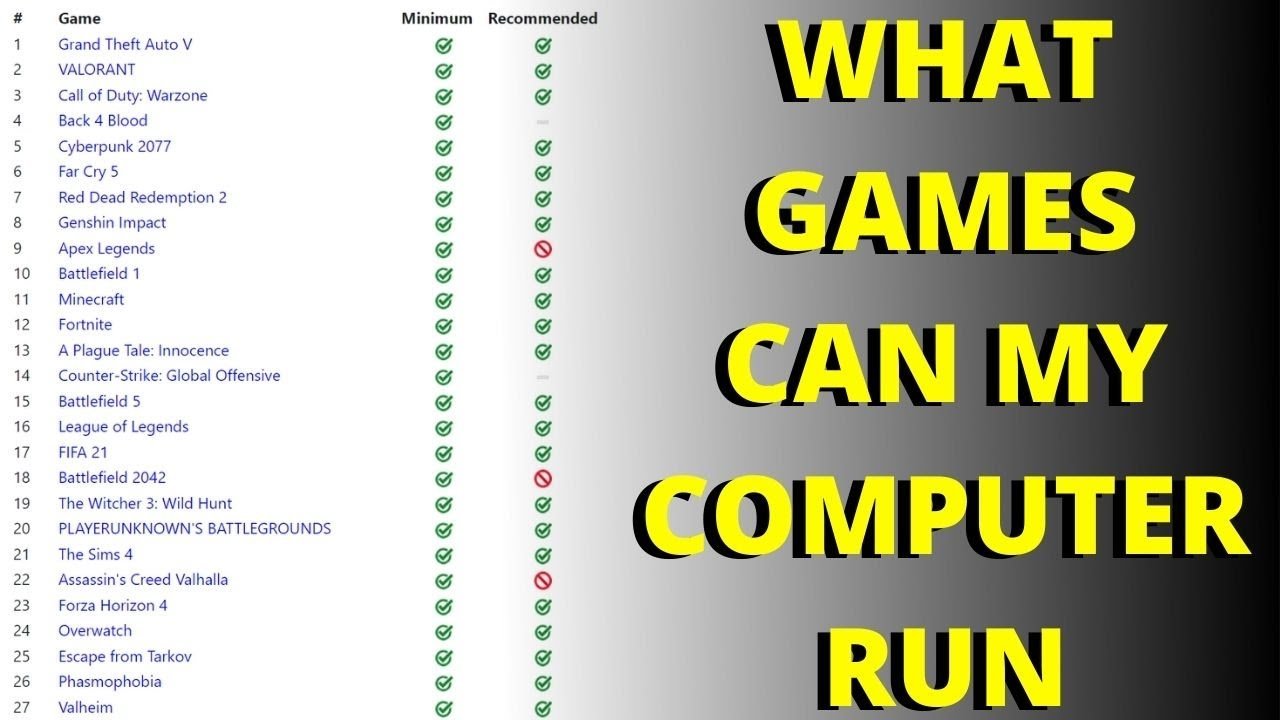
To determine if a game can run on your PC, you need to compare your computer’s specifications against the game’s minimum and recommended system requirements.
Ever found a game that looks amazing but then you’re left wondering, “Can game run on my pc?”. It’s a frustrating situation many gamers face.
Checking system requirements is crucial. You want a smooth experience. No one likes choppy frames or crashes.
This article helps you to know how to find that information. It will make your game purchase decisions easier.

Can Game Run On My PC?
Ever get super excited about a new game, only to wonder if your computer can actually play it? It’s a common worry for gamers! Figuring out if your PC is up to the task can seem a little tricky, but don’t worry, we’re here to help break it down in simple terms. This guide will help you understand what to look for, and how to make sure you can enjoy your game without any frustrating technical problems. Let’s jump in and figure out if that awesome game will run smoothly on your PC.
Understanding Minimum and Recommended Specs
Before you even think about buying a game, the first thing you need to do is check its system requirements. Game developers list two important sets of specifications: minimum and recommended. Think of it like this: minimum specs are the bare minimum your computer needs to just barely run the game, often with lower graphics settings and maybe some performance issues. Recommended specs are what the developers suggest for a great gaming experience, with smoother gameplay and better visual quality. It’s like the difference between a bicycle and a sports car; both can get you to the same destination, but one will be faster and more comfortable.
Minimum System Requirements
Minimum requirements are kind of like the survival kit for your game. If your computer meets these, the game might start, but it could be choppy or slow. Imagine trying to run through molasses – that’s what it might feel like. Often, minimum settings mean low resolution, basic graphics, and sometimes less detailed environments. This isn’t going to be the best way to play, but at least it will run.
Recommended System Requirements
Recommended specs are the sweet spot. These are the computer components that will let you run the game as the developers intended. You’ll likely get to use higher graphics settings, leading to sharper visuals and smoother gameplay. It’s the difference between watching a movie on a small phone screen, and enjoying the same movie on a big, bright TV. It will usually allow for high detail, higher frame rates, and much fewer instances of slowdown or lag.
Key Computer Components and Their Roles
Now that you know about minimum and recommended specs, let’s talk about the parts of your computer that are most important for gaming. These components work together like a team to make your games run smoothly. The main ones you need to pay attention to are the CPU, GPU, RAM, and Storage.
Central Processing Unit (CPU)
The CPU, or Central Processing Unit, is often called the “brain” of your computer. It’s what does most of the thinking, carrying out instructions and performing complex calculations needed to run the game. In gaming, the CPU helps the game understand what’s going on and manages the interactions between characters and the world. A faster CPU will perform these tasks quicker, resulting in better gameplay. Game requirements list the minimum CPU model or equivalent. If your PC’s CPU is similar to or more powerful than the minimum requirement, you should be in good shape. If it falls short, you could run into slowdowns.
Graphics Processing Unit (GPU)
The GPU, or Graphics Processing Unit, is like the artist of your computer. It handles everything you see on screen, from the characters and backgrounds to special effects. A powerful GPU will display a much higher level of visual quality, making the game look more real and detailed. Games often require specific GPU models, such as an NVIDIA GeForce or an AMD Radeon. The GPU is critical to good performance. A weak GPU may lead to jagged edges, blurry textures, or very low frame rates. Always double-check your GPU against game requirements. If it’s below the minimum spec, the game likely won’t run smoothly. Some games even let you select graphic options (low, medium, high or ultra). A higher graphics setting requires a much more powerful GPU. It might be wise to start with low, test the game then increase it to find your PC’s sweet spot.
Random Access Memory (RAM)
RAM, or Random Access Memory, is like your computer’s short-term memory. It’s where your computer stores information that is currently being used. In gaming, RAM helps the CPU and GPU quickly access the game’s data, allowing for quick loading times and smooth transitions. A sufficient amount of RAM is vital for smooth gaming. When a game doesn’t have enough, it might need to use the hard drive as a memory backup, which is much slower and results in a stuttering game experience. Most games will specify a minimum and recommended amount of RAM. Always match your PC RAM with the game requirements to avoid slowdowns.
Storage Space
Storage space is the room your game files will need. This is usually measured in gigabytes (GB). Both the game install file size, and also the space it will use to save your game progress. It’s essential to have enough free space to install and save your game files. If you run out of space, you may have to uninstall other games or programs. Games these days are quite large so it’s important to look at the game’s requirements and check you have enough space. You might also want to consider a Solid State Drive (SSD). An SSD will load games a lot quicker than a traditional hard disk drive (HDD), making a huge difference to loading times and the gaming experience.
How to Find Your PC Specs
Okay, now you know what specs are important, but how do you find out what your PC has? Don’t worry, it’s not as hard as it sounds. There are a few simple ways you can find this information.
Using System Information in Windows
The easiest way to see some basic PC specs is by using the built-in System Information tool in Windows. Here’s how:
- Click the Start button.
- Type “System Information” and press Enter.
- You’ll see a window with a list of details about your PC.
- Look for these items:
- Operating System: This will tell you what version of Windows you have. Some games need a specific version.
- Processor: This is your CPU. You’ll see its model name and speed.
- Installed Physical Memory (RAM): This will tell you how much RAM you have.
Using DirectX Diagnostic Tool (dxdiag)
For more information about your graphics card, you can use the DirectX Diagnostic Tool. Follow these steps:
- Press the Windows key + R at the same time.
- Type “dxdiag” and press Enter.
- A window will open. Click the “Display” tab.
- Here, you’ll find information about your GPU, including its model, video memory, etc.
Using Third-Party Software
If you need even more detailed information or want a tool that makes it very easy to see all your PC specs, you can use a third-party program like Speccy or CPU-Z. These programs provide a full detailed breakdown of all your hardware, including precise model numbers and operating speeds.
Comparing Specs to Game Requirements
Okay, so you know your PC specs and have seen the minimum and recommended requirements for your desired game. Now what? Now comes the matching game!
Creating a Comparison Table
A useful way to compare is to make a simple table. Make one column for “My PC,” one for “Minimum Specs,” and one for “Recommended Specs.” Then, list your CPU, GPU, RAM, and storage. Put your numbers in the “My PC” column, and the game requirements in the other two. This table helps make it easy to compare your PC to the requirements.
Analyzing Your Results
Once you have your table filled out, look carefully at each component. If your PC meets or exceeds the recommended specs for each one, you’re likely in good shape to enjoy a great gaming experience. If your PC meets the minimum requirements but falls short of the recommended ones, you might still be able to play, but you’ll probably have to lower the graphics settings. If you’re below the minimum specs, the game will probably not run correctly, or at all.
What if my computer doesn’t meet all the specifications?
If your PC falls short in some areas, there are a couple of things you can do.
- Lower Graphics Settings: Most games let you adjust graphics settings. Lower them from high or ultra to medium or low, and that can improve performance. This option might reduce visual quality, but it will let you play the game without slowdowns.
- Upgrade Your Components: If you really want to play the game at its best, you might need to upgrade your components. For example, upgrading your graphics card or adding more RAM can make a big difference. But this can be expensive and might not be needed.
Understanding Game Optimization
It’s also good to understand that not all games are optimized equally. Some games can be very demanding while others run very well on many different systems. If your PC is near the minimum specs, you might find that some games that are well optimized still run smoothly. Others that aren’t so well optimized can still cause problems, even with a computer that appears to be capable. Game optimization refers to how well the game’s software takes advantage of PC hardware. A well-optimized game will run much more efficiently and smoothly.
Checking Game Compatibility Websites
There are lots of websites and tools that can help you check if a game will run on your PC. These tools can save you some time by automatically comparing your computer hardware with the game’s requirements.
Can You Run It?
One popular website is “Can You Run It?” This site uses a small piece of software to scan your PC and then checks it against a database of game specs. This is a fast and easy way to determine if your PC can handle the game.
Steam
If you use Steam, it will automatically show you if you meet the minimum requirements when you visit a game’s page. It will display that next to the “add to cart” or “buy now” button. Steam is a popular place to buy and manage PC games and the software checks automatically to make sure your computer can play the game you are interested in.
Other Compatibility Tools
Many other websites and applications exist that offer similar compatibility checkers. Some game developers also provide their own tools or online guides for specific games. Always look for a trusted source to verify your PC compatibility, and cross-check different sources.
Testing Before You Buy
Before spending your money on a game, if possible, try out a demo version or look for any free trials. This lets you test how the game runs on your PC, before you buy the full game. Always check the refund policies of the game stores. You may be able to get a refund if the game does not perform well on your PC.
Demo Versions and Free Trials
Many games offer demos or free trials that let you test the game out on your system. By playing the demo, you can test out your PC’s performance before you purchase the full version. Use the free test or demo to see if the performance is acceptable for you. This can avoid the disappointment of buying a game that doesn’t run well on your computer.
Game Streaming
If your PC does not meet the game’s minimum requirements you could consider game streaming. Game streaming is where you run the game on powerful remote computers and then stream the video to your computer. This means you can play a graphically intensive game on an older computer. However, game streaming also relies on a good internet connection.
Checking if a game can run on your PC is a crucial part of the gaming experience. You should check your PC’s specifications against the requirements for any new game you would like to play. By using the advice in this guide, you’ll be able to make sure that your PC is up for the challenge. Now you can focus on enjoying your games instead of dealing with frustrating technical issues.
Check which games are compatible with your pc Can my PC run it What games can I play on my computer
Final Thoughts
Checking game requirements against your PC specs is crucial. Compare the minimum and recommended specifications of the game with your hardware components. This will give you a good indication of the game’s potential performance.
Don’t forget to consider your graphics card, processor, and RAM. A mismatch could lead to poor gameplay or the inability to play. Understanding these technical details determines: can game run on my pc?

