
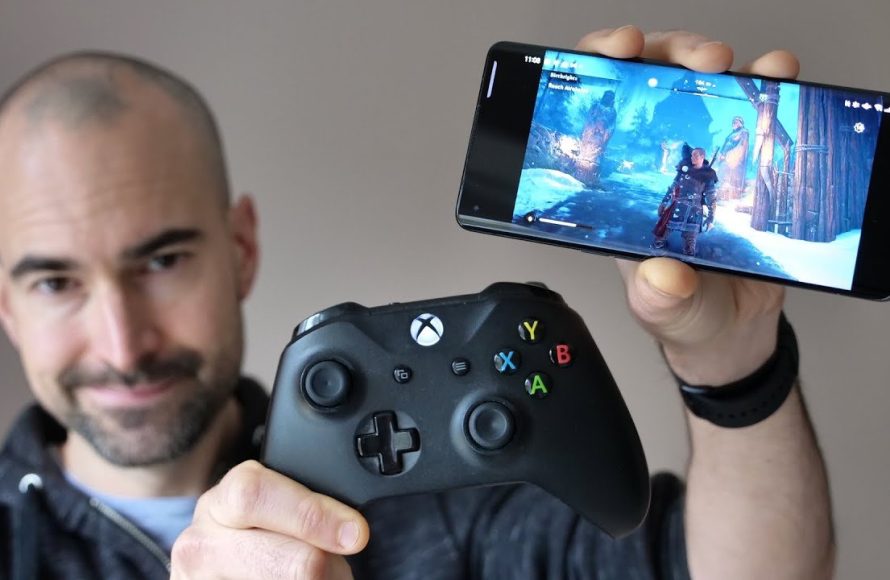
Yes, you can play your Xbox games on your phone using Xbox Cloud Gaming (Game Pass Ultimate subscription required) or Remote Play (requires your own Xbox console).
Here’s the content:
Ever wondered “can i play my xbox games on my phone?” It’s a common question! The idea of taking your favorite Xbox titles on the go is certainly appealing.
Luckily, the answer is yes, with a couple of options. You can tap into cloud gaming with an Xbox Game Pass Ultimate subscription.
Or, if you own an Xbox, you can use the Remote Play feature to play games directly from your console on your phone. So, game on!

Can I Play My Xbox Games on My Phone?
Yes, you absolutely can play your Xbox games on your phone! Several options exist that enable you to enjoy your favorite titles on the go. Let’s explore how to make this a reality.
Xbox Cloud Gaming (xCloud)
Xbox Cloud Gaming, or xCloud, is a primary method for playing Xbox games on your phone. It streams games directly from Microsoft’s servers. This means you don’t need to download or install anything locally.
To use xCloud, you’ll need an Xbox Game Pass Ultimate subscription. This subscription provides access to a library of games that you can stream. It also includes online multiplayer access and other benefits.
How to Use Xbox Cloud Gaming
First, ensure you have an active Xbox Game Pass Ultimate subscription. Download the Xbox Game Pass app on your Android or iOS device. Sign in with your Microsoft account associated with your Game Pass Ultimate subscription.
Browse the available games in the cloud gaming library. Select a game and tap “Play” to start streaming. Keep in mind that a stable internet connection is essential for a smooth gaming experience.
Requirements for Xbox Cloud Gaming
A reliable internet connection is crucial. Microsoft recommends at least 10 Mbps download speed. A 5 GHz Wi-Fi network is generally preferred for lower latency.
You’ll also need a compatible device. Most modern Android and iOS smartphones and tablets are supported. An Xbox Wireless Controller (or other Bluetooth controller) is highly recommended for a better gaming experience.
Remote Play
Remote Play allows you to stream games from your own Xbox console to your phone. This is different from xCloud, which streams from Microsoft’s servers. Remote Play uses your home network to connect your console to your phone.
With Remote Play, you can play any game that’s installed on your Xbox. You are not limited to the games available in the Game Pass library. This is a major advantage for those who own many digital or physical games.
Setting Up Remote Play
First, enable Remote Play on your Xbox console. Go to Settings > Devices & connections > Remote features. Make sure “Enable remote features” is checked. Set your console to “Instant-on” power mode to allow remote connections.
Download the Xbox app on your phone. Sign in with your Microsoft account. On the Xbox app, navigate to the “My Library” tab, then “Consoles.” Select your Xbox console from the list. Tap “Remote play on this device” to start streaming.
Requirements for Remote Play
Your Xbox console needs to be connected to your home network via Ethernet or Wi-Fi. A wired Ethernet connection is generally more reliable. Your phone also needs to be connected to the same network, or a stable internet connection for remote play outside your home network.
- Xbox Console: Xbox Series X|S or Xbox One console.
- Xbox Account: Xbox account signed into your console.
- Home Network: Console and mobile device on the same network.
- Xbox App: Xbox app installed on your iOS or Android device.
- Controller: Xbox Wireless Controller with Bluetooth.
Comparing xCloud and Remote Play
xCloud and Remote Play both allow you to play Xbox games on your phone, but they function differently. It’s important to understand their key differences to choose the best option for your needs.
xCloud Advantages
- Accessibility: Play games without needing to own an Xbox console (with Game Pass Ultimate).
- Convenience: Stream games from anywhere with a good internet connection.
- No Downloads: No need to download or install games.
xCloud Disadvantages
- Subscription Required: Requires Xbox Game Pass Ultimate.
- Game Library: Limited to games available in the xCloud library.
- Internet Dependent: Heavily reliant on a stable internet connection.
Remote Play Advantages
- Game Selection: Play any game installed on your Xbox console.
- No Additional Cost: No additional subscription required beyond Xbox ownership.
- Lower Latency: Potentially lower latency when playing on your home network.
Remote Play Disadvantages
- Xbox Console Required: Requires an Xbox console.
- Home Network Dependency: Primarily designed for use on your home network.
- Setup Required: Requires initial setup and configuration on both console and phone.
Hardware and Accessories for Mobile Xbox Gaming
While you can play Xbox games on your phone with just your touchscreen, using a controller and other accessories can significantly improve your gaming experience.
Controllers
Using an Xbox Wireless Controller with Bluetooth is highly recommended. It provides a familiar and comfortable control scheme. Many other Bluetooth controllers are also compatible.
Controller clips are available to attach your phone directly to the controller. These clips provide a more ergonomic and convenient setup. They allow you to hold the phone and controller as one unit.
Mobile Gaming Clips
- Ergonomics: Improve comfort during extended gaming sessions.
- Stability: Securely hold your phone in place.
- Portability: Easy to carry around and set up.
Headphones
Using headphones can enhance your immersion and prevent disturbing others. Bluetooth headphones are a convenient option. Wired headphones can provide lower latency and avoid battery drain.
Low-latency Bluetooth headphones are specifically designed for gaming. They minimize the delay between audio and visuals. This is especially important for competitive games.
Mobile Gaming Earbuds
- Immersive Audio: Provides rich sound quality and clear communication.
- Noise Cancellation: Blocks out distractions for focused gameplay.
- Comfortable Design: Ensures comfortable fit for long gaming sessions.
Tips for a Better Mobile Xbox Gaming Experience
Optimizing your settings and setup can significantly improve your mobile Xbox gaming experience. Here are some tips to get the most out of it.
Optimize Your Internet Connection
Ensure you have a stable and fast internet connection. Close any other applications that might be using bandwidth. Consider using a 5 GHz Wi-Fi network for lower latency.
Experiment with different Wi-Fi channels to find the one that provides the best performance. A wired Ethernet connection for your Xbox console is ideal for Remote Play.
Adjust Graphics Settings
Lowering the graphics settings in the game can improve performance on your phone. This can reduce lag and improve frame rates. Some games automatically adjust settings based on your device.
Disable unnecessary visual effects to further improve performance. Experiment with different settings to find the best balance between visual quality and performance.
Manage Battery Life
Playing games on your phone can drain the battery quickly. Reduce screen brightness and close other applications to conserve power. Consider using a portable power bank to extend your gaming sessions.
Disable background app refresh to prevent apps from using battery in the background. Enable battery-saving mode to further reduce power consumption.
Using Touch Controls
While controllers are generally preferred, some games offer decent touch controls. Experiment with the touch controls to see if they are suitable for the game you are playing. Customize the touch control layout to fit your preferences.
Practice using the touch controls to improve your accuracy and speed. Some games are better suited for touch controls than others.
Troubleshooting Common Issues
You might encounter some issues when playing Xbox games on your phone. Here are some common problems and how to fix them.
Lag and Stuttering
Lag and stuttering are often caused by a poor internet connection. Ensure you have a stable and fast connection. Try restarting your router and modem.
Lowering the graphics settings in the game can also help. Close any other applications that might be using bandwidth.
Controller Connection Problems
If your controller is not connecting, make sure Bluetooth is enabled on your phone. Try restarting your phone and controller. Ensure the controller is properly paired with your phone.
Check the controller’s battery level. Update the controller’s firmware if necessary.
Audio Issues
If you are experiencing audio issues, make sure the volume is turned up on both your phone and headphones. Try restarting the game and your phone. Ensure your headphones are properly connected.
Check the audio settings in the game and on your phone. Update your audio drivers if necessary.
Game Pass App Problems
If the Xbox Game Pass app is not working correctly, try clearing the app’s cache and data. Restart your phone. Reinstall the app if necessary.
Make sure you have the latest version of the app installed. Check the Xbox Live service status to see if there are any known issues.
Future of Mobile Xbox Gaming
The future of mobile Xbox gaming looks promising. With advancements in cloud gaming technology and mobile hardware, the experience is only going to improve.
Improved Cloud Gaming Technology
Cloud gaming technology is constantly evolving. Expect faster streaming speeds, lower latency, and better graphics in the future. Microsoft is investing heavily in its cloud gaming infrastructure.
New technologies like 5G and edge computing will further enhance the cloud gaming experience. These technologies will reduce latency and improve responsiveness.
Better Mobile Hardware
Mobile phones are becoming more powerful. Expect future phones to have better processors, more RAM, and improved graphics capabilities. This will allow for a smoother and more immersive gaming experience.
Foldable phones and other innovative form factors could also enhance mobile gaming. These devices offer larger screens and more ergonomic designs.
Expansion of Game Library
The Xbox Game Pass library is constantly expanding. Expect more games to be added to the cloud gaming library in the future. Microsoft is committed to providing a wide variety of games to its subscribers.
New games are being developed specifically for cloud gaming. These games are designed to take advantage of the unique capabilities of the cloud.
Alternative Cloud Gaming Services
While Xbox Cloud Gaming is a leading option, several other cloud gaming services are available that allow you to play games on your phone. Here’s a brief overview of some alternatives.
Nvidia GeForce Now
Nvidia GeForce Now allows you to stream games you already own from various digital stores. It supports games from Steam, Epic Games Store, and others. A free tier is available with limited session lengths.
Google Stadia
Google Stadia, while no longer accepting new subscribers, allowed users to purchase and stream games. Existing users can still access their libraries.
PlayStation Plus Premium
PlayStation Plus Premium offers cloud streaming of select PlayStation games. This is an option for those invested in the PlayStation ecosystem.
Accessibility Features for Mobile Gaming
Microsoft is committed to making gaming accessible to everyone. The Xbox platform offers several accessibility features that can enhance the mobile gaming experience for players with disabilities.
Controller Customization
The Xbox Adaptive Controller allows players to customize their control scheme. It supports a variety of external switches, buttons, and joysticks. This enables players with limited mobility to play games more easily.
Narrator and Speech-to-Text
The Xbox Narrator reads on-screen text aloud. The Speech-to-Text feature allows players to convert speech to text for communication. These features can help players with visual or hearing impairments.
Subtitle and Audio Options
Many games offer customizable subtitles and audio options. Players can adjust the size, color, and background of subtitles. They can also adjust the volume of different audio channels.
Remapping Controls
Players can remap the controls in many games to suit their preferences. This can be helpful for players with limited mobility or those who prefer a different control scheme.
How To Play Xbox Games On Your Phone – A Guide
Final Thoughts
In short, you must understand several factors affect phone gaming. Xbox Cloud Gaming allows playing games on your phone with Xbox Game Pass Ultimate. Remote Play lets you play games installed on your console.
Both methods need a strong internet connection. A compatible controller significantly enhances the gaming experience.
So, can i play my xbox games on my phone? Yes, you can with the right subscription and setup. Cloud Gaming offers a wide library, while Remote Play needs your console.

