
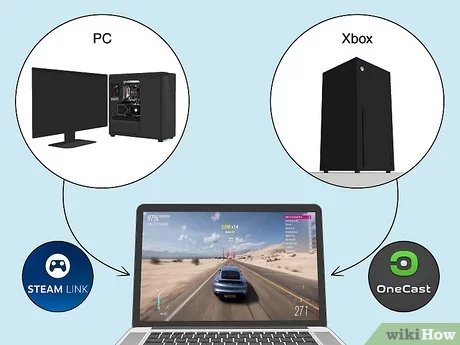
Yes, you can play PC games on Mac, although it often requires using methods like Boot Camp, virtualization software, or cloud gaming services.
The question, “can i play pc games on mac”, pops up frequently for those in the Apple ecosystem. Many gamers wonder if they are limited to only Mac-compatible titles. Fortunately, playing your favorite PC games on a Mac is possible through different paths. You can use Windows through Boot Camp.
Virtualization software offers another choice. Cloud gaming is also a growing option that lets you play without installing games directly.
These methods allow Mac users to engage with a broader range of gaming experiences.

Can I Play PC Games on Mac?
So, you’ve got a shiny Mac, and you’re itching to play some of those awesome PC games your friends keep talking about. Maybe you’ve heard whispers that it’s tricky, or maybe you’re totally in the dark. Well, let’s dive right in and get this sorted out. The short answer is: yes, you can play many PC games on a Mac. However, it’s not always a simple “plug and play” situation. Think of it like trying to fit a square peg in a round hole sometimes. But with a few tricks and understanding, you’ll be gaming on your Mac in no time.
The Challenge: Why Isn’t it Simple?
The core reason it’s not a straightforward process is that Macs and PCs use different operating systems. PCs typically run Windows, while Macs run macOS. These operating systems are built very differently. Games are often made specifically for one or the other. Think of it like speaking different languages – the game written in the “Windows language” might not understand the “macOS language.” This is why some games won’t work on a Mac without a little extra effort.
Understanding Operating Systems and Game Compatibility
Let’s explore this more in detail. The operating system (OS) is the software that controls all the basic functions of your computer. It’s the foundation on which all other software, including games, is built. When a game is created, developers usually target a specific OS, like Windows. They use programming tools and libraries designed for that OS. This means the game’s code is directly communicating with the OS, and they need to match. If the code tries to communicate with a different OS (like a Mac), it’s like trying to make a phone call using the wrong number.
Historically, most game developers have prioritized Windows. This is because the vast majority of gamers use Windows computers. As a result, many older and smaller game titles are only available for Windows, making things a little more challenging for Mac users. But times have changed and now many new titles are released for both platforms.
Ways to Play PC Games on Mac
Okay, so we know it’s not always easy, but there are several ways you can enjoy PC games on your Mac. Let’s look at the most common methods:
Using a Compatibility Layer: Wine and Crossover
One popular method involves using a “compatibility layer.” Think of it as a translator for your computer. This software allows Windows-based software to run on macOS by translating the instructions from one system to the other. Wine is one such compatibility layer; it’s open-source and free. Crossover is a commercial program built on top of Wine, making it easier to use and often providing better results.
- Wine: It’s free but can be more complex to set up. You might need some technical know-how to make games work correctly. It’s like trying to build your own translator, where you have to understand both languages.
- Crossover: It’s user-friendly and generally provides better game performance and easier setup. It’s like having a professional translator who already knows the rules and can handle things smoothly. However, it does come with a cost.
How They Work: These programs create a “virtual environment” that simulates Windows on your Mac. This tricks the Windows game into thinking it’s running on a Windows PC. The game then tries to execute its instructions, but the compatibility layer translates these to something that macOS understands. This is not always a perfect process, and not all games will work flawlessly, but it provides a good way to play many older Windows titles on Macs.
Virtual Machines: Running Windows on Your Mac
Another approach is to use a virtual machine (VM). This is like having a full Windows computer running inside a window on your Mac. Programs like Parallels Desktop or VMware Fusion let you create a separate “virtual” Windows environment on your Mac. You then install games within that virtual environment. This is a very effective way to run Windows games, but it also uses more computer resources because you’re essentially running two operating systems at once.
Pros:
- Excellent Compatibility: Virtual Machines can run most Windows applications and games without issues.
- Isolated Environment: Keeps your main macOS system separate and secure.
Cons:
- Performance Overhead: Running a VM uses a lot of RAM and CPU resources, meaning your gaming performance might not be as good as on a real Windows PC.
- Cost: Virtual machine software is often not free.
- Need for a Windows License: You’ll need to buy a copy of Windows to install in the VM.
How it Works: A virtual machine program creates an isolated environment that emulates the hardware of a regular computer. Within this environment, you install Windows, the same as you would install it on a new PC. When you start the virtual machine, it boots up Windows, giving you a completely isolated Windows system within your Mac. You can then install and play games just as if you were using a normal PC.
Cloud Gaming: Streaming the Game to Your Mac
Cloud gaming is an increasingly popular method that involves streaming the game to your computer over the internet. With services like NVIDIA GeForce Now, Xbox Cloud Gaming, or Google Stadia (though Stadia has now shut down), the heavy processing is done on powerful servers, not on your computer. Your Mac simply receives video and sends back your control input. This means you can play games that your Mac otherwise couldn’t handle.
Pros:
- Play Demanding Games: Play games that would otherwise be impossible on your Mac due to hardware limitations.
- No Installation Needed: Games are streamed directly, no big downloads or installation required.
- Cross-Platform Play: Often, you can play games available on other platforms without owning a specific console.
Cons:
- Internet Dependence: Requires a stable and fast internet connection. Lag or stutters can happen with a poor connection.
- Cost: Subscription services usually come with a monthly or yearly cost.
- Game Availability: Games offered depend on the cloud gaming platform you choose.
How it Works: When you start a game on a cloud gaming service, the game runs on a powerful server located in a data center somewhere else. The server captures the gameplay as video and streams it to your Mac over the internet. At the same time, your keyboard and mouse actions are transmitted back to the server. This all happens in real-time, creating an interactive gameplay experience.
Boot Camp: Running Windows Natively
If you need the best possible performance for demanding games, then running Windows natively using Boot Camp is worth considering. Boot Camp is a utility built into macOS that allows you to install Windows as a separate operating system on your Mac. When your computer starts, you choose whether you want to boot into macOS or Windows. This way, you get the full performance of your computer’s hardware, just like on a Windows PC.
Pros:
- Optimal Performance: Running games natively on Windows offers the best performance for your Mac’s hardware.
- Maximum Compatibility: You can play almost any Windows game that your hardware is capable of running.
Cons:
- Dual Boot System: You need to restart your computer and select Windows every time you want to play a game.
- Partitioning: Requires dedicating a section of your hard drive to Windows, which may take a significant space.
- Windows License: You need to have a Windows license to run it using Boot Camp
How It Works: Boot Camp Assistant helps you to create a Windows partition on your Mac hard drive. Then, using a Windows installation disc or USB drive, you can install Windows. Once installed, when you start your computer, you can choose to start either MacOS or Windows. When Windows is active, your Mac acts like a normal Windows computer, allowing you to install and play games in the most optimal way.
Choosing the Right Method
Deciding which method is best depends on several factors, such as the games you want to play, your technical comfort level, your budget, and the performance you expect. Here’s a quick guide:
- Casual Gaming/Older Games: Wine or Crossover might be fine for less demanding games, especially if you are technically inclined or do not want to pay extra money.
- Some demanding Games: Virtual machines are a good fit if you want good compatibility, and do not mind some performance loss.
- Demanding Games/High Performance: Boot Camp is your best option if you want to play very demanding games and want the best performance, and have a Windows license already.
- No Installation/Convenience: Cloud gaming is best if you prefer convenience and if you don’t have the hardware to handle specific games and are also ready to pay subscription fees.
Key Considerations:
- Game Compatibility: Check if the game is compatible with the method you choose.
- Performance: How well will the game run? Are you okay with some lag?
- Cost: Do you need to purchase any software or pay a subscription fee?
- Ease of Use: How complicated is it to set up? Are you comfortable with more technical steps?
Tips for a Better Gaming Experience
Regardless of which method you use, here are a few tips to make your gaming experience smoother:
- Update Everything: Keep your macOS, virtual machine software, drivers, and game clients up to date. Outdated software can lead to performance issues.
- Close Unnecessary Programs: When gaming, close any apps running in the background that you are not using. This frees up RAM and processing power.
- Adjust Graphics Settings: If you experience lag, reduce the graphics settings in the game. Things like shadows, reflections, and high textures can eat up your resources.
- Use the Right Hardware: A good mouse, keyboard and a comfortable headset can improve your gaming experience and make it more immersive.
The Future of PC Gaming on Mac
The landscape of gaming on Mac is constantly evolving. More game developers are now realizing that Mac gaming is also in demand. Apple has also been making their Macs more game-friendly with recent hardware improvements and their Metal API for game development. This means we might see a more straightforward way of playing PC games on Mac in the future. As the demand increases, we could see more native ports and games designed for Mac users. Also, cloud gaming is making huge advancements, making it easier and more appealing for Mac owners to play demanding PC games.
In short, while playing PC games on a Mac might not always be straightforward, it’s certainly not impossible. With a bit of know-how and some planning, you can enjoy many of your favorite PC games on your Mac. Whether you use compatibility layers, virtual machines, cloud gaming or Boot Camp to run Windows, there’s a method to fit every preference and technical level. So, go on, start exploring and enjoy your gaming!
Gaming on a Mac, FINALLY! 🙌
Final Thoughts
So, can i play pc games on mac? Yes, you have a few options like Boot Camp for Windows or using cloud gaming services. These allow playing many PC titles.
The specific method you choose depends on your tech skill and preference. Each has its own advantages and disadvantages. Carefully research each method before deciding.
Ultimately, you can play many PC games on a Mac, the experience may not be exactly the same as on a Windows PC.

