
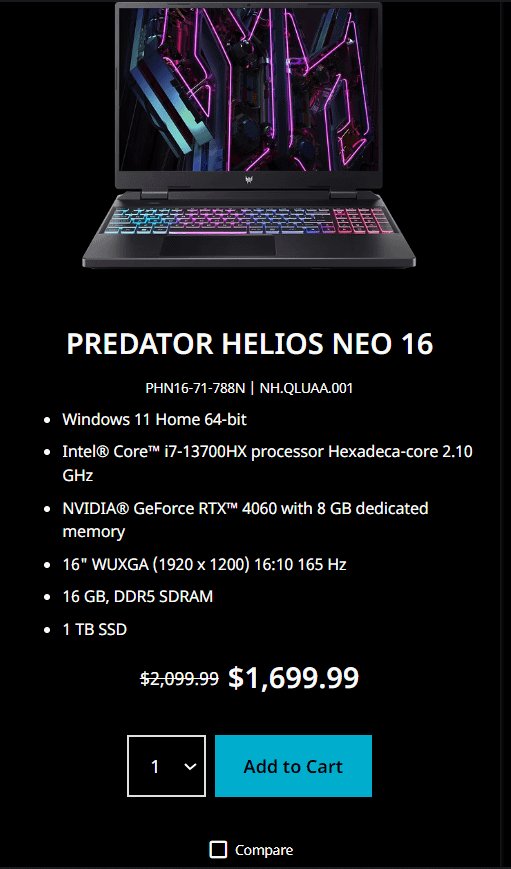
To determine if you can run this game on your laptop, you need to compare your laptop’s specifications against the game’s minimum and recommended system requirements.
Ever wondered, “can i run this game on my laptop?” It’s a common question when you see a new game you want to try. It can be frustrating to buy a game and discover that it wont even work.
Knowing if your laptop meets the required specs will save you time and potential headaches. Finding the system requirements is easy and often found on the game’s website or the platform where you buy it.

Can I Run This Game on My Laptop?
So, you’ve got your eye on a new game, and it looks amazing! But before you hit that download button, a big question pops into your head: “Can my laptop even handle it?” It’s a super common worry, and luckily, we can figure this out together. Let’s dive into all the things that make a game run smoothly and what you need to check on your laptop. We’re going to talk about the parts inside your laptop that are important for gaming, how to find out what parts your laptop has, and how to match those up with what the game needs.
Understanding the Important Laptop Parts for Gaming
Think of your laptop like a race car. Certain parts make it go fast, while others keep it running smoothly. When it comes to games, a few parts are really important. These are the key ingredients for a good gaming experience. Let’s explore them:
The Processor (CPU): The Brain of Your Laptop
The processor, also known as the CPU, is like the brain of your laptop. It’s responsible for doing all the calculations that make the game work. A faster CPU means your game can run smoother and quicker. You want a processor that is strong enough to handle the demands of the game you are trying to play.
What to Look For: Look for the name of your processor. Intel and AMD are two big companies that make these. Newer generations of CPUs are generally better than older ones. Terms like ‘i5,’ ‘i7,’ ‘Ryzen 5,’ and ‘Ryzen 7’ are helpful to look for. The higher the number after i or Ryzen, the more powerful it usually is. Also, check the generation number (for example, 12th Gen, 13th Gen). A 13th Gen i5 will likely be better than a 10th Gen i5.
Why It Matters: A slow CPU can cause your game to stutter, lag, or even crash. This means your gameplay experience won’t be enjoyable at all. Games that require a lot of fast processing need a very good CPU. Think of it like building with LEGOs. A small LEGO creation doesn’t need a lot of brainpower to make, but a huge LEGO castle does!
Graphics Card (GPU): The Artist of Your Laptop
The graphics card, or GPU, is what makes all the beautiful pictures in your game possible. It’s like the artist of your computer, creating all the images you see on the screen. If you’re looking for a clear and sharp gaming experience, it’s one of the most important things to consider. A powerful GPU can handle detailed graphics and fast action without any problems.
What to Look For: When looking at your GPU, look for names like NVIDIA GeForce (RTX or GTX) or AMD Radeon. Like CPUs, the higher the number the better they are. For NVIDIA, RTX cards are better than GTX cards. RTX cards feature extra technologies like ray tracing. It’s also helpful to know the VRAM (Video RAM) the card has. More VRAM is generally better.
Why It Matters: A weak GPU can make your games look blurry, slow, or choppy. If a game has lots of detailed graphics, shadows, and light, then it will need a good GPU to make everything look right. If your GPU isn’t up to the task, the game may struggle.
Random Access Memory (RAM): Short-Term Memory
RAM is like your computer’s short-term memory. It helps your computer quickly access the information it needs while running a game. Think of it as your desk space while you work. If you don’t have enough desk space, you’ll have a harder time doing your job, right? Similarly, more RAM means your game can run smoothly without slowing down.
What to Look For: RAM is measured in gigabytes (GB). 8GB is often a good starting point for many games. 16GB is even better and allows you to keep many programs open while running a game. More demanding games may even recommend 32 GB or more.
Why It Matters: If you don’t have enough RAM, the game will lag and be slow to load. Your computer has to work harder to load things, making the whole experience less fun. Enough RAM can prevent a game from crashing or freezing.
Storage Space: Where Games Live
Your storage space, typically a hard drive (HDD) or solid-state drive (SSD), is where your game files are stored. It’s like the closet where you keep your game collection. But not all storage spaces are created equal. SSDs are much faster than HDDs, and they will greatly help in loading the game faster and perform better.
What to Look For: Storage space is measured in gigabytes (GB) or terabytes (TB). You need enough space to install the game, and having extra space is always good. Look for SSD storage for faster loading times. You can choose between SSD and HDD. SSD is preferred, even though HDD is cheaper.
Why It Matters: If you run out of space, you won’t be able to install the game at all. Also, a slow HDD can make your loading times feel very long, meaning you spend more time waiting than actually playing.
Finding Your Laptop’s Specs
Now that you understand what parts are important, let’s find out what parts your laptop has. It’s easier than you might think! Here’s how you can do it:
For Windows Users:
- Open Settings: Click the Windows button (usually at the bottom-left of your screen) and then the gear icon to open Settings.
- Go to System: Click on ‘System.’
- Click on ‘About’: In the left-hand menu, click on ‘About.’
- Check Your Specs: Here, you’ll find details about your processor (CPU), RAM, and operating system.
- Check Your Graphics Card: Click on “System” then “Display”, and scroll to the bottom. Click on “Advanced Display Settings.” Click on the display you want to see settings for, and then under “Display Information,” you will see your GPU model listed. Or you can click on “Device Manager” in the start menu, then expand “Display Adapters”. This will show the name of your graphics card.
For MacOS Users:
- Click the Apple Menu: Click the Apple logo in the top-left corner of your screen.
- Select “About This Mac”: Click on “About This Mac”
- Check the Overview Tab: You’ll find your processor (CPU) and RAM on the overview tab.
- Click on “System Report”: Click on the “System Report” button.
- Find Your Graphics: Select “Graphics/Displays” from the left-hand menu. Look for the name of your graphics card (GPU) under “Graphics.”
Once you’ve got these details, write them down or take a screenshot. You’ll need them in the next step.
Matching Your Specs to the Game Requirements
Every game comes with a list of “system requirements.” This list tells you what kind of computer parts you need to run the game properly. There are usually two kinds of requirements: minimum and recommended. Let’s explore this:
Understanding Minimum and Recommended Requirements
- Minimum Requirements: These are the absolute lowest specs your laptop needs to run the game at all. If your specs are below the minimum requirements, the game may not run, or it may run very poorly.
- Recommended Requirements: These are the specs that will give you the best gaming experience. If your laptop meets or exceeds these, the game should run very smoothly and look great.
Think of it this way: The minimum requirements are like the bare minimum ingredients you need to bake a cake, and the recommended requirements are like using all the best ingredients to make the cake taste amazing. If you use the minimum, the cake will bake, but if you use the recommended, it will bake better, look better, and taste better.
Where to Find Game Requirements
You can usually find game requirements in a few places:
- The Game’s Store Page: Whether it’s Steam, Epic Games Store, or another platform, look for the system requirements section on the game’s page.
- The Game’s Official Website: The game’s website might have the requirements listed in the FAQ or support sections.
- Game Packaging: If you bought a physical copy of the game, the system requirements are usually printed on the box.
- Online Search: Simply searching for “[Game Name] system requirements” on Google or another search engine will provide you with information.
How to Compare Your Specs
Once you have found your laptop’s specs and the game’s requirements, it’s time to compare them side-by-side. Here’s an example to guide you.
Let’s use an imaginary game called “Adventure Quest” as an example:
“Adventure Quest” System Requirements:
| Minimum | Recommended | |
|---|---|---|
| CPU | Intel Core i5-4460 / AMD FX-6300 | Intel Core i7-8700 / AMD Ryzen 5 3600 |
| GPU | NVIDIA GeForce GTX 760 / AMD Radeon R7 260X | NVIDIA GeForce RTX 2060 / AMD Radeon RX 5700 |
| RAM | 8 GB | 16 GB |
| Storage | 30 GB | 30 GB SSD |
Now let’s say your laptop has the following specs:
- CPU: Intel Core i5-1035G1
- GPU: NVIDIA GeForce MX250
- RAM: 8 GB
- Storage: 256 GB SSD
Here’s how you’d compare:
- CPU: Your i5-1035G1 is newer than the i5-4460, so it meets the minimum requirements. However, it’s not as powerful as the recommended i7-8700.
- GPU: The MX250 is below the GTX 760, meaning you do not meet even the minimum requirements.
- RAM: Your laptop has 8GB of RAM, which is enough for the minimum requirement, but the game recommends 16GB.
- Storage: You have 256 GB SSD, which exceeds the minimum and recommended storage space for the game.
Result: In this example, your laptop is below the minimum GPU requirement. This means you might have trouble running this game, or it may have low framerates or lag badly. It would not be an enjoyable experience.
What to Do If Your Laptop Doesn’t Meet the Requirements?
Okay, so what happens if your laptop doesn’t measure up? Don’t worry, there are some things you can try:
Adjusting Game Settings
- Lowering Graphics Settings: In most games, you can lower settings like texture quality, shadow detail, and effects. This will make the game easier to run on your laptop, even if it doesn’t look as pretty.
- Reducing Resolution: Reducing the game’s resolution can make the game run smoother. Although, this may cause the game to look less sharp and more blurry.
- Turning Off Effects: Turning off things like motion blur or anti-aliasing can also help a bit with performance.
Other Tips to Improve Performance
- Close Unnecessary Programs: Close any other programs running in the background that you aren’t using. This frees up RAM and CPU for the game.
- Update Your Drivers: Make sure your graphics card drivers are up to date. New drivers are often optimized to run games better.
- Keep Your Laptop Cool: Laptops can overheat while gaming, which causes them to slow down. Use a cooling pad, or take breaks to keep your laptop cool.
- Upgrade Your Components: If possible, consider upgrading components like RAM or storage. But sometimes laptops cannot be upgraded, so make sure before purchasing any components.
Using Online “Can You Run It?” Websites
There are websites that will automatically check your computer specs against the game requirements. These sites often ask you to download a small tool to scan your computer. Then they will tell you if your computer meets minimum or recommended requirements for the game. These can be helpful for getting a quick answer. Just make sure the websites are trustworthy before downloading anything.
Using these tips, you can make your game run as best as possible on your laptop. While you won’t be able to magically make your laptop run the game at max settings, you can hopefully make it playable.
Checking if your laptop can run a game is an important step before buying or downloading a game. By understanding your laptop’s CPU, GPU, RAM, and storage, and matching those up to the game’s requirements, you can avoid disappointment. If your laptop isn’t quite up to par, remember you can always try adjusting game settings and optimize your machine. With this knowledge, you can now choose the games that your laptop can handle and have fun!
Top 9 Gaming Laptop MISTAKES (And How To Avoid)!
Final Thoughts
In conclusion, reviewing the minimum and recommended specs is essential. Check your laptop’s processor, graphics card, and RAM against the game’s requirements. Consider if your hardware meets the minimum specifications for a playable experience or if you need to tweak settings for optimal performance.
If your system falls short, you might experience lag. You also can try lowering the resolution for better frame rates. Ultimately, the core question remains: can i run this game on my laptop? Verify everything beforehand.

