
Yes, you can transfer games from one Switch to another, but only through a system transfer process.
Thinking about getting a new Nintendo Switch? You’re probably wondering, “can i transfer games from one switch to another?” It’s a common question, and thankfully, the answer is yes. You don’t have to repurchase your favorite titles.
Nintendo provides a method to move your games and save data to a new console. This process requires both Switches to be nearby and connected to the internet. Make sure to follow the correct steps to avoid any data loss.

Can I Transfer Games from One Switch to Another?
So, you’ve got a new Nintendo Switch, maybe the fancy OLED model, and you’re wondering what to do with your old one. You probably have a ton of games on it, and the thought of buying them all over again isn’t exactly fun. The good news is, you absolutely can move your games from one Switch to another! It’s like moving houses, but for your video games. It might sound tricky, but it’s actually quite straightforward once you know how it all works. Let’s dive deep into how to get your games from your old Switch to your new one and everything you should know about it.
Understanding Game Transfers on Nintendo Switch
Before we jump into the ‘how,’ let’s talk about the ‘what.’ When we say “transfer games,” we’re mainly talking about two things: your game data and your digital game licenses. Game data is everything that keeps track of your progress in a game, like your level, your items, and your saved stories. Digital game licenses are like your receipt for a game you bought online, making sure you can play it. Moving physical games is simple – just pop the game card into the new console. For digital games, there’s a special process we’ll walk through.
What exactly gets transferred?
When you transfer your games from one Switch to another, you’re moving a few key things. These include:
- Digital Games: Games you’ve purchased from the Nintendo eShop.
- Save Data: This is crucial because it holds your progress in your games.
- User Account: This includes your Nintendo Account profile, your friend list and more.
- Some System Settings: Your settings preferences may be moved.
What doesn’t get transferred?
While a lot gets moved, there are a few things to keep in mind that do not transfer:
- Physical Game Data: Data from games on physical cartridges is stored on the cartridge and will move with the game itself.
- Software Updates: If a game has updates, you might need to download them again on your new console.
- Certain System Settings: Not all of your system settings will move, and you may need to reconfigure them on your new Switch.
The Two Main Methods for Game Transfer
There are two main ways to move your games between Nintendo Switch consoles: User and Save Data Transfer, and Redownloading Digital Games. Both get you to the same goal but involve slightly different steps. Let’s break them down.
User and Save Data Transfer
This method is for moving everything over – your entire user profile, which includes your game licenses, your save data and some system setting. It’s the best option if you want a clean swap and your new Switch to mirror your old one as much as possible.
Steps for User and Save Data Transfer
- Make Sure Both Consoles are Ready: Both your old and new Nintendo Switch need to be powered on, connected to the internet, and close to each other. Also make sure both systems have the latest system updates.
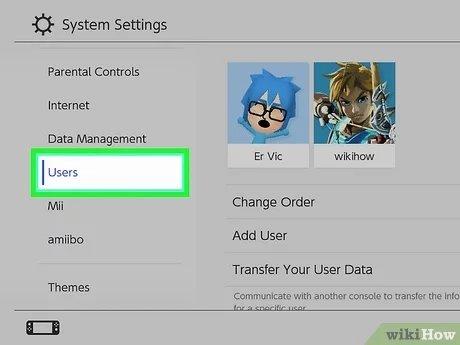
- On Your New Switch: Go to System Settings, then find Users, then select Transfer Your User Data. Follow the on-screen prompts to set it up as the target console.
- On Your Old Switch: Go to System Settings, then find Users, then select Transfer Your User Data. Follow the on-screen prompts to set it up as the source console.
- Select the data to transfer: Choose between transferring your entire user profile with all settings or just the save data of a user account.
- Follow the instructions: Once both consoles find each other, they will guide you through the rest of the process, which might include verifying your Nintendo Account.
- Wait for the Transfer to Complete: This may take some time, depending on how much data you have. Be patient and don’t turn off either console.
- Verify the Transfer: Once completed, check your new switch to ensure that all the necessary information is transferred.
Important Notes for User and Save Data Transfer
- Only One User Profile: You can only transfer one user profile at a time with this method, and if you have multiple profiles, they will need to be moved separately.
- Transfer is Permanent: The user profile will be removed from the original console after the transfer. This means that the games are no longer accessible on your old switch.
- System Update: Make sure both Switch consoles have the latest system update, otherwise the transfer might fail.
- Internet Connection: Make sure both of the console is connected to an internet.
- Power: Ensure that both the consoles are sufficiently charged before you start the transfer.
Redownloading Digital Games
If you prefer to keep your old console active and just want your games on your new Switch, you can redownload them. This process uses your Nintendo Account, which holds your purchase history for all digital games and DLC. You will not move the save data when doing this. This will be only download the games to your new switch and you can access it there, you need to sync the save data if you want to continue where you left it from the old console.
Steps for Redownloading Digital Games
- Make sure you have a Nintendo Account: Make sure the account that has your purchased games is linked to the new console.
- Go to the eShop: On your new Nintendo Switch, open the eShop. Make sure you are logged in to the account that purchased the games.
- Go to the Redownload Section: In the eShop, find the section for “Redownload” or “Your Downloads”. This is usually found under your account profile.
- Select Games to Download: A list of all your purchased digital games will appear. Click on the cloud icon next to the games you want to download.
- Wait for Downloads: The games will now download to your new console. Download time will depend on your internet speed and the size of the games.
Important Notes for Redownloading Digital Games
- Save Data: Save data for the games are not transferred with this method, you will need to transfer them separately using the cloud save data, if you have Nintendo Switch Online subscription.
- Account Linking: Make sure the new console is linked to the correct account before you begin.
- Game Size: Downloading large games can take a long time. Make sure you have enough storage on your new console.
- Internet Connection: A reliable internet connection is required to download your games.
Managing Save Data
Save data is super important, as it holds all your game progress. Thankfully, Nintendo offers a few ways to manage and transfer save data. Here’s how it works.
Local Save Data Transfer
You can transfer the save data from one console to another in close proximity using the system transfer feature.
Steps for Local Save Data Transfer
- Same Account: Make sure both consoles are using the same Nintendo account.
- Go to System Settings: On both consoles, go to System Settings, then Data Management.
- Transfer Your Save Data: Choose the option to “Transfer Your Save Data”.
- Select Data: Follow the instructions on the screen to select which data you want to transfer.
- Initiate Transfer: Once both consoles find each other, follow the on-screen prompts to complete the transfer.
Cloud Save Data via Nintendo Switch Online
If you are a member of Nintendo Switch Online, you can back up your save data to the cloud, which makes transferring it to a new console super simple. This is not applicable to all the game, as there are some games that do not support cloud saves.
Steps for Using Cloud Save Data
- Nintendo Switch Online Subscription: Make sure you are subscribed to Nintendo Switch Online.
- Enable Cloud Saves: In System Settings, then Data Management, then Save Data Cloud, turn on the feature and make sure that your save data is backed up to the cloud.
- On Your New Console: Link the new Switch to the same Nintendo account.
- Download Cloud Data: Open System Settings, then Data Management, then Save Data Cloud, and download your cloud save data to your new Switch.
- Verify: Check if all your save data has transferred successfully.
Important Notes for Save Data Management
- Some Games Don’t Support Cloud Saves: Not all games support Cloud Save Data. Make sure to check the compatibility for each game.
- Nintendo Switch Online: Cloud saves require a Nintendo Switch Online subscription. If you don’t have a subscription, then you need to use the system transfer feature or the game specific transfer method.
- Automatic Backups: Cloud saves usually happen automatically if you have an active subscription and the save feature is enabled.
Specific Scenarios and Considerations
Let’s cover some common situations you might encounter when moving your games between Switches, as it’s not always a simple process. It’s good to be aware of these beforehand.
What if you have multiple user accounts?
If you have multiple user accounts on your old Switch, you’ll need to transfer them individually. The user and save data transfer option only moves one user profile at a time.
- Repeat the process: Use the User Transfer method for every profile.
- Careful planning: Keep track of which user profile has been moved and which one is left.
- Cloud saves can help: Use the cloud saves to move the progress faster on the other console.
What about game updates?
Game updates are specific to each console. So, even if you transfer a game, you might need to download the updates again on your new Switch. This usually happens automatically if your console is connected to the internet.
- Check for updates: After you move your game, make sure you check that there are no updates required.
- Automatic downloads: Most of the time, game updates download automatically when the console is connected to the internet.
What if you have limited storage?
Nintendo Switch has limited storage space, which can fill up very quickly if you have multiple downloaded games. If your new console doesn’t have enough storage, you will need to manage your game files and move the bigger files to SD card or external storage.
- MicroSD Cards: Use a MicroSD card for storing larger game files.
- Move data to SD card: You can move data to the SD card, from your system storage.
- Archive Games: You can delete games that you are not actively playing and can redownload them later when you have the space. This only removes the game files, not the save data.
Dealing with Physical Game Copies
Physical game copies are the simplest to manage. Simply remove the cartridge from your old Switch and put it in your new one and you are good to go. If there are any updates, those can be downloaded on your new console.
- Easy transfer: Physical games are the simplest to transfer between consoles.
- Save data on system: Remember that save data is stored on the system, not on the game card.
Nintendo Account and Primary Console
Your Nintendo account can only have one primary console. if you have a console set as primary, you will only able to play your digital games when you are logged in to that primary account. If you want to play on another console, you will not be able to access the game unless you change your primary console.
- Primary Console: Understand the concept of primary and secondary consoles for accessing digital games.
- Deactivate Primary Console: Before you transfer, you can deactivate your old console as the primary console.
- Change Primary Console: You can change which console is set as your primary console from your account page on the Nintendo website.
What about Nintendo Switch Lite?
The process is the same for both Nintendo Switch and Nintendo Switch Lite, as all consoles have the same functionality and user interface. The process for the transfer or re-download process is the same as it is for standard Switch consoles.
Moving games from one Nintendo Switch to another is absolutely doable, and, hopefully now that you’ve read this, you have a good understanding of how to do it. Whether you prefer the quick transfer of everything using user and save data migration, or the option to redownload your games while keeping your old Switch active, there are ways to manage your game collection easily. Just be sure to plan and prepare, and remember that the save data is just as important as your games. Have fun gaming on your new Switch!
How to Transfer Saves & Games From One Nintendo Switch to Another (Move User Progress & Purchases)
Final Thoughts
Yes, you can transfer games from one Switch to another. The process requires both consoles to be nearby and connected to the internet. Make sure you have your Nintendo Account ready.
Transferring your profile moves all associated digital purchases and save data. You must initiate the process from the source console. This action erases the content from original device.
Therefore, if you’re wondering, “can i transfer games from one switch to another”, the answer is yes. Remember to prepare both consoles for a smooth transition.

