
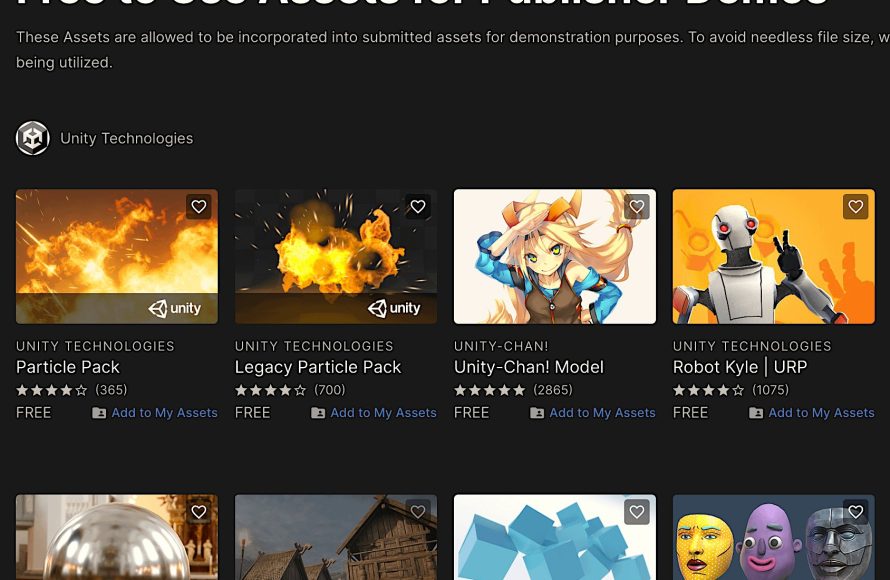
Yes, you can use free Unity assets in your game, typically within the terms of their individual licenses.
So, you’re diving into game development with Unity and thinking, “Can I use free Unity assets in my game?” It’s a great question, and a very common one for new and experienced creators alike. The Unity Asset Store has a wide variety of free resources, from 3D models to scripts and sounds.
Using these can significantly speed up your workflow and bring professional-quality elements to your project. But before you start downloading and implementing everything, there are a few things you need to know.

Can I Use Free Unity Assets in My Game?
Alright, let’s dive deep into the exciting world of game development with Unity! You’re probably itching to get started, creating amazing worlds and characters. But, building everything from scratch can take a long, long time. That’s where Unity assets come in. The great news is that there’s a treasure trove of free assets ready for you to use! But, before you start dragging and dropping everything you see, it’s really important to know the rules. Let’s explore the ins and outs of using free Unity assets in your game.
What Exactly are Unity Assets?
Think of Unity assets as ready-made building blocks for your game. These aren’t just pretty pictures or sounds; they are complete packages containing things like:
- 3D Models: These are the shapes of objects, characters, and environments in your game. Think of trees, cars, or even the hero!
- Textures: These are like the “skin” of your 3D models. They add color and detail, making them look real.
- Animations: These make things move! Think of a character walking, a door opening, or a flag waving.
- Audio Files: These are the sounds your game will use, like music, sound effects, and character voices.
- Scripts: These are lines of code that tell your game how to behave. They make things happen, like when a player jumps or shoots a bullet.
- Prefabs: These are pre-configured collections of assets that you can reuse in your game. Imagine having a ready-made house that you can easily add into your level.
- Tools and Editors: These are extensions that add new functionalities and improve the Unity editor.
Assets save you tons of time because you don’t need to make all of these from the ground up yourself. Using assets allow the developers to focus on game design and mechanics instead of designing the models, animations, etc.
Where Can You Find Free Unity Assets?
The main place to find assets, both free and paid, is the Unity Asset Store. It’s built right into the Unity editor! Here are a couple of ways to access it:
- Directly in Unity: In the Unity editor window, go to Window > Asset Store.
- Online: You can visit the Unity Asset Store website through your web browser.
Once you’re there, you can search for free assets using filters or keywords. There are also numerous third party websites that offer free Unity assets. However, proceed with caution while using these types of assets because they are not directly linked to Unity.
The All-Important License: Understanding the Rules
This is super important, so listen up! Just because an asset is free doesn’t mean you can do absolutely anything you want with it. Every asset, even free ones, comes with a license. This license is a set of rules that tells you what you can and cannot do with the asset. You must understand the license before using assets because not all the assets are licensed the same. Ignoring the license of assets can lead you to legal issues.
Common Types of Licenses
Here are some of the common types of licenses you might encounter on the Unity Asset Store:
- Unity Asset Store Standard License: This is the most common type of license. Typically, it allows you to use the asset in your games, whether they are personal or commercial (meaning you sell them). You usually cannot resell the asset itself. If you buy any paid assets from unity then these assets have the unity asset store standard license.
- Creative Commons Licenses: These licenses come in several flavors, with the most common types being:
- CC BY (Attribution): You must give credit to the original creator of the asset.
- CC BY-SA (Attribution-ShareAlike): You must give credit and any new works made from it must also use the same license.
- CC BY-NC (Attribution-NonCommercial): You can use the asset as long as you aren’t making money.
- CC BY-ND (Attribution-NoDerivatives): You cannot make any changes to the asset.
- Public Domain: This means the asset isn’t protected by copyright. You can use it freely without any restrictions. However, remember to ensure that an asset is truly public domain, because assets get mistagged and if you use these types of assets, you may face legal issues.
- MIT License: A popular and permissive license that grants permission to use, modify, and distribute the asset even in commercial use.
- Custom Licenses: Sometimes, the creator of an asset creates a custom license. Always read the specific terms of these licenses closely.
Key takeaway: Always, always, read the license for each asset you use. This will protect you from getting into trouble later.
Understanding Usage Restrictions
Even with a license, there might be other things you need to be aware of when using free assets. Here are some points to pay attention to:
Attribution Requirements
Many free assets, especially those with a Creative Commons license, require that you give credit to the original creator. This can be as simple as adding their name to a credits list or including their website somewhere in your game’s documentation. Failing to do this is a breach of license and can lead to legal complications.
Modifying Assets
Some licenses may restrict you from modifying assets. For example, with the CC BY-ND license, you may not modify the given asset. If you are looking for a specific set of assets that needs modification, then check for a license that allows modifications. If you have doubts, contact the creator of the asset to get clarification.
Commercial vs. Non-Commercial Use
Make sure the license allows for the type of usage you have planned. If you are planning to make money off your game, ensure that the free asset license allows for commercial use. Some licenses restrict commercial usage while allowing non-commercial usage of the assets.
Limitations on Redistribution
You are usually allowed to include free assets in your game for distribution, but you are not allowed to just redistribute the assets themselves. That means you can’t just take the asset and sell it as your own or put it in another asset pack. These are the common restrictions that most licenses have.
How to Properly Integrate Free Assets into Your Unity Game
Alright, you’ve found some fantastic free assets that you want to use! Here’s how to bring them into your Unity project:
- Download the Asset: From the Asset Store, click “Add to My Assets.” Then, in Unity, go to Window > Package Manager.
- Import the Asset: Find the downloaded asset under “My Assets” in the Package Manager. Click “Import” to bring it into your project.
- Organize Assets: Create folders in your “Assets” folder to organize imported assets. This keeps your project tidy and easier to manage. For example, make folders like “Models,” “Textures,” “Sounds,” and so on.
- Inspect the Asset: Take some time to review the assets. Look at any accompanying documentation, sample scenes, or read me files. Understand how the asset works before just blindly using it.
- Drag and Drop to the scene: After importing, you can simply drag and drop the asset from your project window to your scene in the scene window.
- Adjust the Asset if Necessary: Most of the time, you’ll need to tweak the settings of the asset, like the scale, rotation, and color to suit your game.
- Test It Out! Run your game to make sure everything works fine. If you’re using assets for something specific, test that functionality, like movement, animation, etc.
Tips for Choosing High-Quality Free Assets
Not all free assets are created equal! Some are amazing, and some are…not so much. Here are some things to keep in mind when browsing for free assets:
- Check the Ratings and Reviews: See what other users have to say about the asset. If it has lots of bad reviews, stay away!
- Look at the Preview Images and Videos: See if the asset is high quality by looking at its preview images. You will get a better feel for the quality of the asset. If it has video, watch that to check how it moves and behaves.
- Download Demo Scenes: If the asset has a demo scene, it’s a good idea to download the demo scene to understand how the asset is supposed to work.
- Pay Attention to the Asset Creator: Some creators are well-known and consistently make great content. Other creators may be new, and their content might not be the best.
- Check the File Size: Very large assets can slow down your game’s performance, especially if you have many of them. When you download free assets, ensure that the asset sizes are optimized.
- Check Asset Complexity: Assets with too many polygons can slow down your game performance. Try to use assets that are optimized for your targeted devices.
Common Pitfalls to Avoid with Free Assets
Here are some common mistakes that game developers make when using free assets. Be careful not to make these mistakes.
- Ignoring the License: This is the biggest and most dangerous mistake. Always check the license before using any free asset.
- Using Low-Quality Assets: It’s better to have no asset than a bad one. Using poor quality assets can make your game look unfinished.
- Not Organizing Assets: It can become difficult to find the assets if you don’t organize them properly. It can lead to a messy project and cause more problems later.
- Using Too Many Assets: Don’t overload your game with too many assets, even free assets. Be selective in the type of assets you want in your game. Having too many assets may make your game look confusing.
- Not Optimizing Assets: Many free assets may not be optimized for your game. You can reduce the file size and complexity using tools in Unity. For example, reducing texture resolution.
- Relying too much on free assets: Don’t make the whole game with only free assets, because every other developer will have access to the same assets. Use some of them to learn and build something unique with them.
The Advantages of Using Free Assets
Now that we’ve covered all the important rules and tips, it’s time to look at the positive side! Using free assets is a fantastic way to get started with game development. Here are some advantages to using free assets:
- It Saves Time: It allows developers to work on the main game development rather than working on creating assets from scratch.
- It Saves Money: You don’t have to pay to use the assets, which means you have more money left to spend on your project.
- It Speeds Up Development: Using free assets allows developers to quickly test new ideas and make prototypes.
- It Provides a Learning Resource: It is good for learning how to organize assets and integrate them into your project.
- It Helps You Build a Portfolio: You can create small projects using free assets to show off your skills to potential employers.
Using free assets in Unity can significantly increase your productivity and help you realize your game design ideas. When using free assets, you must respect the rules and be careful to make sure that you adhere to the license. By knowing the rules, you can make your game development smooth and professional.
Unity Question – Can I publish a game using Free assets?
Final Thoughts
In short, yes, you can use free Unity assets in your game. However, always check the specific license terms of each asset before use. Usually, these licenses allow for use in personal and commercial projects.
Pay attention to any attribution requirements; some may necessitate you credit the creator. Ignoring licensing can lead to legal issues. So, proceed carefully and enjoy adding free resources to your project.

