
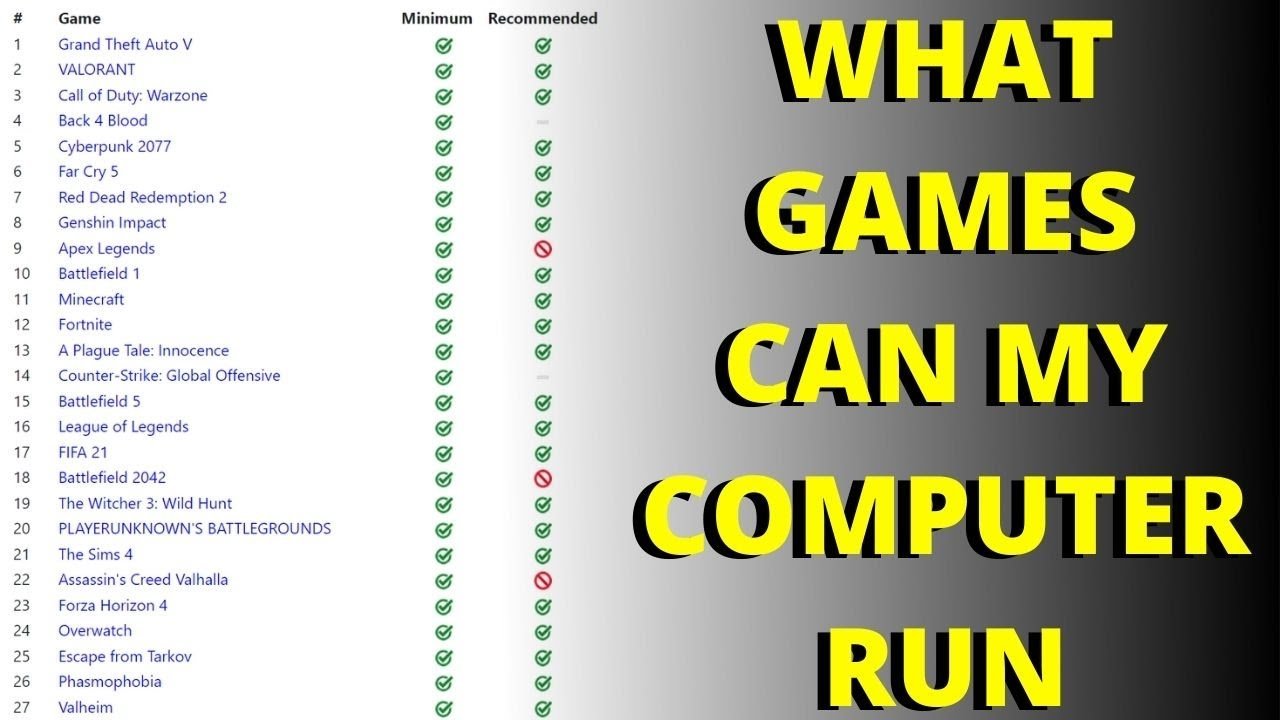
Whether your computer can run games depends on its hardware specifications compared to the game’s requirements.
Ever wondered if that shiny new game will actually work on your machine? The big question of “can my computer run games” often hangs over us before a purchase. It’s a common concern and we’re here to provide some clarity on this important issue.
This question boils down to a comparison between what your computer is capable of and what the game needs. We’ll help you understand the key factors that determine if your gaming dreams will become a reality, or just stay a wish.

Can My Computer Run Games? A Deep Dive
So, you’re itching to play that awesome new game everyone’s talking about, but a big question pops into your head: “Can my computer even handle it?” You’re not alone! It’s a very common worry for gamers, especially when new, graphically intensive titles come out. The good news is, figuring this out isn’t rocket science. Let’s explore what makes a computer good for gaming and how you can see if yours measures up.
Understanding the Key Computer Parts for Gaming
Think of your computer like a race car. It has different parts that all work together to make it go fast. When it comes to games, some parts are more important than others. These are the major components we need to pay close attention to:
The Graphics Card (GPU)
The graphics card, also known as the GPU (Graphics Processing Unit), is like the engine for your visuals in games. It’s what creates the images you see on your screen. A more powerful graphics card means games will look prettier and run smoother. Without a good GPU, games might look blocky, lag, or not even run at all. Here’s what to think about for your GPU:
- Brand: The two main makers of graphics cards are NVIDIA and AMD. Both make very good cards, but they offer different features and price points.
- Model Number: The numbers after the brand tell you how powerful the card is. Higher numbers generally mean more power. For example, an NVIDIA RTX 3080 is more powerful than an RTX 3060. The same goes for AMD cards (like RX 6800 vs RX 6600).
- Video Memory (VRAM): This is like short-term storage for the graphics card. More VRAM allows the GPU to handle more detailed textures and effects. Games with lots of big, open areas or high detail need more VRAM. You want at least 4 GB of VRAM these days for smooth gameplay in most titles, while some demanding games need 8 GB or even more.
Your Graphics Card is very important, so you should always check the gaming requirements for each game before buying it and trying to run it. Checking the gaming requirements will allow you to find if your PC has the required hardware or not.
The Processor (CPU)
The CPU, or Central Processing Unit, is the brain of your computer. It handles all sorts of tasks, including running game code and calculations. It works with the GPU to run smoothly. When a CPU is not strong enough, your games will stutter, not load, or get too slow to play. Here are important CPU aspects to know:
- Brand: Intel and AMD are the big CPU makers. They both make very powerful processors suitable for gaming.
- Model Number: Just like GPUs, the numbers after the brand tell you how powerful the CPU is. Higher numbers tend to be better, but you also need to know the generation of the processor. For instance, an Intel Core i7-13700k is more modern and powerful than an Intel Core i7-8700k. Newer generation is usually better than older ones even with similar names.
- Core Count: Many games now use multiple cores to process data. A higher core count in your CPU means it can handle more tasks at once, generally increasing game performance.
- Clock Speed: Measured in GHz (gigahertz), it’s the speed at which the CPU processes data. A higher clock speed can sometimes translate to better performance.
Random Access Memory (RAM)
RAM is like short term memory for your computer. It stores data that the computer is using right now. For gaming, this includes the game itself, any background programs, and the temporary information. More RAM lets the computer handle more at once, preventing slowdowns. Here’s what to think about for RAM:
- Amount: 8 GB of RAM is the absolute minimum for gaming, but you’ll have a much better experience with 16GB. Newer and more demanding games may recommend 32GB.
- Speed: Measured in MHz (megahertz), faster RAM can improve game performance in some cases, but it’s usually not as impactful as a faster GPU or CPU.
Storage Space
This is where your games are kept. A hard drive (HDD) or a solid state drive (SSD) are your storage options. For gaming, an SSD is much faster than an HDD because it makes games load very quickly and reduces loading times within the game. Here is what you need to think about for your storage:
- Type: An SSD is recommended for gaming. Games load much, much faster, and this makes for a much better gaming experience. While HDDs are cheaper, the speed difference is huge. If you don’t have an SSD, consider upgrading.
- Space: Modern games can take up a lot of storage space, sometimes over 100GB per game. Make sure you have enough free space for the games you want to play. You may need to clear some space or get more storage if you run out.
Checking Your Computer’s Specs
Now you know the important parts for gaming. How do you see what your computer has? Here are some simple steps:
On Windows
- Press the Windows key.
- Type “System Information” and click on the app when it appears.
- Look for the “Processor” line. This tells you the CPU info.
- Look for the “Installed Physical Memory (RAM)” line for RAM.
- Click on the “+” next to “Components,” then click “Display.” Here you’ll see your graphics card information.
You can also look in Device Manager (search for it in the windows search bar) to see your graphics cards, processors, and storage devices.
On macOS
- Click on the Apple icon in the top-left corner.
- Click on “About This Mac”.
- This window shows your processor (CPU), RAM, and other info.
- Click “System Report…” and then “Graphics/Displays” to find your GPU information.
Understanding Game Requirements
Every game has minimum and recommended system requirements. These are lists of the computer parts you need to run the game. The “minimum” is the bare minimum for the game to run, usually with lower graphics settings and may not provide a smooth experience. The “recommended” requirements are what the game developers think you should have for a smooth and beautiful experience.
Where to Find Game Requirements
- Game’s Store Page: Look for the system requirements on the store page where you bought or want to buy the game (like Steam, Epic Games Store, or PlayStation Store for PC games)
- Game’s Website: The game’s official website will usually include the system requirements as well.
- Gaming Websites: Many websites that talk about games will also list the system requirements in their game info sections.
Minimum vs Recommended Requirements
Let’s take an example. Say a game lists these requirements:
| Component | Minimum | Recommended |
|---|---|---|
| CPU | Intel Core i5-4460 or AMD FX-6300 | Intel Core i7-8700K or AMD Ryzen 5 3600 |
| GPU | NVIDIA GeForce GTX 760 or AMD Radeon R7 260x | NVIDIA GeForce GTX 1070 or AMD Radeon RX Vega 56 |
| RAM | 8 GB | 16 GB |
| Storage | 20 GB HDD | 20 GB SSD |
If your computer meets or exceeds the “recommended” specs, you will probably have a very good experience. If your computer matches the “minimum” specs, the game might run, but you might need to lower the graphics settings and it could have a hard time. If your computer doesn’t even match the minimum, there’s a high chance the game won’t run at all.
What to Do If Your Computer Doesn’t Meet Requirements
Okay, so you’ve checked your computer’s specs and the game requirements, and it turns out they don’t match very well. What can you do? Here are a few things to consider:
Lowering Graphics Settings
Most games let you change the graphics settings. This allows you to play a game even with a less powerful computer. Options like texture quality, shadow detail, and resolution can be turned down for better performance. You’ll need to experiment to see what provides the best balance between performance and looks. Turning down the resolution of a game can make a huge difference in performance.
Upgrading Your Computer
- RAM: Adding more RAM is often a very easy and good option. It can often help with some stutters and speed.
- Storage: If you’re still using an old hard drive, upgrading to an SSD will greatly improve the speed of game loading.
- GPU: This is the most impactful part for improving gaming performance. It’s also the most expensive. If your computer is quite old, you might need a whole new computer because your old parts might not be able to use with newer GPUs.
- CPU: Upgrading your processor can also help with overall gaming performance.
Other Solutions
- Cloud Gaming Services: If upgrading your computer isn’t an option, you can look into cloud gaming services like Nvidia GeForce Now or Xbox Game Pass Ultimate. These services run the games on powerful servers, and you stream the game to your device. This allows you to play high-end games on less powerful computers.
- Older Games: Instead of playing new, high-demanding games, you can enjoy a vast library of older games that are easier for your computer to handle. Many older games are still great and very fun to play.
Figuring out if your computer can run a game can seem daunting, but by understanding your computer’s parts, checking game requirements, and trying some ways to improve performance, you can get in the game without much frustration! Remember to always look at the game’s requirements before buying to save yourself the trouble of buying a game that won’t run on your computer.
Check which games are compatible with your pc Can my PC run it What games can I play on my computer
Final Thoughts
So, checking specifications, comparing to game requirements, and understanding your components helps. Often, older machines struggle, while newer ones generally perform better. Ultimately, knowing this info lets you answer: can my computer run games?
Don’t assume it will be smooth, game settings and optimization impact performance too. A proper analysis is must before purchasing a game. This will prevent frustration.

