
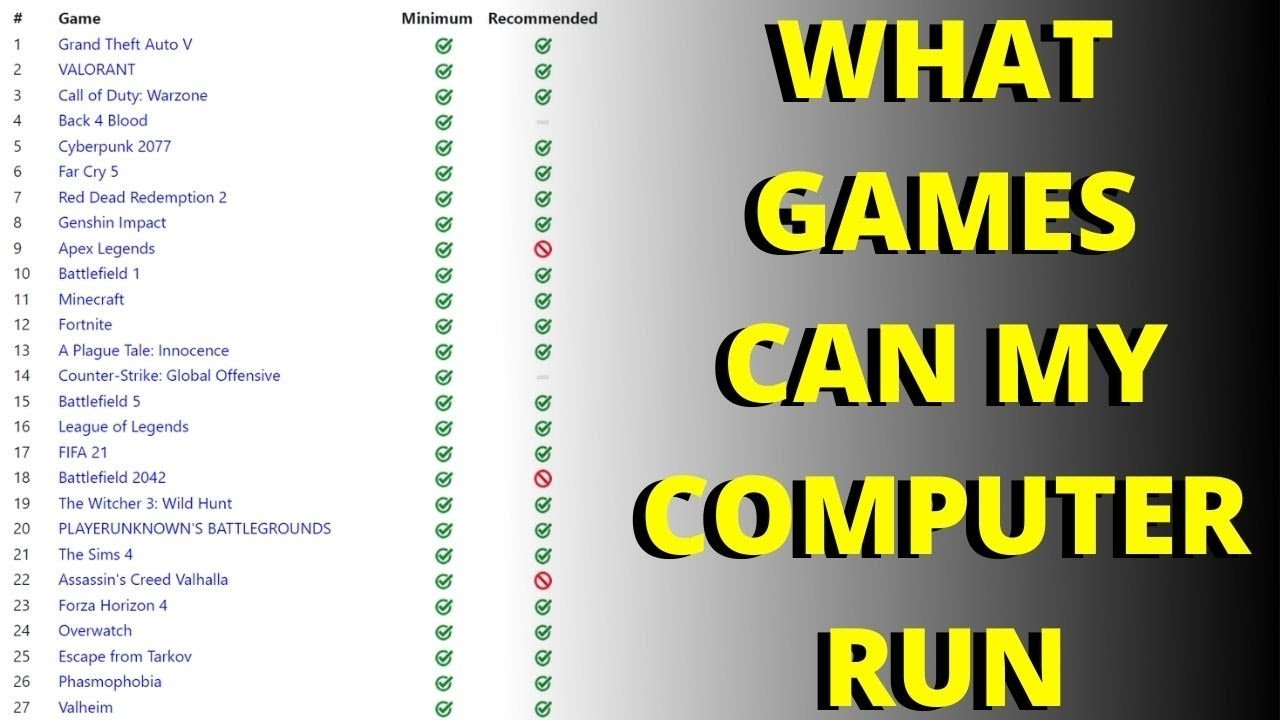
To know if your PC can run a game, compare the game’s minimum and recommended system requirements to your computer’s specifications.
Ever felt that pang of excitement when a new game releases, only to wonder, “can my pc run a game?” It’s a common question for gamers everywhere. We’ve all been there, eagerly anticipating a gaming experience, just hoping our machine can handle the load.
Figuring out compatibility can seem tricky, but thankfully it’s not too complicated. By carefully checking your system specs and comparing them to the game’s listed requirements, you can quickly determine if your pc can run a game successfully or not. This saves you time and potential frustration.

Can My PC Run a Game? Understanding System Requirements
So, you’ve got your eye on the newest, coolest video game. Maybe it’s a fast-paced shooter, a sprawling role-playing adventure, or a mind-bending puzzle game. But before you hit that buy button, a big question pops into your head: “Can my PC actually play this game?” It’s a very common question, and luckily, there are easy ways to find out. This is all about understanding your computer’s “specs” (that’s like its report card) and comparing them to what the game needs.
What Are System Requirements?
Think of system requirements like the recipe for a cake. To bake a delicious cake, you need specific ingredients like flour, sugar, and eggs, and each in a specific amount. Similarly, a game needs specific “ingredients” or computer parts to run smoothly. These ingredients are what we call system requirements. There are two main categories of these requirements:
Minimum System Requirements
These are the bare minimum parts your computer needs to even start the game. If your PC only meets the minimum requirements, the game might still work, but it may not look very good and could feel slow, also known as laggy. Expect lower graphics settings, choppy gameplay (where things move in a jerky way), and maybe even some frustrating crashes. Imagine playing with only a few of your favorite toys, it’s still something, but not as fun as having them all.
Recommended System Requirements
These are the parts the game developers suggest for you to have the best gaming experience. Meeting these requirements will mean the game looks good, runs smoothly, and is less likely to crash. It’s like having all of your toys and all the friends to play with them, which is much more exciting! It allows for higher graphics settings, smoother gameplay, and overall a much better experience. It’s where the game is meant to shine.
Key Computer Parts That Matter For Games
When we talk about system requirements, we are often talking about these particular parts of your computer. Let’s go through them:
Operating System
This is the basic software that makes your computer work like Windows, macOS, or Linux. Games are made for specific operating systems, so you need to make sure you are running the correct operating system that the game requires. It’s like needing a specific kind of key to open the door.
Processor (CPU)
The CPU is like the brain of your computer. It does all the thinking and calculations that make the game work. A faster and more powerful processor is very important for smooth gaming. Some game will require a specific processor to run. It’s like the chef in the kitchen, the more powerful the chef the more delicious the food will be.
Memory (RAM)
RAM is like your computer’s short-term memory. It stores information the computer is currently using. Games need enough RAM to run efficiently. If you don’t have enough RAM, your game might feel slow. Think of RAM like your desk space. If you have little space, you can’t have all your open books and notes out at once.
Graphics Card (GPU)
The GPU is like the artist of your computer. It creates the images you see on your screen. A powerful GPU is needed for better graphics, higher resolutions, and smooth frame rates. It is one of the most important component in the entire gaming setup. It’s like the paintbrush and colors. The better they are, the more amazing the art you can create.
Storage (Hard Drive or SSD)
This is where all your games and files are kept. When playing games, having enough storage is not the only requirement as some new games will also need the speed offered by Solid State Drives (SSD) to run smoothly. It’s like your big toy chest. You need enough room to store all your games.
Finding System Requirements
Okay, now we know what those computer parts are and why they are important. The next part is to find the system requirements for the game you’re interested in.
Where to Look
- Game Store Pages: Sites like Steam, the Epic Games Store, GOG, and the game’s official websites list the system requirements on the game’s page.
- Game Packaging: If you buy a physical copy of a game, the system requirements will be printed on the box.
- Game Websites: The game’s official website often has a section that details the system requirements.
What to Look For
When you find the system requirements, you will see them usually listed in the following way:
- Minimum: Lists the very basic components for your computer to run the game.
- Recommended: List of hardware that will allow you to enjoy the game at its best.
How to Find Your PC’s Specifications
So, you know what the game needs, but how do you find out what your computer has? Don’t worry; it’s not as difficult as it sounds. Here’s how you find those important components:
On Windows
You can find most of this information in your PC’s settings. Follow these simple steps:
- Click on the Windows button (usually at the bottom left corner of your screen).
- Click on the “Settings” gear icon.
- Click on “System.”
- Click on “About” on the left side of the window. Here, you’ll find your operating system and other basic information.
- Now, for other important information, click on “Display” on the left side and scroll down to find “Advanced Display Settings” and click on it.
- Click on “Display Adapter Properties for Display 1”. The window will appear which shows information of your graphics card.
- To find your processor and RAM, type “System Information” in the search box next to the windows button, then click on it. Here, you’ll find info about your processor (CPU) and RAM, under the “System Summary” section.
Alternatively, you can type “dxdiag” in the search box and press enter. This will bring up the DirectX Diagnostic Tool which has all of the information mentioned in one place.
On MacOS
Finding your computer’s specifications is also easy on a Mac. Here’s how:
- Click the Apple logo at the top-left corner of your screen.
- Select “About This Mac.”
- A window will appear that shows basic information about your Mac, including the processor (CPU), memory (RAM), and graphics card.
- To find out the operating system, check the version listed in the “About This Mac” window.
- For storage information, Click on “Storage” to see available hard drive space.
Using a Website
There are some helpful websites that can tell you if your PC can run a game. These websites will automatically check your computer’s specs and compare them to the game’s requirements. Usually, they require you to download a small, safe tool to help them collect your system information.
One such website is “Can You Run It”. Here are the steps:
- Go to the Can You Run It website.
- Search for the name of the game you want to check.
- The website will ask you to download a small tool or run a test, follow the steps.
- After checking your specs, the site will tell you if your PC can run the game or not.
Comparing Your Specs to Game Requirements
Once you know the system requirements of the game and what your PC has, it’s time to compare them. It is quite simple really.
Match Game Requirements
Go through the list of system requirements for the game, one by one, and check whether your PC components meet or exceed the requirement. A checklist is always useful here. If you see “Intel Core i5-6600k” in the “processor” section, you need to make sure that the processor in your PC is equal or better than it, in the performance scale. Similarly, for all other requirements, such as RAM, Operating System, and Graphics Card. Here’s how to think about it:
- Operating System: Does your computer run the same OS (like Windows 10, Windows 11, macOS X, etc.)?
- Processor (CPU): Is your CPU as fast as, or faster than, the one listed in the requirements?
- Memory (RAM): Do you have at least as much RAM, or even more?
- Graphics Card (GPU): Is your GPU as good as, or better than, the one listed?
- Storage: Do you have enough free space on your hard drive or SSD?
If You Meet the Minimum Requirements
If you meet only the minimum requirements, the game should run, but you might not get the best experience. You might have to lower the game’s graphics settings to keep it from being too slow or looking poor. It’s like having a bike that can only go uphill with very slow speeds.
If You Meet the Recommended Requirements
If you meet or exceed the recommended requirements, your PC should be able to run the game smoothly, with good graphics settings, and a satisfying gameplay experience. It’s like having a sports car that can drive fast without any problem, allowing for a smooth, comfortable experience.
When Your PC Doesn’t Match
What happens if your PC doesn’t meet the system requirements? Don’t worry, you still have some choices to make:
- Lower Graphics Settings: Most games allow you to change the graphics settings to lower detail levels. This can help the game run better on a less powerful computer.
- Upgrade Your PC: If your PC is lagging behind, you can think about upgrading parts like your graphics card, RAM, or even the CPU. This can give you a significant boost in performance.
- Wait for Updates: Sometimes game developers improve the game’s performance in later patches. Maybe the next patch might make the game run better on your computer.
- Check for Game Streaming Services: Game streaming services let you play games on powerful servers, so you don’t need to worry about your computer. It’s like watching a movie; it plays on your screen, but the work is done by a powerful server somewhere else.
Common Problems and Troubleshooting
Even if your PC meets the system requirements, sometimes games can have problems. Here are some common issues and how to tackle them:
Slow Performance/Lag
This can happen when the game is pushing your computer too hard. To fix this:
- Lower the graphics settings in the game menu.
- Close any other programs you have open while playing.
- Make sure your graphics drivers are updated.
- Try restarting your computer.
Game Crashing
Sometimes the game might randomly close. Here is how to solve it:
- Make sure your graphics drivers are updated.
- Check if your computer has enough storage space.
- Make sure the game is installed properly. You might need to reinstall the game.
- Restart your computer.
Graphics Issues
If the game looks strange, with distorted colors or missing textures, you should try these:
- Update your graphics drivers.
- Try a different graphics setting in the game.
- Reinstall the game.
Driver Issues
Outdated graphics card drivers can cause a lot of issues. Here is how to make sure your drivers are up to date:
- Visit the website of your graphics card manufacturer (like NVIDIA, AMD, or Intel).
- Find the section for downloading drivers.
- Download and install the newest driver for your graphics card.
It’s also worth checking if Windows is updated to the latest version. Outdated Windows can also cause problems with some games.
Keep Your Computer Cool
Your computer can get quite warm when playing a demanding game. Good ventilation is important. Make sure your computer’s fans can move air freely to keep your computer from overheating. Overheating can cause crashes or performance issues.
When to Seek Help
If you have tried all the troubleshooting steps and your game is still not working, you can check online for game-specific forums or contact the game’s support team for help. There might be others with similar problems that have found a solution. There are many helpful gamers out there!
Figuring out if your PC can run a game doesn’t have to be a guessing game. By understanding your computer’s parts, the game’s requirements, and some basic troubleshooting steps, you can make sure you have the best gaming experience. If you take these steps, you will be able to get into the game quickly and easily!
Check which games are compatible with your pc Can my PC run it What games can I play on my computer
Final Thoughts
Ultimately, determining “can my pc run a game” relies on comparing your hardware specs with the game’s requirements. Check the CPU, GPU, RAM, and storage space. Minimum and recommended specifications offer a crucial guide.
Failing to meet minimum specs means the game likely won’t run, while exceeding them ensures a better experience. Careful review allows you to understand if your system is capable. It helps avoiding frustration.

