
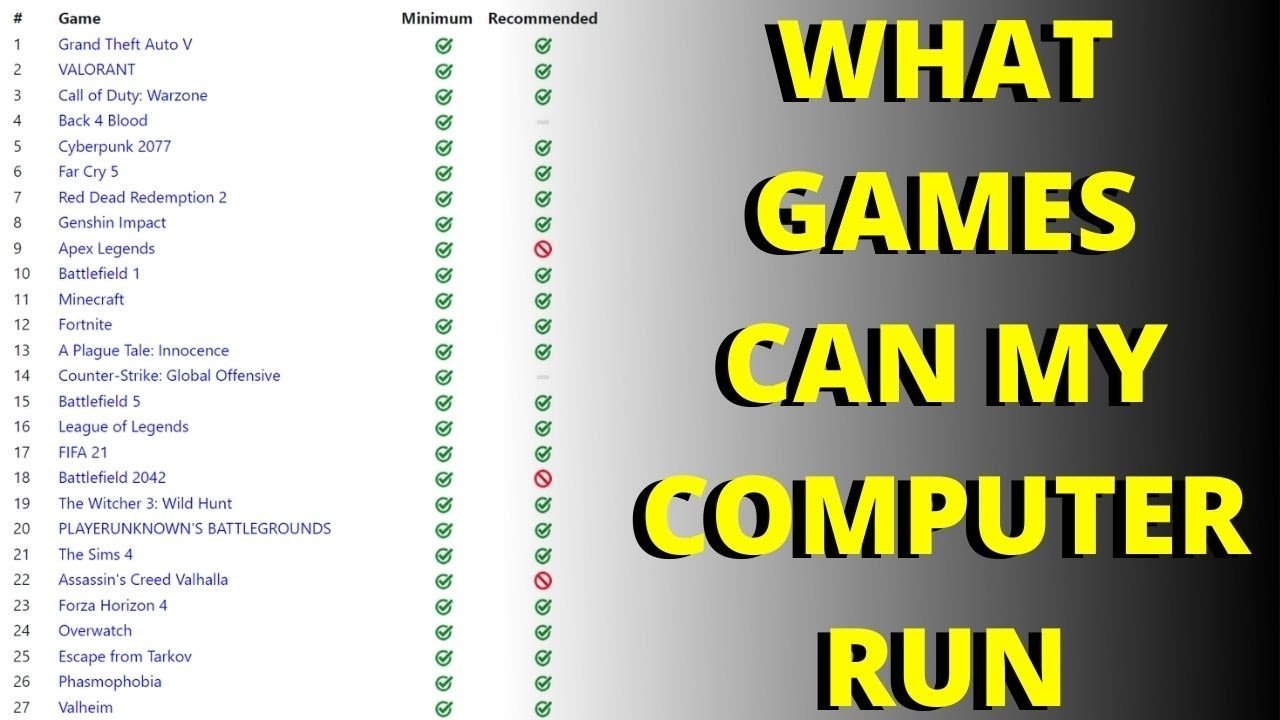
Whether your PC can run games depends on if your hardware meets or exceeds the game’s minimum and recommended system requirements.
Ever wondered if that shiny new game will actually work on your computer? It’s a common question, and the phrase “can my pc run games” pops up a lot. We all know the disappointment of buying a game, only to discover our system can’t handle it.
Checking the system requirements before purchasing a game is very important. This quick step helps avoid wasting money. We will guide you through the essential aspects to consider when checking if your system is game-ready.

Can My PC Run Games? Understanding PC Gaming Requirements
So, you’re itching to play that awesome new game everyone’s talking about? But a tiny voice in the back of your head keeps whispering, “Can my PC even handle it?” It’s a very common question, and the good news is, figuring it out isn’t as scary as it might seem. We will guide you through everything you need to know to determine if your computer has what it takes to run your favorite games.
The Core Components: What Makes a Gaming PC Tick?
A PC isn’t just one big thing; it’s a collection of parts working together. Think of it like a team – each player has their job. When it comes to gaming, some parts are more important than others. Here’s a quick look at the major players:
- The CPU (Central Processing Unit): This is like the brain of your computer. It handles all the calculations needed to make the game run. A faster CPU generally means smoother gameplay, especially in complex games with lots of things happening at once.
- The GPU (Graphics Processing Unit): This is what makes the game look good. It handles the graphics, like the characters, the backgrounds, and all the special effects. A more powerful GPU means higher frame rates and better visual quality. It’s sometimes called a graphics card or video card.
- RAM (Random Access Memory): Think of RAM as your computer’s short-term memory. It holds the game data while you play. More RAM means your PC can handle more data at once, which prevents slowdowns and stuttering.
- Storage (Hard Drive or SSD): This is where your games are installed. An SSD (Solid State Drive) is much faster than a traditional hard drive, which means games load faster and levels transition more quickly.
Understanding Minimum and Recommended Specs
Game developers know that not everyone has the same powerful computer. That’s why they often list both minimum and recommended specs for their games. These are like guidelines to help you know if your PC can handle the game. Here’s the breakdown:
Minimum Specs
These are the absolute lowest requirements to get the game to run – it doesn’t mean it will look great, or play smoothly. The game might be playable, but you might experience lag, low resolution, or other compromises to performance. If your PC barely meets these requirements, you might need to turn down graphical settings to make the game playable.
Recommended Specs
These are what the developers think you need to run the game smoothly, with good graphics quality. If your PC meets or exceeds these specs, you should have a good time with the game, and the experience of playing the game will be much better. This often means you can play at higher resolution and use fancy graphical settings.
Where to Find These Specs?
You can usually find minimum and recommended specifications listed on the game’s website, on the store page (like Steam, Epic Games Store, or GOG), or even on the game’s packaging if you buy it in physical form.
How to Check Your PC’s Specifications
Now that you know what to look for, let’s find out what’s inside your own computer. Don’t worry, this is easier than it sounds.
Checking on Windows
If you are using a Windows PC, follow these steps:
- Click the Windows button (the start button usually in the bottom-left corner).
- Type “System Information” and press Enter.
- Look for the following information:
- Operating System: This tells you which version of Windows you are using (like Windows 10 or Windows 11). This is often a requirement for some modern games.
- Processor: This tells you about your CPU (like Intel Core i5 or AMD Ryzen 7).
- Installed Physical Memory (RAM): This tells you how much RAM you have (like 8 GB or 16 GB).
- Adapter Description: Under the “Components” tab then under the “Display” tab, this is your GPU (like NVIDIA GeForce RTX 3060 or AMD Radeon RX 6700).
Checking on macOS
If you are using a Mac, follow these steps:
- Click the Apple icon (the Apple logo usually in the top-left corner of your screen).
- Click on “About This Mac”.
- You’ll see information about your:
- Processor: This tells you about your CPU.
- Memory: This tells you how much RAM you have.
- Graphics: This tells you about your GPU.
With this information, you’ll be able to compare your specs with the game requirements to determine if your PC is up to the task.
Comparing Your Specs to Game Requirements
Okay, you’ve got your PC specs and the game requirements. Now it’s time to put them side-by-side. This is where you get to see if your computer is up for the challenge. Let’s imagine we are trying to determine if we can run the game “Cyberpunk 2077”. We find its system requirements, and they might look something like this:
Cyberpunk 2077 System Requirements:
| Minimum | Recommended | |
|---|---|---|
| OS | Windows 10 64-bit | Windows 10 64-bit |
| CPU | Intel Core i5-3570K or AMD FX-8310 | Intel Core i7-4790 or AMD Ryzen 3 3200G |
| RAM | 8 GB | 12 GB |
| GPU | NVIDIA GeForce GTX 780 or AMD Radeon RX 470 | NVIDIA GeForce GTX 1060 6GB or AMD Radeon RX 590 |
| Storage | 70 GB HDD | 70 GB SSD |
Now let’s pretend your PC has these specifications:
- OS: Windows 10 64-bit
- CPU: Intel Core i5-8400
- RAM: 16 GB
- GPU: NVIDIA GeForce GTX 1070
- Storage: 1 TB SSD
Let’s compare them step-by-step:
- Operating System: Your Windows 10 64-bit matches both the minimum and recommended specs, so that’s a good start.
- CPU: Your Intel Core i5-8400 is better than the minimum (i5-3570K) and also better than the recommended (i7-4790). So your processor should easily handle the game.
- RAM: You have 16 GB of RAM, which is more than both the 8 GB minimum and the 12 GB recommended amount. You are in good shape here.
- GPU: Your NVIDIA GeForce GTX 1070 is much better than the minimum GTX 780. Also, its better than the recommended GTX 1060. This means the game will look great on your computer.
- Storage: You have an SSD with 1 TB of storage space, which means you are above the minimum HDD requirements and you are matching the recommended SSD requirements. This is fantastic.
In this case, you not only meet, but exceed the recommended settings. It’s safe to say you will have a great time playing Cyberpunk 2077.
What if Your PC Doesn’t Meet the Requirements?
Sometimes, your PC might not meet all the requirements for a game, and that’s okay! You have a few options.
Adjusting Graphics Settings
Many games allow you to adjust graphical settings. This lets you customize how the game looks and runs. Here are some settings you might want to try:
- Resolution: Lowering the resolution can improve performance, but it might make the game look less clear.
- Texture Quality: Lowering the texture quality can save on GPU resources.
- Shadow Quality: Lowering shadow quality can greatly improve performance, and might not be very noticeable while playing.
- Anti-Aliasing: Turning off or lowering anti-aliasing can give you a performance boost, but it might make edges look a bit jagged.
- Special Effects: Turning off or lowering special effects, such as motion blur, can also make the game run smoother.
Experiment with these settings to find the best balance between performance and visual quality. Most games allow you to change these in the settings menu.
Upgrading Your PC Components
If adjusting settings doesn’t cut it, you may want to think about upgrading your PC’s components. This can be a bit more complicated, but it’s the best way to boost your gaming capabilities. Here are the most common parts to upgrade:
- GPU: Upgrading your GPU is often the most impactful change you can make for gaming. A better GPU will give you more performance and better visual quality.
- RAM: Adding more RAM can help with smoother gameplay, especially if you’re running lots of programs in the background.
- CPU: Upgrading your CPU can improve performance, but sometimes it also requires upgrading your motherboard as well, making it more difficult.
- Storage: Adding an SSD can drastically improve loading times, which means you get to play the game sooner.
If you aren’t comfortable upgrading your PC yourself, you can always take it to a professional repair shop to do it for you.
Choosing Different Games
Sometimes, you might want to consider choosing different games that are better suited to your PC. There are lots of fun games out there, and many of them are less demanding on your hardware. Exploring different genres could help you find the best game for your PC. Indie games, older games, or strategy games can often run better on older hardware.
Tools and Websites for Checking Game Compatibility
If you want to make things even easier, there are some websites and tools out there that can help you determine if a game will run on your PC. These tools often use a database of games and components, allowing them to check your specs and determine if they match the requirements.
- Can You Run It: This website is one of the most popular tools for checking game compatibility. It scans your PC and tells you which games you can run.
- System Requirements Lab: This is another great website that lets you check individual games. You can search for any game and see if your PC can run it.
- Game Specific Tools: Some games have their own tools that check compatibility, often built-in to their launcher.
Other Factors That Can Affect Performance
Beyond the main components, there are other things that can affect your game’s performance.
- Background Programs: Having too many programs running in the background while gaming can use up your RAM and CPU resources, resulting in lower performance. Make sure you only have important programs running while gaming.
- Drivers: Your graphics card needs drivers to work correctly. Keep your drivers updated to ensure you get the best performance possible.
- Operating System Updates: Make sure you always have the latest updates for your OS. These often have performance and security improvements.
- Overheating: If your computer gets too hot, it can slow down to prevent damage. Make sure your computer has proper cooling by cleaning any dust off the components and using adequate fans or cooling systems.
Keeping your computer clean, updated, and optimized can improve its gaming performance.
Figuring out if your PC can run a game can seem a little complicated at first, but it’s easier than it looks. By knowing the key components, checking your specs, and comparing them to the game requirements, you’ll be playing in no time. And if your PC isn’t quite up to par, you now have the knowledge to make improvements, adjustments, or find another great game that fits your system. So go ahead, have some fun, and explore the awesome world of PC gaming!
Check which games are compatible with your pc Can my PC run it What games can I play on my computer
Final Thoughts
Checking your PC’s specs against game requirements is crucial. This comparison tells you if your system meets the minimum or recommended settings. A mismatch often results in poor performance.
Therefore, carefully reviewing these details is essential for good gameplay. Specifically, the graphics card, CPU, and RAM impact performance.
Ultimately, assessing these factors answers the vital question, “can my pc run games?”. Knowing this ensures you have a playable and enjoyable experience.

