
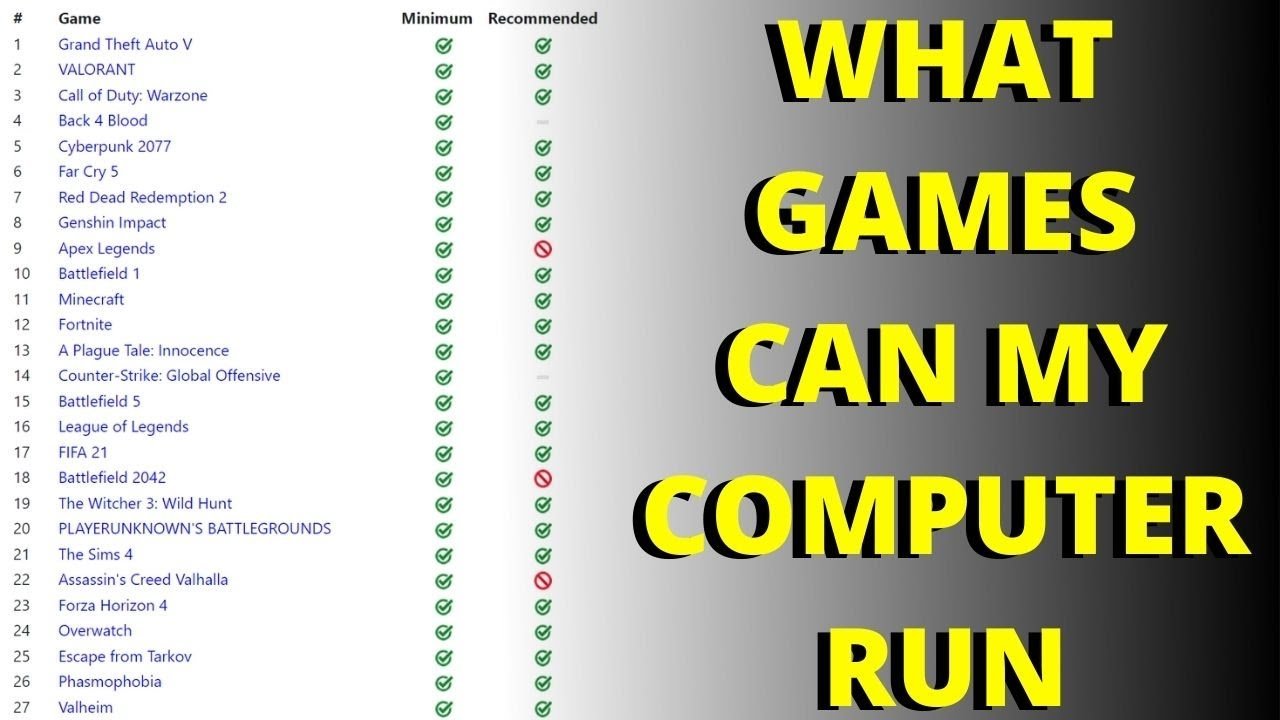
You can determine if your PC can run the game by comparing its specifications to the game’s minimum and recommended system requirements.
Ever wondered if your gaming rig is powerful enough for that new title everyone’s talking about? That question, “can my pc run the game,” often plagues us before purchasing. It’s a valid concern, nobody wants a stuttering, unplayable experience.
Luckily, there are ways to find out. Developers usually post the minimum and recommended specs. These will tell you if your hardware matches up. Comparing these values will help a lot.

Can My PC Run the Game? A Deep Dive
So, you’ve got your eye on a shiny new game, but a nagging question pops into your head: “Can my computer even handle it?” This is a common concern for gamers, whether you’re rocking a brand-new gaming rig or an older machine. Don’t worry, we’re here to break down everything you need to know to figure out if your PC is up to the task. We’ll explore system requirements, how to check your own specs, and what to do if your computer falls a little short. Let’s get started!
Understanding System Requirements
Every game comes with a set of system requirements, these are like the game’s “needs.” They tell you what kind of hardware your computer needs to run the game well, or even at all. These requirements are usually split into two categories:
Minimum System Requirements
Think of these as the absolute bare minimum your PC needs to limp through the game. If your PC barely meets these, you might be able to play, but it likely won’t be the prettiest experience. Expect low settings, choppy frame rates, and possibly some frustrating hiccups.
- What to expect: Lower graphics, potentially slow performance, but the game should technically work.
- Who it’s for: Those who prioritize being able to play the game over experiencing it at its best.
Recommended System Requirements
These are the “sweet spot.” Meeting these requirements means you should have a much smoother, more enjoyable experience. You’ll likely be able to play with medium to high graphics settings, good frame rates, and without major problems.
- What to expect: Good graphics, smooth performance, a fun and immersive gameplay.
- Who it’s for: Gamers who want a satisfying experience without breaking the bank.
Why are there two sets of requirements?
Game developers know that not everyone has the latest and greatest hardware. Providing both minimum and recommended requirements allows players with different computers to understand what experience they can realistically anticipate. The minimum settings let you see if the game can be played at all on your computer, and the recommended settings show what experience you need to make it the best.
Key Hardware Components
To understand if you meet the requirements, you need to know what parts of your computer matter most for gaming. Here are the key players:
Central Processing Unit (CPU)
The CPU is like the brain of your computer. It handles all of the game’s instructions, calculations, and logic. A more powerful CPU will allow you to manage more complex games better and ensure the game runs smoothly. CPUs are often described by their manufacturer (like Intel or AMD), model number (e.g., Intel Core i5, AMD Ryzen 5), and clock speed (measured in GHz).
- Example: A game might need an Intel Core i5-8400 or AMD Ryzen 5 2600 or better.
Graphics Processing Unit (GPU)
The GPU is responsible for drawing the visuals you see on your screen. It’s what makes the game look beautiful (or not-so-beautiful if you’re using an older card). GPUs are also described by their manufacturer (NVIDIA or AMD), model number (e.g., NVIDIA GeForce RTX 3060, AMD Radeon RX 6700), and memory. Modern games demand better GPUs to render high-quality images and play smoothly. Think of it as the artist behind the game’s visuals.
- Example: A game might need an NVIDIA GeForce GTX 1060 or AMD Radeon RX 580 or better.
Random Access Memory (RAM)
RAM is your computer’s short-term memory. It stores all the data the CPU needs access to right now. Games need enough RAM to load game data, textures, and other assets. Having too little RAM can cause slow downs, stuttering, and crashes. RAM capacity is measured in GB (gigabytes).
- Example: A game might need 8GB or 16GB of RAM.
Operating System (OS)
This is the main software that your computer runs, like Windows or macOS. Games are often designed for a specific operating system or a specific version of an OS. Make sure your OS meets the game’s requirement.
- Example: A game might require Windows 10 64-bit or Windows 11 64-bit.
Hard Drive Space
You will need to make sure you have enough storage space for the game files. This space can be used by game’s save data, updates and other related data. The required space is usually listed in system requirements.
- Example: A game might require 50 GB or 100 GB of free hard drive space.
DirectX Version
DirectX is a collection of application programming interfaces that handle tasks related to multimedia. Modern games often require the latest version of DirectX to work correctly.
- Example: A game might need DirectX 12.
How to Check Your PC Specs
Now that you know what to look for, let’s figure out how to check your own computer’s specs. The process is pretty simple, especially on Windows. Here are a few different methods:
Using System Information
- Type “System Information” into your Windows search bar (at the bottom left of the screen).
- Click on the “System Information” app.
- Look for these key pieces of information:
- OS Name: This tells you what version of Windows you’re running.
- Processor: This shows your CPU (manufacturer, model, speed).
- Installed Physical Memory (RAM): This shows how much RAM you have.
Using DirectX Diagnostic Tool (DxDiag)
- Press the Windows key + R to open the “Run” dialog box.
- Type “dxdiag” and press Enter.
- This opens the DirectX Diagnostic Tool.
- On the first tab (“System”), you can find your OS, CPU, and RAM.
- Click on the “Display” tab. Here, you’ll find information about your GPU (Name, Manufacturer, and dedicated video RAM).
Using Task Manager (For Basic Information)
- Press Ctrl + Shift + Esc to open the Task Manager.
- Click on the “Performance” tab.
- Here, you can see your CPU and Memory (RAM) usage. You can click on CPU or Memory and find the specific details of that.
- Click on the “GPU” at the left side of the screen, you can see which GPU your PC has.
Checking Storage Space
- Open File Explorer (the folder icon on your taskbar or by pressing Windows key + E)
- Click “This PC” on the left sidebar.
- Under “Devices and Drives”, you’ll see your hard drives and how much free space you have.
Third-Party Programs
There are also many third-party programs that can give you a detailed breakdown of your system specifications like CPU-Z and GPU-Z. They can provide very specific information about all components, which may be helpful when trying to determine game compatibility.
Comparing Your Specs to Game Requirements
Once you have your computer’s specifications, compare them to the game’s minimum and recommended requirements. Here’s how to do that:
Create a Comparison Table
Make a small table or chart. List the minimum, recommended, and your PC specs side-by-side for each component (CPU, GPU, RAM, OS, Storage, DirectX version).
| Component | Minimum Requirement | Recommended Requirement | Your PC Spec | Result |
|---|---|---|---|---|
| CPU | Intel Core i5-4460 | Intel Core i7-4770 | Intel Core i5-8400 | Pass |
| GPU | NVIDIA GeForce GTX 960 | NVIDIA GeForce GTX 1060 | NVIDIA GeForce GTX 1070 | Pass |
| RAM | 8GB | 16GB | 16GB | Pass |
| OS | Windows 10 64-bit | Windows 10 64-bit | Windows 10 64-bit | Pass |
| Storage | 50 GB | 50 GB | 100 GB | Pass |
| DirectX | DirectX 11 | DirectX 12 | DirectX 12 | Pass |
Analyzing the Results
- If all your specs meet or exceed the recommended requirements: You’re in good shape! You should be able to play the game with high settings without any problems.
- If you meet the minimum requirements but not the recommended: You’ll probably be able to play the game, but you may need to lower the graphics settings.
- If your PC specs fall below the minimum requirements in one or more area: The game might be unplayable or might not run well at all.
- If one or two areas meet minimum but not recommended: In this case the game may run but you will need to lower down graphics settings and resolution, or if some requirements are near to the minimum, consider that the game may work but performance might be lower.
What if My PC Doesn’t Meet the Requirements?
Don’t get discouraged if your PC doesn’t quite measure up. Here are a few steps you can take:
Lowering Game Settings
This is the most straightforward approach. Most games offer various graphic settings that you can adjust to increase performance.
- Lower the Resolution: Playing at a lower resolution (e.g., 1280×720 instead of 1920×1080) can drastically reduce the load on your GPU.
- Reduce Graphics Quality: Turn down settings like textures, shadows, anti-aliasing, and special effects.
- Experiment: Try different combinations of settings until you find a balance between graphics and performance.
Upgrading Your PC
If lowering game settings isn’t enough, you may need to upgrade your PC hardware.
- Upgrade the GPU: This is usually the most significant upgrade for gaming performance.
- Upgrade the CPU: A faster CPU can help with frame rates and overall game performance.
- Add More RAM: Having sufficient RAM can reduce stuttering and loading times.
Utilizing Game Optimization Tools
Some programs or tools can optimize game settings for a more smooth experience, some examples include Nvidia Geforce Experience and AMD Adrenalin.
Cloud Gaming
If you do not want to spend on hardware upgrades, cloud gaming can be a good option. Games are running on high powered servers and you stream the gameplay from these servers. You still need a good internet connection for smooth gameplay.
Consider a Different Game
Sometimes, it is best to accept your system’s limits and choose games that are compatible with your current setup.
In conclusion, checking if your PC can run a game is a vital step to ensure a smooth and fun gaming experience. By understanding system requirements, checking your computer’s specifications, and comparing them, you can make informed decisions and avoid disappointment. There are several ways to tackle the problem if your PC doesn’t fully meet the requirements. Whether you lower the settings, upgrade your PC, try other tools or methods, you can find a suitable way to enjoy your favorite games.
Check which games are compatible with your pc Can my PC run it What games can I play on my computer
Final Thoughts
To determine if your computer can run the game, carefully check the game’s specified system requirements. Compare those with your PC’s hardware specifications, paying close attention to the graphics card, processor and RAM.
If your system meets the minimum specs, the game should run, though performance may vary. Meeting the recommended specifications usually means you will have a much better gaming experience. Ultimately, answering the question “can my pc run the game” is a process that must be followed by the user.

