
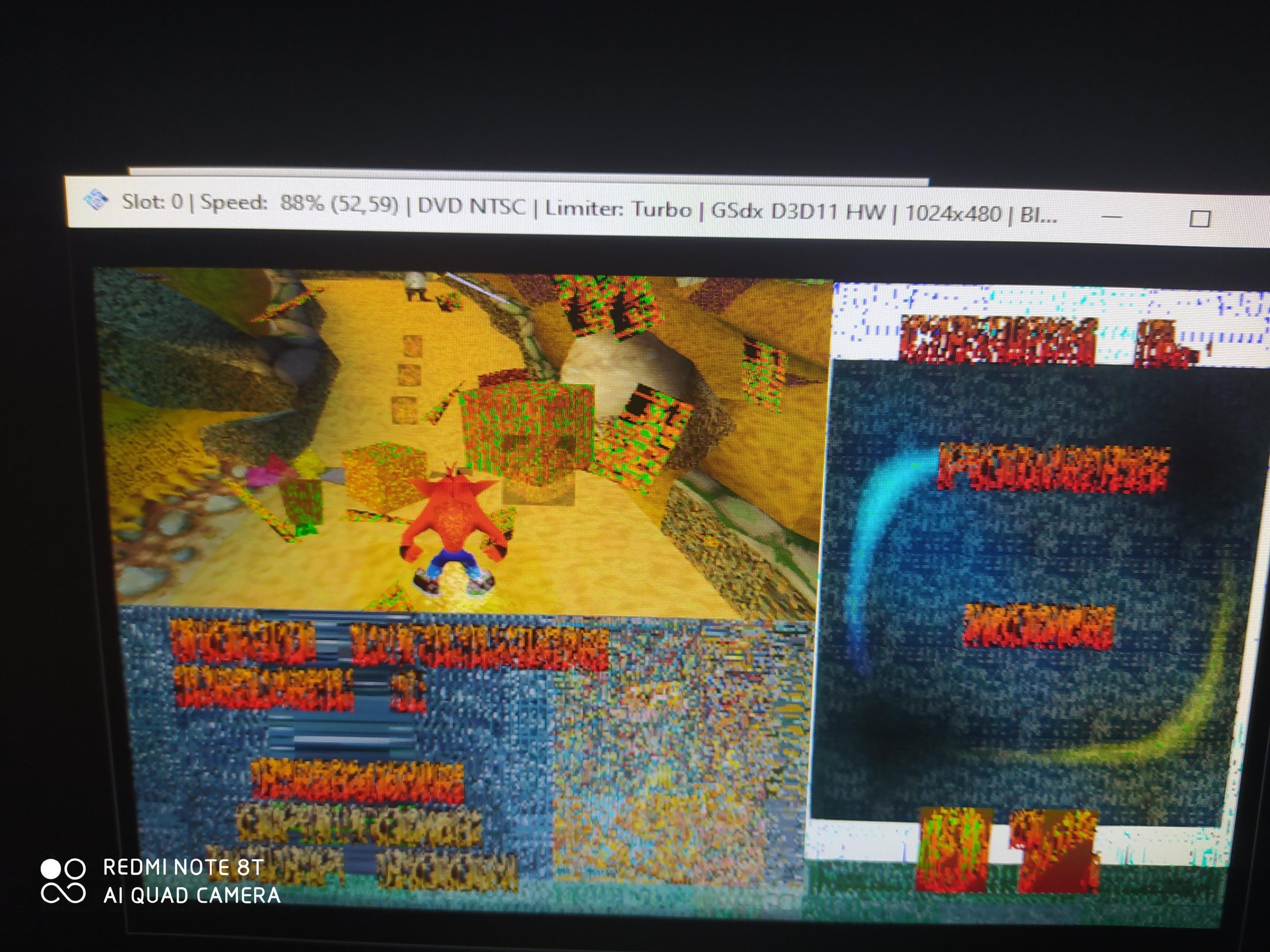
No, PCSX2 cannot play PS1 games. It is specifically designed for PlayStation 2 emulation.
Ever wondered if you could fire up your old PlayStation 1 titles on a PlayStation 2 emulator? It’s a question many gamers have asked, mainly concerning if they can run all their old games in a single program. The straightforward answer is no, because PCSX2 is crafted solely for PlayStation 2 games and is incapable of handling PS1 software. This brings us to the core of the discussion, can pcsx2 play ps1 games.
You’ll need a separate emulator for PS1 games. This situation is due to distinct architectural differences between the consoles. Therefore, if your goal is to replay those PS1 classics, you should seek other options.

Can PCSX2 Play PS1 Games? The Truth About Emulation
Let’s dive right into the burning question: Can PCSX2, the popular PlayStation 2 emulator, play PlayStation 1 games? The short answer is no. PCSX2 is specifically designed to emulate the PlayStation 2 hardware, which is very different from the original PlayStation (PS1). Think of it like trying to play a DVD on a VHS player—they just aren’t compatible! However, the world of emulation is full of options. So, while PCSX2 can’t handle PS1 games, there are fantastic alternatives that allow you to enjoy those classic titles.
Why PCSX2 Can’t Emulate PS1 Games
To understand why PCSX2 can’t play PS1 games, we need to peek under the hood at how emulation works. Emulators are like digital translators. They take the code from a game (meant for a specific console) and convert it into instructions that your computer can understand. The PS1 and PS2 had vastly different architectures, meaning their internal hardware was built very differently. These differences are like having two completely different languages, making translation between them nearly impossible.
The Hardware Differences: A Deep Dive
The PS1 used a 32-bit processor, known as the MIPS R3000 CPU. It also had its own custom graphics processing unit (GPU) to display images and videos. The PS2, however, utilized a much more powerful 128-bit processor called the Emotion Engine along with a completely distinct GPU. Because of these fundamental differences, emulators must mimic the specific hardware of the console they are trying to replicate. PCSX2, built to emulate the PS2’s unique architecture, is not designed to understand the PS1’s system.
Here’s a quick breakdown in simple terms:
- PS1: Used a simpler processor and older graphics technology.
- PS2: Used a much more advanced and complex processor and enhanced graphics.
Because these systems are so different, the software (games) written for one won’t run on the other without a specific emulator designed to handle that console. The PlayStation 2 was designed to provide a lot more processing power than the PS1, which shows that the PS2 games require a different way of handling than the PS1 games. Because of this, PCSX2 is not made for that, it focuses on what it was designed for and not a PS1 game.
Exploring Alternatives: Emulating PS1 Games
Now that we know PCSX2 isn’t the answer, let’s explore the excellent options available to play PS1 games on your computer. The good news is, there are a number of stable, well-regarded PS1 emulators you can use.
Popular PS1 Emulators
Here are a few of the most popular PS1 emulators, which are readily available and have very good user reviews:
- ePSXe: Considered one of the most well-known and widely-used PS1 emulators. ePSXe provides great compatibility, good performance, and plenty of plugin options for customizing your experience. It can handle most PS1 games without a hitch and it is very easy to use.
- RetroArch: An all-in-one emulation platform that supports many systems, including the PS1 through its various “cores”. This option is very powerful but may require a bit more setup than ePSXe. But once set, it gives a great result.
- DuckStation: A very popular emulator gaining a lot of attention for its accuracy and modern design. It aims to provide a faithful emulation experience, and its compatibility with modern operating systems is excellent. It is becoming a new standard for PS1 emulators, replacing other older emulators.
How These Emulators Work
These emulators focus solely on translating the PS1’s specific code and hardware functions. They can understand and replicate the PS1’s unique processor, graphics, and sound, allowing you to run PS1 games on your PC. Each emulator might have slight differences in how they achieve this, but the core principle is the same: to act as a bridge between the old console’s code and your modern computer.
Setting Up a PS1 Emulator: A Step-by-Step Guide
Let’s explore how to get up and running with a PS1 emulator using ePSXe as our example.
Step 1: Downloading the Emulator
First, visit the official ePSXe website, or a reputable source and download the latest version for your operating system. Make sure it’s from a trusted location to avoid viruses or malware.
Step 2: Obtaining a PS1 BIOS File
This is where things get a little tricky. You need a BIOS (Basic Input/Output System) file from a physical PS1 console. This file contains the core information about the PS1 system and helps the emulator run games correctly. You need to have a legally obtained bios file, either by dumping your physical console bios or through other legal means. Due to legal issues, we cannot share the link from where it can be downloaded. The BIOS is a very important file, and it needs to be placed in the same directory as your emulator. Once you have a bios file, place it in the same folder as the executable file of the emulator. This is the same process for any emulator, whether its ePSXe or DuckStation or retroarch, or any other emulator.
Step 3: Setting up the Emulator
Once you have the emulator and bios files in the same directory, extract the emulator if it is compressed. Then launch the emulator executable file. Usually, when you first start the emulator, a configuration wizard will appear. It will guide you through the process of selecting your BIOS file, setting up graphics and audio, and configuring any other control options.
Step 4: Loading and Playing Games
Now for the fun part. You’ll need to obtain your PS1 games in ISO or BIN/CUE format from your physical copy of the game. Always remember to legally source your game backups. Once you have your games, select File-> Run ISO, or File-> Open ISO in the ePSXe menu, and navigate to your game file, and the game will begin to run. The game will begin playing just like how it did on the PS1. It is that easy!
Enhancing Your PS1 Emulation Experience
Once you have your games running, you can improve your experience using various tweaks and settings.
Graphics Settings
Most PS1 emulators offer options to improve the game’s visuals. You can increase the internal resolution, apply texture filtering, and use various shader effects. This can help make older PS1 games look much sharper and more modern. The use of plugins can allow the use of increased resolution up to 4k for some emulators, making the games look sharper and more clearer on modern displays. This makes old games look and feel more modern.
Controller Configuration
You can set up your preferred controller with a PS1 emulator, be it a keyboard, a modern gamepad, or even a retro controller if you have an adapter. Most emulators will let you map the controller buttons to fit your preferences. All modern games controllers can easily be mapped to play, it’s just the case of mapping the buttons.
Save States
A major advantage of emulation is the use of save states. Save states are quick saves that you can load at any point during the game. This can be very helpful if you are playing a particularly difficult game. It is like quick saves that are available in some modern games.
Using Plugins
Some emulators support plugins that can add even more features and customization. These can range from better sound to enhanced graphics and are useful for fine-tuning your emulator.
Potential Issues and Troubleshooting
While PS1 emulation is generally quite good, you might encounter some common issues. It is not a big concern, as they can be fixed with ease.
Game Compatibility
Not every single PS1 game will run perfectly on every emulator. It’s possible that some games may have minor glitches, audio issues, or may not run at all. If a game doesn’t work on one emulator, trying another is a good idea.
Performance Issues
If your PC is older or doesn’t meet the minimum requirements, you might have issues such as slow performance or lag. Trying to reduce graphic options and resolution may help a lot. You can try other emulators, as well.
BIOS Issues
Having a corrupt or incorrect BIOS can cause problems with running games. Make sure to obtain it from your console. If you have a proper bios file, then there shouldn’t be any problem running the games.
Graphical Glitches
Some games may have graphical glitches or visual artifacts, specially with upscaling. These can often be fixed by adjusting emulator settings or trying different plugins. There are very good communities for each emulator, so if you are stuck you can ask on those forums.
By taking the time to understand the requirements, and doing proper research, PS1 emulation can be a rewarding and fun experience. You will be playing your old favorite games like back in the day!
So, while PCSX2 is not the emulator you need for playing PS1 games, the available alternatives are excellent. Whether you choose ePSXe, RetroArch, DuckStation, or another option, you’ll find that playing your favorite PS1 games on your computer is not only possible but also an enjoyable experience. The world of emulation opens a way to relive old memories and experience classic games in a whole new light. With a little bit of setup and knowledge, you can enjoy the magic of PS1 gaming all over again.
Trying to run PS1 games on PCSX2
Final Thoughts
PCSX2 is specifically designed for PlayStation 2 emulation; therefore, it cannot play PlayStation 1 games. You will need a separate emulator to play PS1 titles. The emulator like ePSXe is commonly used for PS1 games.
To answer directly, ‘can pcsx2 play ps1 games’? The answer is a clear no. You must use an emulator intended for the first PlayStation if you want to enjoy its library.

