
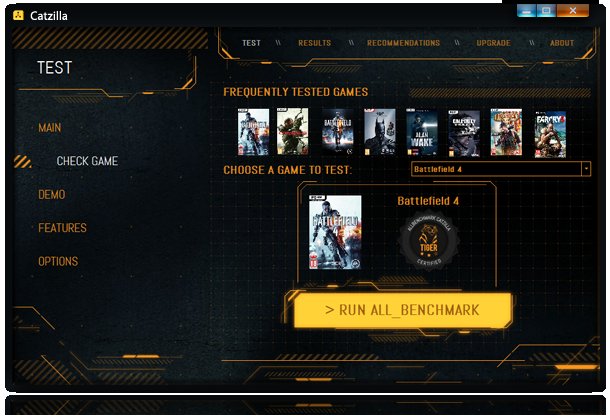
Yes, you can run this game if your PC meets the minimum or recommended specifications listed by the developers.
So, you’re itching to dive into a new virtual world, but that nagging question pops up: can run this game? It’s a valid concern, we all want smooth gameplay.
Finding out if your setup is up to the challenge can sometimes feel like a tech puzzle. Let’s get straight to the point and clear up any doubts.

Can Run This Game? Figuring Out Your PC’s Gaming Prowess
So, you’ve got your eyes on a shiny new game, maybe one with dragons, fast cars, or maybe even just some very colorful puzzle pieces. But before you hit that “buy” button, a big question pops into your head: “Can my computer even run this game?” It’s a very important question! Spending money on a game that crashes or looks like a blurry mess isn’t much fun for anyone. This article will help you become a pro at figuring out if your PC has the oomph to handle the games you want to play.
Understanding Game Requirements
Every game, big or small, has a list of things it needs from your computer to work properly. These are called “system requirements.” Think of them like ingredients in a recipe. You can’t make a cake without flour and eggs, just like a game can’t run without a certain level of processing power or graphics capabilities. These requirements are usually broken down into two categories:
Minimum Requirements
These are like the bare minimum ingredients. If your computer just barely meets these, the game might run, but it might not be a smooth and pretty experience. Expect lower graphics settings, maybe some lag (that’s when the game is slow and choppy), and possibly some frustrating moments. Playing a game with minimum requirements will help you get an idea about it but, you won’t enjoy it as much as you would want to.
- CPU (Central Processing Unit): This is the brain of your computer. It handles all the calculations that make the game work. Games often list a specific type or family of CPUs, like an Intel Core i5 or an AMD Ryzen 5.
- RAM (Random Access Memory): This is like your computer’s short-term memory. It stores all the data that the game needs to access quickly. More RAM generally means the game can run more smoothly. The required RAM is specified in GB(gigabytes).
- GPU (Graphics Processing Unit): This is the part of your computer that makes all the images you see on screen. It’s very important for games! It’s commonly called the Graphics card or video card. Games specify a specific type or family of GPUs, like an NVIDIA GeForce GTX 1060 or an AMD Radeon RX 580.
- Operating System: This is the main software that runs your computer. Most games will say if they need Windows, macOS, or Linux. They will also specify which version of the operating system they need (e.g. Windows 10 or Windows 11).
- Storage Space: This is the amount of hard drive or SSD space the game needs. Modern games can be huge! You might need anywhere from a few gigabytes to over 100 gigabytes of space to store the game on your device.
Recommended Requirements
These are the ingredients for a great game experience! If your computer meets or exceeds these, you can expect a smooth game with nice graphics, fewer lag problems, and a more satisfying experience. Playing a game at recommended requirements means the game will work at its finest. You will be able to enjoy all the aspects of the game smoothly.
- CPU (Central Processing Unit): Again, this is the brain, but the recommended CPU will be more powerful than the minimum requirement.
- RAM (Random Access Memory): The amount of RAM will usually be higher than the minimum requirement, allowing the game to access more data quickly.
- GPU (Graphics Processing Unit): The recommended GPU will be much more powerful, capable of handling higher graphics settings and resolution.
- Operating System: The same operating system as the minimum requirements is used.
- Storage Space: The storage needed to install and play the game, although this is similar to the minimum requirements.
Often you will also find that games will list support for graphics APIs, such as DirectX 11, DirectX 12 or Vulkan. Some games may run better on certain types of graphics APIs, so having the latest versions of drivers is essential. To sum it up, Recommended requirements are your goal for the best possible game experience.
How to Check Your PC Specs
Okay, now you know what to look for. But how do you actually find out what your computer has? Don’t worry; it’s not as complicated as it sounds. Here’s a breakdown of how to check all the things we talked about:
Checking your Operating System
Finding out the version of your Operating system is relatively easy. Here’s how you can do it:
- Click on the Start button (usually in the bottom-left corner of your screen).
- Type “System Information” and press Enter.
- You should see a window with lots of information about your computer.
- Look for “OS Name” and “Version”. This tells you the Windows version.
For MacOS the process is similar. Here’s how:
- Click on the Apple menu in the top left corner.
- Select “About This Mac”.
- You will see the name and version of your MacOS.
Checking your CPU
You can find your CPU information in the same “System Information” window we used before:
- Look for “Processor” This will tell you the exact make and model of your CPU. For example, you might see “Intel(R) Core(TM) i5-9400F CPU”.
Checking your RAM
Again, the System Information window has your RAM information:
- Look for “Installed Physical Memory (RAM)”. This tells you how much RAM your computer has (e.g., 16.0 GB).
Checking your GPU
Finding the details of your graphics card is slightly different, and has different steps for both Windows and MacOS:
Windows
- Right-click on your desktop.
- Select “Display settings”.
- Scroll down and click on “Advanced display settings”.
- Click on “Display adapter properties” for your primary monitor.
- Look for “Adapter Type” and “Dedicated Video Memory”. This will show your graphics card and its memory.
MacOS
- Click on the Apple menu and select “About this Mac”.
- Click on “System Report”.
- Click on “Graphics/Displays” in the left menu.
- Look for “Chipset Model” or “Graphics Card” to find the model of your GPU.
Checking your Storage Space
You’ll find your storage space in the File explorer in Windows:
- Open the File Explorer by pressing the Windows logo key + E key
- Go to “This PC” on the left menu bar.
- You will see your Hard drives or SSDs and the amount of free space in them
For MacOS, storage space can be found here:
- Click on the Apple menu in the top left corner.
- Select “About This Mac”.
- Click on the “Storage” Tab.
- You will see your Hard drives or SSDs and the amount of free space in them.
Once you have all the information needed, write it down, take a photo or copy and paste it to a text file. Make sure you don’t close the application you are using to collect your PC specs, so you can check for any missing info.
Comparing Your Specs to Game Requirements
Now that you know your computer’s “stats,” it’s time to match them up with the game’s requirements. Most game stores like Steam, Epic Games Store, or the game developer’s website will show you the system requirements for each game. Look for the minimum and recommended requirements, and compare them to the information you collected from your computer.
Here’s how to compare each component:
CPU Comparison
When comparing CPUs, pay attention to both the model name and family, as well as the clock speed. A higher number of cores and clock speed usually means it’s more powerful, but not always. You will see things like Intel core i5-12600k. The higher number in the model will usually mean it’s more powerful, but that does not apply across all brands. A higher generation number (e.g. Intel 12th gen vs 11th gen) will usually mean it is a more recent CPU, and usually more powerful.
If a game asks for an Intel i5 8th gen or an AMD Ryzen 5 2nd gen, and you have an Intel i5 10th gen or an AMD Ryzen 5 3rd gen, it’s likely to be better. However, an Intel i7 is usually more powerful than an i5, even if it’s an older generation.
There are sites online that offer a direct comparison between different CPUs, and this should be your first course of action, if you are uncertain about whether your PC can run the game.
RAM Comparison
This one is pretty simple. If the game requires 8GB of RAM and you have 16GB, you’re good to go! If you have less RAM than the minimum requirement, the game may not even start, or it will be slow and choppy. If you have more than the recommended RAM, that’s also not an issue. Most games also make use of RAM that your PC is not using.
GPU Comparison
This is the most complex part. Graphics card have different generations, series and performance. A GPU model will have two parts to it. For example, an NVIDIA GeForce RTX 3060. The RTX series GPUs are faster and more recent than GTX series GPUs. The 3060 is the model number. A higher number in the same series usually means a more powerful card. If you see two different generations, like RTX 2060 and RTX 3060, the 3060 is usually more powerful, even though the 2060 is a higher number in that generation.
It is important to remember that not all graphics cards are the same. Even if the model names look similar, they could be using different architecture, meaning different performance. There are also integrated graphics chips from Intel and AMD. These are not dedicated graphics cards and will usually run much slower than their dedicated counterparts. Be careful when comparing your own GPU, as the integrated graphics chips are often embedded in the CPU’s design and will often share the CPU model name, or something very similar. For example, a Intel CPU with i7-12700 will have an Intel UHD 770 Graphics integrated chip.
Using a comparison website will provide you a better comparison and provide you a performance index for you to be able to compare your GPU with the ones the games need.
Operating System Comparison
This one is again very simple. If the game requires Windows 10, you need to have at least Windows 10 installed. If you have a more recent version like Windows 11, it will work without issues. If the game requires MacOS 10.14 and you have MacOS 10.15, that’s also fine. Having older operating systems can cause problems and may even make the game fail to launch. Most games are designed to work with newer OS versions. Upgrading your OS will solve most compatibility problems.
Storage Space Comparison
This one is also very simple. Check if the game requirements are bigger than your available free space on your Hard drive or SSD. If the game says it needs 50GB of space, and you have 100GB free, you are ok. If the game requires 200GB, and you only have 100GB, you need to clean up some space, or install another drive to your PC. If you install the game on a drive that doesn’t have enough free space, the game will crash, fail to launch or even corrupt the install process.
Tools and Resources to Help You
Luckily, you don’t have to do all the comparing on your own. There are websites that can help you out.
Can You RUN It
This website has been around for a while. It is really helpful in checking if your PC can run a game. You just need to search for the game, and the website will check your specs and tell you if your computer meets the minimum or recommended requirements. It’s super easy to use.
PC Game Benchmarks
PC game benchmark sites are great to compare different hardware components and to see how they perform in games. These websites usually show the performance numbers for each specific component with different resolutions. For example, the average FPS (Frames Per Second) of a specific GPU on a specific game. Comparing these numbers with the ones of the game you want to play, can give you a much better idea on how well the game will run on your computer.
When Your PC Doesn’t Quite Make the Cut
What if your computer doesn’t quite meet the requirements? Here are a few options:
Lowering Graphics Settings
Most games allow you to adjust their graphics settings. Lowering things like texture quality, shadow detail, or resolution can make the game run smoother on less powerful computers. This means the game will not look as nice, but it will allow you to play the game without experiencing as many issues. Some graphic settings are more demanding than others, and adjusting them can give you a better gaming experience on weaker machines.
Upgrading Your PC
If you’re serious about gaming, you might consider upgrading your computer. This can mean replacing parts like your graphics card, adding more RAM, or even getting a faster processor. Upgrading parts can cost money, and it may not always be an easy process. If you have a desktop computer, it will be much easier to upgrade parts than on a laptop. Some laptop parts are soldered to the motherboard, making upgrades impossible.
Cloud Gaming
Cloud gaming is a service where a game is processed on a powerful remote computer and streamed to your device. This means you can play demanding games on less powerful computers without having to do any upgrades. All you need is a good internet connection. The biggest problem with Cloud gaming is that you need a high-speed internet connection, with low latency. Lag or stuttering can become a big issue and ruin your game experience.
Figuring out if your PC can run a game might seem complicated at first, but it becomes much easier after you do it a few times. It’s a process you will use a lot if you enjoy playing computer games. By understanding game requirements, checking your computer’s specs, and using helpful resources, you can avoid buying games that won’t work on your computer, and end up with a smooth and fun gaming experience!
Check which games are compatible with your pc Can my PC run it What games can I play on my computer
Final Thoughts
Ultimately, if you meet the minimum system requirements, your computer can run this game. It’s important to check the specifications against your current hardware. This ensures a smooth gaming experience.
The game might require some graphical setting adjustments depending on your system. Performance optimization can also improve the gameplay experience.

