
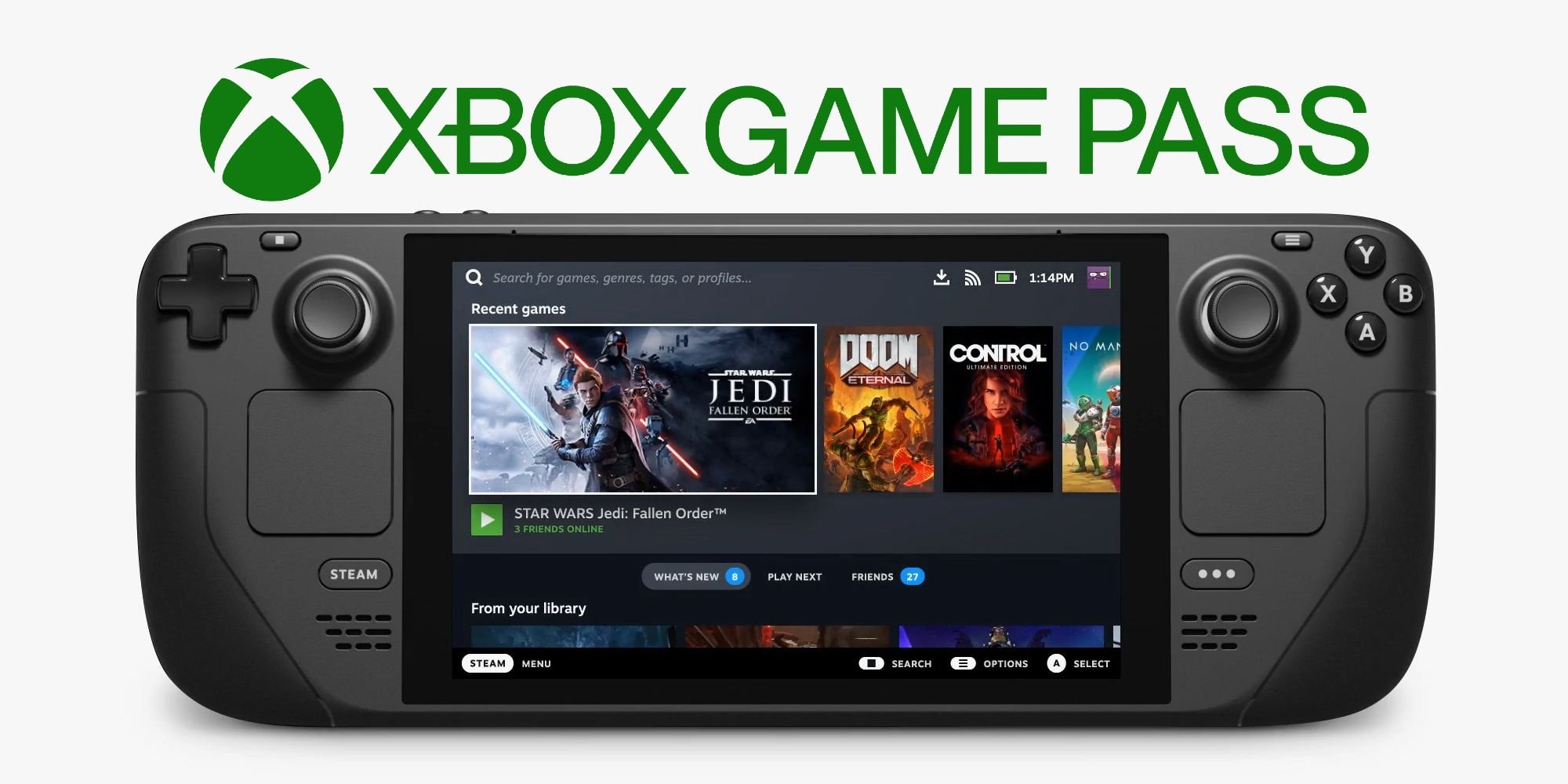
Yes, the Steam Deck can play Xbox Game Pass games through cloud gaming via Xbox Cloud Gaming.
Wondering if you can take your Xbox Game Pass library on the go with your Steam Deck? It’s a common question, and the answer is exciting. The portable nature of the Steam Deck makes it ideal for gaming anywhere. Many gamers have been eager to explore the possibility of playing their favorite Xbox titles on this device.
This article explores how you can play xbox game pass games on your Steam Deck. You will see how cloud gaming makes this possible. It will also discuss any limitations you might encounter. Let’s dive in!

Can Steam Deck Play Xbox Game Pass?
Okay, so you’ve got a shiny new Steam Deck, and you’re itching to play some awesome games. But you also have an Xbox Game Pass subscription, and you’re wondering if these two can play nicely together. The good news is, yes, your Steam Deck can absolutely access Xbox Game Pass, but it’s not as simple as downloading an app like you might on your phone or Xbox. It requires a bit of setup, and that’s what we are going to discuss in detail in this article. Let’s get into the how-to of bringing the world of Xbox Game Pass to your handheld gaming powerhouse.
Understanding the Options
Before we dive into the steps, it’s important to know that the Steam Deck runs on a Linux-based operating system called SteamOS. Xbox Game Pass, on the other hand, is primarily designed for Windows and Xbox consoles. This means we can’t directly install the Xbox app on Steam Deck. So, how do we bridge this gap? Well, there are a couple of methods that allow us to enjoy Xbox Game Pass on our Steam Decks:
- Xbox Cloud Gaming (xCloud) through a web browser: This is probably the easiest way to get playing. You use your web browser, go to the Xbox Cloud Gaming website, log in with your Microsoft account, and start playing games directly streamed from Microsoft’s servers. No installation necessary!
- Installing Windows on Steam Deck: This is the more involved route, but it allows you to install the Xbox app and play games natively. It essentially turns your Steam Deck into a Windows PC, and that can bring with it some pros and cons, we will discuss later.
Each approach has its own advantages and things to think about. Let’s explore them individually.
Xbox Cloud Gaming (xCloud) on Steam Deck
Getting Started with xCloud
The web browser method is the quickest way to access Xbox Game Pass on your Steam Deck. Here’s what you need to do:
- Connect to the Internet: First, make sure your Steam Deck is connected to a stable Wi-Fi network. Cloud gaming needs a good connection to work well.
- Open a Web Browser: On your Steam Deck, open the web browser. You can find it in the desktop mode under the applications menu.
- Go to Xbox Cloud Gaming: Type xbox.com/play into the address bar and press enter. This will take you to the Xbox Cloud Gaming website.
- Log In: Log in with the Microsoft account that you use for Xbox Game Pass.
- Start Playing: You’ll see a list of all the games you can play through the cloud. Choose one and click “Play.” That’s it! The game will start streaming directly to your Steam Deck.
Things to Keep in Mind With xCloud
While xCloud is easy to set up, there are a few things to consider:
- Internet Connection Quality: Cloud gaming depends a lot on the internet. A stable and fast Wi-Fi connection is crucial for a smooth gaming experience. If your internet is unstable or slow, you might encounter lag or stuttering. We recommend a minimum internet speed of 10 to 20 Mbps for a better experience.
- Game Selection: Not every game on Xbox Game Pass is available on xCloud, Some game available on Game Pass for consoles and PC can be unavailable on xCloud.
- Controller Issues: Sometimes, you might find that the Steam Deck’s controls aren’t recognized correctly in the browser. If this happens, you may need to adjust some settings or try using a different browser.
- Potential Input Lag: Because the game is streamed, there might be a slight delay between when you press a button and when the action happens on the screen.
Installing Windows on Your Steam Deck
Why Choose Windows?
Installing Windows on your Steam Deck is a more advanced process. This allows you to install the Xbox app. Here are some reasons why you might consider doing this:
- Native App Access: Having the full Xbox app available on Steam Deck means you have access to all features, including downloads for offline play (if the game is available for it), friend lists, achievements and more.
- Performance: Some games may perform better when played natively on Windows rather than through the cloud.
- More Compatibility: Some Xbox Game Pass games require Windows to run and are not available on xCloud.
The Process of Installing Windows
Installing Windows on Steam Deck is not too hard, but it needs technical know how.
- Get a Windows License: You’ll need to buy a Windows license from Microsoft or other retailers to activate it on your Steam Deck.
- Create a Bootable USB Drive: You need to create a bootable USB drive with Windows 10 or 11 setup files, using your PC.
- Back Up Your Data: Back up important files on your Steam Deck before you start installing Windows, as this process will erase all your data on the Steam Deck storage.
- Change Boot Priority: In the BIOS or UEFI settings of the Steam Deck, you’ll need to change boot priority, so that you can boot it from the USB drive.
- Install Windows: Follow the on-screen instructions to install Windows. It will ask you where you want to install Windows and follow other prompts. This will take some time.
- Install Drivers: Once Windows is installed, install all the drivers. Download Steam Deck drivers to ensure all hardware works correctly, including audio, display, Wi-Fi, and controller. You may need to get this from online sources since the official Windows driver from Microsoft might not work perfectly with the Steam Deck.
- Install the Xbox App: After setting up Windows, download and install the Xbox app from Microsoft store and log in using your Microsoft account.
- Start Playing: After that, you can download and play your favorite games from your Xbox Game Pass library.
Things to Be Careful of When Installing Windows
Installing Windows on Steam Deck needs some care, here are some points to think about:
- Complexity: Installing Windows needs technical knowledge and the whole process can be time consuming and can be complex, especially for people who are not familiar with operating system installations.
- Dual Booting: You can configure dual booting on your steam deck, where you choose between SteamOS or Windows while booting, but it will take up some space on your storage and need more technical knowledge.
- Driver Issues: As we said earlier, finding the perfect drivers that perfectly work with Steam Deck is tricky. You may need to spend some time searching for compatible drivers online.
- Steam Deck Functionality: Some Steam Deck features, like SteamOS quick actions and game mode, are not available when you are using Windows.
- Battery Life: Usually, the battery life on your Steam Deck may decrease when running Windows, compared to running the SteamOS.
Which Method Is Right For You?
The best approach depends on what you want from your Steam Deck and your technical skills. If you want a quick and easy way to play Xbox Game Pass games, streaming with a web browser is a great option. It’s perfect for people who don’t want to mess with complicated settings or change the way their Steam Deck works.
On the other hand, if you want the full Xbox experience and don’t mind doing some technical work, installing Windows is a good choice. It’s best for people who like to tinker and want the best performance possible from their games. It can also unlock possibilities to play other non-Steam Games and can turn your Steam Deck into a mini computer when you need to use Windows OS.
Troubleshooting Common Issues
xCloud Issues
- Lag or Stuttering: If you have bad connection, lag, or stuttering while using xCloud, make sure you have a stable internet connection. Also, try lowering the resolution or other graphic settings, if available, or changing the browser to check if it helps.
- Controller not Recognizing Input: If the controller does not work, try restarting the Steam Deck or the browser. Also try to connect external controller. It can be browser issue, so try different browser to see if it fixes the problem.
- Game Not Loading: If you can’t load a game, try closing the browser and trying again, or logging out of your Xbox account and logging back in. Make sure you have good internet connection.
Windows Issues
- Driver Issues: If some hardware is not working on Windows, make sure you install correct drivers. You may find drivers online, or search forum for community made drivers.
- Performance Issues: If the game’s performance is bad, make sure you have all the required settings in place and the drivers are installed correctly. Sometimes game graphic settings also affect the performance.
- Dual Boot Issues: If you have problems with dual booting, make sure you have selected the correct partition and operating system in BIOS settings. You may need to re-install both operating systems for it to function properly.
No matter which method you choose, you will have an amazing time enjoying Xbox Game Pass on your Steam Deck. Both methods are good in their own way. Remember, there’s no one-size-fits-all approach here. It’s all about choosing what suits your gaming style and technical comfort level. Now go and enjoy the exciting world of Xbox games on your fantastic handheld PC.
Xbox Game Pass on the Steam Deck
Final Thoughts
Yes, Steam Deck can play Xbox Game Pass games. You achieve this through cloud gaming using a browser. This approach requires a stable internet connection for good performance.
The Xbox Game Pass experience is generally satisfactory on the Steam Deck. While not a native app, this browser method gets the job done. So, can steam deck play xbox game pass? The short answer is yes, with caveats.

