
Yes, you can game share Game Pass Ultimate on Xbox consoles by designating one console as the “home” Xbox. This allows other profiles on that console to access the benefits.
Have you ever wondered if you could share your amazing Game Pass Ultimate benefits with family or friends? It’s a common question among gamers eager to maximize their subscription. The ability to play a massive library of games without everyone paying separately is quite appealing. So, can you game share Game Pass Ultimate?

Can You Game Share Game Pass Ultimate?
Okay, let’s dive right into the big question: can you game share Game Pass Ultimate? The simple answer is yes, but it’s not quite as simple as handing over your password. It’s more about understanding how Microsoft designed the system to work. Game Pass Ultimate isn’t just a single account perk; it’s tied to your Xbox profile and your home console. This means you can share the benefits with others who are using your chosen console, but there are some important rules and limitations we need to explore. We’re going to break down the ins and outs of Game Pass Ultimate sharing, explaining how to make it work and what you need to know to avoid any hiccups.
The Basics of Xbox Home Console and Game Sharing
Before we get into the nitty-gritty, let’s talk about the foundation of game sharing on Xbox: the “Home Xbox” setting. Think of your Home Xbox as your primary console. It’s the console where your Xbox Live Gold subscription (which is part of Game Pass Ultimate) and your purchased digital games are available to anyone who uses that console, regardless of their Xbox profile. This is the key to sharing Game Pass Ultimate. It also means if you’ve bought any digital games they are also shared with anyone who uses that console.
Setting Your Home Xbox
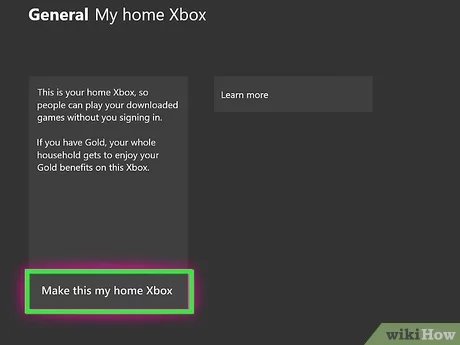
Setting up your Home Xbox is super important for game sharing. Here’s how you do it:
- Turn on your Xbox.
- Press the Xbox button on your controller to open the guide.
- Go to ‘Profile & system,’ then ‘Settings.’
- Select ‘General,’ then ‘Personalization.’
- Choose ‘My home Xbox.’
- If this is your first time, select ‘Make this my home Xbox’. If you’ve set a home Xbox before, you’ll see the option to change it.
It’s crucial to remember that you can only have one Home Xbox at a time. You can switch it, but there is a limit to how many times you can do this in a year. Make sure to choose wisely.
How Game Pass Ultimate Sharing Actually Works
Now that we understand the Home Xbox concept, we can delve into how it enables Game Pass Ultimate sharing. If you have Game Pass Ultimate, anyone who uses your Home Xbox will have access to the following:
- The full Game Pass library of games (both console and PC games playable on console).
- Xbox Live Gold benefits, including online multiplayer.
- EA Play titles included with Game Pass Ultimate.
This is the main benefit of setting up a Home Xbox. It allows other users on the same console to experience the Game Pass games and online benefits without requiring a separate subscription for each profile. This can be particularly good for families, as the benefits can be spread over more than one person who shares the console.
Sharing Beyond the Home Xbox
While your Home Xbox grants access to other users on that console, you, the account holder, can still use your Game Pass Ultimate benefits on any Xbox console where you sign in. This means if you are at a friend’s house you can log in to your account on their console and enjoy games under your subscription. However, other users on your friend’s Xbox won’t benefit from your Game Pass Ultimate subscription. Your benefits travel with your profile, but they don’t extend to other users outside of your Home Xbox.
The Limitations of Game Pass Sharing
While Game Pass Ultimate game sharing offers good benefits, there are some key limitations you must keep in mind:
- One Home Xbox: You can only designate one console as your Home Xbox at a time. Switching frequently isn’t possible, you have a set limit per year.
- Simultaneous Play: Only one person can play a specific game under your Game Pass Ultimate subscription at any time. If you, on your non-Home Xbox, are playing a game and someone on the home Xbox attempts to play the same title, a warning will appear. The other person will be told that the subscription game is in use by you and that the other user can play the title if they purchase it themselves or start a trial.
- Profile Specifics: Game progress, game saves, and personal settings are tied to individual profiles. Game sharing does not mean shared progress across profiles. Each player has their own progress.
- No Sharing on PC: The Home Xbox setting and sharing benefits are only applicable to Xbox consoles. Game Pass Ultimate benefits on PC don’t use the same sharing method. PC accounts have individual licenses attached to your account so there’s no Home PC.
Understanding these limitations is vital for a good game sharing experience. It prevents disappointment and confusion between users.
Game Sharing Example Scenarios
Let’s walk through some practical scenarios to make the concept clearer:
Scenario 1: Family Sharing at Home
A family of four has one Xbox console. The parent who owns the Game Pass Ultimate account sets that Xbox as their Home Xbox. In this case, all family members can play any Game Pass games on that console, regardless of which family member’s profile is signed in. Each family member can play online and can play through the EA titles as well. This allows all family members to have the Game Pass benefits on their individual profiles without paying individual membership fees.
Scenario 2: Playing Away From Home
The parent in the above scenario goes to their friend’s house and brings their game with them. They sign in to their account on their friend’s Xbox console. The parent can play all the games from their Game Pass Ultimate subscription. However, the friend cannot access the games on their own profile. The benefits only go with the user’s specific profile when playing away from home.
Scenario 3: Simultaneous Play Conflict
The parent and child in Scenario 1 both try to play the same Game Pass game at the same time. If the parent is on the console that is not the home Xbox, and the child attempts to play the same game on the home Xbox, the child will receive a message saying that the game is currently in use by another user. The child will have to wait until the parent has stopped playing the game. If the parent was on the home console, and the child was on a non home console the same message would apply. Only one person can play a game at any given time using the same account’s licence.
Troubleshooting Common Sharing Issues
Sometimes, things don’t go perfectly. Here are some common issues and how to fix them:
Games Not Appearing
If your games are not showing up on your Home Xbox console, you might want to try the following solutions:
- Double-Check Home Xbox Setting: Make sure your console is correctly set as your Home Xbox using the steps mentioned earlier.
- Restart Your Console: A simple console restart can sometimes resolve these issues.
- Verify Subscription Status: Make sure your Game Pass Ultimate subscription is still active and that it is on the profile that the subscription was purchased with.
- Check for Xbox Live Issues: Sometimes, problems with Xbox Live can affect the availability of your games. The Xbox server status page can inform you of any ongoing server issues.
“Do You Own This Game?” Error
This error usually means there is a licensing issue with the game you are trying to play. This can happen if you are not playing on your home console. The following are some methods to try to rectify the issue:
- Check your Home Xbox: Check that you are logged in on the correct home console.
- Sign out and back in: Sign out of your profile and sign back in. This can sometimes refresh the account’s license status.
- Restart your Console: A simple console restart can sometimes resolve these issues.
- Check for Xbox Live Issues: Sometimes, problems with Xbox Live can affect the availability of your games. The Xbox server status page can inform you of any ongoing server issues.
Game Pass Titles Locked
This usually means that the Game Pass subscription is not active on the account being used. Check that the user is logged in on the correct profile and that the profile that is being used does have an active Game Pass Ultimate subscription.
Tips for Smooth Game Sharing
For a positive game sharing experience, keep these tips in mind:
- Communicate: Talk to the people you’re sharing with to avoid conflicts about game usage and playing at the same time. This is very important if you wish to avoid the “Do you own this game?” message appearing.
- Designate A Home Xbox Carefully: Choose the console that is used most often by the people that you intend to share the benefits with. Remember to only change your home console only when necessary as you have a limited number of changes per year.
- Monitor Subscription Status: Keep an eye on your Game Pass Ultimate subscription to make sure it doesn’t expire. This is crucial if you wish to share the benefits with others.
Game sharing can be a great way to save money and experience more games, as long as you follow these tips and understand the rules.
Game Pass Ultimate game sharing is a fantastic feature that allows families and friends to experience games together without needing multiple subscriptions. While it comes with some rules and limitations, understanding the Home Xbox concept is key. By knowing how to set it up, you can maximize the benefits of your Game Pass Ultimate membership. Remember to communicate with the people you are sharing with to avoid conflicts, and to use common sense to avoid any issues. By following these simple rules you will be able to enjoy the Game Pass Ultimate benefits with others while reducing the financial costs.
How to Share Game Pass with Other Accounts on Xbox One (Easy Tutorial)
Final Thoughts
Game Pass Ultimate allows console sharing with one designated home console. The benefit is that other accounts on that console access your subscription. However, cloud gaming and PC benefits are account-specific.
So, can you game share game pass ultimate? Yes, but only on console. Your account is needed for all other platforms. Therefore, sharing is limited.

