
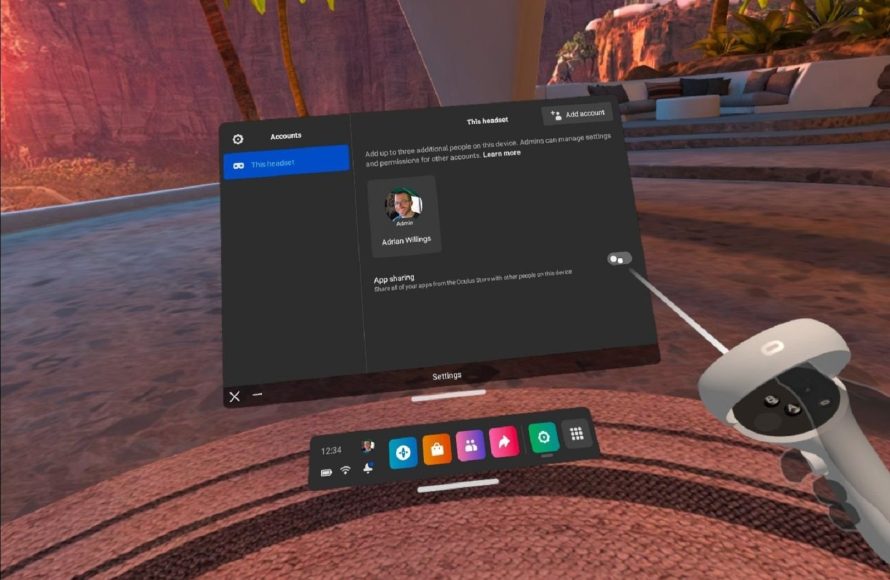
Yes, you can game share on Meta Quest 2, but it requires setting up an app sharing feature on the headset.
Want to share your favorite virtual reality experiences with others? You’re probably wondering, can you game share on meta quest 2? It’s a common question for families and friends eager to explore VR together without buying multiple copies of the same games.
The Meta Quest 2 does offer a method to share games, but it’s not as straightforward as on some other platforms. You’ll need to enable app sharing on the device itself to allow different accounts access your library. It is certainly worth exploring if you want to share your purchased content.

Can You Game Share on Meta Quest 2?
Okay, let’s dive into the exciting world of virtual reality and the Meta Quest 2! You might be wondering, “Can I share my awesome VR games with my family and friends?” That’s a great question! The short answer is yes, sort of but it’s not as simple as handing over a physical game disc. Let’s explore all the details of game sharing on the Meta Quest 2 and what you need to know.
Understanding the Meta Account and Device
First, it’s important to understand how the Meta Quest 2 works with accounts. Your Meta Quest 2 is linked to a specific Meta account (formerly Facebook account). This account is where all your game purchases are tied. It’s like your game library is stored in this digital account. Think of your Meta account like your personal bookshelf, and all your VR games are the books on that shelf.
When you buy a game on the Meta Quest store, it’s added to your account. This means you can download and play the game on any Meta Quest 2 headset logged into that same account. However, this also presents our first obstacle to traditional game sharing.
Primary and Secondary Accounts: The Key to Game Sharing
Meta allows you to have more than one account on your Meta Quest 2 device but with a specific arrangement. The main account you use on the device is the primary account. This is the account that typically made the original purchase of the games. The additional accounts you add to the device are called secondary accounts. The main idea here is to let you share your games with other people in your household, but in a controlled and specific way.
Here’s the breakdown:
- Primary Account: The account that owns all the purchased apps and games.
- Secondary Accounts: Accounts that can access shared games on the same device.
This is how Meta approaches game sharing, where family members or close friends might want to access games on the same device without each purchasing duplicate copies of the same games.
How to Set Up Account Sharing
Setting up account sharing on Meta Quest 2 is pretty simple. Here’s how it works:
- Ensure your primary account is logged into the Quest 2: The account that owns the games needs to be the first one set up on the device.
- Add secondary accounts: Go to the settings menu on your Quest 2. Look for “Accounts.” You’ll see an option to add an additional account.
- Log in with the secondary account: You will need to have the Meta account login information to add secondary account.
Important Considerations when adding secondary accounts
- Only on the same headset: The ability to share games only works on the same Meta Quest 2 device. You can’t share games between two separate headsets. If you have a second Meta Quest 2 you want to use for your family, they will need their own game purchases to play.
- Game Compatibility: Some games may not be available to share. This is usually up to the developer of the game and if they’ve opted into the shared experience.
- App Sharing Settings: In the main accounts settings, you will find a toggle for each of the secondary account that determines what apps they have access to. You can disable app sharing to remove access.
Restrictions on Game Sharing
While game sharing is great, it does come with some limits. Here are some important things to keep in mind:
- One headset at a time: Only one person can use a game at a time. If the primary user starts a game, a secondary user cannot launch the same game simultaneously on a different profile. It’s designed for family sharing not playing at the same time on different profiles.
- Limited Availability While the vast majority of games support app sharing, some do not. You will need to check the game description to see if app sharing is available for that specific title.
- Cross-Buy Limitations: Cross buy is the ability to buy a game once and play it across Meta Platforms. While some games allow it between PCVR and the Quest, some games may not, or may not allow the shared account to access the game on the PC.
- Multiple Headsets Account sharing works only on one device. If you want to play the same game on different Meta Quest devices, each device will need to own the game. There is currently no functionality for family game sharing on multiple VR devices using a single game purchase
Benefits of Game Sharing
Even with the limitations, game sharing on the Meta Quest 2 has big benefits:
- Cost Saving: It’s a great way to save money. Families can buy games once and everyone gets to enjoy them on the same headset, instead of buying multiple copies.
- Family Fun: Game sharing makes it easier to introduce VR to your friends and family. Multiple users can experience a game without additional purchases.
- Exploration: If you’re unsure of buying a game, someone in your household might have already purchased it, allowing you to try it out before making the investment.
What to Do If You Want to Share Games on Multiple Headsets
If you and your friends/family have multiple Meta Quest 2 devices, and you want to play together, the situation is different. Meta’s system is not designed to have games shared across multiple devices. In this scenario, the only way to have multiple players enjoying a game together is for everyone to buy a copy of that specific game. This can be expensive, but it allows each of you to use the game on different devices simultaneously.
Tips for Managing Game Sharing on Meta Quest 2
Here are some tips to help you make the most of game sharing:
- Create Separate Profiles: If different family members are playing games, make sure they have their own separate account profiles set up. This ensures each individual’s game saves and settings are kept separate, and they don’t interfere with each other.
- Check Game Compatibility: Always double check that the game you want to share is actually sharable, this can save you a lot of frustration.
- Communicate: Talk to your housemates about when each of you will be using the device to avoid conflicts about who gets to play next.
The Future of Meta Quest Game Sharing
The current sharing system works well for single households, but there’s always room for improvement and some want more advanced sharing. Meta is always updating the system and adding new features to improve the users experience with their VR headsets. While they may not offer a full family share on different devices, it would not be surprising if Meta made some changes to enhance the experience in the future.
Why Game Sharing is Important
Game sharing on Meta Quest 2 is important for a few reasons. It allows more people to experience the wonderful world of virtual reality. With cost-effective solutions like this, more people can play VR games without the cost of having to buy each game individually. This opens up VR to more people and helps make it more accessible.
Troubleshooting Common Game Sharing Issues
Sometimes, things might not go as planned with game sharing. Here are some common problems and how to fix them:
Game Not Showing Up
- Check App Sharing Settings: Go to the primary account’s settings and make sure app sharing is enabled for the secondary account that is missing the games.
- Check Game Compatibility: Make sure that the game actually supports sharing. Not all games can be shared.
- Restart Device: Sometimes, just turning your Meta Quest 2 off and on can fix glitches.
Error Message on Launch
- Ensure Primary Account is Online: The primary account needs to be logged in and online for the secondary user to use shared apps.
- Check for Game Updates: Outdated games sometimes don’t work with sharing. Check if there are any updates for the game.
- Re-add Secondary Account: In some situations, deleting and re-adding a secondary account can help fix issues.
Making the Most of Shared VR Games
Game sharing on Meta Quest 2 helps you explore the vast library of available games with others. By setting up the secondary accounts correctly you can enjoy these features. Try different games and genres to see what you like and also what you might like to purchase for the future.
Shared experiences can be incredibly powerful, and enjoying VR with others brings fun and connection. The current system on Meta Quest 2 is a good foundation for household sharing.
So, there you have it! Game sharing on the Meta Quest 2 is a great way to save money, have fun with others, and experience more of what VR has to offer. While it has some limitations, understanding how it works will make your VR experience much better.
How to Share Quest Games Between Two Headsets! APP Share Gameshare setup guide.
Final Thoughts
Yes, Meta Quest 2 allows game sharing. You can share games with other accounts on the same headset through the app sharing feature. This makes it convenient for multiple users to enjoy content.
However, only one account can play a shared game at a time. Therefore, simultaneous play with multiple accounts sharing a game isn’t possible. This answers, “can you game share on meta quest 2,” demonstrating its capabilities.

