
Yes, you can game share on Oculus Quest 2 using the account sharing feature, though it has some limitations.
Want to play your favorite VR games with friends or family? It’s a common question: can you game share on Oculus Quest 2? The good news is that Meta allows for some level of game sharing.
However, it’s not as simple as sharing on a console. You will need to set up account sharing on your device. A primary account and secondary accounts are involved in the process. This setup allows multiple users to access the same game library.

Can You Game Share on Oculus Quest 2? A Deep Dive
Okay, so you’ve got an Oculus Quest 2, and maybe your family or friends are itching to jump into the virtual fun. You’re wondering, “Can we share these awesome games without buying them multiple times?” That’s a great question! The short answer is: yes, you can game share, but it’s not quite as straightforward as lending a physical game disc. Let’s explore how it works, the limitations, and how to get everyone playing together!
Understanding the Basics of Oculus Game Sharing
Before we dive into the “how,” let’s talk about the “what.” Oculus game sharing, also called app sharing, allows multiple people to use the same games on different Oculus headsets. However, it’s not a completely free-for-all. It uses a system tied to the primary account on the headset, and secondary accounts that can access those games. Think of it like having a main library and a few guest passes.
The Primary Account
The primary account is the first account that was set up on the Oculus Quest 2. This is the account that owns the games. The individual who uses the primary account has full control over the headset and can make purchases, set up parental controls, and more. This person will be the main game library holder, from which other users will be able to play.
Secondary Accounts
Secondary accounts are other profiles that have been added to the Oculus Quest 2. These accounts can be used by other family members or friends. These profiles can then play the apps and games that the primary account owns, as long as the primary account holder enables it.
It’s important to understand that while secondary accounts can access shared games, they can’t buy new ones or access other account-specific features. They’re essentially playing using the primary account’s license.
How to Set Up App Sharing on Your Oculus Quest 2
Setting up app sharing is generally pretty easy. Here’s a step-by-step guide:
- Put on your headset and log in with the primary account. This is the account that owns all the games you want to share.
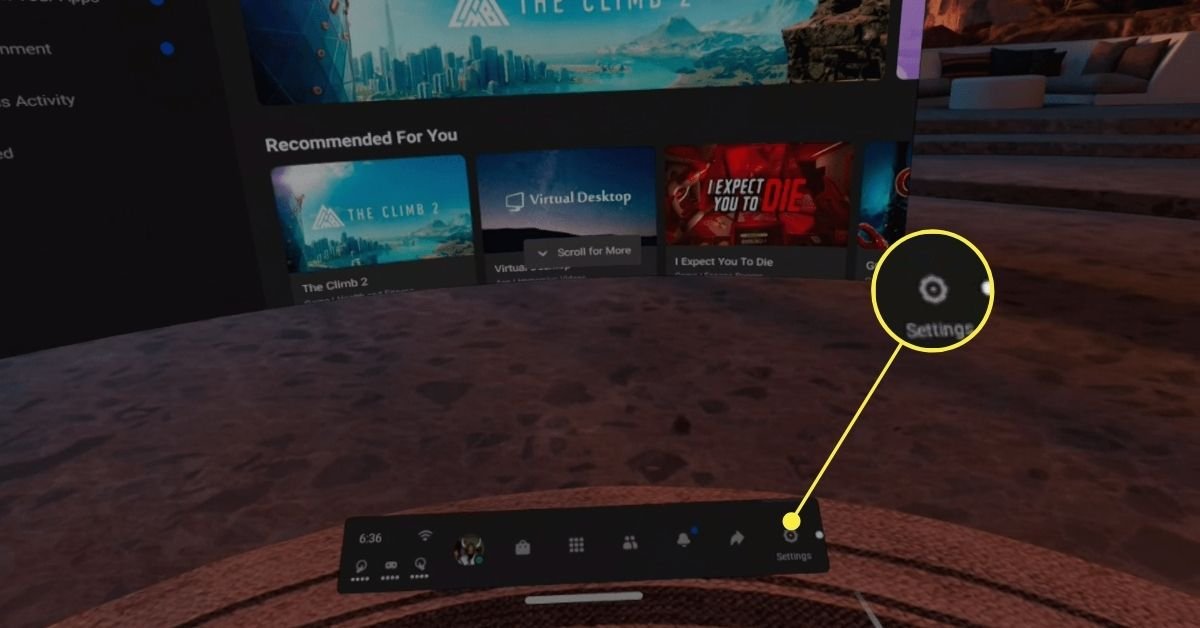
- Go to Settings. You can find this by selecting “Settings” icon in the universal menu bar that shows at the bottom of your view in VR.
- Select the “Accounts” option from the left side menu. This is where you manage the various profiles on your headset.
- Find the “App Sharing” toggle. You’ll see it on the right side of the screen. Switch it to the “on” position. You should see a message stating that other accounts will be able to access the games of the primary account.
- Add secondary accounts. If you haven’t already added secondary accounts, you can do that now. Select the “Add Account” option and follow the directions to create a new profile or add a previously created account to the headset.
A few important things to note:
- Account Linking: Secondary accounts must have their own Facebook or Meta account linked to them, as well as a Meta account created, it is no longer optional to skip creating a meta account.
- Headset Primary Account: There can only be one primary account per headset.
- Multiple Headsets: If you have multiple Oculus Quest 2 headsets, you’ll need to enable app sharing on each one separately. If you have multiple headsets under one roof and each with primary accounts, then it will be impossible to have a shared game library across these headsets under one primary account.
The Benefits of Game Sharing
Why bother with all this? Well, there are some great reasons to set up game sharing:
- Save Money: Instead of buying the same game multiple times for different users, you can buy it once and share it. This is a big plus for families!
- Family Fun: Everyone can experience the same games together, leading to some fun family bonding time. Imagine playing a multiplayer game with everyone in the same room (or separate rooms)!
- Introduce Friends to VR: Sharing games is a great way to show your friends the magic of virtual reality without them having to invest in their own games right away.
The Limitations of Oculus Quest 2 Game Sharing
While app sharing is great, it’s not perfect. There are some things to keep in mind:
Simultaneous Play Restrictions
One major limitation is that only one account can use a particular game at the same time. If the primary account is playing a game, secondary accounts will not be able to play that game at the same time. They will need to wait till the primary account is not using the game. You won’t have everyone playing together in the same app. For example, if you have two kids and they both want to play Beat Saber at the same time, they can’t without a separate purchase. It can be a source of some frustration, but that’s one of the caveats of this game sharing feature on Oculus Quest 2. If you want to play games together in the same environment, you would need to purchase the game for both profiles.
Not All Games are Shareable
Certain apps and games cannot be shared through app sharing. Some developers have chosen not to allow sharing for their titles. These can include some of the newer releases or apps that require very specific license management. It’s important to check the app description or information to confirm whether or not it is shareable. Typically, the game’s store page in the Oculus app will indicate if app sharing is allowed or not.
Account Limitations
Secondary accounts can’t access all of the features of the primary account. As stated earlier, they cannot make purchases, and they won’t have access to personal information or other account management options. It’s also important to remember that they will not have a separate cloud storage of saves on all titles (this is dependent on the game), so sometimes, multiple profiles on the same headset may share the same save files.
Primary Account Control
The primary account has full control over the settings and apps on the headset. If you want to set up specific parental controls or restrict access to certain apps or settings, the primary account can do so. This can be great for keeping younger users safe while playing.
Tips for Smooth Game Sharing
To make your game sharing experience easier, here are a few handy tips:
- Communicate: Make sure everyone knows how game sharing works and the limitations. Talk with each other about what games people would like to play. Also discuss who can use a game and when. This will help avoid frustrations.
- Check Game Compatibility: Before trying to share a game, verify whether it is shareable. Also, check if it supports multiple saves or player profiles.
- Set Clear Rules: If you have multiple users, set some basic ground rules regarding game time and which games are the most used.
- Keep Software Updated: Make sure both your headset and your apps are updated to the latest versions. This will help ensure that app sharing is working correctly, and reduce bugs.
Alternatives to App Sharing
If game sharing isn’t quite working out for your specific needs, here are some alternatives:
- Multiple Headsets: If everyone wants to play at the same time, you may need to purchase more than one headset. This can get quite expensive. When you have multiple headsets, app sharing across headsets is not ideal, because you can only share one primary account’s library to profiles on that same headset.
- Gift Purchases: Instead of sharing, you could gift specific games to different users through the Oculus Store or Meta store. This is a good idea for multiplayer titles that can be played together across different headsets, but is not economically sound.
- Used Games: Keep an eye out for used games being sold. While not an option for many digital games, it can reduce some of the financial burden. Also, when buying second-hand, ensure that these are legitimate copies.
Game Sharing vs. Other Platforms
It’s helpful to compare how game sharing works on the Oculus Quest 2 to other gaming platforms. Here’s a quick look:
| Platform | Game Sharing Method | Simultaneous Play | Limitations |
|---|---|---|---|
| Oculus Quest 2 | App Sharing on the same headset | Not for the same game | Not all games are shareable, only one primary account |
| PlayStation | Account sharing on consoles | Possible on different consoles | Limited to a maximum number of active consoles |
| Xbox | Home console sharing | Possible on different consoles | Limited to one “home” console |
| Nintendo Switch | Physical cartridges or account-based downloads | Possible with multiple cartridges/accounts | Digital games require account activation on consoles |
As you can see, different platforms have different approaches. The Oculus Quest 2’s app sharing is good, but it has some notable limitations, especially regarding simultaneous play.
The Future of Game Sharing on Oculus Quest 2
It’s worth noting that the game sharing system on Oculus (now Meta) is always evolving. Meta might introduce changes in the future to make it more flexible. Some users are anticipating features like a “family plan” that would allow multiple users to play shared games at the same time, but that has not yet been implemented. Keep an eye on updates from Meta for new features and improvements. As more games and apps are released, the ways that developers decide to handle sharing is also subject to change.
In conclusion, yes, you can share games on the Oculus Quest 2, but it is important to remember that app sharing has some limitations. By understanding the ins and outs of how app sharing works, and its limitations, you can get the most out of your VR experience, and keep it an amazing experience for everyone involved!
How To Share Games & Apps On Oculus Quest 2
Final Thoughts
So, can you game share on oculus quest 2? Yes, you can with the account sharing feature. This allows multiple users to play games on the same device with separate accounts. One main account holds the game library and others access it.
You enable app sharing in the Oculus mobile app. Then, add secondary accounts to your headset. This lets multiple profiles enjoy the available games. Keep in mind certain limitations may exist.

