
No, you cannot game share on Steam and play together using the same library at the same time.
Ever wondered if you and a friend could dive into the same game from a shared Steam library simultaneously? It’s a common question and something many gamers wish was a feature. But can you game share on Steam and play together using the same account at the same time?
The reality is, while Steam’s Family Sharing allows library access to other accounts, only one user can play a game from a shared library at any given moment. This means, that you can play when the owner of game is not playing a game in library and vise versa.

Can You Game Share on Steam and Play Together?
Okay, let’s dive into the exciting world of Steam game sharing! Many of you might be wondering if you can share your awesome game library with your friends and family and actually play together at the same time. The short answer is: It’s a little complicated, but yes, sometimes you can. Steam has a feature called “Family Sharing,” and it lets you share your games. But there are some rules, so let’s explore them in detail.
Understanding Steam Family Sharing
Steam Family Sharing is like lending your favorite books to someone, but digitally! It allows you to share your library of games with up to five other Steam accounts on computers that you have authorized. It’s a great way for siblings, roommates, or friends to experience each other’s games without needing to buy them separately. This saves money, and introduces players to new games they might not have tried otherwise. This feature operates via the sharing of your library rather than direct access to your personal Steam account. Thus, ensuring the safety of your account and preventing unintended changes to your personal settings or game progress.
How to Set Up Steam Family Sharing
Setting up Family Sharing is a straightforward process. Here’s how to get started:
- Enable Steam Guard: You will first need to have Steam Guard enabled for your account. Steam Guard adds an extra layer of security. You can find it in your Steam settings under the “Account” tab.
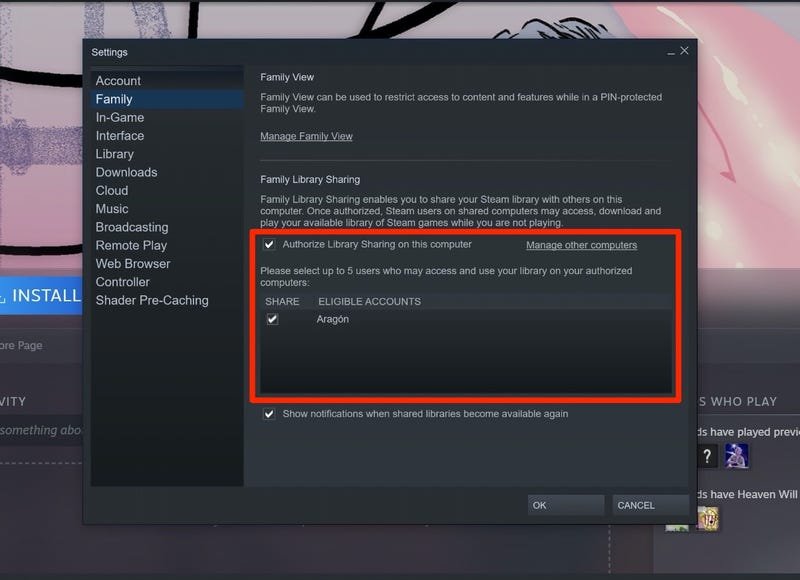
- Authorize Computers: On the computer of the person you want to share with, log into your Steam account. Go to “Steam” in the top left corner of your Steam window, then click on “Settings.” Choose the “Family” tab and click on the “Authorize Library Sharing on This Computer” button.
- Choose accounts: Once you have authorised the computer, Steam will show the list of accounts that have logged in to that machine, and allow you to select which accounts can access your library.
- Log out: Log out from your account on that computer, and tell the person with the other account to log in with their own account.
Now, the other person can access and play games from your shared library, as long as you are not using the shared game at the same time. It’s like borrowing a video game from your friend, but instead of a physical disc, they have a digital copy. When you make a change to authorization, for example, remove the authorization, it takes about 24 hours to take effect. So plan ahead when you want to deauthorize computers from your library.
The Catch: Simultaneous Play
This is where things get a bit tricky. While Family Sharing is an awesome way to share games, you usually cannot play the same game from the shared library at the same time. Think of it like this: if you lend your book to your friend, you cannot read it at the same time.
How Simultaneous Play Works (or Doesn’t)
- Only One Player at a Time: Only one person can access a game from a shared library at a time. So, if you want to play a game that someone else is currently playing, you have to wait until they are finished or have stopped playing the game.
- Main account’s Priority: If you (the owner of the library) start a game from your library, the person who is using the shared game at that time will get a 5 minutes warning message. After those 5 minutes they will get kicked out of the game so that the owner of the library can play the game.
- Exception for certain Games: However, if the game is a free to play game, like DOTA2 or CS:GO, you can play it at same time with the other account who has access to your library.
- Other Exceptions: In rare circumstances, some games do have the ability for a multiple-player game experience across different accounts when they use Family Sharing. This can be due to the way the game is coded, or if the game has its own server system independent of Steam’s platform. This is highly game-dependent and requires individual investigation on a case-by-case basis.
Playing Together: How to Make It Work
So, how do you play together using Steam Family Sharing? While you cannot play the same game from your shared library, there are other ways to make it happen.
Options for Playing Together
- Own Separate Copies: The most obvious way is for both players to own their own copy of the game. This is the best solution if you plan on playing together frequently, and ensures both of you get to enjoy the full experience with no restrictions.
- Free-to-Play Games: A great alternative are free-to-play games on Steam. Since there is no sharing involved, you can play them at the same time as others. Many popular multiplayer games are free, providing a wide variety of options for people to play together.
- Borrowing and Switching: If you don’t want to spend the money to buy the games, one option is for you and your friend to take turns playing the games that you both enjoy. While you can’t play simultaneously, you can alternate. It is not a perfect solution if you are trying to play through a game together, but can work for games with lots of different content. For example, one person could play one character in a fighting game, and the other person could try another.
- Local Multiplayer Games: If you both are on the same PC, you can play local multiplayer games with controllers. Some games let you have up to 4 players on a single machine! While not exactly game sharing, it is a way to play together if you are on same machine.
- Multiple Steam Accounts: If you have more than one account, and a family member has one or more accounts, you may be able to take advantage of the multiple library shares to be able to play together. For example, Person A has Steam account A, Person B has Steam account B, and Person C has Steam account C. Person B can share their library with Person A and Person C, but Person A cannot play with Person C from the shared library at the same time. If Person A also has a shared library, Person C can access games from Person A’s shared library whilst Person A accesses games from Person B’s shared library, or vice versa. Note that there is an account limit on the amount of accounts a single Steam account can share its library with.
Limitations of Steam Family Sharing
There are also other limitations of Steam Family Sharing you should know about.
Key Restrictions
- No DLC Sharing: If you share a game that includes Downloadable Content (DLC), the person borrowing the game can only access DLC that they also own, even if the main library contains the DLC. If they do not own the DLC, the game may not be as full of content as it would be if they owned it.
- Region restrictions: Sometimes games have region locks. In this case, if the game is region locked and is from a different region to the account borrowing the game, the user borrowing the game will not be able to access the game.
- Game Specific Limitations: Some games are exempt from sharing due to specific settings. This can be due to the game’s publisher, or a technical limitation of the game itself. Usually these games will state that they cannot be shared on the Steam store page.
- VAC bans: One user being banned from the Valve Anti Cheat (VAC) system, even on a game not shared with family sharing, can prevent all users in the family from accessing any game that uses the VAC system.
Tips for Smoother Game Sharing
To make the most of Steam Family Sharing and avoid problems, follow some simple guidelines.
Best Practices
- Communicate: Talk to the people you are sharing with. Make sure you both know when each other are playing, so you are not suddenly locked out of your game!
- Be Patient: Remember that you have the priority over your shared game. You should be patient, and if you need to use a game someone is using, be courteous and let them know so that they have time to prepare.
- Check Compatibility: Not every game can be shared. Double check the game’s Steam store page to make sure that it supports library sharing before purchasing a game that you want to play.
- Review Authorization Regularly: Review your list of authorized computers every so often. If you’re no longer sharing with someone, remove their authorization to ensure your library is not being accessed by an unwanted user.
Using Steam Remote Play Together
Another way to play games with friends on Steam is with Steam Remote Play Together. This feature allows you to play local multiplayer games over the internet with your friends even if they don’t own the game!
How Remote Play Together Works
- Host the game: One player needs to own the game, then they start the game on their computer.
- Invite Friends: The game host then invites their friends via the Steam overlay.
- Share Screen: The game is streamed from the host’s computer to the friend’s computers. The friends can then use their own controllers to play the game with the host.
- Local Co-op online: This means you can play local multiplayer games online with friends, without them having to buy the game!
Limitations of Remote Play Together
- Bandwidth: This feature requires a good internet connection from the game host, as the game is being streamed.
- Not all games supported: Not every game supports Remote Play Together, or the level of support may vary. It is always best to verify that Remote Play Together works for any specific game you want to play before hand.
So, can you game share on Steam and play together? The answer is: you can share your games using Steam Family Sharing, but you cannot usually play the same shared game at the same time. There are ways around this like owning separate copies of the games, using free to play games, using Remote Play Together, or taking turns to play. It is always best to have a backup plan for when you cannot access a game due to the shared game being used. Steam Family Sharing is a valuable tool, but also requires good communication with those who are accessing your library. With a clear understanding of how it works, you can make the most of Steam’s family sharing and other features like Remote Play Together, and enjoy many games with your friends and family!
How to Share Games on Steam 2024 – Steam Family
Final Thoughts
Yes, Steam’s Family Sharing lets you share games, but not simultaneously. Only one person can play a shared library at a time. This means you can’t play the same shared game together.
If you want to play together, each player needs to own a copy of the game. So, ‘can you game share on steam and play together?’ The answer is generally no for the same game simultaneously.
Therefore, individual purchases remain the solution for playing together. Game sharing is best for single-player experiences and testing games.

