
Unfortunately, you cannot directly install and play 32-bit games on a 64-bit macOS since macOS Catalina dropped support for 32-bit applications.
Many gamers with older titles wonder, can you install 32 bit games on 64 bit mac? This is a common question given the transition macOS made a few years ago. Apple stopped supporting 32 bit applications beginning with macOS Catalina.
This means many older games that were not updated now will not work on modern Macs. Sadly, there isn’t a simple workaround built into macOS itself. You would need to consider options like virtualization software to run an older system.

Can You Install 32-bit Games on a 64-bit Mac?
Let’s dive right into the heart of the matter: Can you play those older, much-loved 32-bit games on your shiny, modern 64-bit Mac? It’s a question many gamers who love retro titles have asked, and the answer, while straightforward, has some important details you should understand. The short answer is, unfortunately, no, not directly. Newer macOS versions have dropped support for 32-bit applications, including games. This change happened for a reason, and it impacts a significant amount of older software. So, what does this mean for your gaming library, and are there any workarounds? Let’s explore this in detail.
The 32-bit vs. 64-bit Difference: A Simple Explanation
To understand why 32-bit games won’t run on modern Macs, we need to understand the difference between 32-bit and 64-bit architecture. Think of it like this: a 32-bit system is like a highway with only two lanes, while a 64-bit system has four lanes. The 64-bit highway can handle more information and process data much faster.
32-bit: This refers to the architecture of older processors and operating systems. They can only use a limited amount of RAM (usually 4GB) and have processing constraints. This means less information can be processed at a time.
64-bit: Modern processors and operating systems use 64-bit architecture. They can handle significantly more RAM (terabytes if necessary) and process data at much faster speeds. This allows for more complex and demanding tasks to be completed efficiently, like running modern games.
When Macs moved to 64-bit architecture, it meant that the older 32-bit games weren’t compatible because they were designed for a different kind of processing. It’s like trying to drive a tiny old car on a freeway designed for huge trucks – it simply won’t work, and can potentially cause problems.
Why Apple Stopped Supporting 32-bit Apps
Apple decided to stop support for 32-bit applications in macOS starting with Catalina (macOS 10.15) and moving forward. This wasn’t a random choice but was driven by several factors:
Performance: 64-bit apps utilize the full potential of modern Mac hardware, offering speed boosts and better memory management. This creates a smoother and more efficient user experience overall.
Security: 64-bit applications are generally more secure. Abandoning support for 32-bit software helps to improve the overall security posture of macOS, reducing vulnerabilities that old software might introduce.
Technology Advancement: As technology moves forward, older, outdated systems and software become a burden to maintain and support. Moving entirely to 64-bit architecture simplified the operating system and allowed for more innovation.
This decision meant that countless older games and applications, many of which are still beloved, became unusable on newer macOS versions. This move wasn’t specifically targeted at games; it affected all 32-bit applications equally.
The Impact on Gamers: What It Means for Your 32-bit Game Library
If you have a library of older 32-bit games that you love playing, this news can be disheartening. Here’s the impact it likely has:
Direct Playability Loss: You cannot simply install or launch 32-bit games on macOS Catalina or later. The operating system will not recognize and execute them. You’ll typically encounter an error message that says the game is “not compatible” or “cannot be opened”.
Games Become Inaccessible: The move essentially made many older titles inaccessible on newer macOS devices. This leads to a lot of frustration for gamers wanting to revisit the classics or continue with titles they enjoy.
Investment in Solutions: As a consequence, it requires a dedicated effort to seek alternative methods to play your older 32-bit games. This may include exploring emulation, virtual machines, or other means.
This shift presents a real challenge, as many older, excellent titles were built using 32-bit architecture. This leaves many gamers in a position where they have to look for alternative ways to play.
Are There Any Workarounds to play 32 Bit games on 64 Bit Mac?
While you can’t directly run 32-bit games on modern macOS, there are still some workarounds you can try:
Using Virtual Machines to Play 32 Bit Games
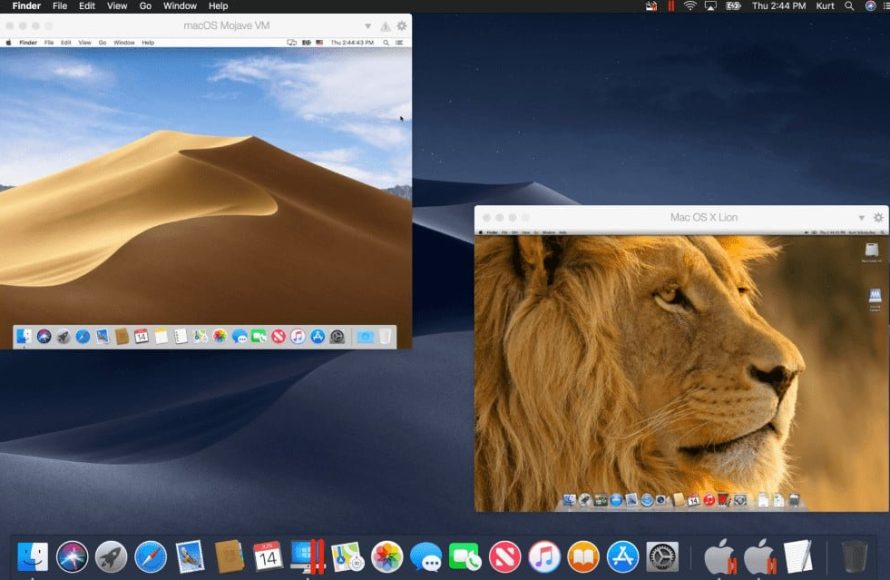
One possible solution is setting up a virtual machine (VM) with an older version of macOS that supports 32-bit applications. This is like running a mini-computer inside your Mac.
How It Works: You install a program like VMware Fusion or Parallels Desktop. This software creates a virtualized environment where you install an older version of macOS like macOS Mojave (which still supported 32-bit). You can then install and run your older 32-bit games inside the virtual machine.
Advantages: This allows you to run 32-bit games without modifying your main operating system and also provides compatibility for older software.
Disadvantages: Setting up a virtual machine can be technically challenging and it requires more resources from your computer. Also performance might not be as good as the games running natively, because you are running one operating system inside another.
Here is an example of how you might do it with Parallels Desktop:
1. Download and Install Parallels Desktop: Obtain Parallels Desktop from their official website and install it on your 64-bit Mac.
2. Download macOS Mojave ISO: You’ll need an ISO file of macOS Mojave. This may be a bit harder to obtain directly from Apple, but usually a web search can bring up some download options from archive websites.
3. Create a New Virtual Machine: In Parallels Desktop, start a new virtual machine, and select the macOS Mojave ISO as the source.
4. Install macOS Mojave: Follow the on-screen instructions to install macOS Mojave inside the virtual machine.
5. Install your Games: Once macOS Mojave is set up, you can install and play your 32-bit games within this virtual environment.
6. Performance: Keep in mind that performance might be affected when running inside a virtual machine, especially for resource-intensive games.
Using Game Emulation to Play 32 Bit Games
Another option is to use game emulators which simulate the hardware of an older system.
How it works: You download an emulator program designed for the gaming platform your games are for (like an emulator for older PC operating system). Then, you load your games (usually as “ROM” or “ISO” files) into the emulator and play them.
Advantages: This approach can offer better performance, in some cases, than a virtual machine, and is very specific for playing older games from various platforms.
Disadvantages: Setting up emulators can be a bit technical, and acquiring game files may sometimes be a legal grey area, so be sure you get your game files from proper legal sources. Compatibility issues may also exist, meaning some games may not work perfectly. Also emulators may not be available for all the 32 Bit games.
Example: An example might be using an emulator of a classic console that your games were originally on. This will not actually run the game “on your mac”, but it will run the game through the virtual console, with some exceptions.
Dual Booting (Not Recommended)
While technically feasible, dual booting is not usually recommended for most users. This process involves setting up your Mac to boot from two different operating systems: one with modern macOS and another with an older version that supports 32-bit apps.
How It Works: You would partition your hard drive and install an older macOS version (like Mojave) on a separate partition. When you start your Mac, you choose which operating system to use.
Disadvantages: Dual-booting is complicated, can be risky if you are not experienced, and it requires a lot of disk space. It also means restarting your computer to switch between operating systems just to play old games which is generally inefficient and not a good user experience.
Why Not Recommended: It is generally not recommended for playing games because of the complexity and potential stability issues and also because you can’t switch quickly.
The Future of Retro Gaming on Mac
The future of playing old games on a Mac is a mixed bag. While Apple’s push towards 64-bit has closed the door on directly running 32-bit games, the community is always coming up with new ways to revive these classic experiences.
Emulation & Virtualization: These methods will continue to be important for playing older games. Better, more user-friendly virtualization software and emulators are always being developed which is good for users who love playing retro games.
Remasters and Re-releases: Some game developers are releasing remastered or re-built versions of classic games specifically for modern operating systems. This allows new audiences to play classic games.
Open-Source Projects: Active community efforts to keep older games running through open-source emulation or ports are crucial.
Cloud Gaming: Cloud gaming services might offer a potential solution, allowing you to stream games from a remote server. This means you can play the older titles without actually having them installed on your Mac.
While the straightforward answer to the question “can you install 32-bit games on a 64-bit Mac?” is a no, it’s not the end of the road for your favorite retro titles. You may need to get a bit creative, maybe with virtualization or emulation, but the possibilities exist. It’s good to know why this is the case, and what your options are for preserving and enjoying these older classic games. The good news is, the world of gaming is always changing, and solutions are always being worked on, ensuring that classic games will hopefully be playable by new generations of gamers for years to come.
How to play 32-Bit / Unsupported Steam Games on Mac OS Catalina | Easiest Method
Final Thoughts
The answer is generally no; modern macOS versions don’t support 32-bit applications. You cannot directly install or play 32-bit games on a 64-bit Mac. This is due to Apple’s decision to drop support for older architectures.
“can you instal 32 bit games on 64 bit mac” is a frequent question. To play these games, you would need to explore alternative solutions like emulation or using older macOS versions. These options require additional setup and might not work perfectly.

