
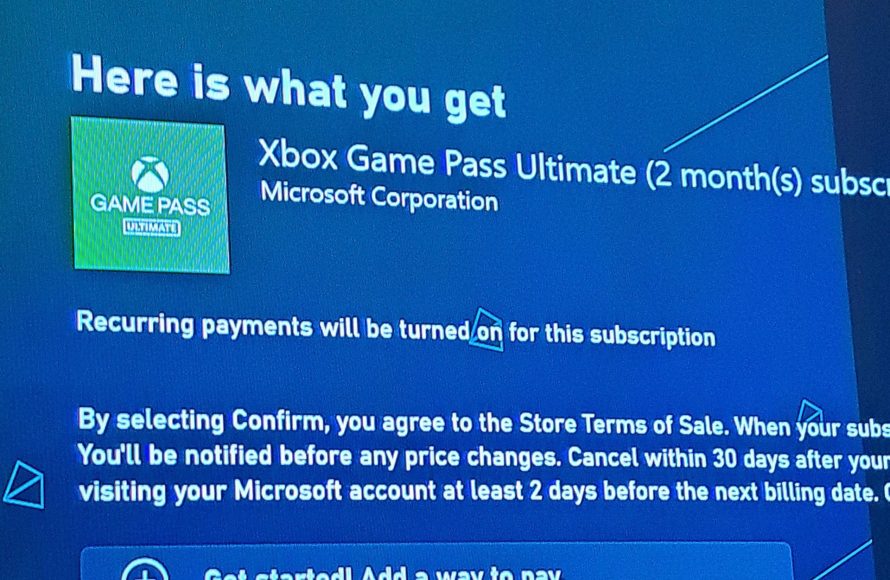
Yes, you can pay for Game Pass with an Xbox gift card.
Ever received an Xbox gift card and wondered how to best use it? The big question on many minds is, “can you pay for Game Pass with xbox gift card?” It’s a common query among gamers wanting to get the most out of their gaming budget.
The answer is fortunately straightforward. You can absolutely use your Xbox gift card to purchase a Game Pass subscription or renew an existing one. It’s a simple way to dive into a library of games.

Can You Pay for Game Pass with Xbox Gift Card?
Let’s jump right into the exciting world of Xbox Game Pass and gift cards! It’s super common to wonder if you can use those cool Xbox gift cards to get a Game Pass subscription. The short answer is: YES! But, there are some little details that are good to know to make sure everything goes smoothly. So, let’s explore how to use those gift cards to get your gaming fix.
Understanding Xbox Gift Cards
Before we dive into using them for Game Pass, let’s first understand what Xbox gift cards are. These gift cards are like digital money that you can use on the Microsoft Store to buy all sorts of things, including games, apps, movies, and yes, even Xbox Game Pass. They come in different amounts, so you can choose the one that suits your needs and budget. You can find them online or in many stores that sell video games. Think of it like a credit card made especially for the Xbox and Microsoft world.
Types of Xbox Gift Cards
There are a couple of different kinds of Xbox gift cards you might come across:
- Digital Codes: These are the most common now. When you buy one online, you get a code that you can enter on your Xbox or on the Microsoft website.
- Physical Cards: You might still find these in some stores. They have a code that you scratch off to reveal.
Regardless of which one you have, they both work the same way.
Where to Buy Xbox Gift Cards
It’s easy to find Xbox gift cards. You can get them at:
- Online Retailers: Websites like Amazon, Best Buy, or the Microsoft Store itself often sell them.
- Physical Stores: Big stores like Target or Walmart usually have them in the electronics section.
- Gaming Stores: Stores that specialize in video games like GameStop will also sell them.
How to Redeem an Xbox Gift Card
Redeeming an Xbox gift card is really simple. Here are the steps for both console and online.
Redeeming on Your Xbox Console
- Turn on your Xbox: Make sure your console is on and you are signed in with your Microsoft account.
- Go to the Store: Find the Store app on the home screen and open it.
- Select Redeem: On the left side of the screen, scroll down until you see the “Redeem” option. Select that option.
- Enter the Code: Carefully type in the 25-character code on your gift card. Make sure you enter the characters correctly, because there are letters and numbers, and some might look similar.
- Confirm: Once you enter the code, your Xbox will show you what you’re redeeming and the amount. Confirm that this is right and click “Redeem”.
- Enjoy the Funds: Your funds will now be added to your account.
Redeeming Online
- Visit the Microsoft Redemption Page: Open a web browser and go to the Microsoft website for redeeming codes.
- Sign in: Sign in with the Microsoft account you use on your Xbox.
- Enter the Code: Type in the 25-character code. Make sure it’s all correct.
- Confirm: Check that the amount is what you expect and confirm the redemption.
- Funds Added: The money will be added to your Microsoft account.
Using Gift Card Balance for Xbox Game Pass
Okay, so you have the money in your account. Now how do you get Game Pass? It’s very easy.
Purchasing Game Pass Directly
- Go to the Xbox Store or Microsoft website: You can either open the Store app on your Xbox or go to the Xbox website on your computer or phone.
- Search for Game Pass: Look for the Xbox Game Pass option.
- Choose your Plan: You’ll see different options for Game Pass, like Ultimate, Console, or PC. Select the one you want.
- Check Your Balance: During checkout, your Microsoft account will automatically use your gift card balance first.
- Complete Purchase: Follow the prompts and complete the purchase.
- Start Gaming: Once the purchase is completed, your Game Pass will be activated. You can start enjoying a whole catalog of games right away!
Auto-Renewal and Gift Card Balances
It’s important to think about auto-renewal if you’re planning to get Game Pass. Most subscriptions are set to auto-renew. If you have enough gift card balance, it will automatically pay for your subscription each month. However, if your balance runs out, you will need to add more funds or a different payment method to avoid losing your access.
What if the Gift Card Balance Isn’t Enough?
Sometimes, you might not have enough money on your gift card to pay for the entire Game Pass subscription. Here’s what you can do:
- Add Another Gift Card: You can redeem another gift card to increase your balance.
- Combine with a Credit or Debit Card: You can also use a credit or debit card to pay for the remaining amount. The system will let you use the gift card balance first and charge the rest to your card.
Different Types of Game Pass and Gift Cards
There are different types of Game Pass, and it’s good to know how the gift card works with each of them.
Xbox Game Pass Ultimate
This is the premium option that includes everything. It gives you access to games on Xbox, PC, and even mobile via cloud gaming, plus Xbox Live Gold for online multiplayer. You can use your gift card balance to get this subscription. It’s a very good deal if you play games on different platforms.
Xbox Game Pass for Console
This version gives you access to games only on the Xbox console. This is a less expensive option than Ultimate. Gift card balance can be used to get this plan.
Xbox Game Pass for PC
This is a great choice if you play games on your computer. It lets you access the PC game catalog. You can easily use your gift card funds for this subscription.
Game Pass Trials
Sometimes, you might find special codes or promotions for trial versions of Game Pass. These trials can usually be activated by using the redeem option too. If a trial requires payment information for activation, gift card funds in your account balance can be used to do that too.
Troubleshooting Common Issues
Sometimes things don’t always go exactly as we want them to. If you have issues, we can look at some typical issues.
Gift Card Not Working
If you’re having trouble redeeming your gift card, here are a few things to check:
- Typo: Make sure that you haven’t made a mistake when typing in the code. It is very easy to mistake an ‘i’ for an ‘l’ or a zero for ‘o’.
- Already Redeemed: Check the redemption history on the website to make sure that it hasn’t been redeemed already.
- Region Lock: Some gift cards are region-specific, so make sure your gift card is for the correct region.
- Contact Support: If none of these work, you might need to contact Microsoft support for help.
Payment Issues
If you’re having trouble paying for your Game Pass with your gift card, try these steps:
- Enough Balance?: Make sure that you have enough funds in your Microsoft balance to cover the entire subscription cost.
- Card Issues: If you’re combining gift card funds with a credit card, check if there are any issues with your card such as expired dates or insufficient funds on the card.
- Try Again Later: Sometimes, there might be temporary issues with the payment system. Try again in a few minutes.
Subscription Not Activating
If the subscription doesn’t activate right away, consider these steps:
- Sign Out/Sign In: Try signing out of your Xbox or the Microsoft website and then signing back in.
- Restart: Restart your Xbox or your computer.
- Check Account: Check your account to ensure the subscription is visible under your services.
Keeping Track of Your Gift Card Balance
It’s good practice to know how much you have on your gift card. You can easily check it online.
Checking Your Balance Online
Here is how you can check your current balance.
- Visit the Microsoft Account Website: Open a web browser and go to the Microsoft website.
- Sign in: Sign in with the Microsoft account that you use on your Xbox.
- View Payment Options: Go to your payment options. You’ll see your current Microsoft balance.
Maximizing the Value of Xbox Gift Cards
Here are some quick tips on how to get the most from your gift cards.
Look for Deals
Keep an eye out for promotions when purchasing your gift cards, which sometimes offer bonus amounts or discounts, and maximize their value.
Save up for bigger purchases
Instead of using smaller denominations, keep saving gift cards and use them for more expensive or annual subscriptions like the Game Pass Ultimate.
Gift Cards as Gifts
Xbox gift cards are fantastic gifts for people who love video games. They let the person pick what they want, whether that’s a new game or a Game Pass subscription.
Using Xbox gift cards for Game Pass is a great way to enjoy a ton of games without needing a credit or debit card all the time. It gives you the flexibility to manage your spending on gaming. With this guide, you should feel confident in purchasing, redeeming, and maximizing the value of your gift cards for all your Game Pass needs.
How to Redeem a Game Pass Ultimate Gift Card Code on an Xbox Series X or S or Xbox One Console Menu
Final Thoughts
Yes, you can pay for Game Pass with an Xbox gift card. This provides a convenient way to subscribe without a credit card. Simply redeem your gift card and apply the balance to your Game Pass subscription.
Using an Xbox gift card allows for flexible subscription management. You can easily extend your existing membership or start a new one. Remember that ‘can you pay for game pass with xbox gift card’ is a great option to manage your gaming expenses.

