
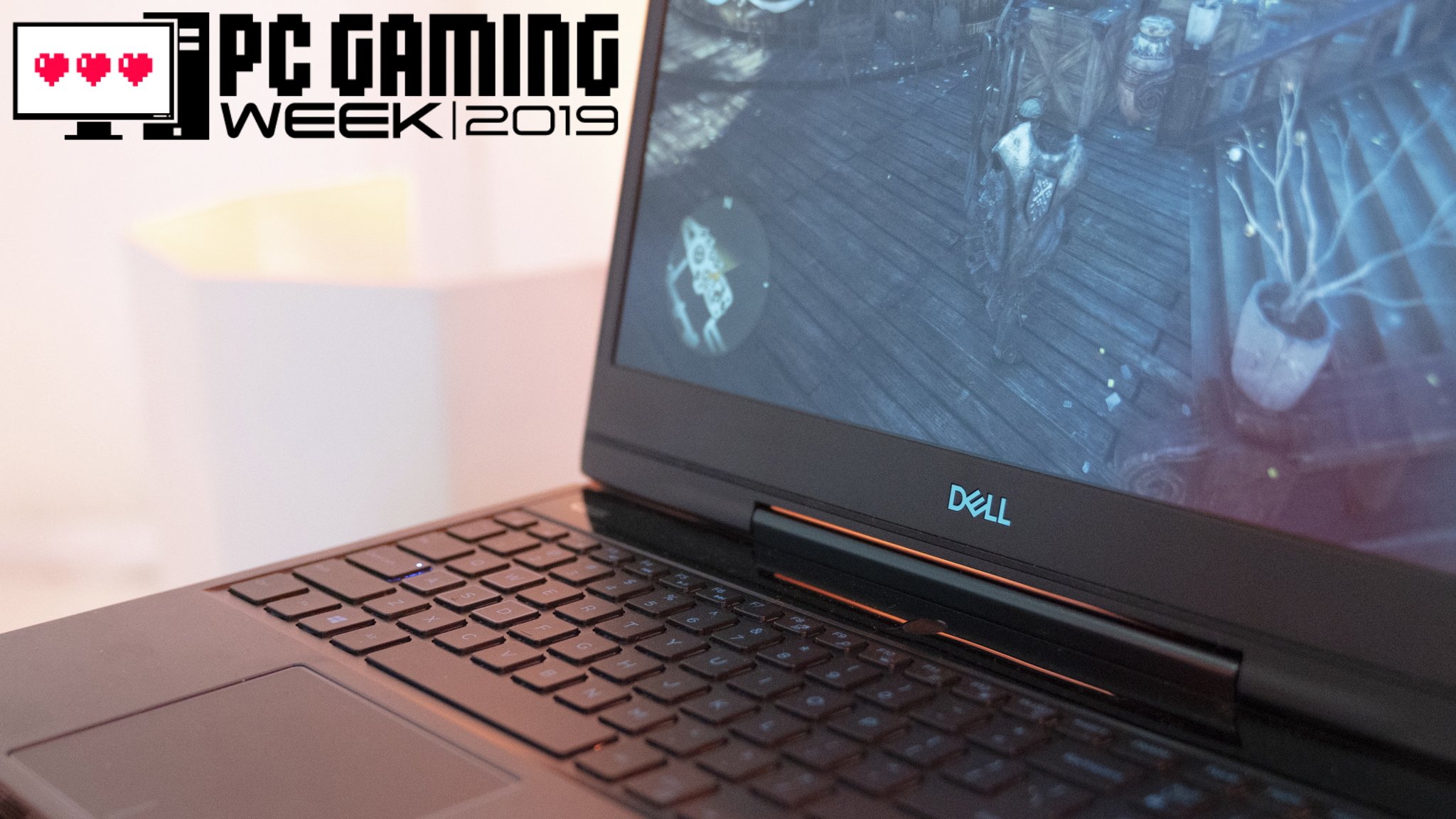
Yes, you can play a pc game on a laptop, provided your laptop meets the game’s minimum system requirements.
Thinking about gaming on the go? The question of whether you can you play a pc game on a laptop often comes up. It’s a common concern for those wanting portability without sacrificing their favorite titles.
Many modern laptops handle a wide range of games well. However, performance depends heavily on the laptop’s specifications, especially its graphics card and processor. It’s important to check those game requirements.

Can You Play a PC Game on a Laptop? Exploring the Possibilities
So, you’re wondering if that awesome PC game you’ve been eyeing will actually work on your laptop? It’s a great question, and the short answer is: usually, yes! But, just like choosing the right toy for the right age, there are some things to think about. Playing PC games on a laptop isn’t always as simple as just clicking ‘play.’ Let’s dive into what makes it work, and what might stop it from working perfectly.
Understanding Laptop Limitations
Laptops are amazing because they’re portable. You can carry them to school, the library, or even on vacation. But this portability comes with a trade-off. Laptops often have less powerful parts than desktop computers, especially when it comes to gaming.
The Key Components for Gaming
Think of a laptop like a team working together. To run a game well, you need a strong team. Here are the main players:
- Processor (CPU): This is like the brain of the laptop. It handles all the instructions and calculations needed to run the game. A faster processor means a smoother game experience.
- Graphics Card (GPU): This is like the artist of the team. It draws all the pictures you see on the screen. For games, a dedicated graphics card is usually better than a shared one. Shared graphics cards use the same memory as the CPU, which can slow things down for some games.
- RAM (Memory): Think of this as the workspace. The more RAM you have, the more space the game has to load all its information quickly. This means smoother gameplay with less lag.
- Storage (Hard Drive or SSD): This is where the game is stored. A Solid State Drive (SSD) is much faster than a traditional Hard Drive (HDD), which makes the game load faster and also makes games run a bit better in general.
- Operating System (OS): This is the program that runs the whole laptop. Most games run on Windows, but some also work on macOS or Linux.
Why Laptops Can Struggle with Gaming
Now that you know the key parts, let’s talk about why some laptops struggle to play games.
- Weaker Components: Many laptops, especially cheaper ones, have less powerful processors and graphics cards to keep costs down and batteries lasting longer. These parts might not be able to keep up with the high demands of some video games.
- Cooling Limitations: Gaming makes laptops work hard, and this can make them heat up. Laptops often have smaller cooling systems than desktops, so they can sometimes get too hot while playing games which can cause them to slow down or even shut off to prevent damage.
- Shared Graphics: As mentioned before, many laptops use shared graphics instead of dedicated graphics. This can affect the performance of many games.
Understanding Game Requirements
Just like different kinds of sports need different gear, different video games need different levels of computer power. Before you buy or download a game, you should always look at its system requirements.
What are System Requirements?
System requirements are a list of minimum and recommended hardware specifications needed to run a specific game. They tell you the minimum processor, graphics card, RAM, and operating system the game needs. Here’s the difference:
- Minimum Requirements: This is the very least your laptop needs to run the game. If your computer meets only the minimum, the game might run, but it might be slow, choppy, and not look very good.
- Recommended Requirements: This is what the game makers suggest you have to have the best experience playing the game. If your computer meets or exceeds the recommended specs, you can play the game smoothly, with better graphics and faster speeds.
Finding System Requirements
Where can you find the system requirements? It’s easy!
- Game’s Store Page: Usually, you’ll find the system requirements on the game’s page in online stores like Steam, Epic Games Store, or the Microsoft Store. They’re often in the description or a dedicated section.
- Game’s Website: You can also often find the system requirements on the game’s official website.
Always check the system requirements before buying a game or you might get stuck with a game your laptop cannot play well, or at all.
Matching Your Laptop to the Game
So, you have a game in mind, and you know what its system requirements are. Now, let’s see how your laptop stacks up. You can check your laptop specs in a few ways.
Checking Your Laptop’s Specs
Here are a few ways to check your laptop specs:
- System Information (Windows): Press the Windows key, type “System Information,” and click on the app. You’ll find details about your processor, RAM, and operating system.
- Device Manager (Windows): Press the Windows key, type “Device Manager,” and open it. Look under “Display adapters” to find your graphics card.
- About This Mac (macOS): Click on the Apple menu in the upper-left corner and select “About This Mac.” You’ll find information about your processor, RAM, and graphics.
- Control Panel or System Settings (Other OS): If you are using an operating system other than windows or MacOS, usually you can find the system information in your control panel or system settings.
Comparing Specs
Once you know your laptop’s specs and the game’s requirements, it’s time for a comparison. Look at each component one by one.
- CPU Comparison: Is your processor as fast or faster than the one the game recommends? You can use sites like CPU Benchmark to compare processors.
- GPU Comparison: Do you have a dedicated graphics card? If so, compare its performance with the recommended card. If you have a shared graphics card, you might need to lower the game’s graphics settings. You can use GPU benchmark sites to compare graphics cards.
- RAM Comparison: Do you have enough RAM? The more RAM, the better, especially for more demanding games.
If your laptop meets or exceeds the recommended specs, then you should expect the game to run quite well. If your laptop meets the minimum, it may still be playable but with potentially lower graphics settings, or choppy gameplay, but if your laptop does not meet the minimum settings, then it might not run at all.
Optimizing Your Laptop for Gaming
Even if your laptop doesn’t exactly match the game’s recommended specs, there are some things you can do to make games run smoother. Think of it as giving your laptop a boost.
Lowering Graphics Settings
Almost every game lets you change its graphics settings. Lowering these settings can make a big difference in how smoothly the game runs. Usually, these options are in the game’s options or settings menu.
- Resolution: Lowering the resolution will reduce the amount of work the graphics card has to do. This can often provide a big performance boost.
- Texture Quality: Textures are the pictures or details that make things look realistic in a game. Lowering their quality will make the game slightly less detailed but smoother.
- Shadows and Lighting: Shadows and lighting effects are resource intensive. Turning them off or lowering their quality is a good way to increase performance.
- Anti-Aliasing: Anti-aliasing helps smooth the edges of objects in a game. Turning it off or lowering it can improve performance.
Closing Background Apps
When your laptop is running other programs in the background, they are using your laptop’s resources, even if you are not actively using them. To free up more resources for your game, close any background programs that you are not currently using, like browsers, email programs, or other applications.
Updating Drivers
Drivers are like a translator between your computer and your computer hardware. Keeping your drivers up to date is important because it can help to improve performance and stability of your laptop’s hardware, including your graphics card.
- Graphics Card Drivers: You can usually download the most recent graphics card drivers from the manufacturer’s website (like Nvidia or AMD).
- Other Drivers: Keeping your other drivers, like sound and network drivers updated, can also improve your laptop’s overall performance. Windows updates may also include driver updates.
Laptop Cooling
If your laptop gets too hot, it may slow down, or even shut down. When gaming, be sure your laptop has good ventilation. This means playing on a hard surface and using a laptop stand or cooling pad can be helpful.
Types of Games and Laptops
Not all games are created equal, and neither are laptops. Let’s look at some categories.
Casual Games
Casual games, like puzzles, card games, or simple platformers usually don’t require a very powerful laptop. You can typically play these games on most laptops.
Indie Games
Indie games can be a mixed bag. Some are very simple and can run on most laptops, while others are more graphically demanding. Always check the system requirements before you buy an indie game.
AAA Games
AAA games are big-budget, high-graphics games, like many popular games. These games generally require more powerful laptops. You may need a gaming laptop or a higher end laptop to play them well.
Gaming Laptops
Gaming laptops are designed specifically for gaming. They typically have more powerful processors, graphics cards, RAM, and better cooling systems. They are usually more expensive, but can provide the best gaming experience for portable gaming.
Cloud Gaming
There is also a new technology that allows you to play games on a cloud gaming service instead of using your laptop directly, like Google Stadia, Nvidia Geforce Now, or Xbox cloud gaming. Instead of the game running on your laptop, it runs on powerful remote servers and is streamed to your device. This can be useful for playing demanding games on less powerful laptops. Cloud gaming depends on a very fast and stable internet connection.
Making the Right Choice
So, can you play a PC game on a laptop? The answer is often yes, but you have to be smart about it. By understanding your laptop’s parts, the system requirements for the games you want to play, and how to optimize your laptop, you can greatly increase your chances of a great gaming experience. If your laptop isn’t up for it, cloud gaming is an alternative, or you might want to consider upgrading to a gaming laptop if you want to play high-end games well.
Ultimately, playing PC games on a laptop is about finding the right balance between what your computer can do and what a game needs, and knowing how to optimize the laptop you have for the best experience possible.
Gaming Laptop vs PC
Final Thoughts
Yes, you absolutely can play a PC game on a laptop. The gaming experience, however, largely depends on the laptop’s specifications. A dedicated graphics card is a must for smooth gameplay.
Laptops with lower specifications may struggle with demanding titles. Always check the minimum system requirements of the game. This helps ensure enjoyable play.
Therefore, ‘can you play a pc game on a laptop’ depends entirely on hardware. It also depends on the game’s needs. Pick your laptop wisely!

