
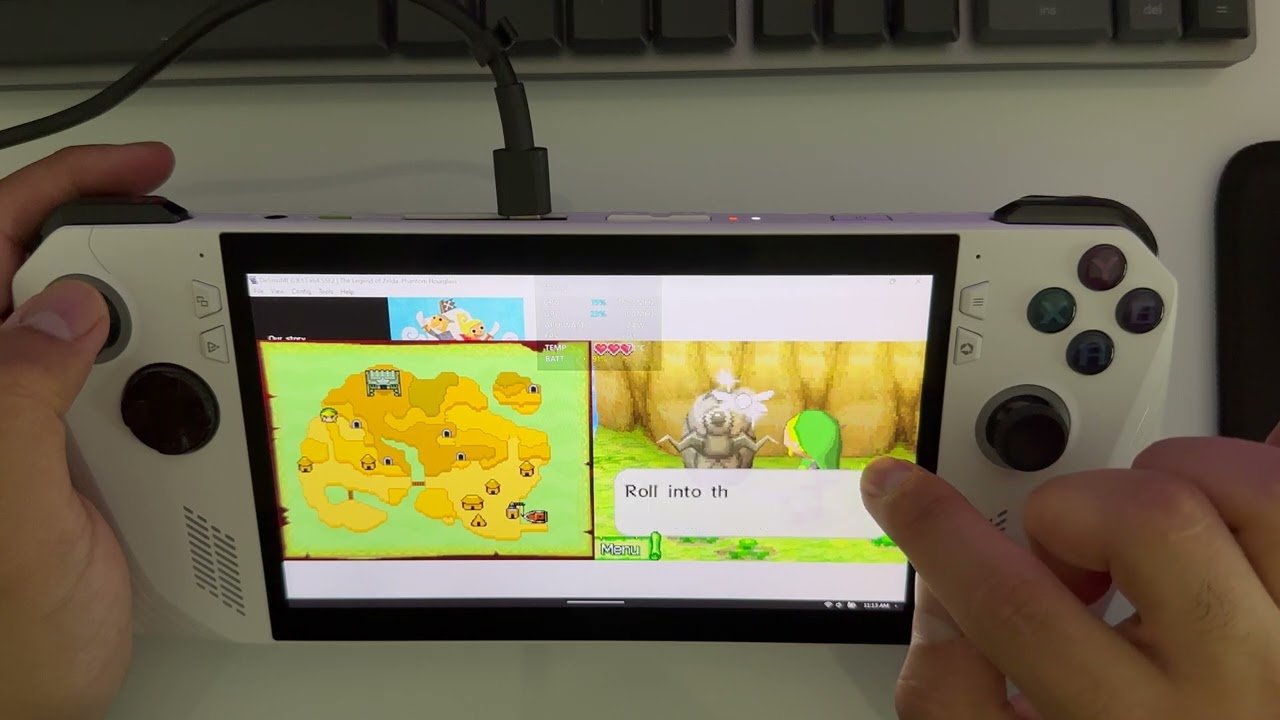
No, you cannot directly play DS games on Citra. Citra is an emulator for the Nintendo 3DS, not the Nintendo DS.
Ever wondered if you could revisit your favorite DS titles on your computer? Many gamers ask, “can you play ds games on citra?” The answer might surprise you, as Citra actually emulates the 3DS system.
This means while Citra works with 3DS games, you’ll need a different emulator to enjoy those classic DS experiences. There are several options available to play DS titles on your PC and we will look into it.

Can You Play DS Games on Citra?
So, you’re curious about playing your favorite Nintendo DS games on your computer using Citra? That’s a great question! While Citra is fantastic for playing Nintendo 3DS games, it’s not actually designed to handle Nintendo DS games. Think of it like this: Citra is like a special tool made for 3DS games, and DS games need a different kind of tool. But don’t worry, there’s still a way to play those awesome DS games on your computer! It just requires using a different emulator.
Understanding Citra and Its Purpose
Citra is a popular emulator that lets people play Nintendo 3DS games on their computers. It’s like having a 3DS console inside your computer! Citra works by mimicking the way the 3DS hardware works. This allows the game software to run just like it would on a real 3DS. It’s a complex process, but the people who created Citra have done a fantastic job of making it work. The emulator focuses on specific parts of the 3DS, such as the graphics processing, sound, and controls. These need to be perfectly replicated for the game to work properly.
Key Features of Citra
- High-Resolution Graphics: Citra allows you to play 3DS games in much higher resolutions than they originally appeared on the handheld. This makes the games look much sharper and clearer on your computer screen.
- Controller Support: You can use a variety of controllers to play games on Citra. This means you can use your favorite controller and customize the controls to your liking.
- Save States: Citra lets you save your game progress at any point, which is incredibly handy. This feature is not always available on the original console.
- Game Compatibility: Citra boasts a high compatibility rate, which means it supports many 3DS titles, making it a great option for playing 3DS games.
Why Citra Doesn’t Support DS Games
The Nintendo DS and Nintendo 3DS are two different systems with very different internal designs. They use different processors, graphics chips, and have different ways of handling sound and input. The 3DS is much more powerful. It’s like comparing a bicycle to a motorcycle; they’re both for getting around, but they are built very differently. Citra is specifically built for the 3DS’s design. Trying to make it also work with the DS would be like trying to fit a square peg into a round hole; it just wouldn’t work well.
The Architectural Differences Between the DS and 3DS
To understand why Citra can’t handle DS games, it’s helpful to understand that both the systems are built differently:
- Processors: The DS uses different ARM processors than the 3DS. These processors handle calculations and tell the system what to do.
- Graphics: The graphics chips in the DS and 3DS are also different. This is what makes the images and animations appear on the screens.
- Dual-Screen Functionality: While both systems have dual screens, they are controlled differently. The 3DS has a 3D screen, which the DS does not.
- Software: Even the way the games are programmed is different between the two systems. It would be too difficult for Citra to handle both at the same time.
Introducing Desmume: Your DS Emulator
Okay, so if Citra isn’t for DS games, what is? The answer is an emulator called DeSmuME. DeSmuME is specifically designed to emulate the Nintendo DS. It’s like having a virtual DS on your computer, but it works differently than Citra. It focuses on the DS’s unique way of processing data, which means you can play DS games just like you would on the original handheld. So, while Citra is fantastic for the 3DS, you’ll need DeSmuME for DS titles.
How DeSmuME Works
DeSmuME operates by carefully mimicking the DS hardware and software environment. It’s as if the emulator is acting like a translator between the DS game software and your computer. Here’s how it works:
- Processor Emulation: DeSmuME imitates the specific ARM processors found in the DS, allowing it to execute DS game code.
- Graphics Rendering: It renders the DS’s dual screens, handling the output of both the top and bottom screen.
- Input Handling: It takes input from your computer’s keyboard, mouse, or a controller and translates it into DS-style inputs. This means you can play games with a keyboard or gamepad.
- Sound Emulation: It reproduces the sound output, so you can hear all of the game’s music and sound effects.
Setting up DeSmuME for Playing DS Games
Setting up DeSmuME is a pretty straightforward process, and it’s not as complicated as it might seem. Here’s how you can get it going:
Step-by-Step Setup Guide
- Download DeSmuME: First, go to the official DeSmuME website or a trusted source. Find the download link for your operating system (Windows, macOS, or Linux) and download the appropriate version.
- Install the Emulator: Once the download finishes, run the installer. Follow the steps on your screen and complete the installation.
- Obtain DS ROMs: You’ll need the game files, known as ROMs, to play your favorite DS games. These files typically come in .nds format. You’ll have to obtain these files legally and make sure you own the original games.
- Launch DeSmuME: Open the DeSmuME program from your computer. You will see a blank DS screen appear on your computer.
- Load Your Game: Go to the ‘File’ menu and choose ‘Open ROM’ or something similar. Navigate to the folder where you saved your ROMs, select the game file, and press ‘Open.’ Your game will start playing on the emulator.
- Configure Settings (Optional): You can adjust the settings to enhance the gameplay experience. This includes adjusting graphics, sound, and controller settings. You can find these options in the ‘Config’ or ‘Options’ menu.
Important DeSmuME Settings
To get the best experience with DeSmuME, consider adjusting these settings:
- Graphics Settings: Experiment with the renderer options (like OpenGL or Software) to find which one works best for your computer.
- Frame Skip: Adjust frame skipping if the game runs too slowly. Frame skipping drops some animation frames to keep things running faster, but may make some games not look smooth.
- Controller Settings: Configure your keyboard or controller keys to match the DS buttons. You may need to adjust this to get the layout that is best for you.
- Sound Settings: If the audio isn’t perfect, adjust the buffer settings to try and smooth it out.
Optimizing Your DeSmuME Experience
Now that you have DeSmuME up and running, here are some tips for getting the best gaming experience:
Tips for a Smooth Gameplay
- Check System Requirements: Ensure your computer meets the minimum system requirements for the emulator. Generally, the minimum requirements for playing DS games are pretty low, however, some systems struggle with emulation performance.
- Update Your Drivers: Keep your graphics drivers up to date to make sure the emulator runs smoothly and to avoid any glitches.
- Manage Your ROMs: Keep your DS ROMs organized in a specific folder for easy access. It helps to organize them by game titles, but whatever method works best for you.
- Experiment with Settings: Try out different settings in the emulator to find what works best for your specific system.
- Use Save States: Save your progress frequently using DeSmuME’s save state feature. You can usually save by pressing the ‘Shift+F1’ keys and then load by pressing ‘F1.’
Legal Considerations When Playing ROMs
It’s really important to talk about the legal side of playing games this way. While emulators are generally okay to use, using game ROMs you don’t own is usually against the law. Imagine if you borrowed a video game without permission; that would be a problem, right? It’s similar with ROMs.
Understanding Copyright and ROMs
- Ownership is Key: You should only play ROMs of games you legally own. This means you should have bought a physical copy of the game.
- Downloading ROMs: Downloading ROMs of games you don’t own is not legal. It’s like stealing something without paying for it.
- Supporting Game Developers: Playing games legally helps support the people who made the games you enjoy. When you purchase a game, you’re supporting the developers, and this helps them make more games.
- Respecting Intellectual Property: Remember, video games are considered intellectual property, and should be treated with respect. That means respecting copyright laws and only using games you’ve legally purchased.
Why Emulation Can Be Great
Even with the legal parts to think about, emulation has many fantastic benefits. It gives people access to games that are harder to find or play otherwise. This is especially true for older games that might no longer be available in stores. Here are some of the positive sides of emulation:
- Preserving Gaming History: Emulation helps preserve old games so that people can still play them for years to come. It keeps history alive.
- Playing on Modern Devices: Emulation lets you play games on your modern computer or laptop, instead of using old devices.
- Enhancing Games: With emulation, you can sometimes play games at better resolutions, with smoother frame rates, and with other awesome changes.
- Accessibility: Emulation makes older games accessible to more people, especially those who may not own the original hardware.
In the world of gaming, emulators are extremely useful tools. However, it’s important to use them in the right way and always be aware of the legal side of things. By using the right tools and respecting the rights of game developers, we can all enjoy our favorite games both new and old. Always be sure to own the game before downloading any ROMs, and you’ll be on the right track.
While Citra remains an amazing emulator for Nintendo 3DS games, you won’t be able to play DS games with it. Instead, you’ll need DeSmuME. Both emulators are valuable in the gaming world for different reasons. One allows you to play 3DS games, and the other allows you to play DS games on your computer. Once you set up DeSmuME, you can have a lot of fun playing many of your favorite DS games. You can enhance your gaming experience with improved graphics, customizable controls, and other handy features. Just always remember to be aware of copyright laws and enjoy gaming responsibly!
3DS Emulator: This is Nuts!
Final Thoughts
Citra primarily emulates 3DS games, not DS titles. You need a separate emulator for playing Nintendo DS games. Some options exist, like DeSmuME.
Therefore, the direct answer is no, you cannot play DS games directly on Citra. You must find and use a dedicated Nintendo DS emulator. ‘can you play ds games on citra’, is a common question, but now you must know Citra is for 3DS only.

