
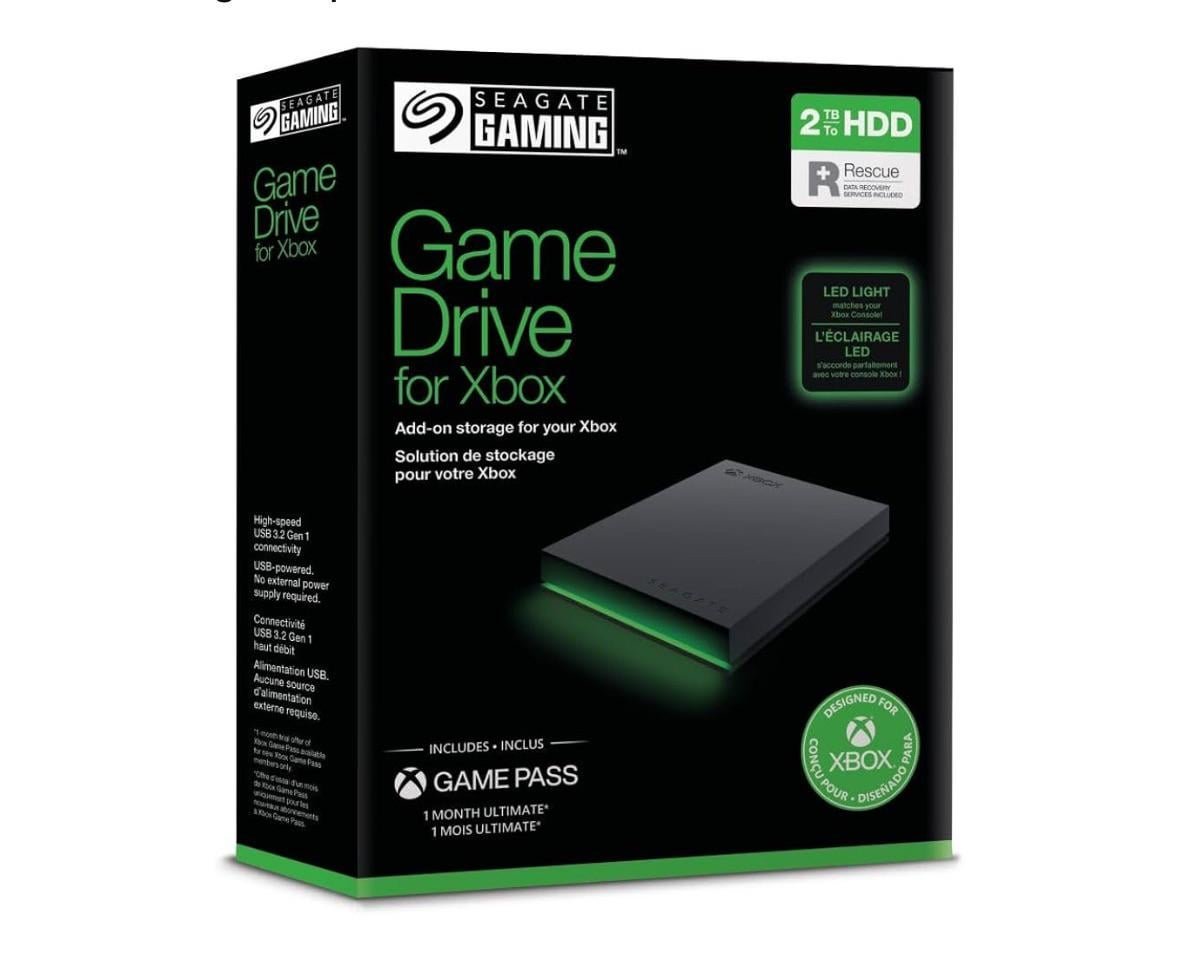
Yes, you can play games on a Seagate external hard drive. It’s a common way to expand your gaming storage.
So, you’re wondering, can you play games on seagate external hard drive? Many gamers use external drives to store their ever-growing game libraries. It’s a practical way to keep all your titles accessible without filling up your console or PC’s main storage.
Using a Seagate external drive for games is pretty straightforward, making it a simple solution. This offers a nice extra space to keep playing even more games without worrying about storage limitations.

Can You Play Games on a Seagate External Hard Drive?
Let’s dive into the exciting world of gaming and storage! You have a bunch of awesome games, but your computer’s hard drive is full. You’re thinking, “Can I just plug in my Seagate external hard drive and start playing?” The short answer is: Yes, you absolutely can play games from a Seagate external hard drive! But, like with most things, there’s a little more to it than just plugging it in and going.
The Basics: How it Works
Think of your Seagate external hard drive like a big, portable closet for all your game files. When you install a game, it needs space to store all the information—the graphics, the sounds, the level designs, everything! Normally, this goes onto your computer’s internal hard drive. But when that gets full, you can choose to install games onto your external hard drive instead. When you want to play, your computer reads the game data from the external drive and then displays it on your screen. Pretty neat, right?
Why Use an External Hard Drive for Games?
There are lots of great reasons why you might want to use an external drive for your games:
- More Space: This is the biggest reason! Games are getting bigger and bigger. An external drive gives you lots of extra room to install more games without deleting anything.
- Portability: If you have a laptop, an external hard drive lets you take your game library with you. You can plug it into any computer and access your games.
- Organization: Maybe you want to keep your work stuff separate from your game stuff. An external drive helps you do that.
- Backups: It’s always a good idea to have a backup of your games. An external hard drive can be used for that too.
Choosing the Right Seagate External Hard Drive
Not all external hard drives are created equal! For gaming, you’ll want to think about a few things before you buy a Seagate drive. Here are some important features:
Storage Capacity
How much space do you need? Games take up a lot of space, so bigger is usually better. Think about how many games you want to install. Here is a general idea of average game file size, but always check requirements on games.
- Small Indie Games: 1GB – 5GB
- Average Games: 20GB – 60GB
- Large AAA Games: 50GB+
A 1TB or 2TB drive is a good starting point for most gamers. If you have a lot of large games, you may want a 4TB drive or bigger.
Drive Type: HDD vs. SSD
There are two main types of external hard drives: HDD (Hard Disk Drive) and SSD (Solid State Drive).
HDD (Hard Disk Drive)
- Pros: HDDs are usually cheaper and you can get a lot of storage for a lower cost.
- Cons: HDDs are slower than SSDs. Games might take longer to load, and there can be hiccups during gameplay, especially in complex games.
SSD (Solid State Drive)
- Pros: SSDs are much faster than HDDs. Games load much quicker, and overall gaming is smoother.
- Cons: SSDs are usually more expensive for the same amount of storage as an HDD.
For the best gaming experience, an external SSD is generally recommended. However, if you are on a budget, a HDD will still work, just be prepared for longer loading times.
Connection Type: USB Speed
The way your external drive connects to your computer also matters. Most external drives use USB connections, but there are different USB speeds.
- USB 2.0: Avoid this for gaming if possible! It is very slow and will make games load very slowly.
- USB 3.0/USB 3.1 Gen 1: These are much faster than USB 2.0 and are good for HDDs.
- USB 3.2 Gen 2/USB 3.1 Gen 2: A better choice, giving faster transfer speeds, good for SSD’s and high demand games.
- USB 4/Thunderbolt: These are the fastest USB connections. Perfect for SSD’s if your computer has it, with faster speeds and best overall performance.
Look for a drive with a USB 3.0 or higher connection for better speeds. Check your computer’s USB ports to see what it supports. If it says USB 3.2 Gen 2 or USB 4 (also known as Thunderbolt), it will work to its full potential.
Brand and Reliability
Seagate is a well-known and reliable brand, but doing a little research never hurts. Checking user reviews can help you find a drive that many others have had success with. When it comes to electronic devices, things do break down, so having a good brand can give you some extra security and support, when needed.
Setting Up Your Seagate External Hard Drive for Gaming
Okay, you’ve got your new external hard drive! Here’s how to get it ready for your games:
Connecting the Drive
This is the easiest step. Just plug in the USB cable to both the drive and your computer. Make sure you are using a proper working USB cable that comes with the device or a high-quality replacement cable.
Formatting the Drive
Before you can start using it, you might need to format the drive. What does this mean? Formatting is the way the computer organizes the space on the drive to be able to write to it. When it comes new external hard drives, it is usually already done for your system, but sometimes when using a previously used external hard drive, you might need to format the drive. This will delete any data on the drive so make sure to back up anything you might need before you format the drive.
Here’s how to format it on Windows:
- Open File Explorer.
- Find your external drive in “This PC”.
- Right-click on the drive and select “Format”.
- Choose a file system (NTFS is the best for Windows).
- Click “Start” and wait for the process to complete.
Here’s how to format it on a Mac:
- Open Disk Utility.
- Select your external drive in the left panel.
- Click “Erase”.
- Choose a name for the drive and select the format (APFS or exFAT).
- Click “Erase” and wait for it to complete.
Important Note: Formatting will erase everything on your drive. Make sure you copy anything you need off of it first!
Installing Games on the External Hard Drive
Now for the fun part: installing your games! The process is mostly the same as installing on your internal drive, but when you get to the installation options, you’ll need to choose your external drive as the install location. Here’s the general idea:
- Steam: When you go to install a game, you will have an option to choose the location you want to install the game. In that selection, you should be able to see your external drive as an option. If your external is not listed in the location options, then you must add the external drive into your Steam settings. Open settings in steam, and then go to downloads, then click the “STEAM LIBRARY FOLDERS” button, add your external and select the newly added folder as default.
- Epic Games Store: When installing a game, the installer gives the option to select the install folder, make sure that you select your external drive.
- GOG Galaxy: When you install a game, it gives you the option to choose the install path. Select your external drive to install the game.
- Other Launchers/Installers: Most game launchers and installers will have a place where you can choose the drive or folder to install games. Just look for the options and select your external drive.
Remember, when you are installing a game, make sure to always select the external drive, or the game will automatically be installed in the default location on your computer’s internal drive.
Game Performance on an External Hard Drive
The biggest question is, will games run well from an external hard drive? The answer is generally yes, but the experience depends on several factors:
Load Times
As we mentioned earlier, SSDs are much faster than HDDs. An SSD will greatly improve game load times. Using an external HDD might add to loading times compared to an internal drive. If you have an older computer with a regular HDD, you might not notice the speed difference when playing games on an external HDD.
Game Play
For the most part, game play will be the same from an external hard drive as it is from your internal drive. However, an external HDD may show minor hiccups when a game needs to load game files during play.
- External SSD: For the best experience, an external SSD will provide very smooth game play with fast loading times.
- External HDD: Games will work well, but may have longer load times and slight hiccups in gameplay compared to an external SSD.
Other Factors
Other things that can affect game play include:
- Your computer’s specs: How good your computer is at processing games and data will affect game performance, no matter where the games are installed.
- The game’s requirements: Some games need more power than others. Make sure your computer meets the minimum or recommended requirements for the game you are playing.
- USB Connection: A fast connection like USB 3.2 gen 2 or USB 4 will make it quicker for your game to pull all the data needed from the external hard drive.
Troubleshooting Common Issues
Sometimes, things might not go as planned. Here are a few common issues and how to fix them:
Game Not Launching
If a game doesn’t start, try the following steps:
- Make sure your external drive is properly connected.
- Restart your computer and try again.
- Verify game files through the game launcher. If any files are corrupted, it will be replaced.
- Reinstall the game on the external drive.
- Check if the external hard drive is set as your main install location for your game launcher.
Slow Loading Times
If loading is taking a long time:
- Make sure you are using a USB 3.0 or higher port on your computer.
- If using an HDD, consider an external SSD for better performance.
- Close other programs using your hard drive while playing the game.
Game Stuttering or Lagging
If your game is stuttering or lagging during play:
- Make sure your computer meets the game’s requirements.
- Update your computer’s drivers to the latest version.
- Close unnecessary background programs.
- An external SSD will improve performance over an HDD.
Drive Not Recognized
If your computer doesn’t see your external hard drive:
- Make sure the USB cable is securely connected on both ends.
- Try plugging the drive into a different USB port.
- Restart your computer.
- Check in “Disk Management” (Windows) or “Disk Utility” (Mac) to make sure your computer can see it. If it can be seen there, but not in your computer, it might need to be assigned a drive letter. If there is no drive letter, right click on the drive and assign a drive letter.
- If you recently formatted the drive, make sure it’s formatted in a way that your computer understands.
Taking Care of Your External Hard Drive
To keep your Seagate external hard drive working well for a long time, here are some helpful tips:
- Always eject the drive safely: Don’t just unplug it. Use the “Safely Remove Hardware” option in Windows or the “Eject” option on a Mac to avoid losing data or damaging the drive.
- Avoid physical damage: Be careful not to drop the drive or hit it against anything hard.
- Keep it cool and dry: Don’t leave the drive in a hot or humid place.
- Don’t fill it up completely: Leave some free space for the drive to work efficiently.
- Update your drivers: Keep your computer’s drivers updated for the best experience.
- Properly storing when not in use: It is always good to have a protective case for your external drive and to store it in a safe place when not in use.
In conclusion, playing games on a Seagate external hard drive is a fantastic way to expand your gaming library without needing to buy a new computer. Using an SSD is the best way to go for speed, but an HDD will still give you more space on a budget. Make sure your USB speed is high enough to provide optimal speeds for the external drive you choose. With these tips, you can enjoy all your favorite games on your portable external hard drive.
How to Play Xbox Series X|S Games from External Storage
Final Thoughts
Yes, you can play games on a Seagate external hard drive. The drive provides storage for your game files.
Performance might vary based on the drive’s speed and connection type. Playing directly from the external drive is possible, but loading times could increase.
Consider the specific drive’s specifications for optimal gaming. Ultimately, ‘can you play games on seagate external hard drive’ is answered with a yes, but be mindful of potential speed impacts.

