
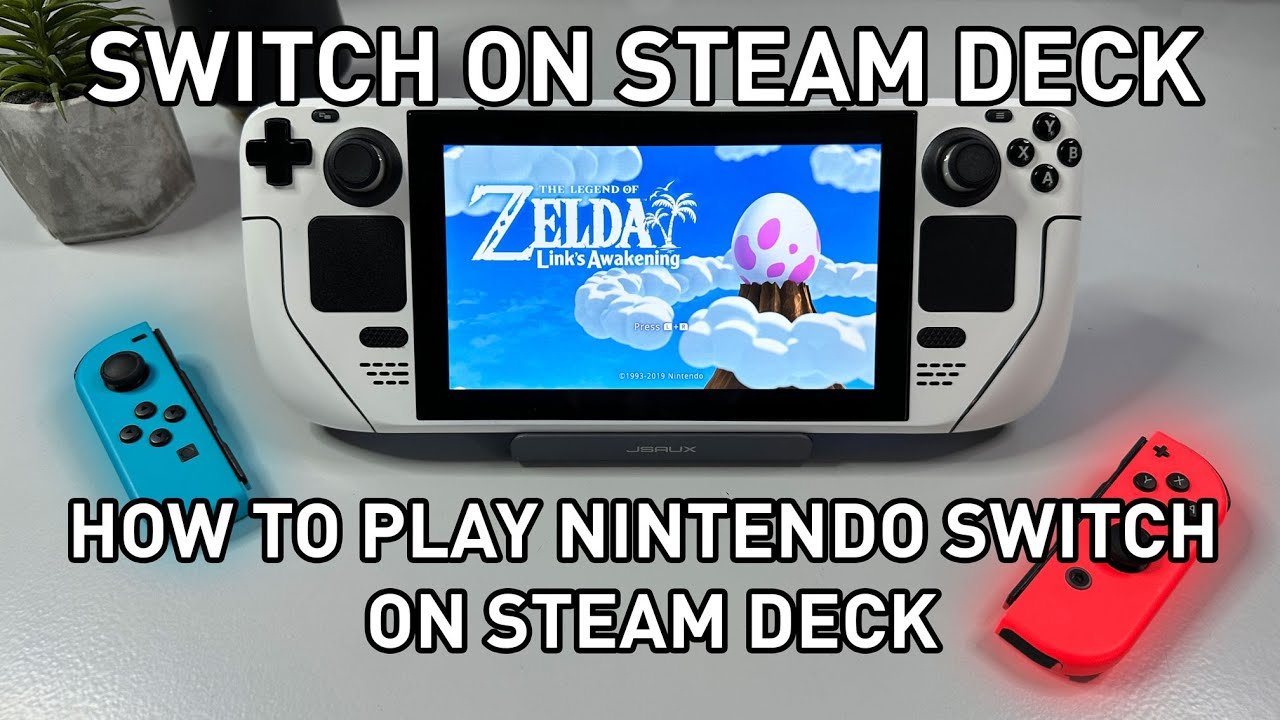
No, you cannot directly play Nintendo games on a Steam Deck without using emulation software.
So, you are wondering can you play Nintendo games on steam deck? It’s a common question! The Steam Deck is a fantastic handheld PC, but it doesn’t have built-in compatibility for Nintendo’s proprietary systems.
While the Steam Deck can play a vast library of PC titles, playing games from Nintendo consoles requires a bit of tinkering and the use of emulators. This means you will not get an officially supported method.

Can You Play Nintendo Games on Steam Deck?
So, you’ve got your shiny new Steam Deck and you’re loving it. But maybe you’ve got a secret wish – to play some of those awesome Nintendo games on it too. Is that even possible? Well, the short answer is: yes, but it’s not as simple as popping a cartridge into your Steam Deck. It takes a little bit of tech know-how and some extra work, but it absolutely can be done. Let’s dive deep into how!
Understanding the Basics: Emulation
Before we get into the specifics, let’s talk about emulation. Emulation is basically using software to make your computer (or in this case, your Steam Deck) pretend to be another device, like a Nintendo Switch, a Wii U, or even older consoles like the GameCube. This allows you to play games designed for those systems on your Steam Deck. Think of it like having a translator; the emulator translates the game’s language so that the Steam Deck can understand it.
Emulation itself isn’t illegal; it’s the act of downloading and using game files you don’t own that can get you in trouble. You need a copy of the game that you own, whether its a physical copy or digital copy to run it through the emulation process.
Popular Nintendo Consoles You Can Emulate on Steam Deck
The good news is, the Steam Deck is surprisingly powerful and can handle quite a range of Nintendo consoles. Here’s a breakdown of some of the most popular systems people like to emulate:
- Nintendo Switch: This is a big one! The Steam Deck can emulate many Switch games, although performance can vary depending on the game. This is perhaps the one that most folks are curious about as the Switch is very popular.
- Wii U: The Wii U was Nintendo’s predecessor to the Switch, and many of its games can be successfully emulated on the Steam Deck.
- Wii: The popular motion-controlled console also has many gems that are fun to revisit through emulation.
- GameCube: Classic games from the GameCube era can run great on the Steam Deck, often at higher resolutions.
- Nintendo 3DS: The 3DS has a huge library of handheld games which are generally good for on the go playing on the Steam Deck.
- Nintendo DS: The older brother of the 3DS which is more powerful and has some very unique classics.
- Game Boy Advance: These retro games are easy for the Steam Deck to emulate and fun to play.
- Game Boy Color: Very retro gaming, these are very easy for the Steam Deck to handle.
- Original Game Boy: The classic of classic handhelds, and very fun to relive old childhood memories.
Necessary Components for Nintendo Game Emulation
To get started with Nintendo emulation on your Steam Deck, you’ll need a few things:
Emulators: The Software That Does the Work
You’ll need specific emulator programs for each system you want to play. Here are some popular choices:
- Yuzu or Ryujinx (for Switch): These are the primary options for Switch emulation. They are both constantly being updated and improved for better performance and compatibility.
- Cemu (for Wii U): Cemu is widely considered the best Wii U emulator and is generally quite good.
- Dolphin (for Wii and GameCube): Dolphin is a well-established emulator that offers excellent performance.
- Citra (for 3DS): Citra provides good emulation for 3DS games.
- DeSmuME (for DS): A very solid option for emulating the original Nintendo DS.
- mGBA (for Game Boy Advance): The top choice for emulating GBA games.
- SameBoy or Gambatte (for Game Boy and Game Boy Color): Many users choose either of these options as they have excellent compatability.
ROMs: Where Games Come From
ROMs are essentially the game files you’ll be playing. Here’s the important part: you should only use ROMs that you have personally ripped from games you own. Downloading ROMs from the internet when you don’t own the game is considered piracy, which is illegal. This is not only wrong but can also land you in trouble.
BIOS Files: Needed for some Emulators
For some systems, like the Nintendo DS and 3DS, you’ll need a BIOS file. The BIOS is a system file used by the original console. These files are also something that you must legally own, ripped from your own console system. You can not legally download these files from the internet if you have not extracted it from your own console, as this is considered piracy.
The Process: Step by Step Guide
Here’s a general outline of the steps involved. Keep in mind this is not a specific tutorial, but just general steps and you may need to find more in-depth guides based on the specific emulator and games you want to play. Be prepared to spend some time learning how to set up everything correctly.
Step 1: Prepare Your Steam Deck
Ensure that you have SteamOS updated to the latest version. It’s also a good idea to make sure you have sufficient free space for the emulator files and the games.
Step 2: Entering Desktop Mode
You can enter desktop mode through the power menu. You can navigate the desktop like a regular PC and install programs and do things you can’t normally do in gaming mode.
Step 3: Download Your Chosen Emulator(s)
Using the discover app or through your web browser in desktop mode, you can download the emulators for the systems that you want to emulate. After they are downloaded, they will need to be installed.
Step 4: Obtain Your ROMs
Once again, ensure that the ROMs you have are games that you own and that you have the right to use them. Create a folder for your ROMs so you can find them easily later.
Step 5: Configure Your Emulator(s)
Launch the emulator and you will need to configure it based on how it was designed. Depending on the emulator, you will need to set the file path to your ROM folder. For some systems you will need to put the BIOS files in the appropriate place as well.
You may need to also make adjustments to the graphic settings for best performance. It will likely take some tweaking to get the best results.
Step 6: Load the ROMs and Play
In most cases, if the emulator is setup correctly, you can use the menu function to open up a ROM and play the game.
Step 7: Adding to Steam
Once you have your games running through the emulator, you can also add the emulator to your Steam library so you can access the emulators through gaming mode. This gives you a much more user-friendly experience as you would normally have on your Steam Deck.
Step 8: Enjoy
Once everything is configured correctly, you are all set to enjoy some retro games!
Tips for a Smooth Emulation Experience
Emulating on the Steam Deck can be a little tricky at times. Here are a few tips to make the process easier:
- Check Compatibility Lists: Before getting your hopes up, check compatibility lists online for the specific emulator and game. Some games might not run well or at all.
- Experiment with Settings: You may need to tweak the emulator’s settings to achieve the best balance between performance and visual quality. There are a lot of guides online to get some ideas.
- Keep Your Software Updated: Make sure you are using the latest version of your emulators for best compatibility and performance. Also keep your SteamOS updated to the latest version.
- Community Support: There are great online communities where people have already worked through many of the issues, this includes reddit and other online forum sites.
- Back Up Your Saves: Emulation may crash sometimes. Be sure to back up your save files regularly.
Performance Considerations
While the Steam Deck is a capable device, remember that emulation can be demanding. Some newer games or higher-fidelity emulation may struggle to run smoothly. You might experience:
- Frame Rate Drops: This is when the game seems to be choppy and not running smoothly.
- Stuttering: Where the game appears to be pausing and restarting very quickly.
- Graphical Glitches: Sometimes textures may load incorrectly or graphics may be distorted.
- Crashes: Sometimes the emulator may close unexpectedly if the game is not compatible or there are performance issues.
It’s important to understand that not every game will run perfectly, and sometimes you may need to make some setting tweaks to achieve the performance you want. It’s also useful to check online to see if any users have reported the same issue.
Legal and Ethical Considerations
It is important to stress again the legal and ethical considerations. Emulating games you own and have legally purchased is generally accepted. However, downloading ROMs or BIOS files that you have not acquired is considered illegal piracy. Always respect copyright and support the creators of your favorite games by obtaining them legally.
It’s also good to remember that game companies like Nintendo will probably not support emulation and it is a grey area of their copyright. You should always do your own research and follow the rules in your area.
Alternatives and Other Options
While emulation is one way to play Nintendo games on your Steam Deck, there are other options.
- PC Ports: Some Nintendo titles are getting official releases on PC. This is the most legal way to play Nintendo games outside of the official console.
- Indie Games: There are many indie games that have similar game play styles and can scratch that Nintendo gaming itch.
Ultimately, playing Nintendo games on your Steam Deck is doable if you’re prepared to put in the effort to learn how to setup everything and learn the emulators. Emulation does come with some risks of performance issues and you need to make sure you are legally using game ROMs that you own. When done correctly, you can have a large library of great games from multiple systems to play on the go!
Play Nintendo Games On Steam Deck?? 🤔
Final Thoughts
So, can you play nintendo games on steam deck? Yes, you can, but it requires emulation. This means using software that mimics a Nintendo console on the Steam Deck’s hardware. Setting up emulation can be technical.
The process may involve downloading and installing specific emulators. You also need game ROMs, which should be legally obtained from your own cartridges. Remember, playing games without owning them is illegal.
Emulation performance varies depending on the title and emulator settings. Therefore, playing nintendo games on steam deck is possible, but not officially supported. It’s not a simple click-and-play experience.

