
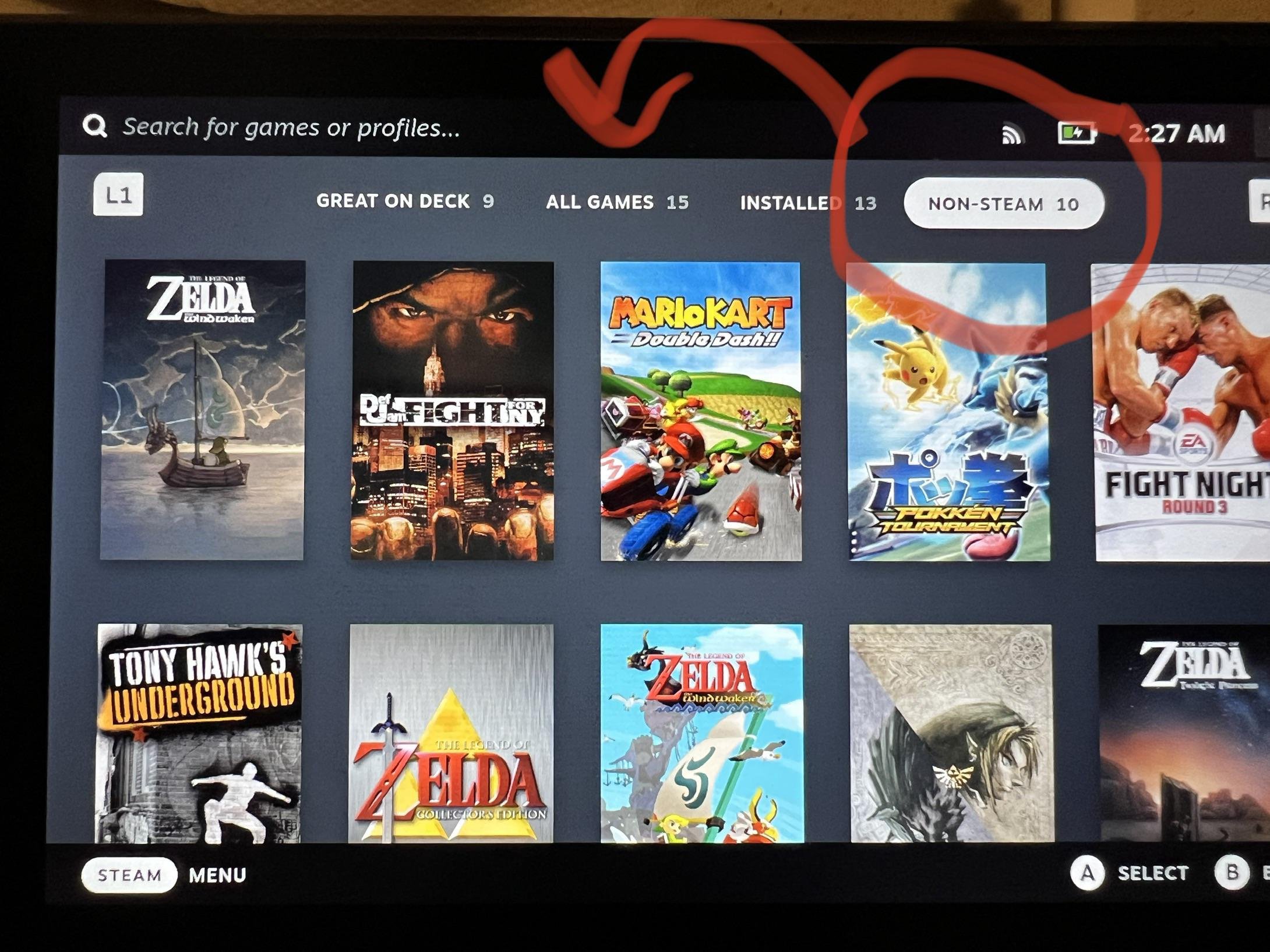
Yes, you can play non-Steam games on Steam Deck by adding them as non-Steam shortcuts.
Thinking about expanding your gaming library on the Steam Deck? Many wonder, can you play non-Steam games on Steam Deck. It’s a valid question, since the device is primarily known for its Steam integration.
The good news is, you’re not limited to just games purchased through Steam. The Steam Deck’s flexibility allows you to play various games from other launchers or even games you’ve acquired via different methods. It involves a few steps, but it’s definitely achievable.

Can You Play Non-Steam Games on Steam Deck?
Absolutely! The Steam Deck is like a super cool, portable computer that’s not just limited to games you buy on Steam. Think of it as a regular gaming PC, but smaller and way more fun to hold. Because it runs on a modified version of Linux, it’s very flexible. This means you can play lots of games that aren’t officially on the Steam store. It’s not always as simple as clicking a button, but with a little know-how, you can definitely expand your game library beyond the Steam ecosystem. Let’s dive into how you can get your non-Steam games running smoothly on your Steam Deck.
Understanding the Steam Deck’s Operating System
The Steam Deck runs on SteamOS, which is based on Linux. Linux is like a different kind of software brain for computers, compared to Windows or macOS. You may have heard of it if you’ve ever tinkered with computers. Don’t let the word ‘Linux’ scare you though! Valve (the company that made the Steam Deck) has made it pretty user-friendly, especially for gaming. The cool thing about Linux is that it can be customized, and because of this, the Steam Deck is very open to adding non-Steam games. This means we’re not locked into just what’s on the Steam store. It’s like having a versatile toy that can handle all sorts of different games.
Why Play Non-Steam Games on Steam Deck?
There are a bunch of good reasons to play non-Steam games on your Steam Deck:
More Games: Some amazing games aren’t available on Steam, like older games you love, titles from other stores (like Epic Games Store or GOG), or even games you created yourself! This opens up a huge world of options beyond what’s directly available on the Steam platform.
Different Game Stores: You might have games in your library on the Epic Games Store, GOG, or other platforms. Why buy them again when you can simply play them on your Steam Deck? This helps save your money and expands your library without new purchases.
Emulation: The Steam Deck can run emulators, which are like magical machines that let you play games from older consoles like the Nintendo 64, PlayStation 1, or even older handhelds! This can bring back your childhood memories and let you play lots of different games from different eras on one machine.
Customization: Adding non-Steam games often involves some tinkering, which can be really fun for people who like to play around with their devices. This lets you customize your gaming experience to your liking.
Indie Gems: Sometimes the coolest smaller independent games may not have been released on Steam, or they were released on another store.
How to Add Non-Steam Games: A Step-by-Step Guide
Adding non-Steam games isn’t as simple as clicking “install”, but it’s not super complicated either. Here’s a breakdown of the typical steps:
The Desktop Mode
First things first, you will need to switch to the Steam Deck’s desktop mode. To do this, press the Steam button, go to “Power,” and then select “Switch to Desktop.” This transforms your Steam Deck into a small Linux computer and gives you access to the full functionality of the system, like a traditional computer.
Installing Non-Steam Game Launchers
A common method for getting non-Steam games going is to install other launchers, like the Epic Games Store launcher, GOG Galaxy, or even Amazon games, depending on where your games are located. These launchers are generally Windows applications, so we’ll need some help to get them working on the Steam Deck. This is where Proton comes in.
Proton: Your Compatibility Helper
Proton is a compatibility layer that allows Windows games to run on Linux. It’s like a translator between the Windows games and the Linux operating system of the Steam Deck. Valve provides Proton, and you can choose which version of it you want to use. It’s usually the most recent one which gives the best performance and stability.
Installing with Lutris
Lutris is a tool that makes installing launchers much easier. It’s like a special helper app designed to manage and run games that are not on Steam.
Install Lutris from Discover: While in Desktop Mode, you’ll find the ‘Discover’ app, which is like an app store. Search for “Lutris” and click install.
Add launchers through Lutris: Once installed, Lutris can help you install launchers from other stores, like the Epic Games Store, GOG, and others. This will handle the complicated parts of getting things working.
Add Games to Lutris: Now you have the launchers installed, you have to link your games to Lutris. Then you can launch them through it.
Add Lutris to Steam: Add Lutris as a non-Steam game in the steam interface. This lets you launch the Lutris game interface from the steam deck mode. You can also add the other launchers to your Steam library using the same process, making it easy to find and access your games.
Adding Individual Games Manually
You don’t always need a separate launcher. You can sometimes add individual games you own, such as games purchased directly from developers. Here’s how:
Find the executable (.exe file): You need to find the actual game program file. You can do this by copying your game files to your Steam Deck by SD card or other means.
Add a non-Steam game: In Steam, click “Add a Game” at the bottom left corner and then “Add a Non-Steam Game.”
Browse to the .exe file: Navigate to the location where you have the .exe file and select it.
Use Proton (if necessary): For Windows games, make sure to select a Proton version for compatibility.
Adjust game settings: After adding it, it may be necessary to adjust some options such as compatibility mode, or graphical settings.
Emulation on Steam Deck
Emulation lets you play games from older consoles, such as the Nintendo 64, PlayStation 1, and more. Setting this up is a bit different but rewarding for retro game fans.
Installing Emulators
Discover Store: You can find many different emulators in the Discover store.
Standalone: Some emulators are best downloaded from their official websites.
Configuring Emulators
ROMs (game files): You need to obtain ROMs, which are the game files for the emulator.
Bios Files: Some emulators need system files called bios.
File Organization: Make sure you organize your ROMs in folders that are easy to find in the emulator file browser.
Playing Emulated Games
Load your game: Load your game from your desired emulator.
Configure Controls: You may need to configure the controls in the emulator.
Steam Deck Interface: you can add the emulators to Steam Library as non-Steam games.
Tips for Success
Getting non-Steam games to work is usually straightforward, but here are some tips that can help:
Proton versions: Sometimes trying a different Proton version can fix problems with a particular game.
Online guides: If you are experiencing trouble, search online because there are lots of Steam Deck communities and websites with tutorials that can help.
Community knowledge: Often, other gamers have already figured out the best settings for running a specific game.
Desktop mode is your friend: Make sure you know how to access and use the Desktop mode, because that is where most of the non-Steam game setup will take place.
Patience: Setting up non-Steam games sometimes requires patience, as it’s a bit more involved than launching a Steam game.
Troubleshooting Common Issues
Even when you follow the steps carefully, sometimes things don’t go as planned. Here are common issues:
Game won’t launch: Check your Proton version and if the game has known compatibility issues.
Control issues: Some games may need specific controller settings that you need to configure.
Performance issues: Some older games may work better with different settings.
Compatibility issues: Some games are simply not compatible and won’t run properly on the Steam Deck.
Legal and Ethical Considerations
Before you jump into the world of non-Steam games and emulation, remember a few important points:
Legality of ROMs: It’s important to only download ROMs from games that you personally own. Downloading and sharing ROMs from games that you do not own is illegal in many regions.
Copyright: Be respectful of the rights of game developers and publishers.
Safe sources: Get your games from trusted stores to avoid viruses or other software issues.
Ethical emulation: Try to only emulate games that you own, and understand the responsibility of handling digital files.
Exploring non-Steam games on your Steam Deck opens a whole new world of gaming possibilities. It might require some extra effort compared to playing Steam games, but the payoff is worth it. Whether you’re revisiting childhood classics, checking out indie darlings not on Steam, or enjoying games from other stores, your Steam Deck is more than capable. With the right approach and a little patience, you can build an incredibly varied and exciting game collection. By making use of the Steam Deck’s versatile platform, you’re not just limited to what Steam offers; you are opening your device up to countless new gaming possibilities.
How to Add Non Steam Games to Your Steam Deck
Final Thoughts
Yes, you can play non steam games on steam deck. You achieve this by adding them as non-steam shortcuts. This process allows you to launch those games through SteamOS.
External launchers and files require some setup. This includes using desktop mode. The flexibility makes the Steam Deck a great device for many games. Thus, answering the question, can you play non steam games on steam deck?

