
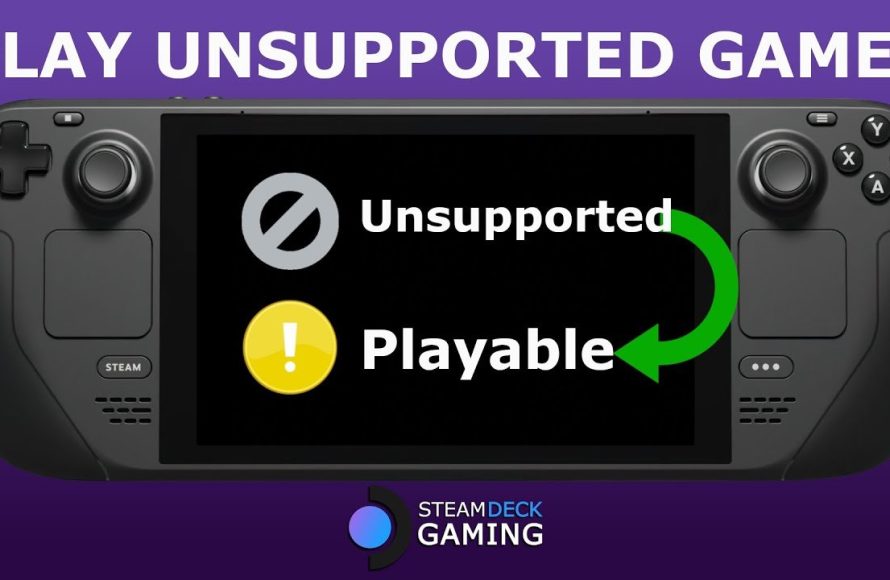
Yes, you can play unsupported games on Steam Deck, but their performance and functionality might vary.
Curious if you can play all your games on the Steam Deck? The device is fantastic, but what happens with titles not officially supported? We get this question a lot, “can you play unsupported games on Steam Deck?”
While the Steam Deck verifies many games, some titles lack that official stamp. This doesn’t mean you are completely cut off from playing them. You may need to tweak settings or use community fixes.
Expect some games to perform flawlessly while others may face glitches or be completely unplayable. It is good to check on forums for community feedback on such games for better insight.

Can You Play Unsupported Games on Steam Deck?
So, you’ve got your shiny new Steam Deck and you’re ready to dive into some gaming. But what happens when you stumble upon a game that isn’t officially “supported”? Does that mean game over? Not necessarily! The Steam Deck, while designed to play games verified for its hardware, is actually quite flexible. Let’s dig into what it means for a game to be unsupported, and what options you have to try and get them running.
What Does “Unsupported” Really Mean?
When a game is marked as “unsupported” on the Steam Deck, it typically means that Valve (the company behind Steam and the Deck) hasn’t tested the game to make sure it plays well. It doesn’t always mean that the game won’t work. Think of it like this: a game is “verified” when it’s been given the thumbs up by Valve, saying, “Yep, this one runs great on the Steam Deck!” An unsupported game? Well, it hasn’t had that testing. So, it might work perfectly, it might have some hiccups, or it might not work at all. It’s a bit of a gamble. This lack of verification usually stems from a number of reasons:
- The Game is Too New: New games haven’t always been tested yet. It takes time for Valve to test and verify games.
- The Game is Older: Older games may not have been designed with the Steam Deck’s architecture in mind. Compatibility isn’t always guaranteed.
- Specific Technical Issues: Sometimes, a game has specific technical problems (like reliance on Windows-only libraries) that make it difficult to run on the Steam Deck’s Linux-based operating system.
- Lack of Controller Support: Some older or indie games might rely on mouse and keyboard controls which don’t translate well to the Steam Deck’s controller interface, making it hard to play properly.
- Performance Problems: Even if a game launches, it might run poorly, with low frame rates or other performance problems that affect your gaming experience.
Trying to Play Unsupported Games: The Options
Don’t lose heart if your favorite game is unsupported. The Steam Deck’s versatility gives you several ways to try and get these games running. Here are your main options, and what to expect:
Using Proton Compatibility Layer
Proton is a special tool made by Valve that lets Windows games run on the Linux-based Steam Deck. Many unsupported games will actually run decently just by using Proton. You don’t usually have to do anything special for this, since Steam will try to automatically use proton to run an unverified game. Here’s how to check or change it:
- Go to your Steam Library on your Steam Deck.
- Select the unsupported game.
- Click the settings (gear) icon.
- Select “Properties”.
- Navigate to the “Compatibility” tab.
- Check the box “Force the use of a specific Steam Play compatibility tool.”
- Try different Proton versions from the dropdown menu until you find one that works well. You might need to test several to see which is best for each game.
Sometimes, the latest version of Proton may not be the best, or an older version works better. Experimenting is key! This is a huge reason why a lot of unverified games end up being playable. Proton can be that magic bridge between windows-only titles and your Steam Deck.
Community Proton Versions
There is a community of gamers who are constantly testing and working on different Proton versions. One example is Proton GE (Glorious Eggroll). These customized versions can sometimes get games to run that the default Proton doesn’t. Here’s where to find these and use them:
- You’ll need to switch to “Desktop Mode” on your Steam Deck.
- Install the “ProtonUp-Qt” app using the “Discover” app store.
- Use “ProtonUp-Qt” to download and install community proton versions (like Proton GE).
- Back in “Gaming Mode,” you can now select these community Proton versions in the game’s Compatibility settings (as mentioned in the previous section).
This process sounds slightly complicated but it can make a big difference. It’s often worth it to try this option if your game doesn’t work with the standard proton versions. Gamers constantly use and test these versions, so you might get lucky. A quick search online might reveal that a specific version of Proton GE is the best for the game you want to play.
Using Desktop Mode
The Steam Deck is a mini-computer and has a full desktop mode. If a game isn’t running in “Gaming Mode,” you might have better luck running it directly from the desktop mode as a .exe executable file. This can sometimes give the game access to other things it needs. Here’s what you should know about using this method:
- Switch to Desktop Mode from the Steam menu.
- Locate the game’s installation folder.
- Find the game’s .exe file.
- Double-click to run it.
Desktop mode bypasses some of the Steam Deck’s optimizations, which in some cases, can help a game run better. It’s worth trying, especially for older titles, or ones that have more complex setups and don’t work right within the steam client.
Tweaking Graphics Settings
Even with the right compatibility layer, a game might be playable but not very enjoyable due to low frame rates or stuttering. Here’s how you can try to improve performance:
- Lower Graphics Settings: Go into the game’s options and turn down the graphics settings like resolution, shadows, and anti-aliasing. This can take some load off the Steam Deck’s hardware, letting the game run better.
- FidelityFX or AMD FSR: These are tools designed to upscale images in-game. They make the game look pretty good while lowering the demand on your Steam Deck’s processor. Enable these if you have them in the game’s settings.
- Frame Rate Limiters: In the Steam Deck quick menu (the ‘…’ button), use the performance overlay to set a frame rate limit (30 or 45 FPS) for the game. This makes the game play more smoothly while preventing overheating. It can also extend the battery life.
Adjusting your graphic settings is often the first thing you should do if you notice any performance issues. You will find that even if a game is playable, the overall experience will depend on how you fine-tune these settings.
Using Emulators
If your game is not a PC game, but a game from another system like old consoles, the Steam Deck is capable of running emulators. It may require a different process to install the software. Here is what you need to know:
- Emulators allow you to play games from older consoles like the PlayStation, Nintendo, and more.
- You’ll need to get the specific emulators for the system you want to play games for.
- You will also need “ROMs” which is the game’s files. It is important to know the ethical and legal considerations of this practice.
Emulation on Steam Deck can be a bit more technical, but it is one way to play a lot of games that might otherwise be unavailable, since these games were not made for the PC. This can really make your Steam Deck into the ultimate portable retro gaming machine.
Researching Online
Before you go through a lot of work trying to get a specific game running, search online for what other people have tried. Often, communities like Reddit, or YouTube have players who have found the best configurations for certain games. These resources might be a game-changer and can save you a lot of time and frustration. Here’s where to look:
- Reddit: Subreddits like r/SteamDeck or specific game subreddits often have discussions about the best settings.
- YouTube: Search for “[game name] Steam Deck” to find video guides with specific tweaks.
- ProtonDB: This community-driven website tracks game compatibility with Proton. It’s a good place to check before you spend too much time trying to get a game to work.
You’ll often find very detailed guides or suggestions in these places that you might not think of on your own. Other gamers’ experiences can be a goldmine of helpful info.
Things to Keep in Mind
While you can often get unsupported games to work, keep these key points in mind:
- It’s Not Guaranteed: Even with tweaking, some games might just not work.
- Bugs Can Happen: Expect some glitches, crashes, or other issues. Unsupported games don’t have the same stability as verified games.
- Battery Drain: Unsupported games can sometimes consume more battery power.
- Learning Curve: It takes time to understand the nuances of Proton and Steam Deck’s modes. Don’t get discouraged if you do not succeed on your first try.
- Experimenting is Key: There’s no one-size-fits-all solution. You might need to try different combinations of Proton versions, graphic settings and configurations.
The ability to play unsupported games adds a lot of value to the Steam Deck experience. It makes it less of a dedicated handheld, and more of an open and flexible gaming device. It’s like having a very powerful handheld computer that can do much more than it says on the tin. While you can’t expect perfection with every game, the effort can be very rewarding. You get to experience titles that otherwise might not be playable on a portable device.
The world of gaming is always evolving, and new solutions pop up all the time. By using the tools provided by Valve, and working with the community, you can get access to a larger library of games. While some effort is needed, the payoff makes it worth it.
Don’t hesitate to experiment and see what you can make playable on your Steam Deck. It’s part of the fun!
How to play unsupported games on Steam Deck Steam OS
Final Thoughts
You can indeed play unsupported games on Steam Deck. Often, these games function perfectly fine. Compatibility isn’t a guaranteed thing though.
Some titles might require tinkering with settings. It depends on how well the game was coded. It might also depend on community efforts and settings.
Ultimately, if a game is labeled ‘unsupported’ it doesn’t mean it’s unplayable, but instead ‘can you play unsupported games on steam deck’ is a question you’ll answer through experimenting.

