
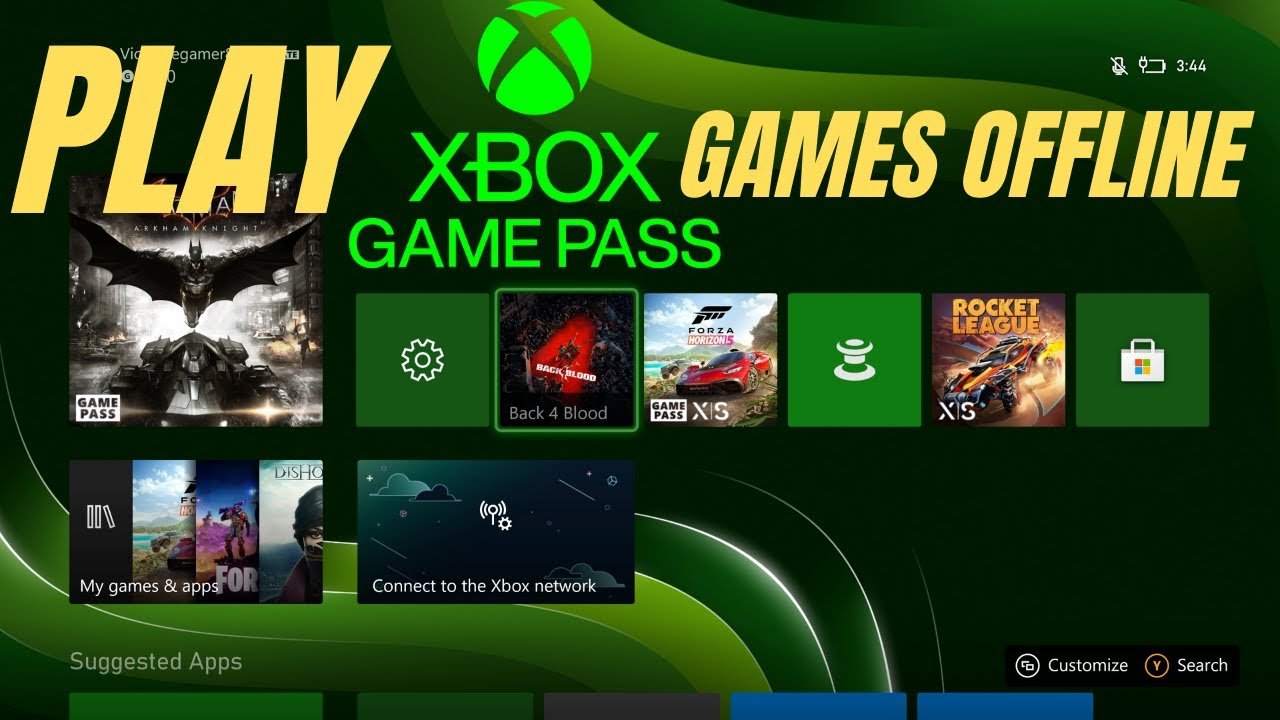
Yes, you can play some Xbox Game Pass games offline, but it’s not all of them. You need to download the games first while connected to the internet.
Ever been mid-game, only for your internet to cut out? That’s a common gamer frustration, leading many to wonder, can you play Xbox Game Pass games offline? The answer is a bit nuanced, not a straightforward yes or no.
Many titles from the Game Pass library do support offline play. It provides great flexibility for gamers who are often on the go or have unreliable internet.
You will need to initially download the game with an active connection, but afterward, you can usually keep playing without an internet connection.

Can You Play Xbox Game Pass Games Offline?
Okay, let’s dive into the exciting world of Xbox Game Pass and see if you can take your gaming adventures on the go, even without an internet connection. The short answer is yes, you absolutely can play some Xbox Game Pass games offline! But, like many things, there are a few important details you need to know. It’s not as simple as just downloading a game and then being able to play it anywhere. We are going to explore all the details and make sure you’re prepared for your offline gaming sessions.
How Offline Play Works with Xbox Game Pass
The magic of offline play with Xbox Game Pass comes down to how the games are downloaded and how your console or PC recognizes you as a subscriber. Think of it like a library card. You “borrow” the games with your subscription and need to let the system know you’re still allowed to play them, even if the internet is gone. Here’s how it works on both Xbox consoles and PC.
Xbox Consoles: The Key is Setting Your Home Xbox
If you’re using an Xbox Series X|S or Xbox One, the main thing you need to do is designate your primary console as your “Home Xbox”. This is extremely important. Here’s why:
- License Check: Your Home Xbox essentially has a license to play the games you have downloaded through your Game Pass subscription. It’s like a permission slip tied to that specific console.
- Offline Access: When your Home Xbox is set, and you go offline, it knows you are authorized to play your downloaded games. This allows you to jump into your games without any internet verification.
How to Set Your Home Xbox:
- Go to the Xbox Settings menu.
- Navigate to the “General” tab and then choose “Personalization.”
- Select “My Home Xbox.”
- Follow the prompts to designate the console you’re using as your Home Xbox.
Important Notes About Home Xbox:
- You can only have ONE Home Xbox at a time.
- You can change your Home Xbox up to five times in a year, so be careful about how often you switch this setting.
- If you try to play an Xbox Game Pass game offline on a console that isn’t your Home Xbox, it will require an internet connection to verify your membership.
PC: Offline Permissions through Microsoft Store
On PC, the approach is a bit different, but still works on a similar principle of granting permissions to your device. Here’s what you need to know:
- Microsoft Store Offline Permissions: The Microsoft Store is where you get your Xbox Game Pass PC games. When you download a game, it also needs offline permissions to play without an internet connection.
- Verifying Offline Play Settings: You need to make sure that your system allows offline use of your downloaded games. Usually, this is automatically enabled when you download a game, but it’s a good idea to double-check before you lose internet access.
How to Check your Microsoft Store Offline Permissions:
- Open the Microsoft Store application on your PC.
- Click on your profile picture in the upper right corner.
- Select “Settings”.
- Look for “Offline Permissions.” Make sure the toggle is set to “On”.
Important Notes About PC Offline Play:
- You must have already downloaded the game completely while online.
- The Microsoft Store requires occasional internet connections to renew your game licenses. This ensures you’re still subscribed to Game Pass. So, you need to connect every so often to avoid getting locked out of your games.
What Kind of Xbox Game Pass Games Can You Play Offline?
Now that you know how to play offline, let’s talk about what games you can actually play. The good news is that most of the games you download through Xbox Game Pass can be played offline. The exception is games that explicitly rely on an online connection to function, such as some multiplayer-only titles.
Single-Player Focused Games
Most single-player games work great offline. These are your action adventures, role-playing games, strategy games, and more. Since they don’t rely on other players being connected online, you will have no problems playing them offline, after you have downloaded them of course.
Some Multiplayer Games
A lot of the multi-player games can be played in offline mode, but it depends on the game. If it has a single player element to the game then you will be able to play it offline, but only the single player mode will be accessible to you. Some games that require an internet connection might not work at all in an offline mode. Always check the game details to see if it states that it can be played offline.
Games with Cloud Saves
Games that use cloud saves will sync your progress when you go back online. This way, you will not lose your progress from when you played offline. So don’t worry if you see that the cloud save is not happening while offline. It will automatically save when you reconnect to the internet.
Games That Always Need an Internet Connection
There are some games that just always need the internet. These include:
- Always-Online Multiplayer Games: These games don’t have a solo campaign or game mode, so they will not work offline.
- Cloud-Based Games: These are not downloaded to your system, and they rely on you streaming them from the cloud, so this will require a stable internet connection.
Managing Your Games for Offline Play
Getting your games ready for offline play isn’t too hard, but a bit of preparation will save you headaches later. Here are some useful tips for keeping your games ready to play offline.
Download Games in Advance
This might seem obvious, but you must download your games before you go offline. Make sure all the game files are fully downloaded and installed. This includes any updates or patches needed. Remember, you cannot download anything if you are offline.
Keep an Eye on Your Subscription
Xbox Game Pass requires an active subscription to play games. If your subscription ends while you are offline, you won’t be able to play until you renew your subscription and connect to the internet. Setting reminders for your subscription renewal is a great tip.
Regular Online Connection
Even if you mostly play offline, it is a good idea to connect to the internet regularly. This allows the system to check your membership and game licenses. It also allows you to download any needed updates or patches. The Microsoft store and Xbox needs to check this every so often so don’t leave it to long. You should ideally connect at least once a week. This will stop the chance of the games locking you out.
Managing Storage Space
Downloaded games require storage space. If you are planning a long period of offline play, make sure that your hard drive or SSD has the needed storage space to install your games. Remember, some games can be really big. If you are playing on the go, then check that your laptop or console has enough space. An external hard drive can be a lifesaver here.
Verify Game Offline Status
Before you go offline, you might want to double-check that the game you are wanting to play can actually be played offline. Most single player games should work, but it does no harm to check this first. It is really easy to do.
Troubleshooting Tips for Offline Play
Sometimes, things don’t go as smoothly as they should. If you’re running into issues while playing offline, here are a few things to try. These tips should help you get back to the games.
- Restart Your Console or PC: A simple restart can sometimes fix a lot of problems, this is always a good first step.
- Check Your Home Xbox Settings Again: Make sure that the console is set as your Home Xbox correctly.
- Check Your Microsoft Store Permissions: Double check that the offline permissions are turned on for your PC.
- Make Sure Your Subscription is Active: Sometimes we think that the subscription is still active, and it isn’t, so check this first.
- Update Your System: Make sure you have the latest update for both your console and PC. The most recent software will help stop the game from locking you out.
- Check for Known Issues: Look on the internet to see if other people are having the same issue with a game. Sometimes the issue is not with your machine, but with the game.
Tips and Tricks for Better Offline Gaming
Now that you have the basics covered, here are some extra tips to make your offline gaming even better.
Plan Your Game List
If you know you’re going to be without an internet connection for a while, plan what games you want to play ahead of time. Download them and make sure you have space on your storage device to handle the games.
Take advantage of Cloud Sync
Cloud sync is really useful, as it keeps your progress updated when you go back online. So if you are on the go and offline, it will all sync when you get back online. Then your save games will be where you left off.
Consider Game Pass Ultimate
If you use both console and PC, Xbox Game Pass Ultimate is great as it covers both systems. This way, you can play some games on your console and then continue the adventure on your PC when you are on the go.
Join the Xbox Community
The Xbox community is a great place to see what games are available and if they work offline. You can also get answers to many questions.
Common Scenarios for Offline Play
Knowing how to play offline can come in very useful in many scenarios. Here are a few common examples of when offline mode is amazing.
Traveling
When you are traveling on a plane or a train, or maybe you are in a hotel, an internet connection is not always available. Offline play is great for passing the time while traveling.
Camping Trips
If you are going away camping, chances are you will not have an internet connection. Take your games with you in offline mode.
Power Outages
Sometimes there can be a power outage which can mean that your internet is down. It is good to know you can still game even if the internet goes down.
Internet Issues
Sometimes, you might have problems with your internet connection. Having a downloaded game ready to go offline is great in these situations.
So, there you have it! Playing Xbox Game Pass games offline is definitely possible and can be extremely useful. Remember to set your Home Xbox correctly, check your Microsoft Store offline permissions on PC, and plan your game downloads ahead of time. This allows you to enjoy many of your favorite games, even when the internet is not around. Happy gaming!
How to Play XBOX Game Pass games OFFLINE in XBOX Series/One Console
Final Thoughts
Yes, you can play many Xbox Game Pass games offline. It’s a great feature when you don’t have a stable internet connection. You simply need to download the games first.
Remember to check if specific titles support offline play; not all do. ‘can you play xbox game pass games offline’ is a very common question. Most games allow it, though, once a valid license check occurs online.

