
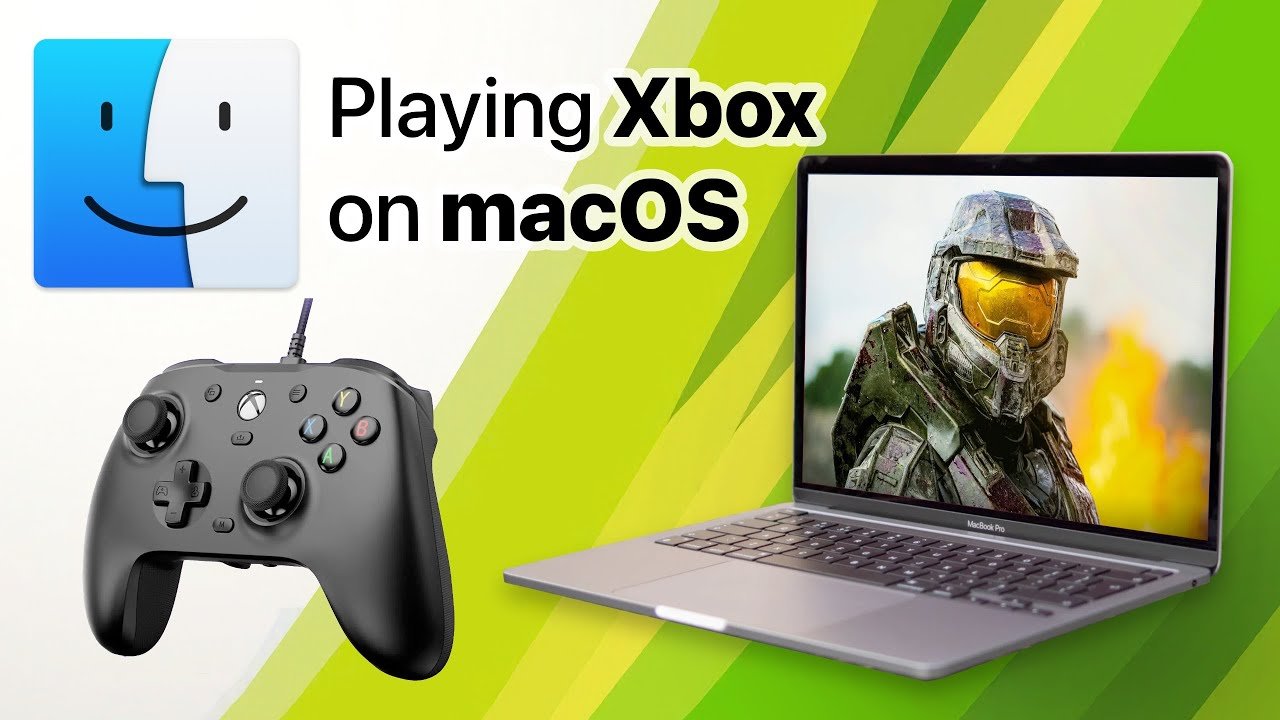
‘Yes, you can play some Xbox games on your Macbook using Xbox Cloud Gaming or Remote Play, provided you have a stable internet connection and an Xbox Game Pass Ultimate subscription.’
Ever wondered if you could enjoy your favorite Xbox titles on your sleek Macbook? The question “can you play xbox games on macbook” pops up frequently. You’re not alone if you are thinking about playing games between the devices.
The good news is, it’s entirely possible, although not in the traditional sense of installing games directly. You can access a growing library of Xbox games using different methods. The most common options require an Xbox console and a reliable network.

Can You Play Xbox Games on MacBook?
So, you’re a big fan of Xbox games, but you also love your MacBook. Maybe you’re wondering if you can somehow bring those two worlds together. The short answer is, yes, you can play Xbox games on your MacBook, but it’s not as simple as popping in a disc like on a regular Xbox. Let’s explore how it all works and what options you have. We’ll dive into the different ways to play, the tech involved, and what you should expect, making it easy to understand for everyone.
The Key: Xbox Cloud Gaming
The main way to play Xbox games on your MacBook is through something called Xbox Cloud Gaming (also known as xCloud). Think of it like watching a movie on Netflix, but instead of a movie, you’re playing a game, and instead of your TV, you’re using your MacBook. The games actually run on powerful Xbox servers somewhere else, and your MacBook is just showing you the game and sending your button presses. This means you don’t need a powerful MacBook to play the latest Xbox games, which is great!
How Xbox Cloud Gaming Works
Here’s a simplified look at the process:
- Game on Server: The game runs on a powerful Xbox server in a Microsoft data center.
- Video Stream: The server sends a video stream of the game to your MacBook.
- Input Commands: Your button presses on your controller go back to the server.
- Real-Time Play: You see the game in real-time and it feels like you’re playing it right on your machine.
Because the game is being streamed, it relies heavily on a strong and stable internet connection. The better your internet, the smoother the game will run, without lag or interruptions.
What You Need for Xbox Cloud Gaming on MacBook
Okay, so now you know about cloud gaming, but what exactly do you need to get started? Let’s break it down:
- A Microsoft Account: You’ll need a free Microsoft account, the same one you might use for email or other Microsoft services.
- An Xbox Game Pass Ultimate Subscription: This is the subscription that gives you access to Xbox Cloud Gaming. It’s like a library card for video games. It gives you access to a big collection of Xbox games that you can play on many devices, including your MacBook.
- A Good Internet Connection: This is very important for any cloud gaming experience. A stable and fast connection is required. Microsoft recommends at least 10 Mbps download speeds. Wired connections are usually more reliable than Wi-Fi, but good Wi-Fi will work too. Test your internet speed to make sure it is ready for playing.
- A Compatible Browser: You’ll use a web browser like Safari, Chrome, or Firefox to access Xbox Cloud Gaming.
- A Compatible Controller: You can use a wireless Xbox controller. You can connect your controller using Bluetooth. Other controllers that work with Xbox cloud gaming may also work.
Setting Up Xbox Cloud Gaming on Your MacBook
Setting up Xbox Cloud Gaming is a straightforward process.
- Check Your Subscription: Make sure you have an active Xbox Game Pass Ultimate subscription.
- Open Your Browser: Open Safari, Chrome, or another compatible browser on your MacBook.
- Go to Xbox Cloud Gaming Website: Type “xbox.com/play” in your browser address bar and press enter.
- Sign In: Sign in with the Microsoft account that has your Xbox Game Pass Ultimate subscription.
- Connect Your Controller: Pair your Xbox controller with your MacBook using Bluetooth. Look in your macbook’s bluetooth settings to set up your controller.
- Pick and Play: Choose a game from the library and click “Play.”
That’s it! You’re now playing Xbox games on your MacBook! Make sure the controller is connected properly so you can control the game. If your game starts lagging, you should check your internet connection. Sometimes rebooting your router might help.
What Games Can You Play?
With Xbox Game Pass Ultimate, you get access to a large collection of games. This collection includes first-party titles made by Xbox and games from different publishers. These games come in all kinds of genres, such as action, adventures, racing, and strategy games. New games are often added to the collection so you always have new things to try.
Some of the popular titles you might find on the cloud gaming service include:
- Halo Series
- Forza Horizon and Motorsport
- Minecraft
- Starfield
- Sea of Thieves
- Gears of War Series
- Many indie titles
It’s important to know that the specific games available might change from time to time as new games are added and others are removed. You can always look at the Xbox Game Pass list to see the most recent game selection. This means you will always have something to play.
Performance Considerations
Even though Xbox Cloud Gaming is a great way to play Xbox games on your MacBook, it’s good to know what to expect when it comes to performance. Here are some important things you should keep in mind.
Internet Speed and Stability
The most crucial part of a good cloud gaming experience is having a solid internet connection. If your connection is not fast or stable, your game will have problems. These problems can include lag, which is when the game responds to your actions slowly, or the game might freeze. When your internet is slow, the video and sound quality might be very low. It’s better to have a connection faster than Microsoft’s recommended 10 Mbps, because this will help your games run smoothly. Also, wired connections are usually better than wi-fi because they are generally more stable. Test your internet before starting to play to know your connection is ready.
Potential Input Lag
Because the game is being streamed, there can be a tiny delay between when you press a button on your controller and when that action happens in the game. This delay is called input lag, and it is natural for cloud gaming. It’s usually a very small delay. For most games, especially slower-paced ones, it won’t be very noticeable. But if you’re playing fast-paced games or competitive ones, the input lag might be a problem. If you want to have a better cloud gaming experience, you need to make sure your internet is good.
Screen Resolution
The resolution, or clarity, of the game on your MacBook display is important for a good gaming experience. The cloud service usually aims for a resolution of up to 1080p which is high definition. This resolution is good for a lot of macbook screens, but if you have a display that has a higher resolution, the game will not take advantage of the better resolution. The resolution that you see can depend on several things such as your internet connection and your display capabilities. If your internet is slow the resolution might lower to be more stable.
Other Options (Less Common)
While Cloud Gaming is the main way to play Xbox games on a MacBook, there are a couple of other options worth mentioning, even though they are less common or more difficult to use. These options involve software or technology that can make some games playable, but they usually come with limitations.
Using Boot Camp (for older games)
Boot Camp is a tool that lets you install Windows on your MacBook. This allows you to run programs or play games made only for Windows. This used to be a common thing to do, but it’s very different with current Macs, especially the ones with Apple Silicon. Setting up Boot Camp can be a difficult process, and it’s not a solution for newer Xbox games because they’re not made to run on Windows in that way.
Here’s what you should know if you consider this:
- Requires Windows License: You need to buy a copy of Windows to use Boot Camp.
- Space Needs: You need a good amount of storage space on your MacBook for Windows.
- Not for Modern Xbox Games: You can’t play the newest Xbox releases, because Xbox doesn’t make those to run on Windows like this.
- Complexity: Setting up Boot Camp can be very technical, and it is not for beginners.
Virtual Machines (similar to Boot Camp)
Another way is using a virtual machine which is like having a computer inside your computer. You could install Windows on a virtual machine running on your MacBook. But this process is also very complex, and it does require additional software and settings. Like with Boot Camp, the newest Xbox games cannot be played with a virtual machine. This is mostly useful if you need to use a Windows program and not for gaming purposes.
- Needs Specific Software: Virtual machine software will need to be installed.
- Performance Limits: Virtual machines can be slow and won’t give you a good gaming experience.
- Not for Modern Xbox Games: Just like Boot Camp, it can not be used to play newer Xbox titles.
These other options usually have limitations. Cloud gaming is usually the most comfortable and efficient way to play a wide selection of Xbox games on a MacBook, without too many extra steps.
Benefits of Using Cloud Gaming
Now that we have explored what it takes to play Xbox games on your MacBook using cloud gaming, let’s go over why this is such a good way to experience your favorite games:
- Play on the Go: You can enjoy your Xbox library anywhere you have a good internet connection. This means you can play at home, at a cafe, at a friend’s place, or while traveling. This is a good option for people who like to play wherever they want to.
- No Need for a Powerful MacBook: Cloud gaming means that most of the work happens on the Xbox servers, not on your own MacBook. This is great because it means that even a less powerful or older MacBook can play the latest games without problems.
- Large Collection of Games: The Xbox Game Pass Ultimate has a big library of games that you can try. This library is frequently updated and added with new titles, so you have plenty of options. It is good for when you want to try a variety of games.
- Cost Savings: Instead of buying many new games separately, you only need one subscription to access a large collection of Xbox games. This can be better for your wallet. It’s also cheaper than having to buy a gaming console.
- Easy to Use: Setting up and using Xbox Cloud Gaming on a MacBook is quite straightforward. You just open your browser, log in to your account, connect your controller, and start playing.
Cloud gaming is a convenient and accessible way to experience Xbox games on your MacBook. It removes the need for expensive gaming hardware, allowing you to enjoy the latest titles easily, wherever you have a stable internet connection.
Playing Xbox games on your MacBook is no longer a dream; it’s a reality through Xbox Cloud Gaming. While other methods like Boot Camp or virtual machines might be technically possible, they come with hurdles and limitations, especially when playing modern games. The best and most comfortable method to play your Xbox favorites on your MacBook is through a stable internet connection, an Xbox Game Pass Ultimate subscription and a controller. So, grab your controller, get a good internet connection, and prepare to enjoy all the fun Xbox games can provide, all on your MacBook.
How to play #Xbox on MacBook
Final Thoughts
Ultimately, playing Xbox games on a MacBook isn’t straightforward. You cannot directly install Xbox games.
Cloud gaming via Xbox Game Pass provides a solution. It allows you to play select titles through a web browser.
Therefore, while not native, the answer to ‘can you play xbox games on macbook’ is yes, with limitations and using cloud options.

