
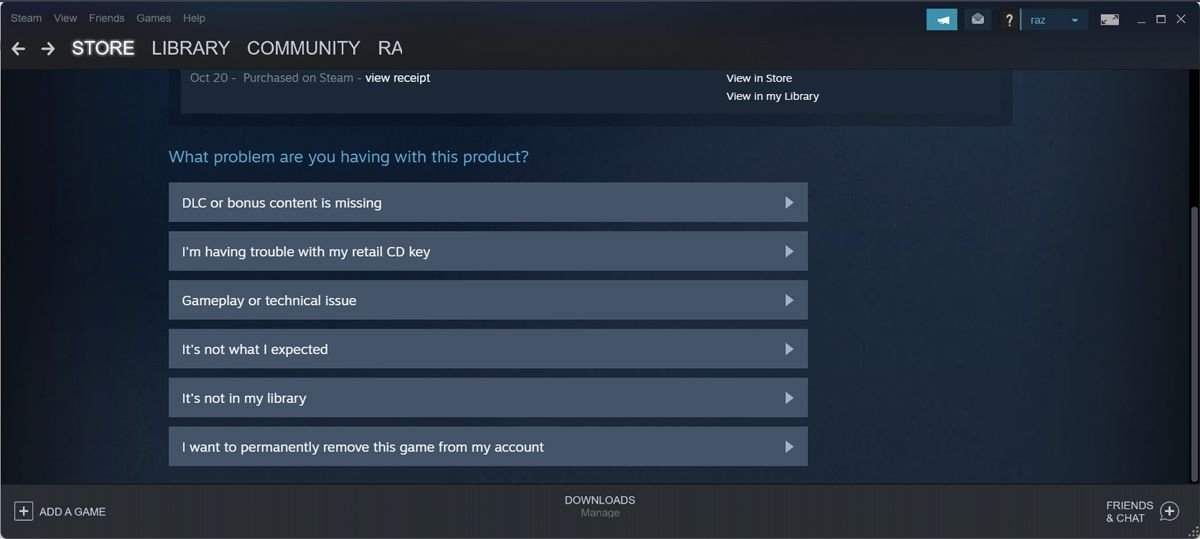
Yes, you can remove a game from your Steam library, but it’s a permanent removal and the game will not be available for play without repurchasing.
Ever bought a game on Steam you regret? It happens. You might be wondering, can you remove a game from your Steam library? Well, the answer isn’t as straightforward as simply deleting a file. There’s a specific process you must use within the Steam client.
This means you won’t see the game in your list anymore. Keep in mind, however, that this action is final. So, make sure you’re absolutely sure about removing any game.

Can You Remove a Game From Your Steam Library?
Okay, let’s talk about something many gamers wonder about: Can you actually get rid of a game from your Steam library? Maybe you bought a game you didn’t like, or perhaps your library is just getting too cluttered with titles you never play. The short answer is, well, it’s a bit complicated. Steam doesn’t let you completely remove a game in the way you might expect, like deleting a file from your computer. But, there are options! Let’s explore all the ins and outs of managing your Steam game collection.
Understanding Steam Library Management
Steam is a digital video game distribution service. It’s like a huge online store where you buy and download games. When you purchase a game on Steam, it’s tied to your account. This means it stays in your library, whether you install it or not. Think of your Steam library as a record of all the games you have rights to play, not just the games you currently have installed on your computer. This is why it’s not straightforward to remove a game permanently. We will break down the different aspects of Steam library management and the options you do have.
The ‘Permanent Removal’ Myth
Many gamers search for a way to “permanently remove” a game from their library. Sadly, there’s no magic button for this. Steam doesn’t let users delete a game license from their account once it has been activated. This is a crucial point to understand. Once you buy a game and add it to your library, it will be there for good. This is different from deleting a game from your hard drive, which you can do anytime. However, there are alternatives you can try. Let’s discuss them next.
Hiding Games From Your Steam Library
While you can’t delete a game, you can hide it! This is the most common method to manage unwanted games from view. It removes the game from your main library list, giving a much cleaner look. Here’s how to hide a game:
Steps to Hide a Game:
- Open Steam: Start the Steam application on your computer.
- Go to Your Library: Click on the “Library” tab at the top of the screen.
- Find the Game: Locate the game you want to hide in your list.
- Right-Click: Right-click on the game.
- Manage: Hover over “Manage.” A submenu will appear.
- Hide: Select “Hide this game.”
The game will disappear from your primary library view. This is the closest most gamers get to removing a game. The game is not gone, just hidden.
Viewing Hidden Games
If you want to see your hidden games again, here’s how:
- Go to View: Click on the “View” tab at the top of the Steam window.
- Select Hidden Games: Choose “Hidden Games” from the dropdown menu.
A new section will appear, showing all the games you have hidden. From here, you can unhide a game by right-clicking on it and selecting “Manage” then “Remove from Hidden.”
Using Steam Categories for Organization
Another way to manage your game library is by using categories. Think of categories as folders where you can group similar games together. This can help you keep your library clean and make it easy to find the games you are interested in. You can make categories like “Completed,” “Multiplayer,” “Single Player,” or even “Games I Never Play.”
How to Create and Use Categories:
- Right-Click on a Game: In your library, right-click the game you want to categorize.
- Select “Categories”: Choose “Categories” from the menu.
- Create a New Category: If you are creating a new category, click on “New Category.” Enter the name of your new category. Then select the check box for the desired category and hit “OK”.
- Assign to a Category: Now, select the check box for the categories you would like the game to be assigned. You can assign a game to multiple categories.
- View by Category: You can view your games by category using the dropdown in the game library.
You can customize your library with as many categories as you want, making it easier to navigate through your ever-growing collection.
Steam Family Sharing and Game Removal
Steam’s Family Sharing feature allows you to share your game library with friends and family members. However, you can’t “remove” a game from their shared access individually if you still own the game. If you want to take a game away from someone, you have to remove the full shared library privileges.
How to Manage Family Sharing
You can manage Family Sharing in Steam through the following steps:
- Open Steam Settings: Click “Steam” at the top left of the Steam window, and select “Settings”.
- Go to Family Tab: Click on the “Family” tab.
- Manage Shared Accounts: Here, you can authorize or deauthorize accounts for family sharing.
Keep in mind, removing someone from Family Sharing means they cannot play any of the games in your library, not just individual titles.
Refunds and Game Removal
If you’ve bought a game that you immediately regret, you might be able to get a refund. Steam has a refund policy that allows you to return games within a certain timeframe and under certain conditions. This can indirectly “remove” a game from your account.
Steam’s Refund Policy:
- Time Limit: The refund needs to be requested within 14 days of purchase.
- Play Time Limit: You should have less than 2 hours of playtime in the game.
- Automatic Refunds: Most refunds meeting these conditions are processed automatically.
- Manual Review: Refunds outside these conditions may be reviewed manually.
If your refund request is approved, the game will be removed from your library. This is the closest thing to a true removal, as the license is effectively revoked, and you are no longer able to play the game unless purchased again.
Requesting a Refund:
- Go to Steam Support: Open Steam and click on “Help” then “Steam Support”.
- Select Purchases: Click on “Purchases”
- Choose the Game: Find the game you want to refund from the list.
- Submit Refund Request: Follow the on-screen instructions to request a refund.
Dealing With Free Games and Demos
Sometimes, Steam offers free games, or you might try demos. These games will also appear in your library. You can hide them using the methods described earlier. Free games function just like the ones you pay for when it comes to managing your library, you can not truly remove them from your library.
Third-Party Tools and Steam Library Management
Some third-party tools claim to offer options for “removing” games, but be careful using them! Steam does not officially support these tools, and they may cause issues with your account or game files. It’s generally best to stick with Steam’s built-in tools for library management. You can manage your library efficiently using the methods available within Steam without resorting to third party tools.
Why Steam Doesn’t Allow Permanent Removal
Many players might wonder why Steam doesn’t allow for a true permanent removal of games from their library. There are several reasons for this:
Reasons Steam Keeps Games in Libraries
- License Tracking: Steam uses your library to keep track of the games you have licenses for. It’s a record of what you purchased.
- Resale Prevention: If users could permanently delete games, they might try to resell their digital licenses, which could impact game sales.
- Account Management: Steam’s system keeps a consistent list of everything you purchased and own, making it easier for you to access them on any PC.
- Consistent System: Having an immutable record ensures that the system remains consistent.
While the inability to permanently remove a game may be frustrating to some, it is a part of how Steam keeps track of ownership and prevents potential problems with game licenses. It’s better to accept the hiding and category options and focus on better managing your library through them.
The Importance of a Clean Steam Library
While you might not be able to completely remove games you don’t want, the goal of organizing and cleaning your Steam Library is still important. A well-managed library makes it much easier for you to find the games you enjoy and play. Here is why it’s important:
Benefits of Organizing Your Steam Library
- Faster Game Discovery: When your library is clean, you can quickly find the games you want to play.
- Reduced Clutter: A clean library can help you focus on the games you want to play.
- Improved Efficiency: You can manage your library and find titles faster when they are categorized.
- Better Overall Experience: A well-organized library makes your overall Steam experience much better.
So take time to use the hiding, categories, and other methods we discussed. You will end up with a much cleaner and efficient library to use.
Ultimately, while you can’t permanently remove a game from your Steam library in the traditional sense, the options to hide games, create categories, and refund titles you don’t want offer some ways to manage and maintain a clean and organized game list. You can effectively control what you see and how you interact with your games, even if the game licenses remain attached to your account. You now have all the tools and knowledge to keep your steam library clutter free and enjoyable!
How to permanently remove a game from Steam – Quick Guide
Final Thoughts
Yes, you can remove a game from your Steam library. This action permanently hides the game from your main view. You can later restore it if you change your mind.
The process involves navigating to Steam support. Then select the game and choose the removal option. So, to answer plainly, can you remove a game from your steam library? Yes, with a few clicks you can.

