
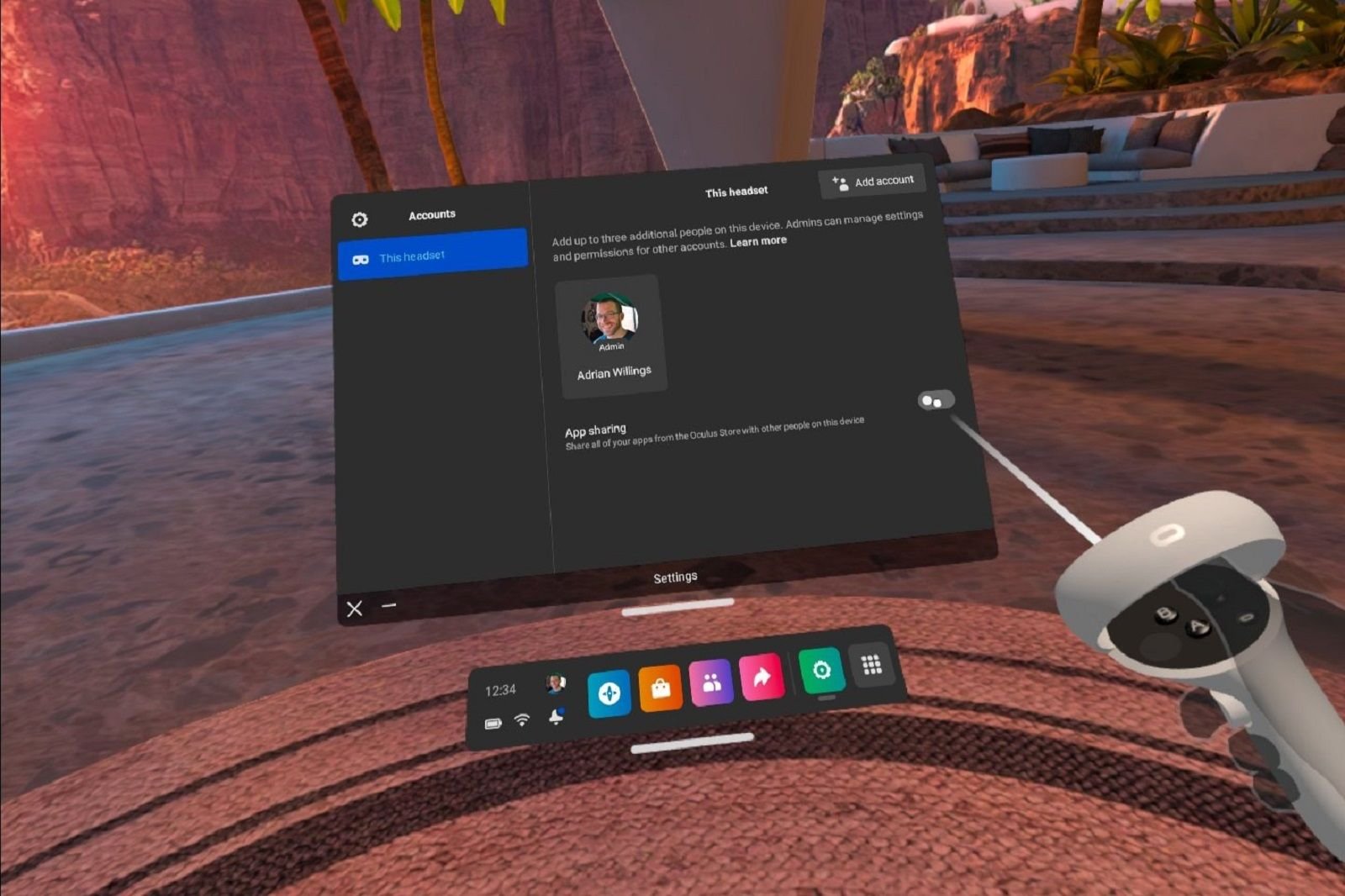
Sharing games on Oculus is possible through the account sharing feature, but this is limited to one device at a time.
Ever wondered, can you share games on oculus with friends or family? It’s a common question among VR enthusiasts. The desire to let others experience the virtual worlds you enjoy is natural.
This guide will clarify the game sharing options available on the oculus platform. We’ll explore how the system works and any limitations you might encounter.

Can You Share Games on Oculus? Exploring the World of VR Game Sharing
So, you’ve jumped into the amazing world of virtual reality with your Oculus headset and you’re having a blast! But, maybe you’re thinking, “Wow, I have so many awesome games, it would be cool if my friends or family could try them out without buying everything themselves.” That’s a great thought! Sharing is caring, right? Well, let’s dive into whether you can actually share games on Oculus, and how that whole thing works. It’s not always a straightforward answer, so let’s break it down.
Understanding Oculus Accounts and Game Ownership
Before we get into the nitty-gritty, it’s super important to understand how Oculus, now part of Meta, handles accounts and game ownership. When you first got your headset, you likely created an account. Think of this account like your personal key to your VR library. When you buy a game, it’s linked directly to your account, not just the headset itself.
The Basics of Account Linking
- Your Oculus account is your personal space in the VR world.
- Games you purchase are tied to your account, like books on your Kindle.
- This means you can usually play your games on any Oculus device where you log in with your account.
This personal account system is there for a few reasons. It helps keep your games secure, makes it easy for you to access your games from any of your devices and also ensures the developers of these games get paid for their work. Imagine if you could just give away a game you bought, the developer would not get the support they need to make more amazing VR experiences.
The Real Deal: Can You Share Your Oculus Games?
Alright, let’s get to the heart of the matter – can you actually share your games? The answer is a bit like a video game itself; it has a few levels to get through! The simple answer, is yes, there are ways to allow others to play your games, but it isn’t quite the same as “giving” them a copy. Let’s look at the different methods and what each entails.
Using App Sharing on Oculus
The most straightforward way to allow others access to your games on Oculus is by setting up app sharing. Here’s how it generally works:
- Primary Account and Secondary Accounts: App sharing allows you to designate a primary headset user and add secondary accounts to the device.
- Game Sharing: When the primary account owner enables app sharing, secondary users can access and play the games that are installed on that headset that the primary account owns.
- Limitations: There are some limits. Each headset can only have one primary account, and games can only be played at the same time on one headset at any given time.
Think of it like sharing a game console in your living room; everyone who uses that console at that house can play games on that particular console. Similarly with Oculus app sharing, those on the same headset can access your games.
How to Set Up App Sharing
The specific steps for enabling app sharing might differ slightly depending on your Oculus headset (Oculus Quest, Oculus Rift S, etc.) and software version. However, here’s the general process:
- Go to Settings: On your Oculus headset, navigate to the “Settings” menu.
- Find the Accounts: Look for an option related to “Accounts” or “Users.”
- Add Secondary Accounts: There should be an option to add additional accounts to your headset.
- Enable App Sharing: Within the account settings, you’ll find an option to enable app sharing for that particular headset.
- Select Which Games to Share: Sometimes you may need to choose which games are available for app sharing, make sure these are shared.
Things to Keep in Mind With App Sharing
- Simultaneous Play is Not Possible: Remember, you can’t play the same game at the same time on two different headsets if you use app sharing. If one account on the primary headset plays the game, nobody else can play the same game with a secondary account using app sharing on the same headset at that time.
- Some Games May Not Be Shareable: Occasionally, some game developers might choose to opt out of app sharing for specific games. This is fairly rare, but keep in mind that not every game you own will be shareable.
- Multiple Headsets, Multiple Accounts: if you have multiple Oculus headsets in your house, each needs its own primary account to share games in that same house. So, to share with others on different headsets you may still need to buy games on each primary account.
What About Gifting Games?
Now, let’s say you want to “give” a game to a friend, rather than simply allowing them to access it on your headset. Oculus has an option to gift games, but it’s not exactly like sharing something you already own. Here’s the lowdown:
The Oculus Gifting Process
- Purchase as a Gift: Instead of buying the game for yourself, you can choose to purchase it as a gift.
- Enter Recipient’s Email: You’ll need the email address associated with your friend’s Oculus account (or Meta account).
- Delivery: Your friend will receive a notification and can redeem the game to their account.
This option lets you get a copy of the game for someone without needing to share your account or using the primary account system of app sharing. Gifting is a great option if you want to give the full game experience to someone without any limits from app sharing.
Gifting Considerations
- You Must Purchase a Second Copy: Gifting requires you to buy a separate copy of the game for your friend, even if you already own it.
- No Sharing of the Same Copy: Gifting does not allow for you to share your copy; you are effectively buying another copy for your friend to own on their account.
- Great for Multiplayer: Gifting is a great way to play multiplayer games together. For the best multiplayer experience make sure you both own the game on your own accounts, since app sharing doesn’t support simultaneous game play using only one account.
Family Sharing: A Look at the Possibilities
The idea of “family sharing” is something many gamers are familiar with, like sharing game libraries on other platforms like Steam. While Oculus has app sharing, it might not always feel like a full family share. Let’s explore what this means in the Oculus world.
Current Family Sharing Limitations
The current Oculus system allows for app sharing on one device, which is useful for families in a single household, but there are some restrictions you might want to be aware of:
- Single Headset Sharing: The primary way to share is through one headset where multiple accounts are registered.
- No Cross-Headset Sharing: Games bought on one account cannot be shared across different headsets simultaneously using app sharing.
- Simultaneous Play Limitation: The simultaneous play limitation can be a significant barrier for families who each have their own headsets.
Basically, if you have multiple Oculus headsets and everyone wants to play the same game at the same time, each person needs to buy their own copy using the gifting method.
Future Possibilities
It’s very possible that the future of game sharing on Oculus may get more flexible. As the technology advances and as more people jump into VR, the need to share games more easily will likely increase. The company that runs Oculus (Meta) is constantly working on new features and improvements, so we may see easier forms of family sharing introduced in the future.
Game Developer Decisions and Sharing
It’s worth noting that while Oculus offers tools for sharing, the ultimate decision on whether a game can be shared rests with the game developers themselves. They may choose to not allow app sharing on their games.
- Developer Control: Developers can opt out of the sharing system. This is to protect their work and ensure they get compensation for the games they create.
- Protecting the Creation: By choosing if they want to allow app sharing or not, developers can have a say in how their games are accessed.
This means there is no guarantee that every single game you own can be shared using the app sharing method. It is always a good idea to check if the game you want to share allows for app sharing before planning a game night, or getting disappointed when you are unable to play the games together.
Tips for Sharing Games Effectively
Even with the limits, here are some ideas to make game sharing on Oculus a bit easier.
Communicating With Your VR Buddies
- Make a Plan: Communicate with people you wish to share games with, plan what you wish to play and when.
- Agree on a Rotation: If you have multiple people wishing to play from the same account, agree on a rotation for playing the games.
Managing Multiple Accounts
- Label Your Headsets: If you have multiple headsets, label them clearly to keep track of the primary accounts.
- Keep Track of Purchases: Keep a spreadsheet or a list of the games that each account owns and whether they support app sharing. This makes it easier to see which games can be shared using different accounts.
Using Demos
- Check for Demos: See if a game has a demo available so people can try the game before making a purchase.
Using demos is a good method to use, as it allows users to try the game to see if they enjoy the experience. Demos make sure you don’t buy a game that no one wants to play.
The Future of Game Sharing
As technology grows, virtual reality will become more common. This means we will see new ways for sharing games. Oculus may introduce improvements in the way it handles game sharing to make it easier for families and friends to share the VR experience.
By understanding all of the methods described above, you can best decide which method best suits your sharing needs. Hopefully, in the future, the platform can be more flexible allowing for easier sharing.
How To Share Games & Apps On Oculus Quest 2
Final Thoughts
You cannot directly share purchased Oculus games with another account. The game library is tied to a specific Oculus account. However, some games offer multiplayer features, allowing you to play with friends who have their own copies.
This means while account sharing isn’t possible, you still can enjoy games with others using their own purchased content. Therefore, can you share games on oculus, the answer is no, not directly.

