
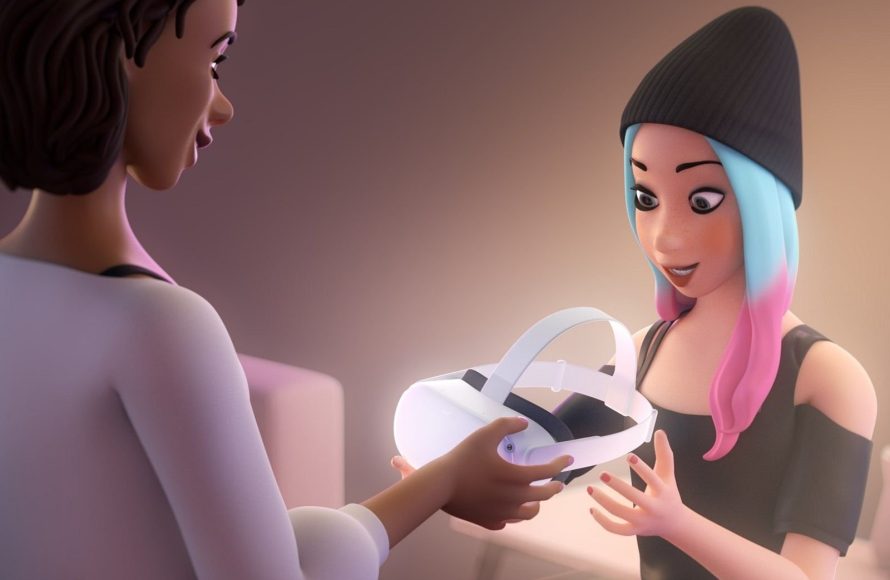
Sharing Meta Quest 2 games directly is not possible through a simple account transfer. However, Meta allows app sharing on a device with multiple accounts.
Ever wondered if you could let a friend dive into your favorite virtual worlds without buying the game themselves? The question “can you share meta quest 2 games” often pops up when friends and family want to experience VR. It’s understandable to want to share the fun and the great experiences you’ve collected.
While you can’t simply send a digital game to another account, Meta has a system in place for multiple user accounts on one headset. This allows some kind of controlled shared access for games on that single device.

Can You Share Meta Quest 2 Games? A Deep Dive
So, you’ve got a Meta Quest 2 (previously known as Oculus Quest 2), and you’re having a blast exploring virtual worlds. Maybe your friend or family member wants to join in the fun. A common question pops up: Can you share your Meta Quest 2 games? It’s a great question, and the answer isn’t always a simple yes or no. Let’s break down how game sharing works on the Meta Quest 2, covering everything from multiple accounts on the same headset to using different headsets.
Understanding Meta Quest 2 Accounts
Before we get into the nitty-gritty of game sharing, we need to talk about Meta accounts. These accounts are how you access all your games, apps, and other content on your Quest 2. Each person who wants to use the headset should have their own Meta account.
Primary and Secondary Accounts
When you set up your Meta Quest 2, you create a primary account. This is the main account linked to the headset. It’s like having the master key to the device. You can also add additional accounts, called secondary accounts. These accounts are ideal for other members of your household who want to have their own separate profiles and game progress. Think of it like separate user profiles on a computer.
How Multiple Accounts Affect Game Sharing
The type of account matters a lot when it comes to sharing games. The primary account on the headset has the ability to enable app sharing, which allows secondary accounts on that specific device to access the games purchased under the primary account. This is an important distinction. It’s crucial to note that secondary accounts can only access the primary account’s games on that specific headset where app sharing is enabled. It doesn’t grant access to those games across different Meta Quest 2 devices.
The Concept of App Sharing
Meta Quest 2’s app sharing feature is where the magic happens if you want to share your purchased games with other users. But, it’s not as simple as just giving someone access to your entire library. Let’s explore how it works:
Enabling App Sharing
The process of enabling app sharing is straightforward. The primary account holder will need to navigate to the settings menu within the headset, and look for “Accounts” option. Once inside, find the “App Sharing” or similar option and turn it on. The steps may vary slightly depending on the software version, but the core process is similar.
Limitations of App Sharing
Even with app sharing enabled, there are limitations you need to consider. Only secondary accounts on the same Meta Quest 2 device can access shared content. If you have a separate Quest 2 headset, games cannot be shared across those two devices via this method. Game sharing also depends on the developer’s participation in this program. While most games support app sharing, not all do. Some developers may opt-out of the program.
Also, it’s important to note that some apps may have restrictions on the number of users playing simultaneously from a shared license. This means that even with app sharing enabled, two users might not be able to play the same game at the exact same time. These limitations may vary on case to case basis.
Sharing Games Across Multiple Headsets
Now, what if you have multiple Meta Quest 2 headsets, and you want to share games between them? This is where things get a bit trickier. The simple app sharing method that works on a single device, doesn’t work between different headsets. Let’s break down the options you have:
Game Licenses and Meta Accounts
Each game you buy on the Meta Quest store is attached to the Meta account that purchased it. You can think of it as a digital license. Because the license is tied to your Meta account, you cannot simply share a game from one headset to another via the app sharing feature described earlier.
The Possibility of Using the Same Account
One way to technically play your purchased game on a different headset is by using the same account on multiple headsets. This means logging in with the same account you used to purchase the games. It’s important to consider what would happen if you try this:
- Simultaneous Gameplay Issues: Usually, only one user can be logged into the same account at a time, meaning two people can’t play the same game at the same time. Some games might allow multiple players with the same account, but it’s not a guarantee.
- Progress and Saves: If you use the same account on multiple devices, game progress is synced across devices, so you may need to consider what it means to start playing one game on one device, and continuing playing on another device.
- Privacy Concerns: Sharing the same account can lead to concerns about privacy. Accessing account settings or personal information may be possible with this method.
Family Sharing Limitations
Unlike some other platforms, Meta does not have a straightforward “family sharing” option. You can’t simply designate a “family” and share a game library across all devices. The app sharing option is limited to secondary users on the same headset as the primary account.
Third-Party Sharing and Digital Game Ownership
There’s an ongoing debate about digital game ownership, and what it means for things like sharing games. Digital licenses are tied to user accounts. Meta’s ecosystem does not currently offer ways to transfer licenses between accounts or allow sharing across multiple devices. The same limitation also applies for the third-party apps that you purchase for your Meta Quest 2. There are no straight-forward options to share the purchased digital licenses among different user accounts or different headset devices.
Best Practices for Sharing Meta Quest 2 Games
Since you understand the limits and possibilities, let’s look at some of the most effective and sensible approaches to sharing games on your Meta Quest 2.
Using Secondary Accounts Effectively
If you have several people who are going to use the same Meta Quest 2, the best approach is to create separate secondary accounts for each user. This allows each user to have their own game progress, settings, and profiles, which will make gaming more enjoyable. App sharing is the method of sharing games within this specific headset.
Communicating with other Players
If you want to play multiplayer games with someone else who has their own Meta Quest 2, there will be multiple times when you would need to purchase the same game. It will allow you to play simultaneously. Some multiplayer games offer cross-platform capabilities, where you can play with users on other VR systems, if they are playing the same game. Talking with friends and family before purchasing games would be helpful.
Considering the Cost
It’s important to understand the cost of buying multiple copies of a game. Purchasing a game twice can be expensive, but it will give you and your friends more flexibility and freedom in using the system. If multiple people in your house will want to play games at the same time, it can be more cost-effective to own separate copies of certain multiplayer games.
Exploring Free Content
Before purchasing any games, make sure to explore all the free demos, and other types of free content that are available on the Meta Quest store. Free games and experiences can provide many hours of fun, and it also allows you to test your hardware setup with different users.
Looking Out for Bundles and Sales
Occasionally, Meta offers bundles of games, or there are store-wide sales that can allow you to purchase multiple games at a discounted price. Keep your eyes on the store, and look for any ways you can buy games cheaper.
A Quick Comparison Table
To make things easier, let’s summarize this info in a simple table:
| Scenario | Can You Share Games? | How? | Limitations |
|---|---|---|---|
| Multiple accounts on the same Quest 2 | Yes | Enable App Sharing on the primary account. | Only works on the same headset. Some games might not support the program. |
| Same account on multiple Quest 2s | Yes, but not recommended for simultaneous use. | Log in with same Meta Account. | Simultaneous play is usually not possible. Syncing conflicts may occur. Privacy concerns. |
| Multiple Quest 2s with different accounts | No, each user needs a license. | N/A | Game licenses are tied to the Meta accounts. |
Future of Game Sharing
The way Meta Quest 2 handles game sharing may change in the future. As the VR technology evolves and Meta keeps updating the platform, there might be new ways to share your games. Keep an eye out for updates and announcements from Meta, and always be ready to adapt to any new policies or ways of doing things.
Understanding how game sharing works is helpful for getting the most out of your Meta Quest 2. It helps avoid the disappointment of purchasing a game and expecting to easily share it with friends, when you can’t. While it’s not as simple as just freely sharing your entire library with anyone, you can make use of the app sharing options or other methods to play games with your friends.
How To Share Games & Apps On Oculus Quest 2
Final Thoughts
Sharing Meta Quest 2 games is tricky because the current system doesn’t support direct game sharing between accounts. You must use the app sharing feature to allow others on the same device to play games you own.
This method requires all players to be on the same headset. You cannot gift a game or share it with friends who use different devices. The question, ‘can you share meta quest 2 games’, has a complex answer.
Effectively, game sharing remains limited to specific scenarios. Keep in mind account ownership, and you can figure out the best method for your situation. Sharing must be done carefully.

