
Yes, you can transfer game data from PS4 to PS5.
So, you’ve finally got your hands on a PlayStation 5, fantastic! One of the first questions on many minds, including yours i assume, is ‘can you transfer game data from ps4 to ps5’? You’re eager to jump into your favorite games without starting from scratch.
Good news! Sony has made it quite straightforward to bring your saved progress and game installations across generations. This includes your precious character builds and hard earned trophies you collected from PS4 games.
There are a few ways to achieve this, from using your home network or an external hard drive, making the transition mostly seamless. This avoids having to begin all over again, which is brilliant.

Can You Transfer Game Data From PS4 to PS5? A Comprehensive Guide
So, you’ve got your shiny new PlayStation 5, and you’re ready to dive into the next generation of gaming! But what about all those awesome games you spent hours playing on your old PS4? Don’t worry, you don’t have to leave them behind. The good news is, yes, you absolutely can transfer your game data from your PS4 to your PS5. There are a few ways to do this, and we’re going to walk you through each one, so you can pick the method that works best for you. We will cover everything from saved games to full game installations and everything in between, let’s get started.
Understanding What Data Can Be Transferred
Before we get into the ‘how’, let’s talk about ‘what’ can be transferred. It’s important to know what you can move over so you don’t have any surprises. Think of it like moving your belongings to a new house – you need to know what fits and what doesn’t.
Saved Game Progress
This is the most important stuff for most gamers. Your hard-earned progress, the countless hours you put into leveling up your character, collecting items, and completing missions, all those are stored as saved game data. You can definitely transfer these from your PS4 to your PS5, and this is what most players are keen to keep.
Installed Games
You can also transfer the full games that are installed on your PS4 to your PS5. This will save you the time of having to redownload these games, particularly large titles. The process can be a little different depending on the method you use, but we’ll go over each way.
User Profiles and Settings
Your user profiles, settings, and preferences can also be moved over to your new PS5. This means you won’t have to re-enter all your details, customize your settings all over again. This includes your PSN ID, account information, and other system settings.
What Can’t be Transferred
Now for the little bit of bad news. Not everything can be moved from one console to the other. Games that are not compatible with the PS5 will not be able to be transferred. And of course, you also cannot move games from physical disks using this process, if you want to play those physical disk games, you have to physically put the disks in your PlayStation 5. Keep in mind that some games might not fully support save transfers, so always check specific game information to be sure.
Methods for Transferring Your Data
Okay, now we get to the fun part – how to actually transfer your data! There are three main ways you can move your PS4 data to your PS5. Let’s look at each of these in details.
Using a Wired or Wireless Network Transfer
This method is probably the most popular and often the easiest. It involves connecting both your PS4 and PS5 to the same network, either wired or wirelessly, and using the system’s built-in transfer tool. Here’s how you do it step by step:
- Make sure both consoles are connected to the internet: Both your PS4 and PS5 need to be on the same network. This can be your home Wi-Fi or a wired Ethernet connection. It is recommended that you use a wired Ethernet connection for a faster and more reliable connection.
- Power on both PS4 and PS5: Turn both consoles on and make sure both are on.
- Prepare your PS4: On your PS4, go to “Settings,” then “System,” then “Backup and Restore,” or “Power Saving Settings” and make sure the “Keep Application Suspended” option is disabled. Your PS4 may require an update before this process. Make sure your PlayStation 4 is updated to the latest version before transferring data.
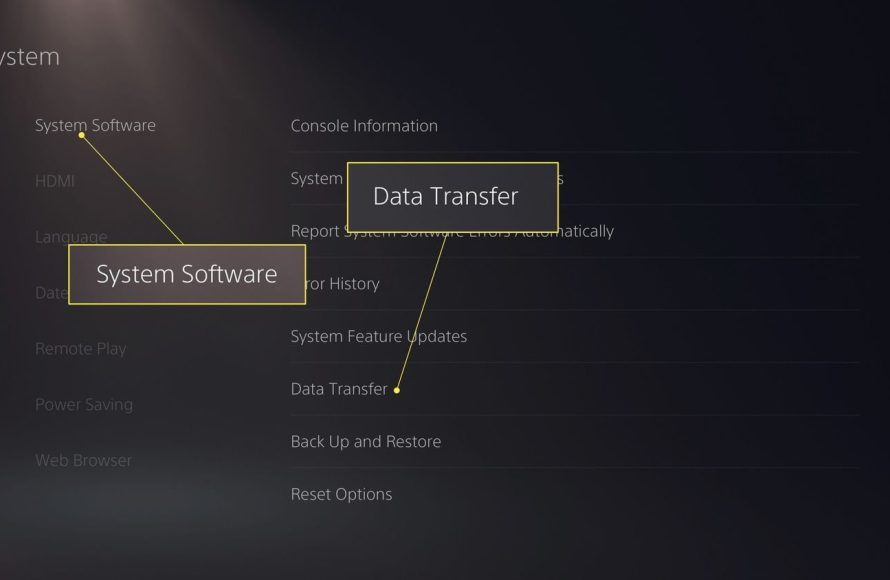
- Start the data transfer process on your PS5: On your PS5, go to “Settings,” then “System,” then “System Software,” and then “Data Transfer”. Choose “Continue” and follow the prompts. Make sure both consoles are within close range of each other for this method.
- Select your PS4: Your PS5 will scan for your PS4 on the network and select your PS4 for the transfer process. On the PS5 screen, you will see the name of your PS4, select it to proceed.
- Confirm the transfer on your PS4: After selecting your PS4 on PS5, your PS4 will prompt for confirmation that you want to transfer data to PS5. Choose “Yes” or “Continue”.
- Select what to transfer: Your PS5 will then present a list of what you can transfer, including your save data, installed games, and user settings. Select what you want to move over. You can choose to transfer everything or only certain items, such as only the game save data or the full game.
- Begin the transfer: Once you’ve made your selections, you will be presented with an estimated transfer time. Confirm you want to begin the transfer. This process can take a while, depending on how much data you’re moving. Larger games and extensive save files will take a longer time. Make sure both consoles stay on throughout the transfer. You can monitor the progress on the screen of your PS5.
- Complete the process: Once the transfer is done, your PS5 will restart and your data will be available on your new system.
Pros of this method: This method does not require any extra hardware like a USB drive. It’s also quite straightforward, as it uses the PS5’s built-in transfer tool.
Cons of this method: The speed depends on your network connection, so it can be slow for large amounts of data. Also, both consoles must be on and available for the duration of the transfer.
Using an External USB Drive
Another way to transfer game data is to use an external USB drive. This method is helpful if your internet connection is slow or unstable. It also allows you to manage the transfer process more directly. Here’s how to transfer your data using an external USB drive:
- Prepare your USB drive: You’ll need a USB drive with enough storage space to accommodate your data. It must be formatted to FAT32 or exFAT to be recognized by the PlayStation consoles. Keep in mind, that many USB drives come preformatted with either FAT32, or exFAT format. It is important to be aware of this since, most USB flash drives smaller than 4 GB will be formatted as FAT32, whereas larger ones will be preformatted as exFAT. Make sure your external hard drive/ USB drive has enough space to hold your data.
- Connect the USB drive to your PS4: Plug your formatted USB drive into one of the USB ports on your PS4.
- Transfer data from your PS4 to the USB drive: Go to “Settings” on your PS4, then “Application Saved Data Management”, then “Saved Data in System Storage,” and choose “Copy to USB Storage Device.” Select the saved game data that you want to copy to your external drive and start the copying process. You can also transfer whole games using this method if you choose, select “Games”, and then select the titles that you want to move. Keep in mind that when copying the games, you will need a drive that has enough storage to accommodate these files.
- Safely remove the USB drive from your PS4: Once the data is transferred, safely remove the USB drive from your PS4.
- Connect the USB drive to your PS5: Plug the USB drive into one of the USB ports on your PS5.
- Transfer data from the USB drive to your PS5: Go to “Settings” on your PS5, then “Saved Data and Game/App Settings”, then select “Saved Data (PS4)”. And select “Copy from USB Drive”. Choose the saved data that you want to transfer to your PS5. For games, on your PS5, go to “Settings” then “Storage” then “Extended Storage”, and then select “Games and Apps”, and then choose “Transfer Games from Extended Storage”. Select the game(s) to transfer, and then select “Transfer”.
- Complete the process: Once the data is transferred, it will be available on your PS5.
Pros of this method: It works even with a poor internet connection. It also gives you better control over which specific games and saved data to move. Additionally, you can use the external drive as storage extension on your PS5, so you don’t have to transfer the games to the PS5 internal storage. You can keep the transferred PS4 games on the external drive and play them from there.
Cons of this method: It requires an external USB drive with enough storage, and the process is slightly more involved than the network transfer. It also might be slower than transferring over a network, especially with a fast and stable network connection.
PS Plus Cloud Storage
If you are a PlayStation Plus subscriber, you can also transfer your save data using cloud storage. This method is simple and convenient and doesn’t require any USB drives. Here’s how to do it:
- Upload your save data from your PS4: Make sure your PS4 is connected to the internet and that you are logged in with your PlayStation Plus account. Go to “Settings”, then “Application Saved Data Management,” choose “Saved Data in System Storage,” and select “Upload to Online Storage”. Select the saved data that you want to upload to the cloud. Make sure to update your save data to the cloud, if your PS4 is set for automatic cloud backup.
- Download save data on your PS5: On your PS5, make sure you are logged in to your PlayStation Plus account. Go to “Settings”, then “Saved Data and Game/App Settings”, then select “Saved Data (PS4)”. Then choose “Download to Console Storage”. Select the saved data that you want to download to your PS5.
- Complete the process: Your saved data will now be available on your PS5.
Pros of this method: It’s very convenient, since you don’t need any external hardware, and you can access your saves from anywhere with an internet connection. This method is ideal for small files like save data.
Cons of this method: It requires a PlayStation Plus subscription, and it doesn’t work for full game transfers. It is also not the fastest method if you are transferring a lot of save data or if you have a slow internet connection. The cloud storage is limited to only save data.
Important Considerations Before You Start
Before you start moving any data around, here are a few important points to keep in mind:
- Make sure both consoles are updated: Check for and install the latest system software on both your PS4 and PS5. This will prevent any compatibility issues and ensure a smoother transfer process.
- Check storage space: Make sure that the storage on your PS5 has enough space for all the data you are transferring. If you want to transfer multiple games, ensure your PS5 internal storage or your extended storage drive have enough space.
- Be patient: Data transfer can take time, especially for large games or via Wi-Fi. Don’t turn off either console in the middle of the process and be patient.
- Backups: It is always a good idea to make a backup of your PS4 data before starting the transfer, if you can do so. This can act as a safety net in case anything goes wrong during the transfer process. It will also provide a safe way to revert back to the original saved data on your PS4.
- Game compatibility: While most PS4 games work on the PS5, some might have issues or require updates. Make sure your games are compatible with PS5 before starting to transfer the data, although, most game data works just fine on PS5.
Troubleshooting Common Issues
Sometimes, things can go wrong. Here are some common issues and how to tackle them:
- Transfer is too slow: Try using a wired network connection instead of Wi-Fi. Restart your console and modem and router as well.
- Transfer fails: Make sure both consoles are on the same network and updated with the latest software. Make sure that all cables are securely plugged in, if you are using wired Ethernet connections. Try restarting both the consoles, as well as the network devices (modem, router, etc.).
- Data is not appearing: Double-check that the transfer process completed and that you selected the correct data to transfer. Make sure to also check that the save games are in the correct place on your PS5. If the saves are not appearing, make sure you are logged into the correct PlayStation Network account. Check the game specific information about the saved games. Make sure the specific game supports save data transfer between PS4 and PS5.
- USB drive not recognized: Ensure your USB drive is formatted to FAT32 or exFAT. Try using a different USB port or another USB drive.
If the issues persist, check for further information on the PlayStation support website.
Moving from a PS4 to a PS5 doesn’t mean abandoning your old games and progress. By using one of these data transfer methods, you can continue your gaming adventures seamlessly on your new console. Now, go ahead and start playing!
How to TRANSFER DATA FROM PS4 TO PS5 (EASY METHOD)
Final Thoughts
Yes, you can transfer game data from ps4 to ps5. Several methods exist like using a LAN cable, Wi-Fi or an external USB drive. This move includes game saves, profiles, and downloaded content making the transition smooth.
You can also utilize PlayStation Plus cloud storage for save data. Remember to check that your game titles are compatible for transfers. These options make transferring your progress straightforward.

