
Yes, you can turn off your Xbox while downloading a game, but it’s crucial to ensure the console is in ‘sleep’ mode rather than completely powered down.
Ever been excited for a new game only to wonder, “can you turn off your xbox while downloading a game?” It’s a common question among Xbox gamers. Nobody wants to leave their console on all night, especially with energy bills to consider.
The good news is your Xbox allows downloads to continue in a low-power state. This mode is often called ‘sleep’ or ‘standby’. It saves you power while still grabbing those massive game files. Just be sure you’ve selected sleep mode from the power options.

Can You Turn Off Your Xbox While Downloading a Game?
Okay, so you’ve just hit that download button for a brand-new game on your Xbox. Excitement is bubbling! But then, a question pops into your head: “Can I just turn this thing off now?” It’s a totally valid question, and the answer isn’t a simple yes or no. Let’s dive deep and figure out exactly what happens when you try to turn off your Xbox while downloading, and what the best way to handle downloads is.
Understanding Xbox Power Modes
Before we get into the nitty-gritty of downloads, let’s talk about how your Xbox deals with power. It’s not just “on” or “off;” there are a few different modes, and they each behave differently:
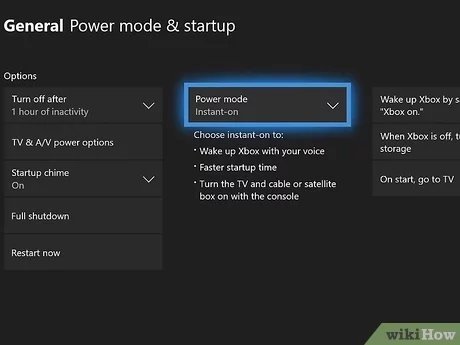
Instant-On Mode
Think of Instant-On as your Xbox being in a very light sleep. It still uses a bit of power, but it’s ready to wake up super fast. This is the default mode for many Xbox users. When you select “turn off console” from the guide, the Xbox goes into a low power state. It keeps a connection to the internet, allowing it to continue downloading games or updates, and you also receive notification if your friend comes online.
- How it Helps Downloads: This is the mode that allows your downloads to keep going even when you “turn off” the console.
- Power Usage: Uses a bit more electricity than Energy-Saving, but it’s not a huge amount.
Energy-Saving Mode
In this mode, the Xbox fully shuts down. It uses very little power, and it’s more eco-friendly. The trade off is it takes longer to power on the console, and downloads don’t continue in this mode. When your Xbox is turned off, it can’t be connected to the internet, so it won’t keep downloading. You have to turn the console on fully again to continue the download progress.
- How it Affects Downloads: Downloads stop as soon as the console fully shuts down.
- Power Usage: This mode uses minimal electricity and is the greener option.
What Happens to Downloads When You “Turn Off” Your Xbox?
Now for the big question: what really happens when you hit that power button? The answer depends entirely on what power mode you have your Xbox set to.
If You’re Using Instant-On Mode:
If you are using Instant-on mode, When you “turn off” your console while a game is downloading, the Xbox remains in a low power state, not completely off. So, what that means for your download? It keeps on truckin’!. The game will continue downloading, even if your TV is off and your Xbox looks like it’s asleep. This is super convenient because it means you don’t have to leave your Xbox on and sucking down power just to get your games loaded up.
- Downloads Continue: Yes! Your game keeps downloading.
- Background Activity: The Xbox does other background checks like updates too, which is handy.
If You’re Using Energy-Saving Mode:
Now, this is where things are different. If your Xbox is set to Energy-Saving mode, that means when you turn it off, your console completely shuts down. When that happens, your internet connection also turns off with the console, which means it can’t keep downloading. So it’s like putting the pause button on your download progress. You need to power the console again for it to resume the download of the game.
- Downloads Stop: Yes, the download will stop as soon as your console fully shuts down.
- No Background Activity: Everything stops, not just your download, so don’t expect your game to magically download while your console is totally off.
How to Check and Change Your Xbox’s Power Mode
If you’re not sure which mode your Xbox is using, you can easily check and change it. Here’s how:
- Press the Xbox button on your controller to open the guide.
- Go to “Profile & system.”
- Select “Settings.”
- Go to “General.”
- Select “Power options.”
- Here, you’ll see two options: “Instant-on” or “Energy saving.” Pick the one that suits you.
Making the Right Choice
Which mode should you use? It really depends on what you care about most:
- Choose Instant-On If: You value convenience and want your downloads to keep going even when the Xbox is “off,” and quick startup of your console.
- Choose Energy-Saving If: You are more concerned about using less energy, and your goal is to be eco-conscious.
There isn’t necessarily a “better” mode here. It’s about which one works best for your routine and your values.
Tips for Downloading Games on Your Xbox
Now that you know about power modes and downloading, here are some tips to make your game download experience as smooth as possible:
Make Sure You Have a Good Internet Connection
A speedy and reliable internet connection is really important for getting your games downloaded quickly. if you have a weak Wi-Fi connection, the download might take forever. If possible, connect your console with ethernet cable directly into your modem or router. This gives you a more stable and faster connection and speeds up the download process. You can also try to move your router closer to your console.
Close Other Apps and Games
When a game is downloading, try to avoid playing other games or using other apps on your Xbox. This will make sure that all of your bandwidth is going to the game you are trying to download. Doing this will help your games download faster.
Check Your Storage Space
It might sound silly but always keep an eye on your Xbox’s storage. If you do not have enough space, your download will not complete. Before you start downloading, make sure you have enough space for that game. You can always go to settings and manage your storage to delete stuff you no longer need. The system will tell you if your drive is full when you try to install the game, and you can do it then, too.
Use Xbox Mobile App
The Xbox Mobile App is available on both Android and iOS phones. This app lets you purchase a game from your mobile and then it will automatically start downloading on your Xbox. This is helpful because it will give your Xbox a head start on downloading, while you’re out or working or doing other things, so that the download is complete when you return home.
Avoid Playing Online Games During Downloads
If you’re playing online games while also downloading, this can cause lag issues. It is because both activities will be competing for bandwidth. You will see a decrease in your online gaming performance as your download continues in the background. It is better to just play offline game, or just wait for your download to be completed so you can have the best of online gaming experience.
Download During Off-Peak Hours
A lot of people tend to use the internet during the day, so the internet speeds are generally slower. If you are trying to download bigger game files, you may consider downloading them late at night or in the early mornings. These are usually times when people aren’t using the internet as much, meaning it is more available for you. This should speed things up a little.
Be Patient
Downloading games, especially bigger ones, can take some time, even with fast internet. Be patient and let your Xbox do its thing. For bigger downloads, you can just set it up and leave the console alone for few hours, and your game will be ready for you to play when you’re ready!
Keep Your Xbox Updated
Make sure your Xbox software is up to date. Updates often come with improvements to download speeds and stability, so keeping your console current is always a good plan.
Common Issues and Troubleshooting
Sometimes, even with the best planning, things might go wrong. Here are some common issues people face when downloading games on their Xbox and what you can do to fix them:
Slow Download Speeds
Sometimes you might notice that the download is just going super slow. That can be caused by several things. The first thing you need to do is check your internet speed. You can use online speed test tools to verify your internet connection. If your internet is okay and still, your Xbox is downloading slow, then consider some other things, such as the game’s servers may be under heavy load, or too many devices are using the same network, which are slowing the process. Also check the download queue, and see how many games are downloading at the same time, and if there are too many, just pause the rest and try again.
Download Errors
You might see error codes while trying to download your game. These errors usually indicate a problem with the network, storage or even system updates. Sometimes, just restarting your Xbox or your modem can fix this type of issue. Always check for Xbox system updates because sometimes these updates address bug fixes. Check the official Xbox site for specific error codes to help you find the fix for your error.
Downloads Stuck or Paused
Sometimes you might notice the game just stops downloading. It may be stuck at the same percentage for a long period of time. If this happens, first check your internet connection. If everything seems fine, go to manage downloads and see if you can pause and resume it. If that does not work, cancel the download and try again. If it still fails after these steps, restart your console. This often fixes the issue.
Inconsistent Download Speeds
Sometimes, the download speeds might go up and down. This fluctuation is mostly due to network issues or server congestion. This problem can be annoying, but not harmful. You can try to download your game late at night or early morning to avoid peak time. If possible, use a wired connection. If your console is on Wi-Fi, try switching to a wired connection to stabilize the download speed. Also, make sure that you have latest software installed on your console.
Game Install Problems
Sometimes your download will complete but the game will fail to install on your console. That usually means the hard drive is probably not working well, or there is not enough space on it. If you have an external drive, try installing it there. If that works, it means your internal drive is having some problems. If none of this works, check to see if there are any system updates for your console. If problem still persists after all this, it’s a good time to reach out for support from Xbox.
So, can you turn off your Xbox while downloading a game? Yes, you can if it’s in Instant-On mode. Just remember to pick the power mode that works best for you, keep your internet strong, and be patient. Happy gaming!
Download Games While Xbox Turned Off? Do THIS! How To Download & Install Games When Xbox Is Off!
Final Thoughts
Yes, you can turn off your Xbox while downloading a game. The console utilizes a low-power mode, allowing downloads to continue in the background. This means you can conserve energy and still get your games.
Your downloads will pause if you fully power off the Xbox. However, putting it in standby mode keeps the process active. This feature is useful for overnight downloads or when you are away.
Therefore, you can turn off your xbox while downloading a game, taking advantage of the console’s power-saving mode which makes the downloading feature more convenient.

