
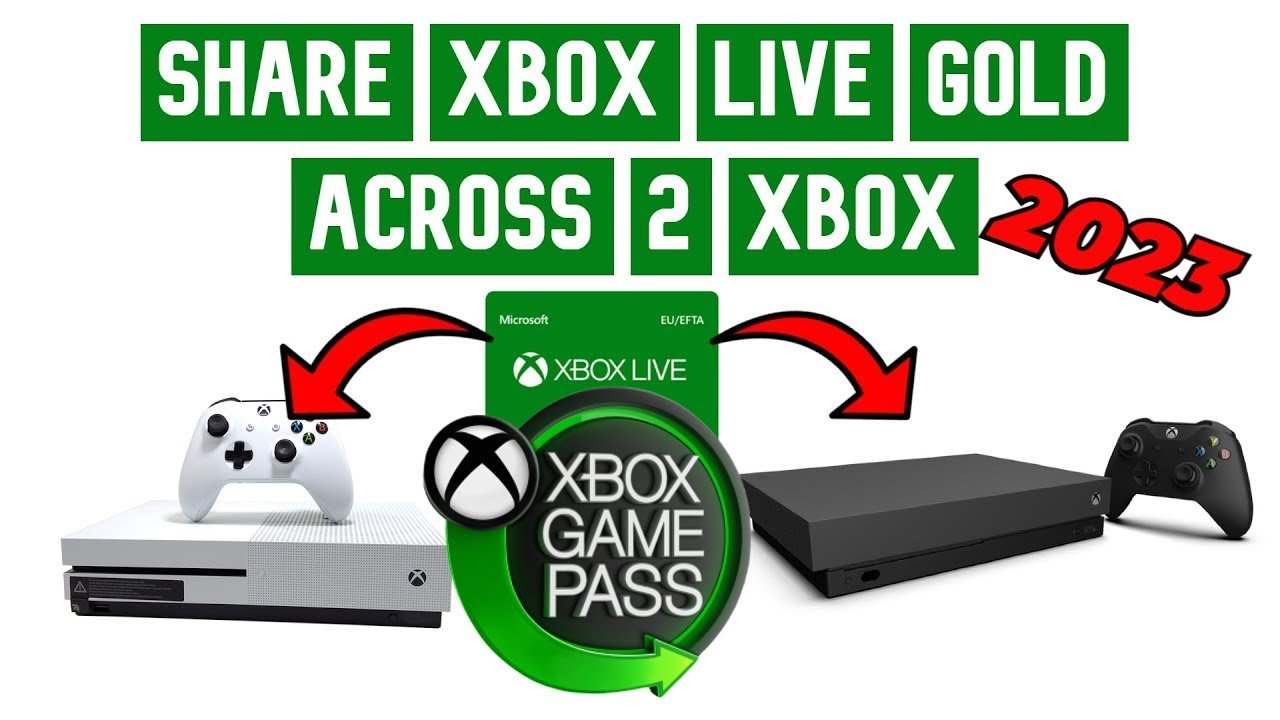
Yes, you can use Game Pass on multiple devices, but only one device can play games at a time per account.
Ever wondered if you could jump between your Xbox and PC seamlessly with Game Pass? The question, “can you use game pass on multiple devices”, pops up often. You might be thinking about gaming on your console while someone else uses your account on a different PC.
Unfortunately, simultaneous play across multiple devices is not permitted with a single Game Pass subscription. This means, you would need a separate subscription for each player. Game Pass provides incredible value though, letting you switch between devices, one at a time.

Can You Use Game Pass on Multiple Devices?
Okay, let’s dive right into the big question: Can you actually play your awesome Game Pass games on more than one device? The simple answer is yes, but there are some important things you need to know to make sure everything runs smoothly. It’s not as simple as logging in everywhere and playing at once. Think of it like sharing toys – everyone gets a turn, but you can’t all use the same toy at the same time. Microsoft has set things up so that you and your family can all enjoy Game Pass, but there are some rules we need to understand.
Understanding the Basics: Game Pass Plans and Device Limits
First things first, you need to know that there isn’t just one type of Game Pass. There are different plans, and each one has its own rules about how many devices you can use at the same time. The main ones you’ll see are:
- Xbox Game Pass for Console: This is the basic plan and it lets you play games on one console at a time.
- Xbox Game Pass for PC: This lets you play games on a single PC. Just like the console version, only one PC can be actively using this plan at any given moment.
- Xbox Game Pass Ultimate: This is the big kahuna! It combines both Console and PC Game Pass, plus Xbox Cloud Gaming. It allows you to play on a console, PC, and supported mobile device. But, and this is a big but, you can’t be actively using multiple platforms at the same time with the same account.
So, if you have Xbox Game Pass for Console, your account can be playing on one console. Simple. If you have PC Game Pass, just one PC is allowed at any given time. And if you have the ultimate plan, it means you can play on a console, PC, or via cloud gaming. However, the same account cannot be playing on different devices simultaneously.
Game Sharing with Family and Friends
Here’s where things get a little more interesting. While your account itself can’t play on multiple devices at the same time, Microsoft allows game sharing through the ‘Home Xbox’ setting. This is a way to give your family members access to your games and Game Pass perks.
- Setting up a Home Xbox: On your main Xbox console, you can designate it as your ‘Home Xbox’. Any other accounts logged into this console can use your games and Game Pass benefits, even if you aren’t actively playing.
- How it works: For example, if your child is on your ‘Home Xbox’ and wants to play a Game Pass game, they can do so even if you are playing on your PC, and vice versa. This allows multiple devices from one household to play concurrently, with different accounts.
- Limitations: Note that the ‘Home Xbox’ method doesn’t mean your own account can play across multiple devices simultaneously. It allows other accounts on the designated Home Xbox to play games that your account has access to. Your primary account can use a different device at the same time as your secondary account uses the Home Xbox device. You just can’t use your primary account on both devices at the same time.
Simultaneous Play: What’s Allowed?
Let’s break down what simultaneous play looks like with Game Pass Ultimate. As mentioned above, the key thing is that the same account can’t be logged in to play different games or access cloud gaming at the same time.
Game Pass Ultimate: The Multi-Device Option
With Xbox Game Pass Ultimate, things are flexible, but they have limitations. Here’s a breakdown:
- Console and PC: If you’re the primary user, you can play on your PC while someone else uses your ‘Home Xbox’ to play a different game using their own account. However, you cannot be logged in on multiple console simultaneously with the same account.
- Cloud Gaming: Xbox Cloud Gaming is part of the Ultimate plan. You can play cloud-enabled games on a supported phone, tablet, or even your PC, but the same account can’t be cloud-gaming while playing a game on your console or PC.
- No Simultaneous Play on One Account: You can’t have the same account logged in and playing on a console, PC, and Cloud Gaming all at once. If you start playing on PC and then try to play the same game on the console, it will kick you out of the game on the first device.
Practical Scenarios: When Can You Play on Multiple Devices
Okay, let’s imagine some scenarios to make things clearer:
- Scenario 1: The Family Gaming Night: You are playing a single-player game on your PC (with your main Xbox account). Your child is on the Xbox, logged into their own profile, playing another game from your Game Pass library because your Xbox is set as the ‘Home Xbox’. This is totally fine. Your account is only actively used on the PC, and your child is playing via your ‘Home Xbox’ permissions with their own account.
- Scenario 2: The Solo Gamer on the Go: You start playing a game on your Xbox, get called away, and decide to switch to your phone. You have to close out the game on your Xbox before continuing the game in cloud gaming on your phone. You can not use same account for both simultaneously.
- Scenario 3: The Party Foul: You are playing a game on your Xbox with your account. You then try to play same game or any cloud game on your PC with your same account, using the same account, you will get logged out of the game on Xbox to allow the PC game to open.
Troubleshooting Common Issues
Even with a good understanding of how Game Pass works across devices, you might still encounter some issues. Here are some common ones and what you can do about them:
- “You’re Playing on Another Device” Error: This usually means you are trying to log in with the same account on multiple devices, which is not allowed. Double check the devices you are logged into and close the game on any device you aren’t actively using. Or, make sure that the second device is using a different account, and it’s using the home xbox setting.
- Game Doesn’t Launch: If a game won’t launch, make sure you have an active Game Pass subscription. Check your account online to see if your subscription is active and that you have the appropriate plan for the device.
- Cloud Gaming Issues: If cloud gaming isn’t working properly, check your internet connection. Cloud gaming requires a good connection to play without lags or interruptions. You can also try restarting your device.
- “Home Xbox” Isn’t Working: Ensure you set the correct console as your home xbox and the accounts used to play are different from yours. You need to sign in to your account and have other users use their own account.
Tips for a Smoother Experience
Here are some tips to ensure you get the best out of Game Pass on multiple devices:
- Double-Check Your Subscription: Make sure you have the correct Game Pass plan for your needs. If you intend on playing on multiple devices, make sure you have Xbox Game Pass Ultimate.
- Manage Your Home Xbox: Know which of your consoles is set as your ‘Home Xbox’ for your primary account. You can switch your “Home Xbox” up to 5 times per year.
- Use Separate Accounts: For family members, using separate Xbox accounts ensures that everyone can play simultaneously on devices that are using your ‘Home Xbox’.
- Regularly Check for Updates: Make sure your consoles, PCs, and apps are up to date. This will help to prevent conflicts and ensure everything is running properly.
- Close Games Properly: When you are finished playing on one device, make sure you close out of the game properly so that the game doesn’t remain active. If you switch to another device, it could cause errors.
Delving into the Technical Aspects: Behind the Scenes
Let’s look at a bit of the technical reason why Game Pass works the way it does. When you start a game, your Microsoft account is essentially granted a license to play that specific game on a specific device. This license is checked by the Microsoft servers. With Game Pass Ultimate, the servers allow the license to function across different platforms, but not at the same time with the same account.
When it comes to the ‘Home Xbox’ function, this is a smart method of sharing that license with other profiles on a specific device. Essentially, all profiles on the ‘Home Xbox’ can get access to that license. The license itself is linked to the account that owns it, it is not directly linked to the console. The ‘Home Xbox’ setting just lets other accounts access the licenses that your account owns.
Cloud gaming is entirely different. Here, the game isn’t running on your device at all. Instead, it is running on Microsoft servers in the cloud. The video is then streamed to your device. It is like watching a video game, which allows you to play a full game on a lower-powered device like your phone, tablet, or older PC.
Why the Restrictions?
The restrictions that Microsoft puts on simultaneous play are in place to make sure that game licensing agreements are properly followed. The gaming industry operates on a principle of one license, one user (for the same account) at one time. These restrictions keep it fair and keeps it legal. Think of it like buying a single-seat ticket to a concert: only one person can use that ticket at a time. In the same vein, your primary Xbox account’s license can only be used on one device at a time, unless other accounts are using a designated ‘Home Xbox.’
The ‘Home Xbox’ system enables families and groups to share games without requiring separate subscriptions for each user, which represents a positive step in sharing access. Microsoft has tried to strike a balance between what is affordable for gamers and fair to developers and publishers. So, while it might not be the perfect system for everyone, the current system allows many people to enjoy Game Pass in a fair and legal way.
Understanding that this is a licensing arrangement with Microsoft, you will not be able to bend the rules to your will. They have designed it to allow multi-device play for different accounts, but the same account will not have concurrent access to your library.
Game Pass can be complicated when you get into the details about device limits, but hopefully this has made the specifics easier to understand.
Ultimately, while you can’t play on multiple devices with the same account at the same time, Microsoft has provided ways that you can share your games and your Game Pass library with others. Use your ‘Home Xbox’ and other accounts on the same system to make sure everyone can play when they want to.
Can you use Xbox Game Pass on multiple devices at the same time?
Final Thoughts
Yes, you can use game pass on multiple devices, but not simultaneously for the same account. Each device requires a separate sign-in. Your progress and save data sync between devices.
With Xbox Game Pass Ultimate, you can play games on your console, PC, and via cloud on mobile. It’s important to remember that you can only actively play on one device at a time. This answers the question: can you use game pass on multiple devices.

