
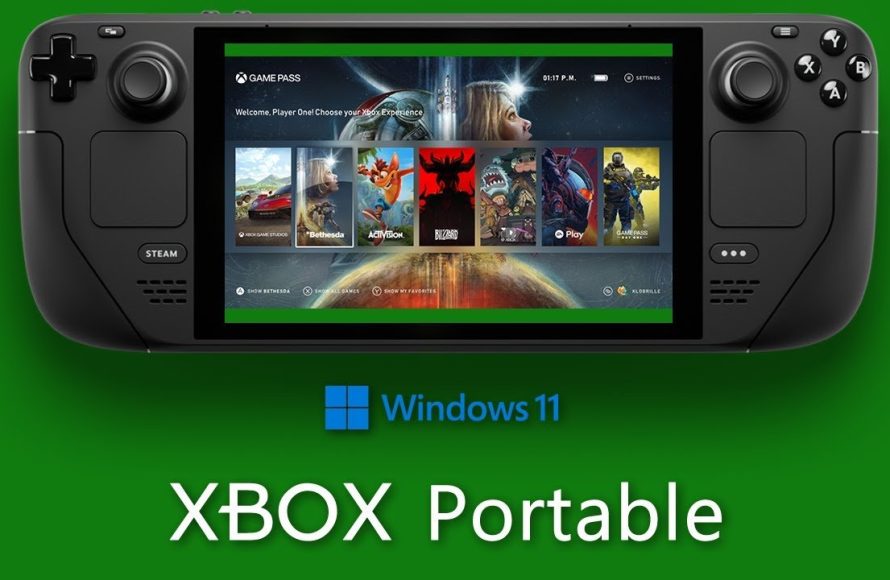
Yes, you can use PC Game Pass on Steam Deck, but it requires a workaround involving installing Windows.
The Steam Deck, with its handheld glory, has many gamers wondering about accessing various game libraries. A popular question centers around Microsoft’s service: can you use PC Game Pass on Steam Deck? The answer isn’t a straightforward ‘yes’ out of the box.
It requires a bit more setup because the Steam Deck runs on SteamOS. To get Game Pass running, you’ll need to install Windows on your device. This process allows you to then access the Xbox app and its library, making those PC Game Pass games playable.

Can You Use PC Game Pass on Steam Deck?
Okay, let’s dive right into the heart of the matter: Can you actually play PC Game Pass games on your awesome Steam Deck? The short answer is: yes, but it’s not as straightforward as just downloading an app. It requires a little bit of tech-savvy and a willingness to get your hands slightly dirty. Think of it like building with LEGOs – you need the right pieces and know where they fit to create something cool.
The Challenge: Why It’s Not a Simple Install
The Steam Deck is a handheld PC that runs on SteamOS, which is based on Linux. Now, PC Game Pass is designed for Windows PCs. This is the first big hurdle. Microsoft doesn’t offer a native PC Game Pass app for Linux, which is what your Steam Deck uses. So, you can’t simply find the app on the Steam store and click install. It’s like trying to fit a square peg into a round hole, it just doesn’t work out of the box.
Windows vs. Linux: The Core Difference
It’s important to understand the core issue here: operating systems. Windows and Linux are fundamentally different. They use different core systems and ways of handling software. PC Game Pass apps are built for Windows. The Steam Deck’s SteamOS, while very user-friendly, is still Linux-based. This means the normal Windows app won’t just run.
The Solutions: Getting Game Pass on Your Steam Deck
So, how do you bridge this gap? There are two main ways you can get PC Game Pass games running on your Steam Deck. They both involve some level of technical tinkering, but don’t let that scare you. We’ll break them down step by step, and you’ll see that it’s not as complicated as it seems.
Solution 1: Installing Windows on Your Steam Deck
The first option is to install Windows directly onto your Steam Deck. This turns your Steam Deck into a mini-Windows PC. While it allows the most direct way of using PC Game Pass, it is also the most involved, and changes the nature of the Steam Deck. This process is not recommended for people not familiar with tech, and may void the warranty depending on your circumstances.
Steps to Install Windows on Your Steam Deck (Brief Overview):
- Prepare a USB drive with a Windows installation media
- Boot from the USB drive on your Steam Deck
- Go through Windows install process (may need to format the hard drive in the process)
- Install all the necessary drivers for your Steam Deck on Windows
Once you have Windows installed, you can download and use the PC Game Pass app as you would on any normal Windows PC, like a laptop or desktop. This is the most direct route to playing PC Game Pass on your Steam Deck, and it means that you will have full control, since its no different than a regular Windows machine. However, there are some drawbacks to this method.
- You are replacing the Steam OS with Windows. This means you won’t have direct access to Steam OS (unless you install it as a dual-boot option, which adds even more complexity).
- The Steam Deck is specifically designed for Steam OS. Windows may not be optimized for the device, which can cause issues such as controller support, performance, and battery life.
- Finding and installing the right drivers for everything can be time-consuming and difficult if you aren’t experienced with PC hardware.
Solution 2: Using Cloud Gaming with Xbox Cloud Gaming
The second solution involves streaming games from the cloud using Xbox Cloud Gaming. This is where the game runs on a powerful Microsoft server, and it streams to your Steam Deck, which is like watching a video. It’s like having a powerful gaming PC available, that’s just in the cloud, rather than in your house. You don’t actually install the game on your Steam Deck, instead, the game runs on Microsoft’s server and streams to your screen.
How to Access Xbox Cloud Gaming on Steam Deck
There are a few main ways to access Xbox Cloud Gaming on your Steam Deck, each with its pros and cons:
- Through a Browser: You can access Xbox Cloud Gaming directly through a web browser like Google Chrome or Microsoft Edge on your Steam Deck. This is the simplest method and requires no software installation. You just need an Xbox Game Pass Ultimate subscription, since this comes with cloud gaming.
- Using the “Brave” Browser Method (Recommended for a Better Experience): While any browser can theoretically work, using the Brave browser is recommended for a better cloud gaming experience. Brave has some settings tweaks that improve the way the cloud gaming works, and makes it work smoother. You can find many tutorials on the web about installing the Brave Browser in the Deck, with step-by-step instructions. The process is simple and fairly easy.
The main advantage of this approach is that you don’t have to install Windows on your Steam Deck. You also don’t have to worry about storage space or driver issues. If your internet connection is stable, the experience can be very smooth and enjoyable. However, this method also has its own limitations.
- Requires a very good internet connection: Since the game runs in the cloud, a high-speed, stable internet connection is a must for a good experience. A slow or unstable connection can lead to lag, and input delay, which ruins the enjoyment of gaming.
- Game selection: You are limited to games available on Xbox Cloud Gaming. While it has a good selection, it may not include all of the PC Game Pass games you want to play.
- Dependence on Cloud Servers: Because you are using Microsoft’s servers, server performance or downtime can affect your gaming.
Comparing the Two Methods
Let’s put the two solutions head-to-head, so you can better understand which approach is right for you. Each method has some pros and cons.
| Feature | Installing Windows | Xbox Cloud Gaming |
|---|---|---|
| Installation | Complex, Requires technical knowledge, Potential for issues | Easy, No software installation |
| Game Selection | Access to all PC Game Pass games (all games supported by Windows), plus all games on windows | Limited to games available on Xbox Cloud Gaming (not all PC Game Pass games) |
| Performance | Can get the best performance on your Steam Deck, provided drivers are installed correctly | Dependent on your internet speed and stability |
| Storage | Requires free storage on your Steam Deck for the games | Doesn’t require any storage on your Steam Deck |
| Ease of Use | More complex and requires extra software installation. Can be problematic to set up. |
More simple, convenient to use. Requires a subscription and a strong network. |
| Offline Play | Supported (if you download games prior to being offline) | Not supported |
| Cost | Potentially more costly if something goes wrong, and requires extra effort | Requires Xbox Game Pass Ultimate subscription |
Setting Up Xbox Cloud Gaming on Steam Deck (Using Brave Browser – Recommended)
We briefly discussed above how to set up cloud gaming using the Brave browser, but let’s delve into this more thoroughly. Follow these steps to get the best experience for cloud gaming on your Deck:
- Switch to Desktop Mode: On your Steam Deck, hold down the power button, and select ‘Switch to Desktop’. This will bring you to the Linux Desktop, where we can install the Browser and configure it.
- Download the Brave Browser: Open the Discover app (the app store on SteamOS), and search for the “Brave” browser. Click Install.
- Open Brave browser: Open the Brave browser from the start menu or application launcher.
- Go to Xbox Cloud Gaming: Enter in address bar “xbox.com/play”. This is the direct website to play games.
- Sign in with your Microsoft account: Log in to your Microsoft account that has an active Xbox Game Pass Ultimate subscription.
- Add to Steam Library: Click on the three dots to open the browser settings, select More Tools -> Create Shortcut. Name the shortcut “Xbox Cloud Gaming”, and ensure it opens as separate window, then click “create”.
This will create a shortcut on the Steam desktop. Now, launch Steam (big picture mode), and click “Add Game”, and choose “Add a Non-Steam Game”. Find and add the shortcut you created for Xbox Cloud Gaming. - Configure controller: Go to the added shortcut properties inside Steam, choose “controller” from left side bar, choose the “Brave.exe” in the Dropdown, then configure controller layout. Make sure your controller works as expected.
- Start playing: Now launch your new Xbox Cloud Gaming shortcut from the Steam Game Library, and you will see Xbox Cloud gaming open inside the Brave Browser window in full screen. You should now be able to play the games using your controller, in the same way as on a console.
After you’ve set everything up, you can easily launch Xbox Cloud Gaming directly from your Steam game library.
Fine Tuning Your Cloud Gaming Experience
After you’ve installed and configured everything, you can fine tune settings for a smoother experience.
- Check internet connection: The stronger your internet connection the better it is. Use a wired connection, if possible, rather than wifi.
- Enable hardware acceleration: Inside the settings of the browser (for example, in Brave you can find this in “Settings -> System”), enable hardware acceleration. This will use your hardware to help run the games and give you better frame rates.
- Check your network card drivers: Make sure your network card drivers on Steam Deck are up-to-date for the best performance.
These small changes can help you get a smoother and better experience while cloud gaming on your Steam Deck.
Understanding the Limitations
Before you jump in, it’s good to be aware of the limitations of using PC Game Pass on your Steam Deck, no matter which method you choose:
- Not a Native Experience: Neither of the methods we’ve explored gives you a true native PC Game Pass experience like you’d get on a Windows PC. This means you might encounter issues that you wouldn’t normally find.
- Potential Compatibility Issues: Some games on PC Game Pass may not be fully compatible with the cloud gaming setup, or even after installing Windows. There may be visual problems, controller problems, or a variety of other bugs that you might encounter.
- Internet Connection Dependency: If you are using cloud gaming, your experience is entirely reliant on a stable internet connection, and speed.
Is It Worth It?
So, after all this, is it worth the effort to play PC Game Pass on your Steam Deck? The answer depends on your preferences and comfort level with technology. If you are happy to get into more complicated setups and you need access to all PC Game Pass games, then installing Windows might be the right choice for you. If you like simple solutions that are easy to set up and you have a strong and fast internet connection, then cloud gaming is probably the way to go.
For those who love tinkering and getting the most out of their devices, going through the steps to get PC Game Pass on the Steam Deck can be a rewarding experience. For others, the simplicity of cloud gaming is the perfect solution. Regardless, playing PC Game Pass games on Steam Deck is possible, and it’s a nice way to add even more games to your already great gaming device.
In summary, while not a straightforward process, enjoying PC Game Pass on your Steam Deck is very achievable with the right method. Pick the one that suits your tech skills and needs, and get ready for new adventures on the go!
Game Pass Coming to Steam & Steam Deck??
Final Thoughts
In short, you cannot directly install PC Game Pass games onto your Steam Deck. However, you can utilize Xbox Cloud Gaming through a browser. This method allows access to many Game Pass titles, but requires a stable internet connection.
Essentially, while native installation isn’t possible, cloud gaming provides a workaround for accessing the catalog. So, can you use pc game pass on steam deck? Yes, through cloud gaming, though it’s not the same as having a direct installation.

