
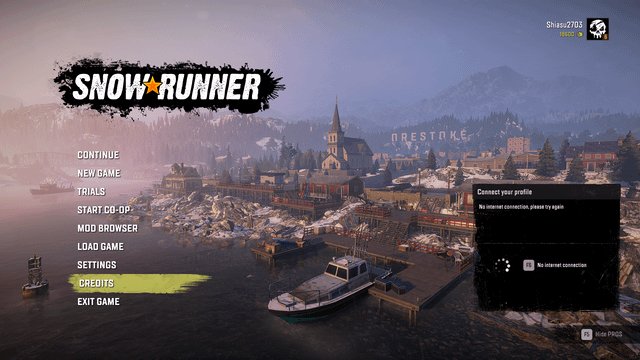
The issue of not being able to connect to online games while your internet works fine often points towards a problem with your device’s network settings, game server issues, or firewall restrictions.
It’s frustrating, isn’t it? You have a perfectly functional internet connection, browsing websites and watching videos without a hitch, yet you cant connect to any online games but internet works fine. This common problem leaves gamers scratching their heads. Why does this happen?
This situation can be a real puzzle, because everything else seems to be working fine. We are going to explore the main reasons why you might be experiencing this problem and offer potential solutions to get you back in the game.

Can’t Connect to Any Online Games but Internet Works Fine
It’s super frustrating, right? You’re all set to play your favorite online game, your internet is humming along, you can browse websites, watch videos, and chat with friends, but when it comes to actually connecting to the game servers, it’s like hitting a brick wall. You get those annoying error messages, spinning wheels, or just plain nothing. “Can’t connect to any online games but internet works fine” is a common issue many gamers face, and thankfully, there are usually some pretty simple reasons for it. Let’s dive into why this happens and how to get you back into the game!
Understanding the Problem
Before we start troubleshooting, let’s make sure we understand exactly what’s going on. Your internet connection is like a highway for data. Browsing websites is like sending a car down that highway. Online gaming, on the other hand, is like sending a very specific type of truck that has to follow a specific route and arrive at the right place. Even though the highway is open (your internet is working), your truck (your game connection) might be getting blocked, delayed, or sent to the wrong place. There are several potential reasons for this disconnect. It’s not always that your internet is bad; sometimes, it’s about the specific connection your game is trying to make.
Different Types of Connections
It’s helpful to know that when you play games online, you’re not just using the internet like you do when watching a video. Online games use very particular kinds of connections. They often need to send and receive a lot of data quickly, which means a few things could go wrong even if your normal internet browsing is working great:
- TCP/IP: This is the basic connection type for internet traffic. Games rely on it, but they also need more specific types.
- UDP: This type is often used for real-time gaming. It sends data quickly but doesn’t check if every piece of information arrived correctly. It’s okay if a little bit of data is missed, because getting information instantly is more important in a fast-paced game than making sure every single piece of data is perfect.
- Ports: Think of these as special doors. Each application that uses your internet will use specific door numbers to get where it needs to go. Sometimes, those doors get closed.
Common Reasons Why You Can’t Connect
Okay, so let’s get down to the possible reasons behind your gaming woes. These are some of the most frequent culprits:
Firewall and Antivirus Software Interference
Your firewall and antivirus software are like the security guards for your computer. They are there to protect you from bad things on the internet, such as viruses. However, sometimes, they can be a bit overprotective. They might mistakenly think your game is a bad guy, even though it’s not, and block its connection to the game server. This is why even though your normal browsing works great, your games get blocked.
How to Check:
- Go to your firewall settings and look for a list of allowed applications. Is your game listed? If not, you may need to add it.
- Temporarily turn off your firewall or antivirus software (only for testing purposes). If the game connects when they are off, you’ve found the problem. Remember to turn them back on later.
Router Issues and Port Forwarding
Your router is like the traffic controller for your home network. It directs internet traffic to the right devices. Just like the firewall on your computer, your router also has its own security measures. Sometimes, it might block the specific ‘door’ (or port) your game is trying to use. This results in the internet working but your games not.
Port Forwarding Explained
Imagine your house is an office building. The street address is like your internet IP address. To send a package to a certain person inside the building, you also need their name or department number. Port forwarding does something similar. It tells your router that when a specific kind of data comes in on the internet (the package), that data needs to be sent to a specific computer on your network (the right person) that’s using a specific ‘door’.
Some games use very particular ports to communicate. If those ports are not open on your router, you can face connection problems. You might need to go into your router’s settings and forward the correct ports to the computer you play games on. This may sound a little bit technical but it’s usually explained in the instructions for each game.
How to Check:
- Look up the specific ports your game needs. This information is usually available on the game’s website or in their FAQs.
- Access your router’s settings. You typically do this by typing your router’s IP address (often 192.168.1.1 or 192.168.0.1) into a web browser.
- Find the port forwarding or port triggering settings and add the ports your game needs. You will likely need to know the IP address of your computer.
DNS Server Problems
Your DNS (Domain Name System) server is like a phone book for the internet. When you type a website address like google.com, the DNS server translates that into a number that computers understand, so your browser can find the correct page. However, sometimes those phone books go wrong. If your DNS server isn’t working correctly, your computer might not be able to find the game servers even if your internet is working.
How to Check:
- Try using a different DNS server. Google’s DNS (8.8.8.8 and 8.8.4.4) is a common choice, or Cloudflare’s (1.1.1.1 and 1.0.0.1) or other public DNS servers.
- You can change the DNS settings in your network adapter settings on your computer.
Incorrect Network Settings
Sometimes, the problems aren’t with the external factors, but with the way your computer’s network is configured. Your computer’s IP address, subnet mask, and gateway settings must be correct for your network to work well. If there are incorrect network settings on your computer, this could cause your computer to be unable to connect to the game server.
How to Check:
- Make sure that your computer has obtained an IP address automatically, unless you have a reason to have it configured in a static manner.
- Make sure that your computers network settings have the correct information. You can find this information in your network connections settings.
Game Server Issues
Sometimes, the problem isn’t on your end. The game servers themselves might be having problems. Maybe there is scheduled maintenance, or they’re overloaded with too many players, or there is an unexpected outage. Think of it like a busy restaurant; sometimes, they just can’t seat everyone at once.
How to Check:
- Check the game’s official website or social media pages for any announcements about server issues.
- Use websites like DownDetector, where people report if a service is down, to see if other players are experiencing the same connection issues.
Outdated Game or System Software
Games, like other software, often have updates that are very important. These updates may include fixes for bugs that can prevent you from connecting to the game’s servers. Also, your computer’s operating system may require updates in order to have full compatibility with the game you want to play. Outdated software can cause all kinds of problems.
How to Check:
- Make sure that your game is updated to the latest version. Most games update automatically, but some might need a manual update.
- Check for updates for your operating system (like Windows, macOS, or Linux).
- Update your network adapter drivers.
VPN or Proxy Server Issues
If you are using a VPN or proxy server to connect to the internet, it might be interfering with your game’s connection. VPNs and proxies change the way that your internet traffic is routed. Sometimes this can cause delays or blocks, especially if the servers are located far away from the game’s server locations.
How to Check:
- Try turning off your VPN or proxy server to see if this resolves the issue.
- If it does, then you may need to make exceptions for your game or use a different server location on the VPN server.
Hardware Issues
Although less common, hardware problems can be the cause of your connection issues. These issues can be with your network card, your router, or other hardware. If any of these are faulty, they may not process network data correctly and cause connection issues with online games.
How to Check:
- Check the cables connected to your computer, router and modem, make sure they are properly connected. If possible, try replacing the cables to ensure that the cables are not faulty.
- Restart your modem and your router and computer.
- If possible, try another router or network card to see if this solves the issue.
Troubleshooting Steps: A Quick Checklist
Okay, so we’ve talked about the common reasons for your connection problems. Now let’s put it together into a simple checklist to follow:
- Restart everything: Your computer, your router, and your modem. Sometimes, a simple restart is all you need.
- Check your firewall and antivirus: Make sure your game is allowed and turn off temporarily for testing.
- Router port forwarding: Make sure that the correct ports for your game are forwarded on your router settings.
- Change DNS server: Try using Google’s DNS or a public DNS server as an alternative.
- Check game server status: Look for announcements or user reports about server problems.
- Update everything: Make sure your game, your operating system and your network adapter drivers are updated.
- Check VPN/Proxy: Temporarily disable it for testing.
- Check your network cables: Inspect your cables and replace them if needed.
- Check your hardware: If possible, test with different hardware to rule out hardware issues.
It can be a bit of a process to get everything working correctly, but going through each of these steps will help you narrow down exactly what is causing you problems.
Dealing with “can’t connect to any online games but internet works fine” is a common headache for gamers. Thankfully, it’s usually a problem with software configurations and network settings, and often you can fix these yourself. By understanding what’s happening and carefully working through some troubleshooting steps, you will be back in your favorite game in no time. Remember, if all else fails, don’t hesitate to contact your internet service provider, the game’s support team, or a computer professional for help. Don’t give up, and get back to gaming!
Can't connect to game servers but Internet works fine
Final Thoughts
If you can’t connect to any online games but your internet works fine, troubleshooting is must. Check your firewall and antivirus settings, they might be blocking the game’s access.
Ensure your game client is updated. Restarting your router and modem sometimes helps. You must also check for server issues related to the specific game.
Investigating all possibilities will ultimately resolve the issue if you cant connect to any online games but internet works fine.

