
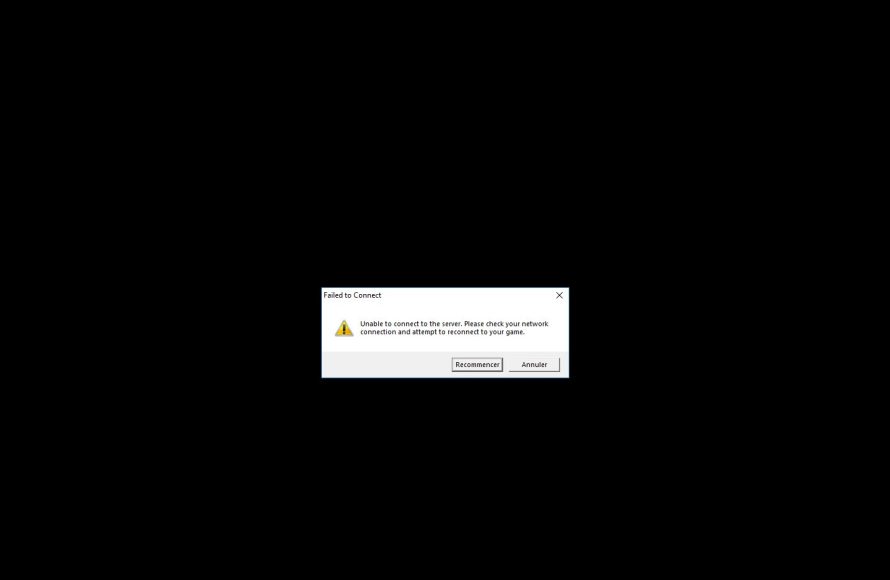
Check your internet connection, restart your router, and ensure the League of Legends servers aren’t experiencing downtime. These are common fixes when you can’t connect to league game.
Frustration sets in when you try to join a match, and you cant connect to league game. It’s a common problem, but thankfully often has simple solutions. Let’s explore the usual suspects and get you back into the game.
We will guide you through troubleshooting steps, helping you quickly resolve connection issues. This will allow you to get back to dominating the rift!

Can’t Connect to League Game: Why and How to Fix It
It’s super frustrating when you’re all set for a League of Legends match, ready to team up with your friends, and then… bam! You can’t connect. The game just won’t load, or you get a dreaded error message. Don’t worry; you’re not alone. Many players face this problem. The good news is, there are usually ways to fix it. Let’s dive into the reasons why you might be having trouble connecting and, most importantly, what you can do to get back into the game.
Common Culprits Behind Connection Issues
Before we get to the fixes, it helps to understand what might be causing the problem. It’s rarely just one thing, and sometimes, it’s a mix of different issues. Here are some of the usual suspects:
Internet Connection Problems
Your internet connection is the lifeline of any online game. If it’s acting up, you’re going to have a tough time connecting to League of Legends. Here’s what to look for:
- Slow Internet Speeds: If your internet is too slow, the game won’t be able to send and receive data quickly enough. This can cause timeouts and connection errors. You can run a speed test online to check your speed. Look for both download and upload speeds. Games usually need a decent upload speed, too.
- Unstable Connection: Sometimes, your internet might be fast, but it’s not consistent. It keeps cutting in and out. This is called an unstable connection. You’ll notice lag spikes and disconnects in the game.
- Wireless (Wi-Fi) Issues: Wi-Fi can be convenient, but it’s often less reliable than a wired connection. Walls and other objects can interfere with the signal. If possible, try connecting your computer directly to your router with an Ethernet cable.
League of Legends Server Issues
Sometimes, the problem isn’t on your end at all! Riot Games, the company that makes League of Legends, has servers that run the game. If those servers are having problems, it can affect everyone. Server problems can include:
- Scheduled Maintenance: Riot often performs maintenance on their servers to keep things running smoothly. During this time, you may not be able to log in or play. They usually announce this ahead of time on their website or social media.
- Unexpected Outages: Occasionally, servers can experience problems. These can be due to a variety of reasons, and Riot works to fix them as quickly as possible. Keep an eye on their service status pages.
Computer Problems
Sometimes, the issue is with your computer itself. Here are a few things to check:
Firewall and Antivirus Software
Your firewall and antivirus software help protect your computer from harmful things on the internet. But sometimes, they can be a bit too strict and block League of Legends from connecting to the internet.
- Firewall Settings: Your firewall might be preventing League of Legends from accessing the internet. You’ll need to make sure League of Legends is allowed through your firewall.
- Antivirus Interference: Similarly, antivirus programs might block the game. You might need to add League of Legends to your antivirus exception list.
Outdated Software
Having outdated software on your computer can sometimes cause problems with games. This includes your operating system, graphics drivers, and even the League of Legends client itself. Make sure your Windows or macOS is updated.
- Graphics Driver: Check for any updates for your graphics card. Outdated graphic drivers are a very common cause of many game related problems.
- League of Legends Client: Ensure you have the latest update for the League of Legends client. The client is what you use to log in to the game, it also updates itself time to time.
Background Programs
Sometimes other programs running on your computer can conflict with League of Legends. These programs can take up resources that League of Legends needs, or they can interfere with its network connection. Close any unnecessary programs that may be running in the background.
- Streaming Software: Programs like OBS or Xsplit.
- Web browsers: Especially if they have many tabs open.
- Download Managers: Download tools that may be using your network bandwidth.
DNS Server Issues
DNS servers are like phone books for the internet. They translate website names (like leagueoflegends.com) into IP addresses that computers can understand. If your DNS server is having problems, you may have trouble connecting to online games, including League of Legends. You can use a public DNS server such as google public DNS or Cloudflare DNS.
Here’s how you can change your DNS server:
- Go to your network settings
- Find your network adapter (ethernet or wifi)
- Click on Properties
- Find Internet Protocol Version 4 (TCP/IPv4)
- Click on properties
- Select “Use the following DNS server addresses”
- Type in your preferred DNS server address
- Click OK
Common DNS server addresses:
- Google Public DNS: 8.8.8.8 and 8.8.4.4
- Cloudflare: 1.1.1.1 and 1.0.0.1
Troubleshooting Steps to Get Back in the Game
Now that we’ve covered the common reasons for connection issues, let’s look at the things you can do to fix them. We’ll go through them step by step.
Restart Everything
It might sound simple, but restarting your devices is often the first and most effective step. This can clear temporary issues and reset connections. Try restarting these things:
- Your computer
- Your modem
- Your router
Check Your Internet Connection
If restarting didn’t help, let’s take a closer look at your internet connection.
- Run a Speed Test: Use an online speed test to check your download and upload speeds. Make sure they are within the speeds mentioned by your internet provider.
- Try a Wired Connection: If you’re using Wi-Fi, try connecting your computer directly to your router with an Ethernet cable.
- Check Other Devices: See if other devices in your house are having internet problems. If they are, the problem is likely with your internet service.
Check League of Legends Server Status
Before you dive too deep into troubleshooting your own system, make sure there aren’t server problems on Riot’s end. This can save you time and frustration. You can check the server status on the League of Legends website or using the League of Legends client by clicking on the “service status” button.
- Look for Announcements: Riot often announces server maintenance on their official website and social media channels.
- Use Third-Party Trackers: There are third-party websites and tools that track the League of Legends server status, if the game’s official servers are down.
Configure Your Firewall and Antivirus
If your firewall or antivirus is blocking League of Legends, you’ll need to make some changes to their settings. Here’s how you do it:
Allow League of Legends Through Your Firewall
- Open the Windows Start Menu and search for “Windows Defender Firewall”.
- Click on “Allow an app through Windows Firewall”.
- Click “Change settings”.
- Click “Allow another app…” and browse to the League of Legends install folder and select the “LeagueClient.exe” file.
- Make sure both “Private” and “Public” checkboxes are ticked.
- Click OK to save settings.
Add League of Legends to Your Antivirus Exception List
The process for adding an exception varies based on the antivirus you are using. Generally, you’ll need to find your antivirus settings, locate the section for exceptions or exclusions, and add the League of Legends install folder as an exception.
Here are some common examples:
- Avast: Go to Menu > Settings > General > Exceptions.
- AVG: Go to Menu > Settings > General > Exceptions.
- Norton: Go to Settings > Antivirus > Scans and Risks > Exclusions.
- McAfee: Go to Settings > Firewall > Allowed Programs.
Please refer to your Antivirus official help documentation if you are having problems finding this setting for your own antivirus program.
Update Your Software
Make sure you have the latest software updates, it’s very essential to keep your games running smoothly:
- Windows Updates: Go to Settings > Update & Security > Windows Update and click “Check for updates.”
- Graphics Driver Updates: Visit the website of your graphics card manufacturer (NVIDIA, AMD, or Intel) and download the latest drivers.
- NVIDIA: NVIDIA Driver Downloads
- AMD: AMD Driver Downloads
- Intel: Intel Driver Downloads
- League of Legends Client Updates: When you open the League of Legends client, it will usually check for updates. If there are any, it will download and install them automatically. If not, sometimes you will find a manual update button in the client settings.
Close Background Programs
Closing unnecessary programs can free up system resources and prevent conflicts with League of Legends.
Here is how you close programs on windows operating system:
- Press Ctrl + Shift + Esc to open Task Manager.
- Go to the “Processes” tab.
- Select a program you want to close, then click “End task”.
Close any unnecessary program before launching League of Legends.
Change DNS Server
If the provided steps above didn’t resolve your connection issues, consider changing your DNS server using the steps provided above.
Use the Hextech Repair Tool
Riot Games provides a tool called the Hextech Repair Tool that can automatically diagnose and fix common issues with the game. It’s a great resource to try when other solutions don’t seem to work.
How to Use the Hextech Repair Tool
- Download the Hextech Repair Tool from the League of Legends support website.
- Run the tool and choose the options to try to resolve your connection problems.
- Follow the instructions provided by the tool.
Contact League of Legends Support
If you’ve tried all these troubleshooting steps and still can’t connect to a game, it might be time to contact Riot Games Support directly. They can provide personalized assistance for your specific situation.
How to Contact League of Legends Support
- Go to the League of Legends support website.
- Submit a support ticket.
- Provide as much detail as possible about your issue and the steps you’ve already taken.
Going through these steps one by one can be time-consuming, but it’s important to methodically try each potential fix until the root of the problem is identified. Remember, getting back into the game is possible with patience and persistence. It is always frustrating when the connection fails when you want to play League of Legends, but using the steps mentioned above should get you back into the game.
How to Fix League of Legends Reconnect Loop? SOLVED 2025
Final Thoughts
Troubleshooting connection issues can be frustrating, but several fixes often work. Checking your internet connection, restarting your router, and ensuring the game servers are operational are key first steps. Don’t forget to update your game client.
Sometimes, firewall settings or other programs conflict with the game, blocking access. If problems persist, contacting game support could provide further solutions. Ultimately, figuring out why you can’t connect to league game often involves a process of elimination.

