
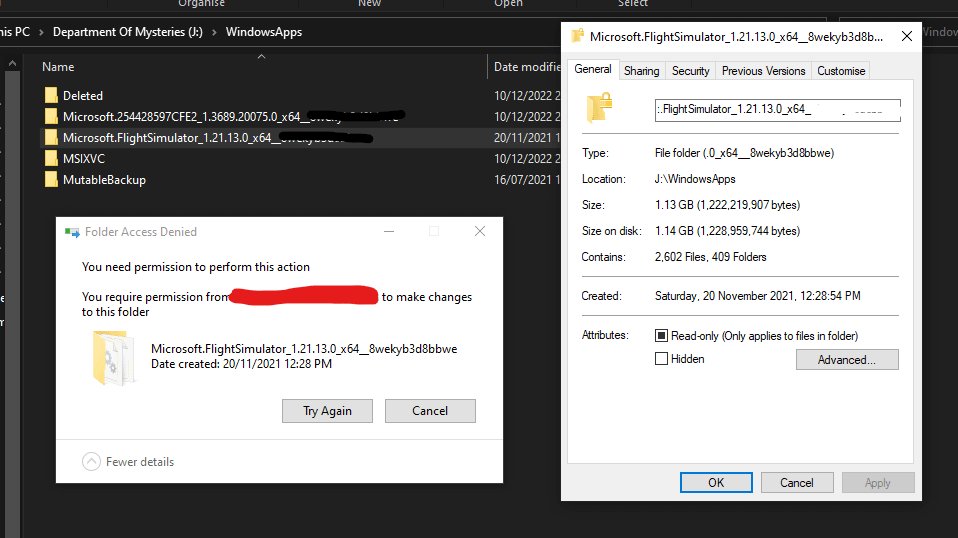
You can’t delete the Xbox games folder because the operating system protects it; you need to uninstall games through the Xbox app or Windows settings to remove the folder content.
Frustration sets in when you try to clean up space and find you cant delete xbox games folder. It seems like a simple task, deleting a folder, but the system prevents direct removal of this particular directory.
This restriction is built into the way Windows manages game installations. Directly deleting the folder can cause issues. So, instead of using the delete key, you need to properly uninstall the game first using your operating system’s designed method.

Can’t Delete Xbox Games Folder? Let’s Fix It!
Ever tried to delete that big folder full of Xbox games on your computer, only to find it just won’t budge? It’s like it’s glued to your hard drive! This can be super annoying, especially when you need to free up space or are trying to clean things up. Don’t worry, you’re not alone! Many people run into this problem, and there are some simple ways to tackle it. Let’s break down why this happens and how you can finally get rid of that stubborn folder.
Why Won’t That Xbox Games Folder Delete?
Before we start trying to fix things, let’s figure out why your computer is being so difficult. There are a few common reasons why you might be struggling to delete your Xbox games folder:
The Games are Still Running
Just like you can’t move a book when you’re still reading it, your computer won’t let you delete game files if the game is still running in the background. Even if you’ve closed the game window, some parts of it might still be active. This is probably the most common reason, and here’s how it works.
- Background Processes: Games often have little helper programs that run even when you’re not actively playing. These might be doing things like checking for updates or saving your progress.
- Xbox App: The Xbox app itself can also keep some game-related files locked, especially if you’re using features like Play Anywhere.
If a game is running, or its files are in use, Windows will prevent deletion. Think of it like trying to take a toy from someone who’s still playing with it – they won’t let go!
File Permissions Are Messed Up
Sometimes, the computer thinks you’re not allowed to change certain files, even if they’re your own! This is related to file permissions, a way Windows protects your system. The folder, or the files inside, might have permissions that prevent you from deleting them. This is like your parents saying you need permission to use something, even though you live in the same house.
Hidden Files and System Protection
Windows can hide certain files to keep your computer working correctly. Some of these hidden files might be part of the game’s installation, and Windows won’t let you delete them so easily because it thinks it’s protecting important system information. It’s like a secret hideout that Windows guards closely.
Corruption or System Errors
Very rarely, the files or the folder itself might be corrupted. This means that they got damaged somehow, and your computer is having trouble dealing with them. It’s like a puzzle where some pieces are bent, and you can’t put them together. Corrupted files can lead to all sorts of strange problems, including not being able to delete folders.
How to Delete That Stubborn Folder – Step-by-Step
Now for the good part! Let’s get that folder deleted. Here are the steps you should take, starting with the simplest and moving on to more advanced solutions, if needed:
1. Close All Game-Related Applications
This is the first and easiest thing to try. Make sure you’ve completely closed any games that might be using those files. Here’s how:
- Close game windows: Start by closing any open game windows. Don’t just minimize them, make sure you click the “X” to close the program completely.
- Check the system tray: Look at the bottom right corner of your screen, near the clock, for tiny icons. These are programs running in the background. Right-click any game or Xbox-related icons and choose “Exit” or “Close.”
- Use Task Manager: Press Ctrl + Shift + Esc keys together to open the Task Manager. Go to the “Processes” tab and find any running processes related to the game or Xbox. Click on them and then click “End Task.” Be careful not to end any processes that aren’t familiar.
After doing all this, try deleting the folder again. Sometimes, just closing the programs is all it takes!
2. Restart Your Computer
If closing the programs didn’t work, restart your computer. This shuts everything down and starts fresh, which can free up any game files that might have been stuck. It’s like pressing a reset button.
- Restarting: Click on the Windows logo at the bottom left corner of your screen, select the power button icon, and click “Restart.”
After restarting, try deleting the folder again.
3. Use File Explorer in Safe Mode
Safe Mode starts your computer with only the most basic programs and drivers. This can be helpful because it prevents many background processes from running, which might be interfering with deleting your folder. It’s like starting your computer in a super simple mode.
- Enter Safe Mode: Restart your computer, and when it’s restarting, keep pressing the F8 key or the Shift key plus restarting until you see a menu for advanced startup options (exact key may vary by system).
- Select Safe Mode: Choose “Safe Mode” or “Safe Mode with Networking” (if you need internet access) from the menu.
- Delete the Folder: Once your computer starts in Safe Mode, open File Explorer and try deleting the folder again.
- Restart normally: After deleting the folder, restart your computer again normally to leave Safe Mode.
If it worked in Safe Mode, it means some regular program was probably blocking the deletion.
4. Take Ownership of the Folder
Sometimes, you need to tell Windows that you are the owner of the folder to make changes to it. This is like proving you own a toy before you can change its parts.
- Right-click the Folder: Find the folder you want to delete and right-click it.
- Select “Properties”: Choose “Properties” from the menu.
- Go to the “Security” tab: Click on the “Security” tab at the top.
- Click “Advanced”: Then, click the “Advanced” button at the bottom.
- Change Owner: In the “Advanced Security Settings” window, click the “Change” link next to the “Owner” entry.
- Enter your user name: Type your user account name in the “Enter the object name to select” box and click “Check Names.” Your computer will verify the user name. Then click “OK.”
- Apply Changes: Check the box that says, “Replace owner on subcontainers and objects” and click “Apply.” Click “OK” on the windows and you’ll go back to main security page of properties.
- Edit Permissions: Back on the main Security tab, click “Edit.” Select your user account from the list and check the box that says “Full Control” under the “Allow” column.
- Apply Permissions: Click “Apply” and “OK” to save the changes.
After taking ownership, try deleting the folder again. You should now have the necessary permission to do it.
5. Use Command Prompt to Force Delete the Folder
Command Prompt is a powerful tool that lets you give your computer specific instructions through text commands. It’s like talking to your computer in its own language. Use this cautiously.
- Open Command Prompt as Admin: Type “command prompt” in the Windows search bar, right-click it and select “Run as administrator.”
- Use the “rmdir” command: type: rmdir /s /q “path of your folder” (replace “path of your folder” with the actual location of the folder). For example, rmdir /s /q “C:\Xbox Games”.
- Press Enter: After typing the command, press Enter. The folder should be deleted.
Be careful when using command prompt, because you might delete files that you don’t intend to delete. So please use the accurate folder path.
6. Try Third-Party Deletion Tools
If all else fails, some special programs can force delete files and folders that Windows can’t. These programs can bypass some of the usual protections and help you get rid of that stubborn folder. Think of them as helpers that can do things the regular Windows tools can’t.
Here are a couple of well known tools that are good for this:
- Unlocker: A free tool that can “unlock” files being used by other programs, letting you delete them. Be sure you download it from a safe and reputable site.
- IObit Unlocker: Another program designed to handle locked files and folders.
Be cautious when using third-party tools. Make sure you download them from trusted websites and always read reviews before installing any software.
7. Reinstall Xbox App
If none of these solutions work, there may be a problem with your Xbox app installation itself. Removing and reinstalling the app can sometime fix the problem
- Uninstall the App: Go to settings > Apps and then find the Xbox app and uninstall it.
- Restart your computer.
- Reinstall the App: Download it again from the Microsoft Store.
After reinstallation, check if you can now delete the game folder.
8. Check Hard Drive for Errors
Sometimes, hard drive errors can cause issues with deleting files and folders. Windows has a built-in tool that can check for and fix these errors.
- Open This PC: Right click on the drive you’re trying to delete from.
- Click Properties: Go to properties and click on the tools tab.
- Click Check: In the error checking section, click “Check.”
This can fix problems that may have been blocking your access.
9. Check the Folder Location
Sometimes the location of the folder might be the issue. Check if the folder is inside another folder which is system-protected. System-protected folders usually have limited access. So you must take ownership of that parent folder too.
- Find Folder Path: Go to properties of the Xbox games folder, go to general tab, and check the location of the folder.
- Take ownership: If the parent folder needs ownership, take ownership as described in previous steps.
If the folder is still not deletable, try the solutions again.
When All Else Fails: Professional Help
If you’ve tried all these steps and the folder still won’t delete, you might have a more serious problem with your computer. It’s a good idea to reach out to a professional computer repair service or technician. They may be able to find a different way to solve the issue or fix other related problems on your system. It may be time to ask for help from an expert.
Dealing with a stubborn Xbox games folder can be frustrating, but with the right approach, you can almost always fix it. Remember to start with the simplest solutions and work your way up to the more advanced ones. By taking the time to understand why these problems happen, you’ll be more equipped to deal with them in the future and keep your computer running smoothly.
Fix Can't Delete WindowsApps Folder, How to Delete WindowsApps Folder in D Drive in Windows 10
Final Thoughts
So, if you still find yourself unable to remove the folder, you are not alone. Many users face the frustration of a ‘cant delete xbox games folder’ situation. The best course of action must involve checking permissions and possibly using third-party tools if standard methods fail.
Remember, persistent issues may stem from ongoing background processes or corrupted files within the Xbox ecosystem. Take care and always back up your data if you plan to go further.

