
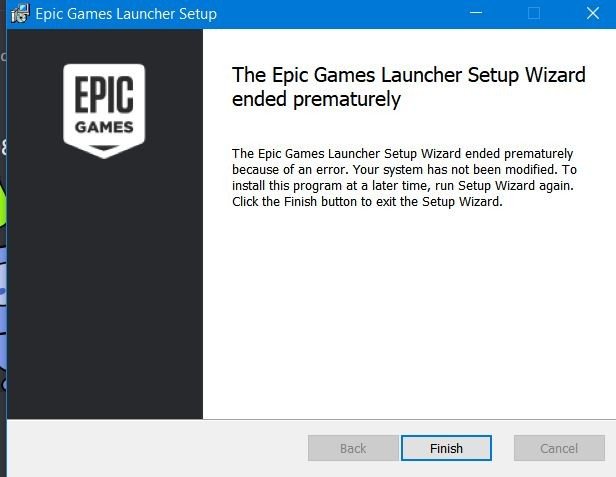
‘If you cant install epic game launcher, first check your internet connection. Then, ensure your operating system meets the minimum requirements and that your antivirus isn’t blocking the installer. Finally, try redownloading the installer.’
Frustration hits when you cant install epic game launcher, right? Many gamers face this snag, and it can stop you before you even start. Let’s address this common issue directly.
It’s not always straightforward, but several factors could be in play. We’ll guide you through the most common culprits and their solutions. Let’s get you back to gaming!

Can’t Install Epic Games Launcher: Common Problems and How to Fix Them
So, you’re excited to play some awesome games on the Epic Games Store, but the launcher just won’t install? That’s super frustrating! Don’t worry, lots of people run into this problem. It’s like trying to build a super cool Lego castle and one of the pieces just won’t click in. We’re here to help you figure out what’s going wrong and get that launcher installed so you can start playing. Let’s dive into the common reasons why the Epic Games Launcher might be giving you trouble and, more importantly, how to fix them.
Basic Troubleshooting Steps to Try First
Before we get too technical, let’s try some quick and easy fixes. These are like the “Have you tried turning it off and on again?” of the tech world, but they often work!
Restart Your Computer
This might seem too simple, but it can actually fix many problems. When you restart, your computer closes all programs and starts fresh. This can clear out any temporary glitches that might be messing things up.
Check Your Internet Connection
A shaky internet connection can interrupt the download and installation process. Make sure your WiFi is working properly. Try loading a website or watching a video to see if your internet is stable. If your connection is slow, consider using an ethernet cable for a more direct link to your modem or router.
Run the Installer as an Administrator
Sometimes, your computer needs extra permission to install new programs. Running the installer as an administrator gives it that permission. Here’s how:
- Find the Epic Games Launcher installer file you downloaded.
- Right-click on the file.
- Select “Run as administrator.”
If you see a message asking for permission, click “Yes.”
Make Sure Your Computer Meets the Minimum Requirements
Your computer needs to be powerful enough to run the Epic Games Launcher. If your computer is too old or doesn’t have enough memory, it might not work. Here’s a list of the minimum things your computer needs:
- Operating System: Windows 7, 8, 10, or 11 (64-bit). macOS 10.13.6 or later.
- Processor: Intel Core i3 2.5 Ghz or better, AMD processor equivalent
- Memory (RAM): 4 GB or more
Check your computer’s specs to make sure it meets these requirements. You can usually find this information in your computer’s settings or system information.
Common Installation Error Codes and Their Fixes
If the basic steps didn’t work, it’s time to look at specific error messages you might be seeing. Error codes are like secret messages from your computer that tell you what’s going wrong. Let’s decode them!
Error Code IS-FC01, IS-FC02
These errors usually mean there’s a problem with the installer files themselves, or something is interfering during the download. Here’s what to try:
- Redownload the Installer: The installer file might be incomplete or corrupted. Delete the old installer and download a new one from the Epic Games website.
- Check your antivirus software: Sometimes, antivirus software thinks the installer is a virus and blocks it. Temporarily disable your antivirus, install the launcher, and then turn your antivirus back on. Make sure to only disable your antivirus if you know where the installer file came from.
- Check Firewall Settings: Your computer’s firewall might be blocking the installer. Temporarily disable the firewall or add an exception for the Epic Games Launcher installer.
Error Code MS-0001
This error can be annoying and often means the installer file is blocked. Your antivirus or firewalls can be the culprit, again. The steps to tackle this are:
- Check Antivirus and Firewall: Like the previous errors, this one could also be due to overly protective antivirus software or firewalls. Temporarily disable them and retry the installation.
- Run as Administrator: Make sure you’re running the installer as administrator to avoid any permissions related issues that could be causing this error.
Error Code MS-0002
MS-0002 error usually means that there’s a problem related to the installation directory. Here’s how to troubleshoot it:
- Change Install Location: The default installation folder may be facing permission issues. Try choosing a different folder to install the launcher. Make sure this folder has the permission to make changes to it.
- Run as Administrator: Again, running the installation as administrator can make the changes in required folder for installing the software.
Error Code LS-0003
This error typically points towards issues with the installation service. Here is how you can attempt to solve it:
- Restart Epic Games Services: You can restart services through the services application of windows. Simply search services.msc in the search bar. Find the services related to Epic Games and restart them. This often resolves the issue.
- Reinstall Epic Games Launcher: If restarting the service didn’t help, try reinstalling the launcher.
Error Code IS-MF03
If you see IS-MF03 error, it means that one or more required files for installation are missing or not found. Follow these fixes for it.
- Redownload Installer: The first step is to re-download the launcher again from the official website. This time, ensure that you have a stable internet connection.
- Check Your Hard Drive for Space: Make sure you have enough space available on your hard disk to save the installer file and then install the software properly.
Other General Errors
Sometimes, you might see a different error message, or no message at all! Here are some more things to try:
- Close Conflicting Programs: Other programs running in the background might be using resources that the installer needs. Close all unnecessary programs before running the installer.
- Temporarily Disable Security Software: Similar to anti-virus, other security software might also interfere with installer software. Try disabling them temporarily to solve the issue.
- Update Windows: Make sure your Windows operating system is up to date. Sometimes, outdated software can cause problems with new programs.
- Run a System File Check: Your computer might have corrupted system files that are causing the installation to fail. You can run a system file check to find and fix these errors. Type “cmd” into the search box, right-click “Command Prompt,” and select “Run as administrator.” Then, type the command sfc /scannow and press Enter. Follow the on-screen instructions.
Advanced Troubleshooting: When Nothing Seems to Work
If you’ve tried all the simple fixes and are still having trouble, we need to look at some more advanced solutions. These might sound a little scary, but don’t worry, we’ll guide you through them!
Check for Disk Errors
Sometimes, problems with your hard drive can prevent programs from installing. Here’s how to check for disk errors:
- Open File Explorer.
- Right-click on the drive where you want to install the launcher.
- Select “Properties.”
- Go to the “Tools” tab.
- Click the “Check” button under “Error checking.”
- Follow the on-screen instructions.
Clean Boot Your Computer
A clean boot starts your computer with only the essential programs running. This can help identify if a third-party program is interfering with the installation. Here’s how to do it:
- Press the Windows key + R, type msconfig, and press Enter.
- In the System Configuration window, go to the “Services” tab.
- Check the “Hide all Microsoft services” box.
- Click the “Disable all” button.
- Go to the “Startup” tab and click “Open Task Manager.”
- In Task Manager, disable all startup items.
- Close Task Manager and click “OK” in the System Configuration window.
- Restart your computer.
Try installing the launcher again after the clean boot. If it works, then you know that one of the startup programs was causing the problem. You can then re-enable your startup programs one by one to find out which program was the culprit.
Check for Conflicting Software
Certain types of software, such as other game launchers, or VPN programs, can sometimes conflict with the Epic Games Launcher installation. Try uninstalling these programs temporarily to see if it fixes the problem. Don’t forget to install them back later if the issue resolves.
Reinstall Visual C++ Redistributables
The Epic Games Launcher relies on certain Visual C++ Redistributable packages. If these are corrupted, it can cause installation problems. You can reinstall them by:
- Visiting the Microsoft website and searching for the latest Visual C++ Redistributable packages.
- Downloading the correct version for your system (x86 or x64).
- Running the installers.
Restart your computer after reinstalling these packages and then try installing the Epic Games Launcher again.
Look into Windows Event Viewer
The Event Viewer keeps a log of system events including any issues. You can use it to see if anything is going wrong during the installation. Here’s how you can use it:
- Type “Event Viewer” in the Windows search box.
- Open the Event Viewer.
- Go to “Windows Logs” > “Application” or “System” logs.
- Look for any error messages or warnings that relate to the Epic Games Launcher installation.
The information here may be technical, so if you are not sure, you can search the error messages online to better understand what they mean.
Contact Epic Games Support
If you’ve tried everything and still can’t get the launcher to install, it’s time to call in the experts! The Epic Games support team is there to help. You can usually find a support link on their website, where you can explain your problem. Give them as much detail as possible about what you’ve already tried, and they should be able to guide you through some personalized troubleshooting steps.
Getting the Epic Games Launcher to install can be a bit tricky, but it is not impossible. By following these steps and carefully checking for possible problems, you should be able to get the Epic Games Launcher up and running. Remember, it’s all about being patient, trying different solutions, and not giving up. Soon, you’ll be enjoying all the amazing games the Epic Games Store has to offer!
Epic Games Launcher Installation Error – Easy Fix 2023
Final Thoughts
If you are still experiencing issues and “cant install epic game launcher”, review the troubleshooting steps carefully. Check your internet connection and system requirements first. Make sure you have enough disk space too.
Antivirus software might block the installation; try disabling it temporarily. A corrupted installer file is also a common cause. Ensure you download the setup file from Epic Games official site. This must help you get the launcher installed.

