
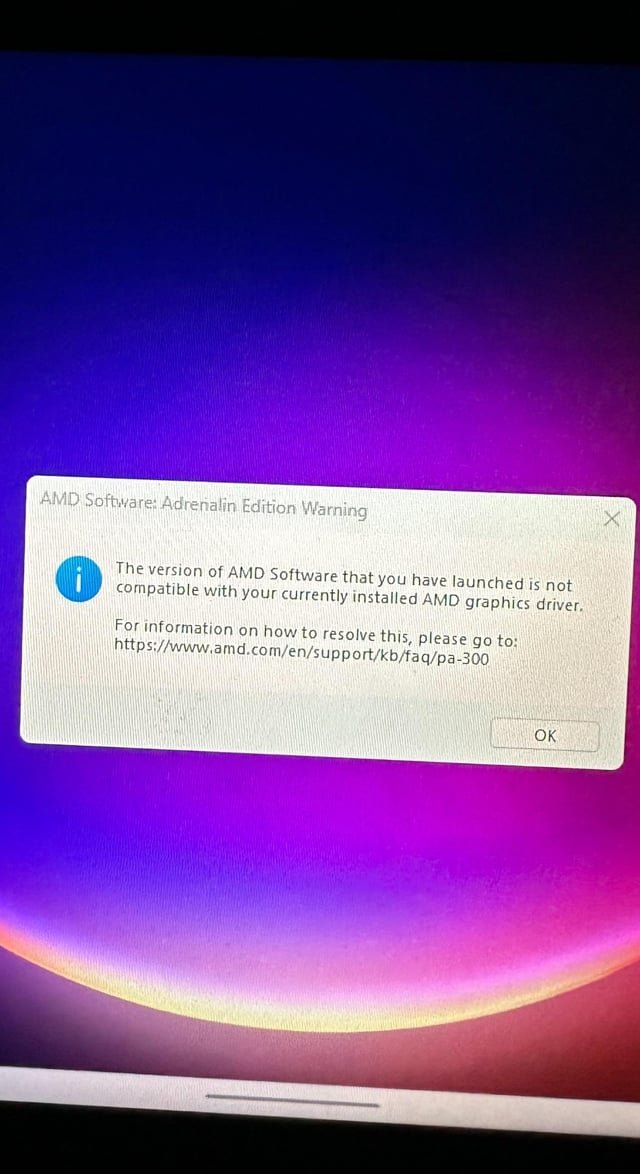
If you can’t launch certain games, try updating your graphics drivers, verifying game file integrity, or running the game as an administrator.
Frustration mounts when your favorite game refuses to start. You click, you wait, and nothing happens. The dreaded “cant launch certain games” message or silent failure can ruin any gaming session. This common problem has various causes, thankfully most of them are fixable with a bit of troubleshooting.
We will explore some frequent reasons why some games are stubbornly refusing to start. Also, we provide some quick solutions you can implement at home. This will hopefully allow you to get back in action and enjoy playing your video games again soon!

Why Can’t I Launch Certain Games?
It’s super frustrating when you’re all set to play your favorite game, but it just won’t start! You click the icon, maybe see a loading screen for a split second, and then…nothing. Or maybe you get an error message that looks like gibberish. Don’t worry, you’re not alone! Lots of gamers face this problem. This article dives deep into why you might have trouble launching certain games and, most importantly, how you can try to fix it. We’ll break down the common causes and give you clear steps to get back in the game.
Your Computer Doesn’t Meet the Game’s Needs
Think of it like this: trying to fit a giant elephant into a tiny car. It just won’t work! Games, especially newer ones, have certain requirements for your computer to run correctly. These requirements are often called “system requirements.” If your computer doesn’t have what the game needs, it might not launch, or it might run very slowly. Let’s look at the key things games need.
What Are System Requirements?
System requirements tell you the minimum and recommended specs for your computer. These specs usually include things like:
- Operating System (OS): This is the basic software your computer runs on, like Windows 10, Windows 11, or macOS. Games are often built for specific OS versions. For example, a very old game designed for Windows XP probably won’t work well on a new computer running Windows 11.
- Processor (CPU): This is the brain of your computer. Games need a powerful enough CPU to handle all the calculations needed to run smoothly. Intel Core i5 or AMD Ryzen 5 (or better) are common choices for modern games.
- Memory (RAM): This is like short-term memory for your computer. Games need enough RAM to quickly store and access information while running. 8 GB of RAM is usually a bare minimum these days, and 16 GB is preferred for many games.
- Graphics Card (GPU): This is what handles the visuals of the game. It renders everything you see on screen. Many games need dedicated graphics cards from companies like NVIDIA (GeForce) or AMD (Radeon) for best performance, and integrated graphics processors, especially older ones, are often not enough.
- Storage Space: Games take up space on your hard drive. Make sure you have enough room to install the game, plus some extra space for updates and saved games.
How to Check Your Computer Specs
Knowing your computer’s specs is essential. Here’s how to find them on Windows:
- Click the Start button (the Windows logo at the bottom-left corner).
- Type “System Information” and click on the result.
- A window will pop up showing all kinds of information about your computer. Look for things like:
- OS Name: Tells you which version of Windows you’re using.
- Processor: Shows your CPU model.
- Installed Physical Memory (RAM): Shows how much RAM your computer has.
- To find your graphics card details, go to “Components” and then “Display”.
You can compare this information with the requirements given by the game developers.
What to Do If Your Computer is Below Specs
If your computer doesn’t meet the game’s minimum specs, it might be time for an upgrade. Some things you can potentially improve:
- Add More RAM: This is often the easiest and most affordable upgrade.
- Upgrade Your Graphics Card: This can be more costly but is often the most impactful for gaming performance.
- Consider a New Computer: If your computer is very old, it might be best to buy a new one that can easily handle the games you want to play.
Even if you meet the minimum requirements, playing at low settings could be necessary if you just barely meet them.
Always check the “Recommended Specs” too, to see if your computer matches the game’s optimal playing requirements.
Outdated Drivers
Drivers are little pieces of software that help your computer communicate with its hardware, like your graphics card. Think of them as translators between the game and your hardware. If your drivers are old or faulty, it can cause all kinds of issues, including games not launching.
Why are Updated Drivers Important?
- Performance Boost: Newer drivers can optimize performance for new games and fix bugs in older ones.
- Compatibility: Driver updates make sure your hardware works well with newer operating systems and games.
- Bug Fixes: Drivers can contain critical bug fixes to help get games working correctly.
How to Update Your Graphics Card Drivers
Here’s how you can update your NVIDIA or AMD graphics drivers:
Updating NVIDIA Drivers
- Go to NVIDIA’s website or open the NVIDIA GeForce Experience application.
- Locate the “Drivers” section or click “Check for Updates.”
- Follow the instructions to download and install the latest drivers.
Updating AMD Drivers
- Go to AMD’s website or open the AMD Radeon Software application.
- Locate the “Drivers & Support” section.
- Choose your graphics card from the list and download the latest drivers.
- Run the downloaded file to install the drivers.
Other Device Drivers
While graphics drivers are often the culprit, sometimes other outdated drivers like your sound card drivers or even motherboard drivers can affect your game. Check your motherboard manufacturer’s website to find the most recent motherboard driver updates.
Corrupted Game Files
Sometimes, files within the game itself get corrupted or are missing. This can happen for various reasons, like a failed download, a virus infection, or a hard drive problem. When important game files are not in the right place or are damaged, the game may fail to start.
How to Verify Game Files
Most game launchers have built-in tools to check for and fix corrupted files. This is often called “verifying game files” or “integrity check.” Here’s how you do it on popular platforms:
Steam
- Open Steam and go to your Library.
- Right-click on the game that won’t launch.
- Select “Properties” from the menu.
- Go to the “Local Files” tab.
- Click “Verify integrity of game files.”
- Steam will scan the game files and automatically replace any damaged ones.
Epic Games Launcher
- Open the Epic Games Launcher.
- Go to your Library.
- Click the three dots next to the game that’s having issues.
- Select “Manage”.
- Click the “Verify” button
Other Launchers
Other launchers often have a similar verification process. Look for an option that mentions verifying, validating, or repairing game files. If a launcher has a repair option, try that first if available.
What If Verifying Doesn’t Work?
If verifying doesn’t fix the problem, it’s possible your game files are severely damaged. In this case, you might need to uninstall the game completely and then reinstall it. This will replace all the game files with fresh, working copies. Make sure to backup your save files to prevent losing your progress.
Antivirus or Firewall Interference
Antivirus programs and firewalls are important for protecting your computer from threats, but sometimes, they can be overprotective. They might mistakenly block games or parts of games, preventing them from launching correctly.
How Antivirus and Firewalls Can Cause Problems
- False Positives: Sometimes, antivirus software might think a game is a virus, even if it’s not. It might then quarantine or delete important game files.
- Blocked Connections: Firewalls might prevent the game from accessing the internet, which some games need to work.
- Resource Usage: Heavy antivirus activity can also slow down your system and prevent games from launching or causing performance issues.
How to Troubleshoot Antivirus/Firewall Issues
Here are some steps you can take to see if your antivirus or firewall is the problem:
- Temporarily Disable Antivirus: Try temporarily turning off your antivirus. Only do this if you’re sure the game is safe, as it can leave you open to threats. If the game launches now, you know the antivirus was the problem. Be sure to re-enable your antivirus when you’re done playing.
- Add Game to Exceptions List: Most antivirus and firewall programs let you create an “exceptions” list. Add the game’s executable file (the file that starts the game) to this list. This will tell the software to leave the game alone.
- Temporarily Disable Firewall: Similar to antivirus, you can try temporarily turning off your firewall to see if it’s causing the issue. Again, only do this temporarily and when you know the game is safe. Re-enable your firewall when you’re done.
- Firewall Rules: Check your firewall rules to make sure your game isn’t blocked. You should see entries for the game that allow both inbound and outbound connections.
After making changes, test the game again to see if it launches.
Remember, if these things don’t work, immediately re-enable your protection. If the game is not working and protection is interfering, contact your game support before making too many exception rules, as they might offer other options, fixes, or assistance.
Problems With Third-Party Software
Sometimes, other programs running in the background can interfere with games. These are often called “third-party” programs – meaning software that didn’t come with your operating system or the game itself.
Common Culprits
- Overlay Programs: Programs that display information on top of your game (like Discord, Steam overlay, or game capture software) can sometimes cause conflicts.
- Hardware Monitoring Tools: Software that shows your computer’s temperature, fan speed, or performance data might also interfere with game loading.
- Background Services: Various background programs might be taking up resources and slowing down your system, preventing a game from launching.
Troubleshooting Third-Party Software
Try the following steps to see if a third-party program is the problem:
- Close Unnecessary Programs: Close all applications that you’re not using, especially any overlay or monitoring programs.
- Perform a “Clean Boot”: A clean boot starts Windows with the bare minimum of programs and services running. Here’s how to do it:
- Press the Windows key, type “msconfig,” and press Enter.
- Go to the “Services” tab.
- Check the box that says “Hide all Microsoft services” and click “Disable all”.
- Go to the “Startup” tab and click “Open Task Manager.”
- In Task Manager, disable all startup items.
- Close Task Manager and click “Apply” and “OK” in System Configuration.
- Restart your computer.
- Test the Game: Try launching the game now. If it works, you know a third-party program was likely the cause.
- Re-enable Services/Programs One By One: Re-enable your startup programs and services one by one, each time restarting to see if the issue comes back. This helps you pinpoint the problematic program.
This can be a bit time consuming but helps you narrow down which program is creating a conflict with your game.
Operating System Errors
Sometimes the problem isn’t the game itself, but an issue with your operating system, like Windows. Corrupted system files, outdated operating system versions, and other OS issues can cause games not to launch.
Running Windows Updates
Having the latest version of your OS is important. To check for Windows updates:
- Click the Start button.
- Type “Windows Update” and click on the result.
- Click “Check for updates.”
- If there are updates, download and install them.
- Restart your computer if prompted.
Running System File Check (SFC)
The SFC tool scans for corrupted files and automatically fixes them. Here’s how to run it:
- Click the Start button.
- Type “cmd”.
- Right-click “Command Prompt” and select “Run as administrator”.
- Type sfc /scannow and press Enter.
- Wait for the scan to finish. It might take a while.
- Restart your computer when complete.
This can help resolve OS-related issues that might be causing game launch problems.
Reinstalling the Game
If other troubleshooting methods haven’t worked, reinstalling the game is a good next step. Be sure to back up your saved game data as it might be deleted when uninstalling. After uninstalling, follow the instructions to install again through your game launcher.
By trying all of these, you should be able to diagnose and fix the problem and get back to playing your favorite games.
When you face the frustration of not being able to launch your favorite game, keep these tips in mind. With a little detective work and patience, you can often resolve the issue. Remember to be systematic in your troubleshooting process.
Steam Games Wont Launch FIX
Final Thoughts
In short, various issues can prevent games from starting. Compatibility problems, outdated drivers, or corrupted files are common culprits. Resolving these requires some troubleshooting.
You might need to update software, verify game files, or even reinstall. The frustration of ‘cant launch certain games’ is real and often stems from these technical glitches. It is must to identify and fix these issues methodically.

