
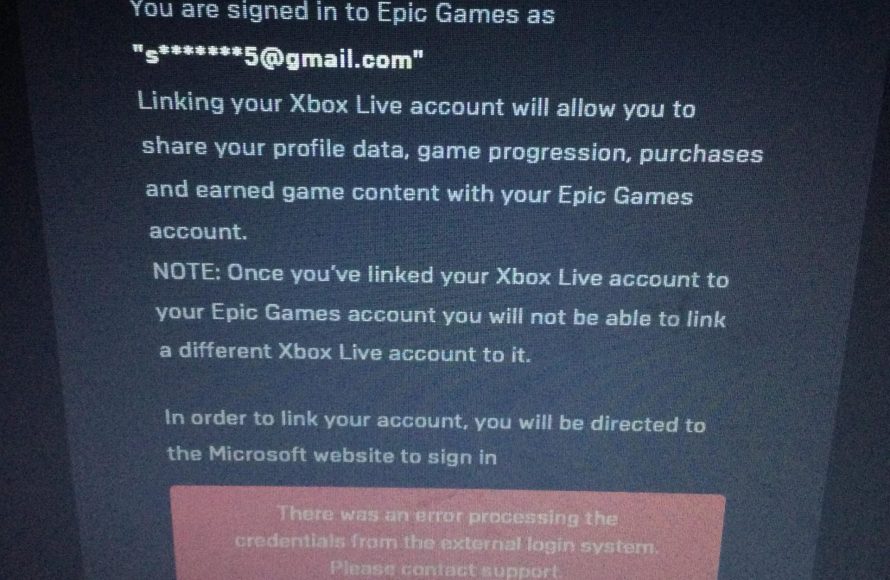
If you can’t link your Xbox account to Epic Games, it’s likely due to an existing Epic Games account already connected to your Xbox Live profile. You need to disconnect that existing link first.
Struggling to connect your Xbox account to Epic Games? It’s a frustrating issue for many gamers. You try and try, but the accounts just won’t link.
The common reason you can’t link Xbox account to epic games is because your Xbox profile might be connected to a different, perhaps older, Epic Games account. Figuring out which account is the key to fixing it.
We’ll guide you through the process to resolve this, and you will be back in the game soon.

Can’t Link Xbox Account to Epic Games: Why It Happens and How to Fix It
It’s super frustrating when you want to play your favorite games with your friends, but you can’t get your accounts to talk to each other! Many gamers run into a problem where they can’t link their Xbox account to their Epic Games account. This means you might not be able to use your cool skins or play games you bought on one platform on the other. Don’t worry, though! This article will explain why this happens and show you how to get your accounts connected.
Common Reasons Why Linking Fails
There are several reasons why you might struggle to connect your Xbox account to your Epic Games account. Let’s look at some of the most common ones:
Existing Linked Accounts
One big reason for linking issues is that your Xbox account might already be linked to a different Epic Games account. This can happen if you played Epic Games on another console or device before. Epic Games only allows each Xbox account to be linked to one Epic Games account at a time. To check, try logging into Epic Games through a web browser. If it asks you to sign in using an Xbox account, it’s a good clue that it’s already linked somewhere. If you remember this previous account, great! If not, you’ll need to try and recover access to that account first.
Incorrect Login Details
It seems simple, but it’s a problem for many users: entering the wrong username or password. Double-check that you’re typing the correct login information for both your Xbox and Epic Games accounts. It’s easy to mix up email addresses or misspell a password. Remember that passwords are case-sensitive, so “Password” is different from “password”.
Network Connection Problems
A weak or unstable internet connection can sometimes prevent the linking process from working correctly. Make sure that your Xbox and the device you are using to do the linking have a stable internet connection. If your WiFi signal is weak, try connecting using an Ethernet cable. A wired connection is usually more stable and faster.
Epic Games Server Issues
Sometimes the problem is not on your end! The Epic Games servers might be experiencing issues or maintenance. This can prevent you from linking your account. Check the Epic Games status page or their social media channels for any announcements about server problems. Usually server issues are temporary and will be fixed quickly.
Browser Issues
If you are linking through a web browser, sometimes that browser is the source of the issue. Clear the cache and cookies of your web browser, or try using a different browser. If you are using a browser on your computer, try a browser on your phone, or vice versa. It might help bypass the issue.
Parental Controls or Account Restrictions
Sometimes parental controls or account restrictions set on your Xbox account can affect the linking process. Make sure there are no restrictions preventing you from linking to third-party services. You might need to adjust the settings in your Xbox family settings to allow linking with Epic Games.
Outdated Software
Outdated software can sometimes cause conflicts during the linking process. Make sure that your Xbox console has the latest system updates and that the Epic Games app or game you are trying to use is also up-to-date.
Troubleshooting Steps to Link Your Accounts
Now that we’ve gone over common reasons for linking issues, here’s a list of solutions you can try to get your accounts properly connected.
Double Check Your Login Details
Let’s start with the basics. Make sure your username and password are correct. Type your information slowly and carefully, or if you can, use the copy and paste feature for your password. If you’re still having problems, try resetting your password for both Xbox and Epic Games accounts. Many people have extra email accounts for different things, so ensure you are using the correct email that is associated with your Epic account.
Check for Existing Linked Accounts
If you think your Xbox account may already be linked to another Epic Games account, here’s how you can investigate:
- Go to the Epic Games website.
- Try to sign in using the Xbox button.
- If you are able to sign in that way, you’ll know your Xbox account is already linked to that Epic Games account.
- If you’re able to sign in this way, but don’t recognize the account, you will need to try to recover it using the recovery process.
- If you are still having difficulties, you can contact the epic support, and they should be able to assist you in finding the linked account.
Unlinking and Re-linking Accounts (Use With Caution)
If you are certain you have found the Epic account, and want to re-link it to your Xbox account, you can unlink the accounts through the epic account website.
Important Note: Unlinking accounts can have some consequences, such as possibly losing access to games and items purchased on the account. You need to be aware of this before you try unlinking any account.
If you are certain you want to try it, here are the steps:
- Go to the Epic Games website and log in to the account you want to unlink from your xbox account.
- Go to the account settings.
- Find “Connected Accounts”.
- Find the Xbox account, and click the unlink button.
- After unlinking, you should be able to link your Xbox account to the desired Epic account.
Verify Your Network Connection
A stable connection is super important! Here’s how to make sure your network is working well:
- Check Your Connection Strength: Look at the WiFi signal icon on your Xbox or computer. If it’s low, move closer to your router.
- Restart Your Router and Modem: Unplug them both, wait about 30 seconds, and then plug them back in.
- Use an Ethernet Cable: If you can, try plugging your Xbox directly into your router with an Ethernet cable for a more stable connection.
- Run a Connection Test: On your Xbox, go to Settings, then Network, and run a network test to see if you find any issues.
Check Epic Games Status
Before you spend too much time troubleshooting, verify the status of the Epic Games servers. You can do that by:
- Going to the Epic Games Status page on their website or through a search engine.
- Looking at Epic Games’ social media channels like X (formerly Twitter) for any updates.
- If the servers are down, you may need to wait for them to come back online before linking your accounts.
Clear Browser Cache and Cookies
If you are linking the account through a web browser, try clearing your browser’s cache and cookies. This can get rid of old stored data that might be causing problems. The steps are different depending on which browser you’re using, but you can typically find the option in the browser’s settings. Here are the general steps for Chrome:
- Click the three vertical dots in the top right corner
- Select “More tools” then “Clear browsing data”
- Make sure “Cookies and other site data” and “Cached images and files” are checked
- Click the “Clear data” button.
Try a Different Browser
If the problem continues, try a different web browser to see if the problem goes away. If you are using the browser on your computer, try using the browser on your phone or vice versa.
Adjust Parental Controls
If you suspect parental control settings are causing issues, take a look in the Xbox settings. You may need to remove some restrictions to let the accounts link. You can find these settings in the Xbox’s family settings area. You will likely need the password for the main parent account. Make sure that third party linking is not disabled.
Update Your Software
Make sure both your Xbox console and your Epic Games game or app are fully up to date. Outdated software can cause conflicts. The steps are different depending on whether you’re on an Xbox console or using the app. For Xbox Consoles:
- Go to the Settings menu
- Go to “System” then “Updates”
- Follow the prompts to download and install any available updates.
For Epic Games App or Game
- Check the app store for the latest update for your game or app.
- If you are on your PC, usually the Epic Games app itself will prompt you to update the game.
Contact Epic Games Support
If you have tried all the steps above, and you’re still having problems, it may be time to contact Epic Games Support. They have access to your account information and can help you with your specific issue. Here’s how you can reach them:
- Go to the Epic Games website and find the support section.
- Describe your issue in as much detail as possible, explaining what steps you’ve already tried.
- Include your Epic Games ID and Xbox Gamertag.
Connecting your Xbox and Epic Games accounts can be tricky sometimes, but with some patience and a bit of troubleshooting, you can usually get things working. Remember to double-check the basics like your login information and network connection, and don’t hesitate to reach out to Epic Games Support if you need more help. Once everything is connected, you can go back to playing your favorite games with all your saved goodies!
How to Fix Fortnite Account Link Failed & Already Associated with a Different Account (Easy Method)
Final Thoughts
Linking issues between Xbox and Epic Games accounts can frustrate players. The problem often stems from pre-existing connections or mismatched account details. Players must ensure their accounts align correctly to resolve this.
This often results in a “cant link xbox account to epic games” message. Troubleshooting involves checking previous Epic connections on your Xbox and verifying all information is accurate. Following Epic Games’ support guides usually helps.

