
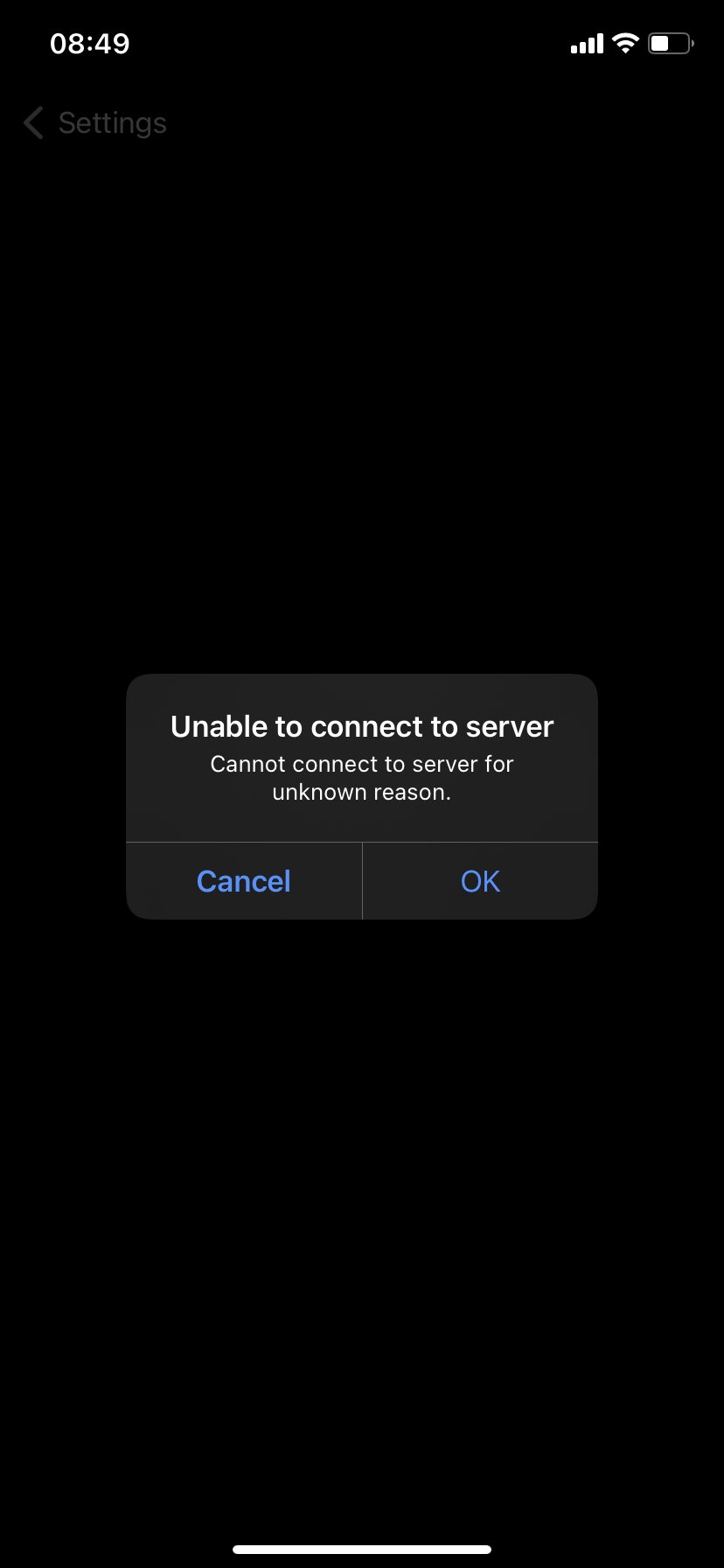
If you can’t sign into Game Center, ensure you have a stable internet connection, your Apple ID is correctly signed in on your device, and that Game Center is enabled within your settings.
Frustration mounts when you can’t sign into Game Center, hindering your gaming experience. It’s an annoyance, especially when you’re eager to jump into your favorite game and connect with friends.
This problem can stem from several common issues. We’ll walk through some simple fixes that will likely get you back online. Don’t worry, you’re not alone and help is at hand!

Can’t Sign Into Game Center? Let’s Fix That!
Okay, so you’re trying to jump into your favorite game, and Game Center is giving you the cold shoulder. It’s super frustrating, right? You tap that little icon, or the game tries to connect automatically, but… nothing. No sign in, no high scores, no achievements. It’s like being stuck at the starting line! Well, don’t worry; you’re definitely not alone. Lots of people run into this problem, and luckily, there are many things we can try to get you back into the game. This guide is going to walk you through common reasons why you might be having trouble signing into Game Center and, most importantly, how to fix them. We’ll cover everything from simple fixes to more advanced troubleshooting, making sure that everyone, from casual gamers to seasoned pros, can get back to playing.
Understanding the Game Center Problem
Before we dive into solutions, it’s helpful to understand what Game Center is and why it’s important. Game Center is Apple’s social gaming network that lets you keep track of your scores, achievements, and even compete with your friends. It’s the backbone for many multiplayer games on iOS devices. When you can’t sign in, it’s like losing the key to your gaming world.
The “can’t sign into game center” issue often appears in different ways. Sometimes you get a “sign-in failed” message, other times it just hangs there, doing nothing at all. Sometimes you might get stuck in a loop, where you’re constantly being asked to sign in. Whatever form it takes, it generally boils down to a few key issues. The most common include problems with your Apple ID, network connectivity issues, software glitches, or issues with the Game Center server itself. Let’s take a look at each of these in more detail.
Basic Checks: Let’s Start Simple
Sometimes the solution is staring you right in the face! Before we get into the more complex stuff, let’s try some quick checks to see if we can get things moving.
Check Your Internet Connection
Game Center relies heavily on a stable internet connection. If your WiFi is acting up or your cellular data is weak, signing in is going to be a problem.
- Test Your Connection: Open a web browser and see if you can load a webpage. If it’s slow or not loading, that’s a sign you have a network problem.
- Try Airplane Mode: Turn on airplane mode for about 15 seconds and then turn it back off. This often gives your phone’s network connection a little reset.
- Switch Networks: If possible, try connecting to a different WiFi network. If that works, then the problem is probably with your usual WiFi connection. If your using cellular data try connecting to wi-fi network.
Restart Your Device
It might sound too simple, but restarting your device is a surprisingly effective fix. Sometimes a little reboot clears away minor glitches that stop things from working correctly. Here’s how to do it:
- iPhone/iPad: Press and hold either volume button and the side button until the power-off slider appears. Drag the slider, wait 30 seconds, and then press the side button again to turn it back on.
Check Apple System Status
Sometimes, the issue isn’t on your end at all. Apple’s servers may be experiencing problems that affect Game Center.
- Visit Apple’s System Status Page: Go to Apple’s System Status page on their website (just search for “Apple System Status”). Look for the Game Center entry. If it’s not showing a green light, there could be a problem on Apple’s side. You might have to wait for Apple to resolve the issue.
Apple ID Issues: Your Key to Everything
Your Apple ID is like your passport for all Apple services, including Game Center. If there’s an issue with your ID, you’ll definitely have trouble signing in.
Verify Your Apple ID
Make sure your Apple ID is correctly entered on your device.
- Go to Settings: Open the Settings app, then tap on your name at the top.
- Double-Check Your Information: Ensure your name, phone number, and email address are all correct and up to date.
- Sign Out and Back In: Sometimes just signing out of your Apple ID and back in can refresh your account and resolve problems. Tap “Sign Out” at the bottom, then sign back in using your credentials.
Password and Two-Factor Authentication
Incorrect password or issues with Two-Factor Authentication can also prevent successful sign-ins.
- Password Problems: Double-check you’re using the correct password. If you’re unsure, try resetting your Apple ID password through Apple’s website.
- Two-Factor Issues: Make sure you have your two-factor device (like another iPhone or iPad) handy if two-factor authentication is enabled. If you’re having problems receiving the code, verify that your phone number is correctly entered in your Apple ID settings.
iCloud Keychain
Your iCloud Keychain stores passwords, and if it’s not working right, it can affect login processes. Here is how you can resolve this.
- Check if Keychain is Enabled: Open the Settings app, tap on your name, and then select iCloud. Look for “Keychain” and make sure it’s turned on.
- Turn it Off and Back On: If Keychain is on, try turning it off, restarting your device, then turning it back on. This helps reset any problems with keychain syncing.
Software and System Glitches
Bugs in the operating system or the game you are using can often lead to login issues. Let’s see how to troubleshoot these glitches.
Update Your iOS or iPadOS
Keeping your operating system up-to-date is super important. Updates often include bug fixes that could resolve your Game Center issues.
- Go to Settings: Open the Settings app, tap “General,” and then tap “Software Update.”
- Check for Updates: See if there is an update waiting to be installed. If there is, go ahead and install it. It’s always a good idea to keep your device updated to the latest version.
Update the Game
Sometimes, outdated game software can cause compatibility problems with Game Center.
- Check the App Store: Open the App Store app, tap your profile picture, and then scroll down to see a list of available updates.
- Update Games: Look for the game that’s giving you problems and update it if there’s one available.
Check Game Center Settings
Sometimes, the Game Center settings on your phone could be preventing you from logging in.
- Go to Settings: Open the Settings app, scroll down, and tap “Game Center.”
- Check If Game Center is Turned On: Make sure the “Game Center” switch is turned on. If it is, try turning it off, restarting your device, and then turning it back on again.
- Check Apple ID: Confirm that the correct Apple ID is logged in.
Force Quit Apps
Sometimes an app might not be communicating with Game Center correctly. Force quitting the app, and re-opening it might fix the issue.
- Close the Game: On iPhones with Face ID, swipe up from the bottom of the screen and hold. On iPhones with a Home Button, double-click the Home Button. Swipe up to close any game you’re having issues with.
- Re-open the Game: Open the game back up and try to sign into Game Center.
Advanced Troubleshooting Techniques
If you are still having issues, we need to go deeper. These steps are a bit more involved but can be crucial in getting Game Center running smoothly.
Date and Time Settings
Incorrect date and time settings can sometimes cause problems with login processes.
- Go to Settings: Open the Settings app, tap “General,” and then tap “Date & Time.”
- Set Automatically: Make sure “Set Automatically” is turned on. If it’s already on, try turning it off, then on again after a few seconds.
Reset Network Settings
Resetting your device’s network settings will erase saved Wi-Fi passwords and other network configurations.
- Go to Settings: Open the Settings app, tap “General,” and then tap “Transfer or Reset iPhone.”
- Select Reset Network Settings: Tap “Reset” then choose “Reset Network Settings.” You’ll need to enter your passcode, and your device will restart.
- Reconnect: After restarting, you will need to reconnect to your Wi-Fi. Try signing into Game Center now.
Sign Out of iCloud and Sign Back In
Sometimes, signing out of iCloud completely and back in can resolve authentication issues.
- Sign Out: Open the Settings app, tap your name at the top, and scroll down to the bottom. Tap “Sign Out.”
- Restart: Restart your device.
- Sign Back In: Open the Settings app, and sign back in to your iCloud account.
Check Restrictions and Content Privacy
Sometimes, restrictions settings might be blocking Game Center functionalities.
- Go to Settings: Open the Settings app, tap “Screen Time,” and then tap “Content & Privacy Restrictions.”
- Check Game Center Settings: Look for “Game Center” or any restrictions on multiplayer gaming. Make sure they are not restricting or preventing login to game center.
Contact Apple Support
If all else fails, reaching out to Apple Support is a good idea. Their team of experts can guide you through more specific solutions or diagnose any larger issues with your device or account.
- Use the Apple Support App: You can use the Apple Support app or visit their website for help.
This process might seem like a lot, but remember that tackling each step methodically will help you identify the root of the problem. Don’t get frustrated, take it one step at a time, and soon you’ll be back in the game.
It can be annoying when Game Center won’t cooperate, but with a bit of patience and this guide, you can resolve most login problems. By systematically going through these troubleshooting steps, you’ll usually find the solution. If you’ve tried all these suggestions and are still having issues, it might be time to reach out to Apple Support for help.
How to Disable/Enable Game Center Data Syncing to iCloud on Your iPhone (iOS 15.3)?
Final Thoughts
Troubleshooting sign-in issues requires checking your internet connection and Apple ID status. Ensure your device software is current as outdated versions often cause problems. Sometimes a simple restart solves temporary glitches.
If ‘cant sign into game center’ persists, try toggling Game Center off and back on within settings. This action can refresh the connection, and might resolve the issue. Also, make sure you have not accidentally disabled Game Center.
These tips offer common fixes when you encounter sign-in issues. If problems continue, reaching out to Apple support might provide further assistance.

