
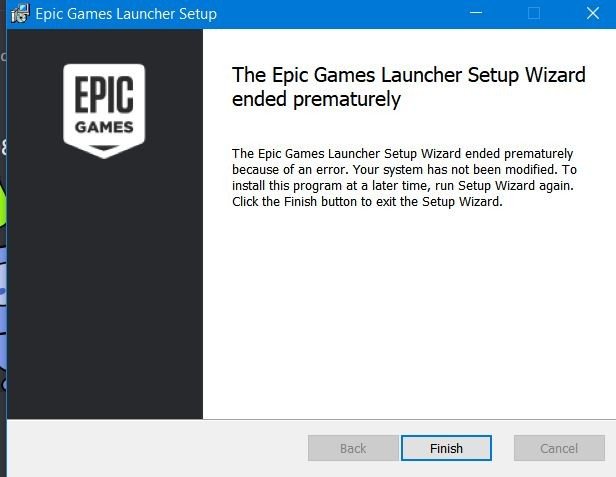
Try closing the Epic Games Launcher completely from the system tray and task manager before attempting to uninstall it again; also ensure no games are running.
Having trouble with deleting something from your computer? It can be frustrating when you can’t get rid of software. A common issue many face is that they can’t uninstall epic games launcher, leaving them puzzled about the next steps. Many different factors can cause this problem, from running processes to corrupted files. We’ll quickly address the common solution.

Why Can’t I Uninstall the Epic Games Launcher?
Okay, so you’re trying to get rid of the Epic Games Launcher, but it’s like it’s stuck to your computer with super glue! You’re not alone. Many people have trouble uninstalling this program, and it can be really frustrating. Let’s dig into why this happens and what you can do to fix it.
Common Reasons for Uninstall Issues
Before we jump into solutions, let’s look at the typical culprits behind the “can’t uninstall Epic Games Launcher” problem. Knowing the reasons helps us choose the right fix.
The Launcher is Still Running
This is the most frequent cause. Even if you think you closed the Epic Games Launcher, parts of it might still be running in the background. Think of it like a sneaky little program hiding behind the curtains. If the launcher is active, your computer won’t let you uninstall it because it’s still in use. To check, you need to close all related processes.
- How to Check and Close Running Processes on Windows:
- Press Ctrl + Shift + Esc to open the Task Manager.
- Look for any processes named “Epic Games Launcher” or anything related to it. Sometimes you might find “EpicWebHelper” or similar names.
- Click on each of these processes and then click the “End Task” button at the bottom.
- How to Check and Close Running Processes on macOS:
- Press Command + Spacebar to open Spotlight Search.
- Type “Activity Monitor” and press Enter.
- Look for any processes with “Epic Games Launcher” or “Epic” in the name.
- Click on the process and then click the “X” button at the top left corner of the window to close it.
Corrupted Installation Files
Sometimes, when the launcher is installed, some files might become damaged. This can happen because of a power outage, a virus, or simply a glitch. When the files are corrupt, the uninstaller might not function correctly. It’s like trying to open a door with a broken key – it just won’t work.
Permissions Problems
Your computer’s security settings might be blocking the uninstallation. This could be because the launcher files are located in a protected area, or the uninstaller itself doesn’t have the proper permission to remove the files. It’s like a doorman refusing to let you out because you don’t have the right pass.
Third-Party Interference
Other programs running on your computer could be interfering with the uninstallation process. This includes antivirus programs, other game launchers, or utilities that monitor your system. These programs might be holding onto files the Epic Games Launcher needs to access for uninstallation, creating a conflict.
Troubleshooting Steps to Uninstall Epic Games Launcher
Now that we know the possible reasons, let’s try some ways to get rid of that pesky launcher. These steps go from simple to more complex, so start at the top and work your way down.
Basic Uninstallation Steps
Let’s try the standard way first. This is the way most programs are removed and might just do the trick for you.
- On Windows:
- Click the Start button and type “Add or remove programs”.
- Click on “Add or remove programs” in the search results.
- Scroll down and find “Epic Games Launcher” in the list.
- Click on “Epic Games Launcher” and then click the “Uninstall” button.
- Follow the on-screen instructions to complete the process.
- On macOS:
- Open “Finder”.
- Click on “Applications” in the left sidebar.
- Find “Epic Games Launcher” in the list.
- Drag the “Epic Games Launcher” icon to the trash bin.
- Empty the trash bin.
If this worked, great! If not, don’t worry, we have more ideas.
Using the Epic Games Launcher Uninstaller
Sometimes, a dedicated uninstaller is located inside the installation folder. It can be more effective than the standard uninstall. Here’s how to find it:
- Open File Explorer (Windows) or Finder (macOS).
- Navigate to the Epic Games Launcher’s installation folder. This folder is usually located at:
- Windows: C:\Program Files\Epic Games\Launcher
- macOS: /Applications/Epic Games Launcher.app/Contents/MacOS/
- Look for a file named “unins000.exe” (on Windows) or “uninstall” (on macOS) or something similar.
- Run this file and follow the prompts to uninstall the launcher.
Reinstalling then Uninstalling
It sounds strange, but reinstalling the Epic Games Launcher can actually fix the problem. Sometimes, the new files replace the old corrupted ones, and then you can uninstall the launcher correctly.
- Download the latest version of the Epic Games Launcher from the official website.
- Install the launcher. Make sure to install it in the same location as the previous installation.
- After it’s installed, try the basic uninstallation steps we discussed earlier.
Using a Third-Party Uninstaller
If the above methods haven’t worked, using a third-party uninstaller might be the answer. These programs are designed to remove stubborn programs that are difficult to uninstall using the standard tools. They often scan for leftover files or registry entries that are often missed during a regular uninstall. Many options exist online; choose one that has positive reviews. For example, you might consider IObit Uninstaller, Revo Uninstaller, or similar software. Here’s a general process you can expect:
- Download and install a reliable third-party uninstaller.
- Open the uninstaller program.
- Find the “Epic Games Launcher” in the list of installed programs.
- Follow the uninstaller’s prompts to remove the launcher and any leftover files.
Safe Mode Uninstallation
Sometimes, booting your computer in Safe Mode can help with stubborn uninstalls. Safe Mode starts your computer with only essential files and programs, reducing the chance of other software interfering with the uninstallation process. Here’s how to enter Safe Mode:
- On Windows:
- Press the Windows key + I to open Settings.
- Click “Update & Security.”
- Click “Recovery” in the left menu.
- Under “Advanced startup,” click “Restart now.”
- Your computer will restart to a special menu. Select Troubleshoot > Advanced options > Startup Settings > Restart.
- When your computer restarts again, press the number key for Safe Mode with Networking (usually 5).
- On macOS:
- Shut down your Mac completely.
- Start it up again and immediately press and hold the Shift key.
- Release the Shift key when you see the login window.
Once you are in Safe Mode, try to uninstall the Epic Games Launcher using the standard uninstall steps or the dedicated uninstaller from its folder. After you have finished, restart your computer normally.
Manually Removing the Epic Games Launcher
If nothing else works, you can try to manually remove the Epic Games Launcher. This is a more advanced step and should only be used as a last resort. Be careful when doing this, as you can accidentally remove important files if you are not careful.
Important Note: Be very careful when manually deleting files. If you are not comfortable with these steps, ask a computer savvy friend to help.
- Removing Files and Folders (Windows):
- Press the Windows key + R to open the Run dialog.
- Type “%localappdata%” and press Enter.
- Find and delete the folder named “EpicGamesLauncher”.
- Press the Windows key + R again.
- Type “%programdata%” and press Enter.
- Find and delete the folder named “Epic”.
- Open the C:\Program Files directory and find the “Epic Games” folder and delete it.
- Open the C:\Program Files (x86) directory, if available and find the “Epic Games” folder and delete it.
- Removing Files and Folders (macOS):
- Open “Finder”.
- Press Command + Shift + G to open the “Go to Folder” window.
- Type ~/Library/Application Support and press Enter.
- Find and delete the “Epic” folder.
- Press Command + Shift + G again.
- Type /Applications/ and press Enter.
- Find the Epic Games Launcher application and delete it.
- Empty the trash.
Removing Registry Entries (Windows Only)
After removing the files, there might still be some registry entries left. These can cause future issues. Warning: Incorrect changes to the registry can damage your system, so be very careful.
- Press the Windows key + R to open the Run dialog.
- Type “regedit” and press Enter to open the Registry Editor.
- Click on “Edit” in the toolbar and choose “Find”.
- Type “Epic Games” and press Enter.
- If the editor finds a folder or registry entry relating to Epic Games, be careful to make sure its related to the launcher, then right-click on it, and choose delete.
- Press F3 to continue the search and delete all related items.
- Restart your computer after you have finished.
Removing the registry entries is an advanced step and requires great care. You can do irreparable damage to your computer if you delete the wrong entry. It’s recommended that you don’t use this approach unless you have experience. If you do not feel comfortable with these steps, ask for help from someone who has.
If you follow all these steps carefully, you should finally be able to uninstall the Epic Games Launcher. If you are still facing the issue, there may be an issue not covered by this guide.
Remember to check that the launcher is not running in the background, give yourself the proper permissions, and use a third-party uninstall tool or safe mode when necessary to handle more complicated scenarios. By patiently working through these fixes, you can overcome the problem of not being able to uninstall Epic Games Launcher.
How to Fix Can’t Uninstall Epic Games Launcher From Windows 11
Final Thoughts
Therefore, fixing a ‘cant uninstall epic games launcher’ issue can be frustrating. You might need to try various troubleshooting steps. These steps include ending processes or deleting files manually.
Sometimes, the launcher’s installer might be corrupted. This corruption prevents proper removal. You need to carefully explore all the options. It is important to remember such issues can occur.
When you still ‘cant uninstall epic games launcher’, using a third-party uninstaller could help. These tools sometimes remove stubborn applications. Always proceed with caution during any process.

