
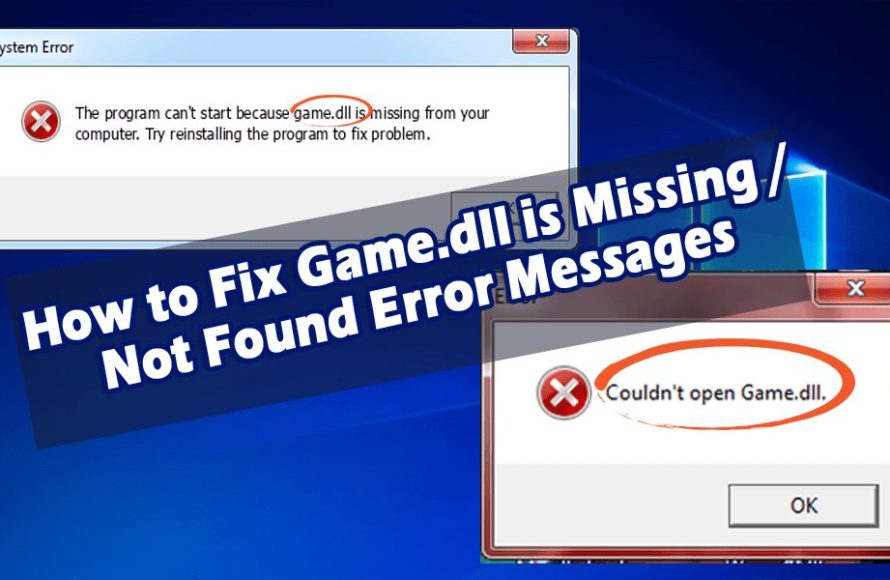
Try running Warcraft 3 as administrator or reinstalling the game; a corrupt or missing ‘gamedll.dll’ file can cause ‘couldnt open gamedll warcraft 3’ errors.
Frustrating, isn’t it? You’re ready for some classic Warcraft 3 action, but you get that dreaded error message: ‘couldnt open gamedll warcraft 3’. It stops your game dead in its tracks.
This problem usually points to an issue with your game files. Often, the ‘gamedll.dll’ file is either damaged or just not there. We’ll explore some easy fixes to get you back in the game.

Troubleshooting “Couldn’t Open gamedll Warcraft 3”: A Deep Dive
Alright, so you’re excited to jump back into the world of Azeroth, build some epic bases, and maybe even defeat the Lich King once and for all. But then, BAM! You’re hit with the frustrating “Couldn’t open gamedll Warcraft 3” error. It’s like the game is giving you a big, “Nope, not today!” This error can stop even the most dedicated Warcraft fan in their tracks, but don’t worry. We’re going to break down why this happens, and most importantly, how to fix it.
Understanding the gamedll File
Before we start fixing things, let’s talk about what the “gamedll” file actually is. Imagine your computer games like a big jigsaw puzzle. The game itself, like Warcraft 3, is the picture you’re trying to build. The “gamedll” file is like a key piece of that puzzle. It’s a Dynamic Link Library, which is a special type of file that contains important instructions for the game. It tells the game how to do things, like play sounds, display graphics, and a whole lot more. When the game can’t open this file, it’s like losing a key puzzle piece – the whole picture won’t come together, hence the error message. This file is essential for Warcraft 3 to run properly.
Common Causes for “Couldn’t Open gamedll Warcraft 3”
Now that we know what gamedll is, let’s look at some reasons why your game might be having trouble opening it. It’s a bit like a detective game!
Corrupted Game Files
One of the most common culprits is corrupted files. Think of it like having some of your puzzle pieces bent or broken. If the gamedll file or other game files are damaged, the game can’t use them correctly. This can happen for a few reasons:
- Sudden Power Outages: If your computer loses power while the game is updating or saving, files can get messed up.
- Virus or Malware: Sneaky viruses or malware can damage files on your computer, including important game files.
- Bad Download or Installation: Sometimes, files can become corrupted during the process of downloading or installing the game.
Outdated or Incorrect Graphics Drivers
Your graphics card is what makes the game look so cool, but it needs instructions, too. These instructions come in the form of graphics drivers. Outdated or faulty drivers can lead to many issues, including the gamedll error. Imagine it as trying to speak a different language than your game, causing miscommunication and errors.
- Old Drivers: If you haven’t updated your graphics drivers in a while, they might not be compatible with Warcraft 3.
- Incorrect Drivers: Sometimes, you might have the wrong drivers installed. This can happen if you have multiple graphics cards or if you accidentally installed drivers for the wrong model.
Compatibility Issues
Games, especially older ones like Warcraft 3, sometimes have trouble playing nice with newer computers and operating systems. It’s like trying to fit a square peg in a round hole. Compatibility problems can cause all sorts of strange errors, including the “couldn’t open gamedll” message.
- Older Operating Systems: While Warcraft 3 runs on older systems, newer versions of Windows could pose a problem.
- Virtualization or Compatibility Modes: Sometimes, specific settings interfere with how the game accesses files.
Antivirus and Firewall Interference
Your antivirus and firewall programs are like your computer’s security guards. They keep bad things out, which is great! However, sometimes they can get a bit too protective and accidentally block things they shouldn’t, like your game’s gamedll file. This is similar to having a security guard who is a bit too enthusiastic and stops all the friendly visitors at the door.
- False Positives: Antivirus programs sometimes mistakenly think game files are harmful.
- Firewall Blocks: Your firewall might be preventing Warcraft 3 from accessing the internet or files it needs.
Missing DLL Dependencies
Sometimes the “gamedll” file needs help from other DLL files, like little helpers. If these other files are missing or broken, it can cause the “couldn’t open gamedll” error. Think of it like needing multiple keys to open a chest, if you are missing some keys, you cannot open the chest.
Step-by-Step Solutions to Fix “Couldn’t Open gamedll Warcraft 3”
Now for the best part – fixing the issue! Let’s go through each solution step by step. Remember, if one doesn’t work, don’t give up! Just try the next one.
1. Restart Your Computer
It might seem too simple, but restarting your computer is a great first step. It’s like giving your computer a little nap. Sometimes, that’s all it needs to clear up temporary glitches that might cause the gamedll error. Just shut down and turn it back on, and then try launching Warcraft 3 again.
2. Run Warcraft 3 as Administrator
Sometimes, a game needs extra permissions to access all the files it needs. Running the game as an administrator gives it these extra rights. Here’s how to do it:
- Find your Warcraft 3 shortcut or the game’s executable file (usually called “Warcraft III.exe” or something similar).
- Right-click on the file or shortcut.
- Select “Run as administrator.”
- Now, try launching the game.
If it works, consider setting the game to always run as administrator. To do this:
- Right-click the game’s shortcut or executable file again.
- Select “Properties.”
- Go to the “Compatibility” tab.
- Check the box next to “Run this program as an administrator.”
- Click “Apply” and then “OK.”
3. Check for Game Updates
Make sure your Warcraft 3 is up-to-date. Game developers often release patches that fix bugs and improve performance. Updates often include changes to important files, including gamedll files. It’s always best to play with the most recent version.
- Battle.net App: If you are playing using the modern Battle.net application for Warcraft 3, the updates should come automatically. Ensure that the game is not paused for any updates.
- Manual Updates: For classic Warcraft 3, you may need to manually search for updates from Blizzard’s official website, and install it accordingly.
4. Update Your Graphics Drivers
Keeping your graphics drivers up to date is like ensuring your car gets regular tune-ups. It helps everything run smoothly. Here’s how to update your drivers:
For NVIDIA Graphics Cards:
- Go to the NVIDIA website.
- Find the “Drivers” section.
- Enter your graphics card model information.
- Download the newest driver for your operating system.
- Run the installer and follow the instructions on screen.
For AMD Graphics Cards:
- Go to the AMD website.
- Find the “Drivers & Support” section.
- Enter your graphics card model information.
- Download the latest driver for your operating system.
- Run the installer and follow the instructions on screen.
For Intel Graphics Cards:
- Go to the Intel website.
- Find the “Support” section.
- Download the correct driver for your computer based on the model you have.
- Run the installer and follow the instructions on screen.
Important Note: After updating your drivers, restart your computer before trying to run Warcraft 3 again. This will ensure that the new drivers fully load.
5. Reinstall Warcraft 3
If updating drivers doesn’t help, then the game files themselves might be the problem. Sometimes, the best option is to reinstall the game. This is like getting a fresh, new set of puzzle pieces. Here’s how:
- Uninstall Warcraft 3 from your computer through the Control Panel or Settings, depending on your version of Windows.
- Once it has been uninstalled, you can try to delete any remaining files in the location, you had installed the game previously.
- Download and install the game again from the official Blizzard site or from the original CD or DVD.
- After installation, make sure to install all the updates before running the game again.
6. Adjust Antivirus and Firewall Settings
If your antivirus or firewall is being overly cautious, you can adjust its settings. This is like telling the security guard, “Hey, this person is a friend, let them in.”
Antivirus
- Add an Exception: Add the Warcraft 3 executable file (Warcraft III.exe) and the game directory to your antivirus’s exceptions list. This tells your antivirus to ignore these files. Refer to your antivirus documentation for details on how to do that.
- Temporarily Disable: As a temporary step, you can try disabling your antivirus. If the game works, you’ll know the antivirus is the culprit, and you should create an exception for Warcraft 3. Make sure to enable your antivirus again afterwards for your computer’s safety.
Firewall
- Add an Exception: Allow Warcraft 3 through your firewall. Go to the Windows Firewall settings, and allow “Warcraft III.exe” and any related files to access the network.
- Temporarily Disable: As a test, you can disable the firewall temporarily. If it resolves the issue, make sure to create the exception for Warcraft 3 and re-enable the firewall again.
7. Run in Compatibility Mode
Sometimes, running the game in compatibility mode can solve problems, especially for older games on newer systems. It tells Windows to act like an older operating system while running the game. Here’s how:
- Find your Warcraft 3 shortcut or executable file.
- Right-click and select “Properties.”
- Go to the “Compatibility” tab.
- Check the box next to “Run this program in compatibility mode for:”
- Select an older version of Windows from the dropdown list (like Windows XP or Windows 7).
- Click “Apply” and “OK.”
8. Check for Missing DLL Files
As mentioned earlier, the game might need other DLL files. Sometimes these files go missing or get corrupt and cause the gamedll error. It can be difficult to find these missing files, so a system file checker can help. Here’s how:
- Open the command prompt by typing “cmd” into the search bar and selecting “Run as administrator.”
- In the command prompt window, type “sfc /scannow” and press enter.
- This will scan your files for corruption, and it should fix any corrupted or missing files.
After this finishes, then restart your computer and then try launching Warcraft 3.
9. Clean Boot Your System
Sometimes, another program on your computer can interfere with Warcraft 3. A “clean boot” helps to eliminate these conflicts by starting Windows with minimal drivers and startup programs. It’s like putting your computer on a diet to remove any extra baggage.
- Press the Windows key + R, type “msconfig,” and press Enter.
- In the System Configuration window, go to the “Services” tab.
- Check the box that says “Hide all Microsoft services.”
- Click “Disable all.”
- Go to the “Startup” tab and click “Open Task Manager.”
- In the Task Manager, disable all startup items.
- Close Task Manager and click “Apply” then “OK” in the System Configuration window.
- Restart your computer.
- Try running Warcraft 3.
- If the game works correctly you will have to restart all the disabled services and startup programs one by one, to find out which one is causing the issue.
10. Check Your RAM
Your computer’s RAM is what allows it to run many applications at once, so if there is a problem with the RAM, it might be causing the game files to load improperly. You can use the Windows Memory Diagnostic tool to find any errors with your RAM.
- Type “Windows Memory Diagnostic” into the search bar and press enter.
- Select the option “Restart now and check for problems”.
- This will restart your computer, and it will check for any errors in your RAM.
- If it finds errors, it will give you more information on how to fix them.
Note: if your memory test does not show any problems, then it’s unlikely this is causing the gamedll error.
By going through all these troubleshooting steps, you have a very good chance of resolving the “couldn’t open gamedll Warcraft 3” error and get back into the game. Remember to be patient and try each solution one at a time.
If after trying these steps, you are still encountering this error message, then it’s good to seek more help from the official game support channels or forums. This way, you can get specific help for the issue you are encountering. Good luck and happy gaming.
Remember to approach the troubleshooting steps with patience, and don’t be afraid to experiment with the solutions provided. Sometimes, the answer can be found by trying different combinations of these methods. Persistence is key.
Fix Problem Warcraft III unable to initialize DirectX
Final Thoughts
In short, resolving ‘couldnt open gamedll warcraft 3’ often involves verifying file integrity and ensuring correct game installation paths. System compatibility and updated drivers are also must checks. Remember to thoroughly review these common causes.
Adjusting security permissions or reinstalling the game can sometimes fix this frustrating error. If the issues persists, seeking community support forums or game specific troubleshooting guides might provide additional solutions.

