
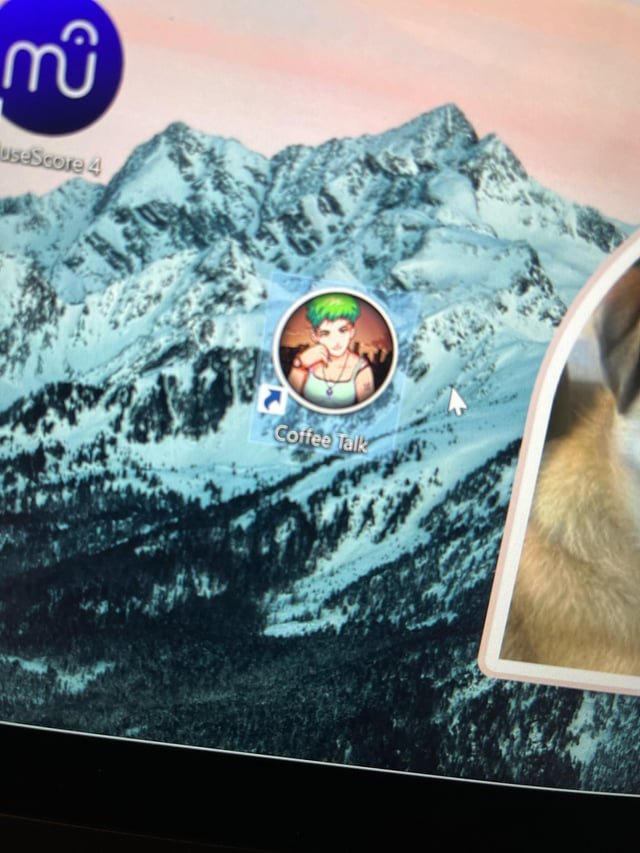
No, deleting a game shortcut does not delete the game itself.
Have you ever worried that removing a game icon from your desktop would erase the whole thing? The question, “does delete game shortcut delete game,” pops up in many minds. It’s easy to assume they’re linked, but thankfully, they aren’t.
Deleting a shortcut just removes a convenient link to the game’s actual location on your hard drive. The game files, often quite large, stay untouched within their folders. This makes managing your desktop or menu much safer.

Does Delete Game Shortcut Delete Game? Unpacking the Digital Mystery
Okay, so you’ve got a bunch of cool games on your computer, right? And maybe your desktop is starting to look like a total mess with all those game icons. You might be thinking, “Hey, I’ll just get rid of some of these shortcuts.” But wait a second! Will deleting those game shortcuts actually delete the entire game? That’s a question many of us have wondered, and the answer is pretty simple: No, deleting a game shortcut will not delete the actual game itself. Let’s dive deeper into this, exploring what shortcuts are and how they work.
What Exactly is a Game Shortcut?
Think of a game shortcut like a special pointer or a map. It’s a small file on your computer, usually represented by a little picture (the game icon), that tells your computer where to find the real game. It’s like having a treasure map – the map isn’t the treasure, but it shows you where to find it. The game shortcut is not the game itself, it’s just a convenient way to access it. When you click a game shortcut, your computer follows that map to the place on your hard drive where the game files are stored and launches it.
How Shortcuts Differ From Game Files
It’s important to know that game shortcuts and game files are not the same. Game files are the actual data that make up the game – things like the game’s program code, pictures, sounds, and other necessary information for the game to run properly. These files are usually stored in a specific folder on your hard drive, often within a folder called “Program Files” or “SteamLibrary”. A shortcut just links to the game files; it is not the game in its entirety.
Let’s use a small table to show the major difference between game shortcuts and game files :
| Feature | Game Shortcut | Game Files |
|---|---|---|
| What is it? | A pointer or link to the game | The actual game program and data |
| Size | Very small (a few kilobytes) | Very large (often gigabytes) |
| Location | Usually on the desktop or in a folder | Stored in specific folders on hard drive |
| Function | Opens the game | Makes up the game itself |
| Deletion | Removing deletes the link only | Removing deletes the entire game |
As you can see, they have very different roles in your system.
Why Are Game Shortcuts Helpful?
Game shortcuts make things way easier for you. Without them, you would have to dig through files and folders every time you want to play your favorite game, which can be very time consuming and annoying. Here are some key reasons why shortcuts are useful:
- Easy Access: They put your favorite games right at your fingertips on the desktop or in a folder, so you can get gaming quickly.
- Organization: You can put shortcuts in different folders on your computer to keep them nice and tidy, without moving your actual game files around.
- Customization: You can rename shortcuts, change their icons, or create custom shortcuts.
Deleting Shortcuts – What Happens?
So, what actually happens when you delete a game shortcut? The short answer is: the shortcut is removed from wherever you deleted it from (desktop,folder), and nothing else. You’re just removing the pointer or the shortcut map to the actual game. The actual game files are still exactly where they were, safe and sound on your hard drive. Think of it like throwing away a map but not the treasure. The treasure is still there, you just don’t have the map anymore.
The Impact of Deleting Shortcuts
The only impact is that you will no longer have a fast way to access your game. You can always make a new shortcut or access the game by finding the installation folder. When you remove a shortcut, you are not damaging the game’s integrity, it’s the same as removing the bookmark from your web browser. It helps in decluttering, but your actual game remains intact.
How to Find Your Game if You Deleted the Shortcut
If you accidentally delete a game shortcut, don’t panic! Your game is still there, and it’s not hard to locate. Here are a few ways you can find and play it:
Using the Start Menu (Windows)
If you have a Windows computer, you can find many of your games by doing these steps:
- Click the Start button (the Windows logo in the bottom-left corner).
- Scroll through the list of installed apps.
- Look for the name of your game. You might need to check under the game developer’s name if you don’t find the game right away.
- Once you find the game, you can click it to play, or you can right-click and send another shortcut to the desktop.
Using Finder (macOS)
If you use a Mac computer, you can find your games by:
- Click the Finder icon in the dock (it looks like a smiling face).
- Click on Applications in the sidebar.
- Search for the game in the list of installed apps.
- Double-click on the game’s icon to play it. You can also right-click and make another shortcut from there.
Using Steam, Epic Games Launcher, or other platforms
If you downloaded your game from a store like Steam, Epic Games, or any other platform, then you can launch it from there. Here’s how:
- Open the game launcher (like Steam or Epic Games Launcher).
- Go to your library or installed games list.
- Click on the game you want to play and hit play or launch. You can also create a shortcut from there, if needed.
Searching Directly on your Computer
Another method to locate your game files is by searching directly on your computer. This works on both Windows and Mac computers:
- Windows: Open the search bar (the magnifying glass next to the Start button), type the name of your game, and you should see the application file appear in the results.
- macOS: Click on the Spotlight search icon (magnifying glass in the top right corner), type the game’s name, and the application should be among the results.
How to Create a New Game Shortcut
Let’s say you deleted a game shortcut and want a new one; It’s super easy to create a new shortcut. Here’s how you can do it:
Creating a Shortcut on Windows
- Find the game in the Start menu or in the game’s install folder.
- Right-click the game icon or the game’s executable file (the file that ends in .exe).
- Choose Send to > Desktop (create shortcut).
- A new shortcut to the game will now appear on your desktop.
Creating a Shortcut on macOS
- Find your game in the Applications folder.
- Right-click the game icon.
- Choose Make Alias.
- An alias (shortcut) will appear in the same folder; you can then move this alias wherever you want, such as your desktop.
Creating a Shortcut from Steam
- Open Steam and go to your library.
- Right-click the game you want to create a shortcut for.
- Select Manage then Add desktop shortcut.
When Deleting Does Delete a Game
Now that we know that deleting a shortcut does not delete a game, let’s talk about what actually does delete the game from your computer. The process for that is a little different, and it removes the entire game files from your computer. Here are the common ways to uninstall a game:
- Using the Operating System’s Uninstaller: Both Windows and macOS have uninstaller tools that remove game files from your hard drive.
- Using Game Launchers: Game launchers like Steam, Epic Games, or GOG Galaxy provide options to uninstall games directly within the app.
How to Properly Uninstall a Game on Windows
- Open the Settings app (click the Windows logo and then the gear icon).
- Go to Apps, then Apps & features.
- Find the game you want to remove, click it and then click Uninstall.
- Follow any steps that appear on the screen and you are done.
How to Properly Uninstall a Game on macOS
- Open Finder then click on Applications.
- Drag the application’s icon to the Trash.
- Right-click the Trash icon and choose Empty Trash.
How to Properly Uninstall a Game from Steam
- Open the Steam app and go to your Library.
- Right-click the game you want to uninstall.
- Select Manage then Uninstall.
- Steam will now uninstall the game from your computer.
How to Properly Uninstall a Game from Epic Games Launcher
- Open the Epic Games Launcher and go to your Library.
- Find the game you want to uninstall and click the three dots.
- Choose Uninstall.
- The launcher will now uninstall the game from your system.
Why is this Important?
Understanding the difference between shortcuts and actual game files will help you manage your computer’s games better. You can keep your desktop organized without worrying about losing your games. It also helps avoid accidental deletion of game files, that can take a lot of time and internet data to download again.
Keep Your Games Organized!
Now that you understand all about game shortcuts, you can keep your computer nice and tidy. Feel free to delete any shortcuts that you don’t use without worrying about losing any of your games. Knowing the differences between shortcuts and game files is a small step toward having better control of your digital world!
How to delete shortcut from Launchpad of Steam games?
Final Thoughts
Deleting a game shortcut does not remove the actual game from your computer. The shortcut is just a link; it points to the game file. The game files remain untouched when you delete its shortcut.
So, does delete game shortcut delete game? No, it does not. It only removes the quick access icon, the core program is still there and fully functional on your computer.

