
No, PCSX2 does not play PS1 games. It is specifically designed to emulate PlayStation 2 titles.
Ever wondered if you could play your favorite PlayStation 1 classics using the PCSX2 emulator? It’s a common question, especially since emulation has come so far. Many gamers are curious, does pcsx2 play ps1 games?
The answer is actually quite straightforward, PCSX2 is built for PlayStation 2 titles alone. You’ll need a different emulator to enjoy those old PS1 games. There are several great emulators designed specifically to play them and they run really well on most computers.

Does PCSX2 Play PS1 Games?
That’s a fantastic question! If you’re thinking about playing those awesome PlayStation 1 games on your computer, you might have come across PCSX2. It’s a popular program that lets you play PlayStation 2 games, but things get a bit tricky when we talk about PS1 games. Let’s dive deep into whether PCSX2 can actually play your favorite PS1 classics.
The Main Purpose of PCSX2: PS2 Emulation
First, it’s important to understand what PCSX2 was built for. Its main job is to act like a PlayStation 2 console on your computer. It’s designed to read the game files (the game discs or game image files) of PlayStation 2 and then show them on your computer. This process is called emulation. Think of it like a translator. PCSX2 translates the PS2 game’s language into a language your computer understands. It’s a complex process that involves recreating the PS2’s hardware and software.
Because PCSX2 focuses solely on PS2 games, it doesn’t have the needed instructions and functions to play PlayStation 1 games. It would be like trying to use a key for a car to open your house – it simply won’t work.
Why PCSX2 Isn’t Designed for PS1 Games
The PlayStation 1 and PlayStation 2 are very different game systems. They use different processors, different graphics systems, and different ways of storing game data. These differences are huge and cannot easily be bridged. PCSX2’s design has code specifically made to imitate a PS2, and that code does not understand the unique ways a PS1 works. The architecture of PS1 and PS2 is very different, so they need a different emulator for each system.
Here’s a simple way to understand it:
- PS1: Uses a 32-bit processor and simpler graphics processing.
- PS2: Uses a 128-bit processor and a more powerful graphics system.
Because of these key differences, the code that runs the games has different instructions, and this difference is what makes it impossible for PCSX2 to directly play PS1 games.
So, Can We Play PS1 Games on Our Computer?
Even though PCSX2 can’t play PS1 games, don’t worry, there’s good news! There are other emulators specifically designed to play PlayStation 1 games on your computer. These emulators are made to understand the PS1’s unique workings. They translate PS1 game code into something your computer can understand, just like PCSX2 does for PS2 games.
Several excellent PS1 emulators exist, including:
- ePSXe: A very popular and well-regarded PlayStation 1 emulator known for its good compatibility and extensive settings. It allows you to customize your gaming experience.
- RetroArch: This is an “all-in-one” emulator that supports a wide range of gaming systems, including the PS1. It’s very powerful and versatile.
- DuckStation: A newer emulator with excellent accuracy and lots of features. Some players prefer this one because of its performance.
These programs are similar to PCSX2 in that they take game files (game ISOs or game BIN/CUE files) and show them on your computer, but these work only for PS1 games. They are specifically created for PlayStation 1 hardware.
What Do You Need to Play PS1 Games?
To get started playing PS1 games on your computer, you’ll need a few key things:
- A PS1 Emulator: You’ll need to choose and download one of the emulators mentioned above (ePSXe, RetroArch, or DuckStation).
- PS1 Game Files (ISOs, BIN/CUE): These are the digital copies of your favorite PS1 games. They’re usually found online, but be aware of copyright laws and make sure you own a physical copy of games you download.
- A Computer: A computer powerful enough to run the emulator and games without slowdown. Luckily, PS1 games aren’t as demanding as modern games.
It’s essential to get the game files from a legal source. If you own the physical games, you are free to make backups for personal use. However, you shouldn’t download games illegally. Respecting the rights of game developers and publishers is always the right thing to do.
Setting Up Your PS1 Emulator: A Step-by-Step Guide
Setting up a PS1 emulator might seem intimidating, but it’s actually not that hard. Here’s a basic guide using ePSXe as an example (though the process is similar for other emulators):
Downloading and Installing ePSXe
- Go to the ePSXe official website or a trusted source to download the program.
- Find the appropriate download for your operating system (Windows, macOS, or Linux).
- Follow the instructions to extract the program. There’s often no installer, so usually you will just need to open the folder where you extracted it.
Configuring ePSXe
- Run the ePSXe.exe file.
- A setup wizard may start to help you with important configuration settings.
- The first thing the emulator will ask you for is your BIOS. BIOS is like the operating system of the PlayStation.
- You have to find the PS1 BIOS, usually named scph1001.bin. You will not find this on the emulator’s official website due to copyright.
- Place the bios in the bios folder of your emulator directory.
- Choose your preferred video plugin (usually the default settings will work well).
- Configure your controllers. In “Config,” choose “Game Pad”, then choose “Port 1”, then click “Pad 1” to setup your controller.
- Once everything is set up, you are ready to play!
Loading a Game
- Click “File,” then “Run ISO.”
- Find your PS1 game file, open it and play.
Each emulator might have some different steps or specific options. RetroArch, for example, involves a “core” system that’s a bit different from the way ePSXe is used, but the basic idea is very similar for all emulators. Most of the time you just have to load the emulator and select the right game file.
Important Considerations for PS1 Emulation
When playing PS1 games on your computer, there are a few things you should keep in mind to have the best experience:
Game Compatibility
While most PS1 games run flawlessly, a few might have issues on certain emulators. Usually, there are ways to improve this. Some emulators also have specific compatibility lists online where you can check if a game you want to play works well.
Video Settings
You can improve the graphics of PS1 games through the video settings of the emulator. You can make them sharper and smoother. Experiment with different settings to find what works best for your computer.
Audio Settings
Similar to video settings, you can also adjust audio settings to optimize how games sound. Some games might have audio glitches and, in some cases, you may be able to fix this through the audio settings.
Controller Mapping
Make sure your controller is properly set up in the emulator’s settings, and all of the buttons are working correctly.
Game Files
You may need to use different game file formats like BIN/CUE or ISO. Some emulators require one format over others.
Why Choose Emulation Over Original Hardware?
You might be wondering why someone would emulate a PlayStation 1 game instead of playing it on the real hardware. Here are a few reasons:
- Convenience: You can play many games on one device (your computer). No need to hunt down and swap out games on different consoles.
- Improved Graphics and Audio: Emulators often offer improved visual and audio quality, making your favorite classic games look and sound better than ever before.
- Save States: Emulators often let you save the game state at any point, letting you go back to tricky parts quickly.
- Accessibility: Playing games on a computer is more accessible and cheaper for many people than finding old consoles.
Exploring the World of PS1 Games
The PlayStation 1 has a huge catalog of classic games. From role-playing games (RPGs) to action games and platformers, there’s something for everyone. Emulation makes it easier to discover these games. For instance, many people are discovering PS1 classics like Final Fantasy VII, Metal Gear Solid, Crash Bandicoot, and many more thanks to emulation. It is a great way to relive the nostalgia of the past or experience these games for the first time.
The Future of Emulation
Emulation is constantly changing. New emulators come out every year, and existing ones receive constant updates. As time passes, emulation becomes more and more precise and is able to offer even better experiences. The PlayStation 1 and PlayStation 2 libraries will continue to be enjoyed and explored for many years because of this dedicated group of developers.
Emulation is also useful for game preservation. It lets us keep old games alive even if the original hardware gets old and worn out. This makes sure that future generations can still experience these important parts of video game history.
So, while PCSX2 is not for PS1 games, it is a top choice for PlayStation 2 games, and you have a lot of great choices when it comes to emulating PS1 games. Each emulator has its advantages and can provide you with countless hours of fun.
It is clear that PCSX2 cannot play PS1 games because it has been built to emulate the PS2. But with the power of other specialized emulators, enjoying your favorite PS1 games is completely possible.
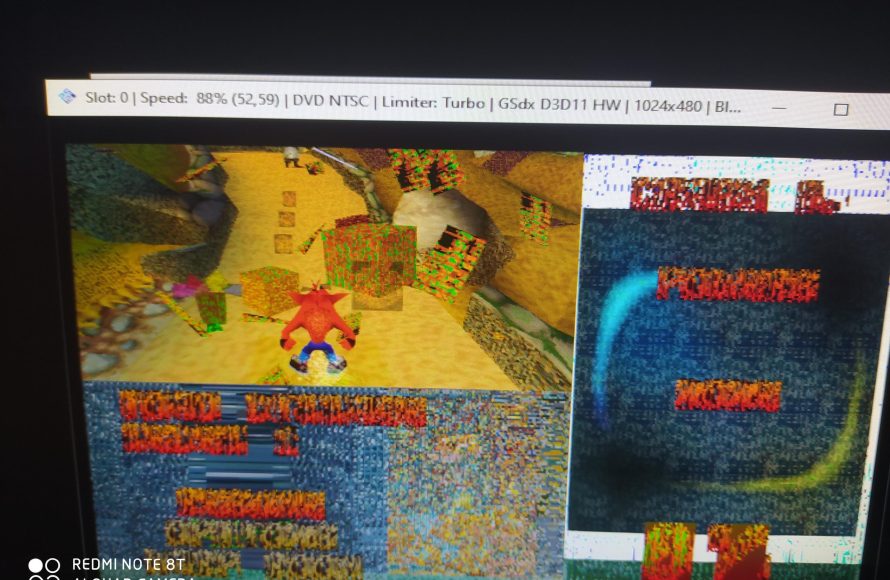
Trying to run PS1 games on PCSX2
Final Thoughts
PCSX2 does not play PlayStation 1 games. It functions as an emulator for the PlayStation 2 console. Users should seek a different emulator for their PS1 titles.
You require a dedicated emulator designed for PlayStation 1 games. Many excellent emulators exist for this purpose. So, does pcsx2 play ps1 games? The simple answer is no; it only works with PlayStation 2 games.

