
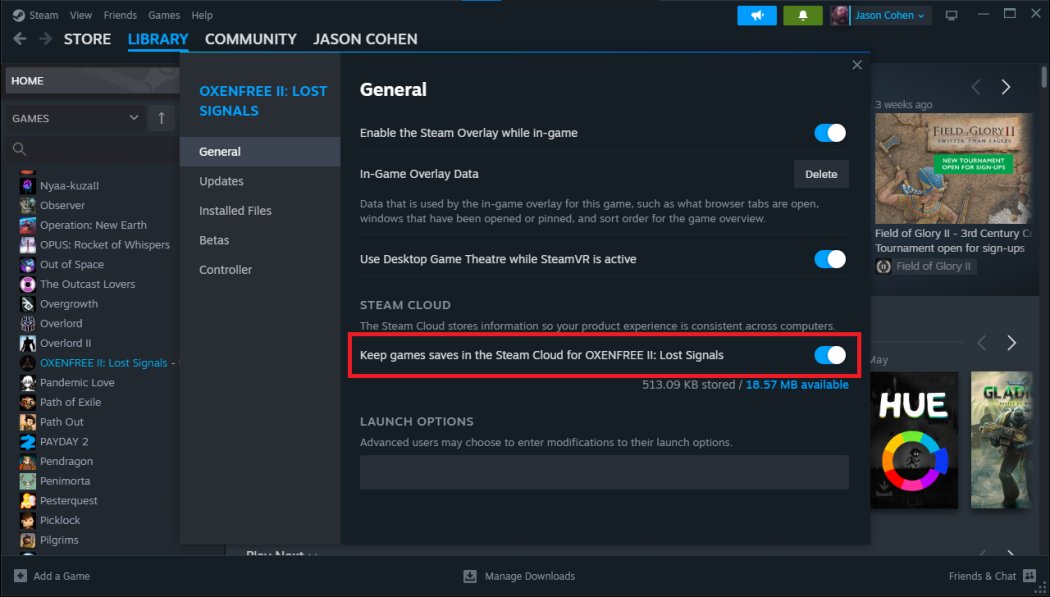
Yes, Steam generally saves game progress between computers using its cloud sync feature.
Ever started a game on your desktop, only to wonder if you can pick up right where you left off on your laptop? The question of “does steam save game progress between computers” is a common one for many gamers. It can be frustrating to restart a game after hours of play on a different machine.
Luckily, Steam has a built-in system for handling game saves. This feature lets you move between devices without losing your hard-earned accomplishments. It’s designed to make your gaming experience seamless and convenient.

Does Steam Save Game Progress Between Computers?
Okay, let’s dive into a question that many gamers have: Does Steam save your game progress when you switch between different computers? The short answer is: often, yes! But it’s not quite as simple as just logging in and expecting everything to be exactly where you left it. There’s a bit more to understand, and that’s what we’re going to explore in detail.
How Steam Cloud Saves Work
The magic behind saving game progress across different computers is something called Steam Cloud. Think of it as a special online storage space for your game saves. When you play a game that supports Steam Cloud, your save files are not only stored on your computer, but they’re also automatically uploaded to this online storage space. Then, when you start the same game on a different computer using the same Steam account, Steam downloads your saves from the Cloud onto that new computer. Pretty neat, huh?
The Automatic Process
Steam Cloud usually works automatically in the background. You don’t have to click any special buttons. As you play a game, every now and then (or sometimes when you exit the game), Steam will upload your latest saves. Similarly, when you start a game on a different computer, it looks for any existing saved games in the cloud and downloads them before you begin playing. This means you can start a game on your home PC, go to a friend’s house, start the same game on their computer, and often pick up exactly where you left off.
Games That Support Steam Cloud
It’s important to understand that not every game on Steam uses Steam Cloud. Developers have to actively include this functionality in their games. How do you know if a game uses it? There are a few easy ways to check:
- The Game’s Steam Store Page: Scroll down to the features section of the game’s page on the Steam store. Look for a line that says “Steam Cloud” and the checkmark. If there is a checkmark next to that option, it is enabled for that particular game.
- The Steam Library: In your Steam library, you can see whether Steam Cloud is enabled for a game by looking at the game’s page in your library. This is also where you will see a “Cloud Status” icon. The cloud icon will either display a checkmark (game saves synced) or have a cloud icon that is not highlighted (indicating that it doesn’t support cloud saving).
- In-Game Settings: Some games might have their own in-game options menu that mentions cloud saves or syncing.
If you are unsure, checking the game’s store page is generally the best way to verify Steam Cloud support. Games that don’t support Steam Cloud will only save their data on the computer where you are playing them.
The Types of Game Saves
While we often think of “game progress” as one thing, game saves can come in different forms. Here are the most common types of saves that are managed by Steam Cloud:
- Checkpoint Saves: These are frequent, automated saves that the game itself makes at certain points. For example, if you complete a section or reach a safe area in the game, the game makes a checkpoint save. This is common for games where you can’t manually save anywhere, like many adventure games.
- Manual Saves: These are saves that you make yourself, typically by going to the game’s menu and selecting the “Save Game” option. Manual saves often let you have more control over where and when you save your progress.
- Auto Saves: Many games automatically save at regular intervals, usually to prevent you from losing too much progress if something goes wrong (or you forget to save!). Auto saves are quite common in role playing games or big open-world games.
- Game Settings: Sometimes, Steam Cloud also stores other game settings like your graphics preferences, audio levels, and control setups. This can help you keep a similar gaming experience across different computers.
How the Different Saves Are Synced
The way these saves are handled by Steam Cloud is usually very smooth. When a game supports Steam Cloud, it will usually sync all of these save types and settings, so you don’t have to worry about what’s going to be transferred. When you launch a game on a new computer, Steam downloads all the latest data and settings available in the Cloud, giving you the closest possible experience you last had.
Common Issues with Steam Cloud Saves
As great as Steam Cloud is, it’s not always flawless. Sometimes you might experience issues that prevent your save data from syncing correctly. Here are a few common problems and how to address them:
Synchronization Conflicts
A synchronization conflict happens when Steam detects that your saves are different on your local computer and on the cloud. This usually happens if you play the game on multiple computers at around the same time or shut down your computer while it is still in the middle of syncing. When that happens, Steam will usually show a popup asking you which save data to keep and which to discard. Make sure you are careful when choosing an option here, to ensure you do not lose your saves.
How to Resolve a Sync Conflict
- Choose Wisely: When prompted, carefully choose which save data you want to keep – the one from your computer or the one from the cloud. If you are not sure, choose the one from your most recent play session.
- Review the Data: Sometimes Steam provides info on the date and time of the save files. This might help you pick the right save.
- Close the Game: If you’re still having problems, try closing the game, restarting Steam, and relaunching. Sometimes this will get the sync working again.
Steam Cloud Not Syncing
Sometimes you’ll notice that your saves are not being uploaded to Steam Cloud or not being downloaded correctly. This may be due to many reasons, such as internet connection or some issue with the game itself.
Troubleshooting Syncing Issues
- Check Your Internet Connection: Steam Cloud needs a working internet connection. Make sure you’re connected to the internet before playing. If your internet is acting up, that is usually the most common issue for why the cloud is not syncing.
- Restart Steam: Closing Steam and starting it again can sometimes fix temporary issues.
- Restart Your Computer: A simple computer restart can often sort out minor issues.
- Check Cloud Storage: Sometimes, your Steam Cloud storage might be full. Steam generally gives you enough space, but if you have thousands of save games, that can be an issue. In your Steam account, check your storage capacity, and try deleting old saves, or see if your storage limit can be increased.
- Verify Game Files: Sometimes corrupted game files can prevent saves from syncing correctly. Right-click on the game in your library, go to properties, and then “Local Files” and then “Verify Integrity of Game Files.”
- Disable and Re-enable Cloud Saves: Try toggling the Cloud Save option for a specific game off and then back on. This can sometimes reset the sync functionality. Right-click on the game, click “properties”, then navigate to the “General” tab and there will be an option to toggle cloud save.
Compatibility Issues
Not all games handle cloud saves in the same way. Some games, particularly older ones, may have issues or simply not work correctly with Steam Cloud. It is also worth noting that some games may rely on their own cloud services. Therefore, if you encounter issues with saves not syncing or being transferred, it could be the game’s own services at fault and not necessarily Steam’s.
Identifying and Handling Compatibility Issues
- Check Game Forums: Look for other players experiencing similar problems and see if anyone has found a solution in online discussions, like on the Steam community forums.
- Developer Support: Contact the game’s developers directly if you are having a persistent issue with cloud saves that can not be resolved.
- Manual Backup: If a game frequently has syncing issues, regularly create manual backups of your saves. This involves copying your game saves from your computer and transferring them to other computers manually when you want to switch.
Managing Your Save Files Manually
Sometimes, you might need to manage your save files directly. This is especially useful for games that don’t use Steam Cloud or if you want to make extra backup copies.
Finding Your Local Save Files
Your game save files are often saved somewhere on your computer. However, finding them can be tricky. Many game save files are located in the “Documents” folder of your PC, under a specific folder name or directly within the “Documents” folder. The path varies a lot between games, but here are some general ways to find your local saves:
- In the Documents Folder: Check within your Documents folder for a folder named after the game or the game’s publisher. This is a very common place for saves to be stored.
- In the AppData Folder: Game save files are also commonly located in the “AppData” folder, which can usually be found in the user profile folder. (C:/users/[your username]/AppData) Inside the “AppData” folder there are usually 3 subfolders “Local”, “Roaming”, and “LocalLow”. In each one of these, game saves might be stored in subfolders or directly inside.
- Game Installation Directory: Sometimes, game saves are found in the game’s main installation directory. Usually located in C:\Program Files (x86)\Steam\steamapps\common\[game folder name]
- Use a Search: If you are still having issues locating your game saves, you can always do a file search using the Windows file explorer by typing the game name in the search bar.
Backing Up Your Saves
Once you find where your game saves are located, backing them up is usually as simple as copying the save files and pasting them in a different location. Here is a simple approach to follow:
- Locate Your Saves: Use the techniques above to find the folder where the game saves are stored.
- Copy the Save Files: Select all the save files or folders you need to save and press CTRL+C to copy them.
- Choose a Backup Location: Choose a safe location for storing your backups. This could be another folder on your computer or somewhere external like a USB drive.
- Paste the Save Files: Paste your game saves to the new location you chose by pressing CTRL+V.
Now you have a backup copy of your save files. You can copy the files back over to a computer if you ever need to restore them. Remember to do this regularly if you are worried about losing your game progress. If you are still having difficulty, there are a wide range of Youtube videos which provide visual instructions on where to find the local files for a game.
Steam Play and Cross-Platform Saves
Steam Play is an amazing feature that allows you to play certain games on different operating systems (like Windows, Mac, and Linux) with a single purchase. This means you can purchase a game for one OS and play it on another without having to buy it twice. But what about save data and cloud saves? Let’s take a look at how these work with Steam Play.
How Cross-Platform Saves Work
For the most part, cloud saves work seamlessly across different operating systems. If a game supports Steam Cloud, your saves will often transfer between Windows and Mac and Linux (or any other supported operating systems). This means that you can start a game on your Windows PC at home, continue playing it on your Mac laptop at work, and then come back home to continue on your Windows PC again.
Limitations and Exceptions
While the intention is to provide save game support across different systems with Steam Play, some specific scenarios do occur when it might not work as expected. This is usually due to the following reasons:
- Platform-Specific Features: Some games might use platform-specific features which might not transfer between operating systems. If a game uses features that are unique to a specific operating system, saves might not be fully compatible across operating systems.
- Game Engine Issues: Sometimes, the way that game engines are set up can cause problems with cross-platform saves. Some older games may not have been built with cross-platform syncing in mind, so those games may encounter issues.
- Game Developer Decisions: A game’s developer may intentionally limit compatibility of saves across operating systems for various reasons.
So while Steam Play and cloud saves will usually work fine, you may occasionally experience issues related to these platform-specific issues, especially with some older games or more complex games.
Tips for Smooth Save Transfers
Here are some tips to help make transferring your game progress a smooth experience:
- Double-Check Cloud Support: Always check if a game supports Steam Cloud before relying on it for syncing your saves between different computers.
- Wait for Sync Completion: Give Steam enough time to fully synchronize your saves before shutting down your computer or starting the game on another computer.
- Regular Backups: Consider creating backups of your important game saves, especially if you are playing a long game or one with limited cloud support.
- Keep Steam Updated: Ensure that your Steam client is up to date to have all of the latest fixes and features which improve cloud syncing.
- Read Community Forums: If you are experiencing problems, do not hesitate to read the Steam game community forums to see if other users have encountered similar issues and have some tips or fixes.
Hopefully, this has helped clear up how Steam saves game progress between computers. It’s a fantastic feature that makes it much easier to game on the go or across different devices. So go on and enjoy the ability to game seamlessly, with cloud saving!
How To Restore Steam Cloud Saves On Windows
Final Thoughts
Yes, Steam saves game progress between computers. Most games utilize Steam Cloud, automatically backing up your saves. This allows you to pick up right where you left off on another device.
Some older or indie games might not fully support cloud saves. In these cases, you might need to manually transfer save files. Overall, Steam makes it easy to ensure, ‘does steam save game progress between computers’ is generally a yes.

